
1. Important Safety Instructions
Please read these safety instructions carefully before operating your monitor. Keep this manual for future reference.
- Do not place the monitor on an unstable cart, stand, or table.
- Do not block ventilation openings.
- Do not use near water.
- Clean only with a dry cloth.
- Unplug the monitor during lightning storms or when unused for long periods.
- Refer all servicing to qualified service personnel.
2. Package Contents
Verify that all items are present in your package:
- AOC E2060 Monitor
- Power Cable
- VGA Cable
- User Manual (this document)
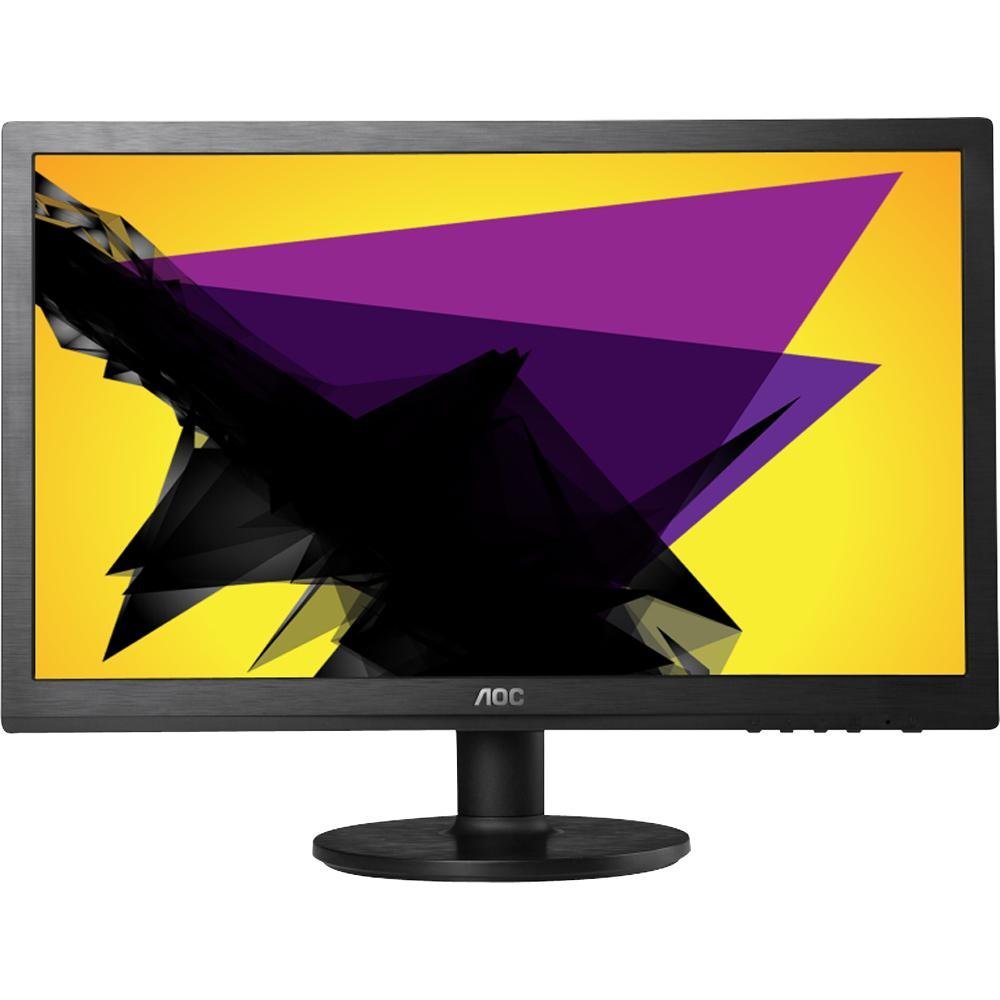
Image: The AOC E2060 20-inch LED Backlit Computer Monitor, showcasing its slim bezel and stand.
3. Setup
3.1 Assembling the Stand
- Carefully remove the monitor from its packaging, placing it face down on a soft, clean surface to prevent scratches.
- Attach the stand base to the stand neck, ensuring it clicks securely into place or is fastened with the provided screw.
- Connect the assembled stand to the back of the monitor until it locks securely.
3.2 Connecting Cables
Ensure your computer and monitor are powered off before making any connections.
- Power Connection: Connect one end of the power cable to the monitor's power input and the other end to a grounded electrical outlet.
- Video Connection (VGA): Connect the VGA cable from your computer's VGA output port to the VGA input port on the monitor. Tighten the screws on the VGA connector to secure the connection.
4. Operating the Monitor
4.1 Power On/Off
Press the power button located on the front or bottom bezel of the monitor to turn it on or off. The power indicator light will illuminate when the monitor is on.
4.2 On-Screen Display (OSD) Menu
The OSD menu allows you to adjust various monitor settings. Use the buttons on the monitor's bezel to navigate and select options.
- Menu Button: Press to open the OSD menu.
- Up/Down or Left/Right Buttons: Use to navigate through menu options.
- Select/Enter Button: Press to confirm a selection or enter a sub-menu.
- Exit Button: Press to exit the current menu or the OSD entirely.
4.3 Adjusting Picture Settings
Within the OSD menu, you can adjust settings such as:
- Brightness: Adjusts the overall luminance of the screen.
- Contrast: Adjusts the difference between light and dark areas.
- Color Temperature: Changes the color balance (e.g., Warm, Cool, sRGB).
- Auto Adjust: Optimizes the image automatically for analog (VGA) input.
5. Maintenance
5.1 Cleaning the Monitor
To ensure a long lifespan and optimal performance, clean your monitor regularly.
- Always unplug the monitor from the power outlet before cleaning.
- Use a soft, lint-free cloth lightly dampened with water or a mild, non-abrasive screen cleaner.
- Do not spray cleaner directly onto the screen.
- Avoid using benzene, thinner, ammonia-based cleaners, or abrasive materials.
5.2 Storage
If storing the monitor for an extended period, ensure it is powered off, unplugged, and stored in a cool, dry place away from direct sunlight and extreme temperatures. Use original packaging if available.
6. Troubleshooting
If you encounter issues with your monitor, refer to the following common problems and solutions:
- No Power: Ensure the power cable is securely connected to both the monitor and the electrical outlet. Check if the power outlet is functional.
- No Signal/Blank Screen: Verify that the video cable (VGA) is correctly connected to both the monitor and the computer. Ensure the computer is powered on and not in sleep mode. Try restarting the computer.
- Image is Fuzzy/Distorted: For VGA connections, use the 'Auto Adjust' function in the OSD menu. Ensure the display resolution on your computer is set to the monitor's native resolution (1600x900).
- Colors are Incorrect: Adjust color settings in the OSD menu, or reset to factory defaults. Check your computer's display settings.
- Buttons Not Responding: Unplug the monitor's power cable, wait 30 seconds, then plug it back in and try again.
If the problem persists after trying these steps, please contact AOC customer support.
7. Specifications
| Feature | Specification |
|---|---|
| Brand | AOC |
| Model Name | E2060 |
| Screen Size | 20 Inches |
| Screen Resolution | 1600 x 900 pixels |
| Display Technology | LED Backlit |
| Connectivity Technology | VGA |
| Color | Black |
| Item Weight | 0.28 g (approx. 0.01 Ounces) |
| Item Model Number | e2060Sn |
| UPC | 685417047789 |
8. Warranty and Support
For warranty information and technical support, please refer to the warranty card included with your product or visit the official AOC website. You can typically find support resources, FAQs, and contact information for your region there.
Please have your monitor's model number (E2060) and serial number ready when contacting support.