
1. Safety Information
Please read these safety instructions carefully before operating the unit. Keep this manual for future reference.
- Power Source: Use only the specified AC power adapter. Ensure the voltage matches the unit's requirements.
- Ventilation: Do not block ventilation openings. Allow adequate space around the unit for proper airflow.
- Water and Moisture: Do not expose the unit to rain, moisture, or dripping/splashing liquids. Do not place objects filled with liquids on the unit.
- Heat: Keep the unit away from heat sources such as radiators, heat registers, stoves, or other apparatus (including amplifiers) that produce heat.
- Cleaning: Unplug the unit from the power outlet before cleaning. Use a soft, dry cloth only.
- Servicing: Do not attempt to service this product yourself. Refer all servicing to qualified service personnel.
- Placement: Place the unit on a stable, flat surface. Avoid placing it in direct sunlight or near strong magnetic fields.
2. Features
The iLive IBPD882B Boombox offers a versatile entertainment experience with the following key features:
- 7-Inch TFT Display (480 x 234 Resolution) for video playback.
- Integrated CD/DVD Player for disc media.
- Docking station for iPhone/iPod devices.
- SD/MMC Memory Card Reader for JPEG image and MP3 audio playback.
- Built-in FM Radio with PLL digital tuning.
- Digital Volume Control for precise audio adjustment.
- Component Video Output for connecting to an external display.
- Bluetooth connectivity for wireless audio streaming from compatible devices.
- Auxiliary audio input for connecting external audio sources.
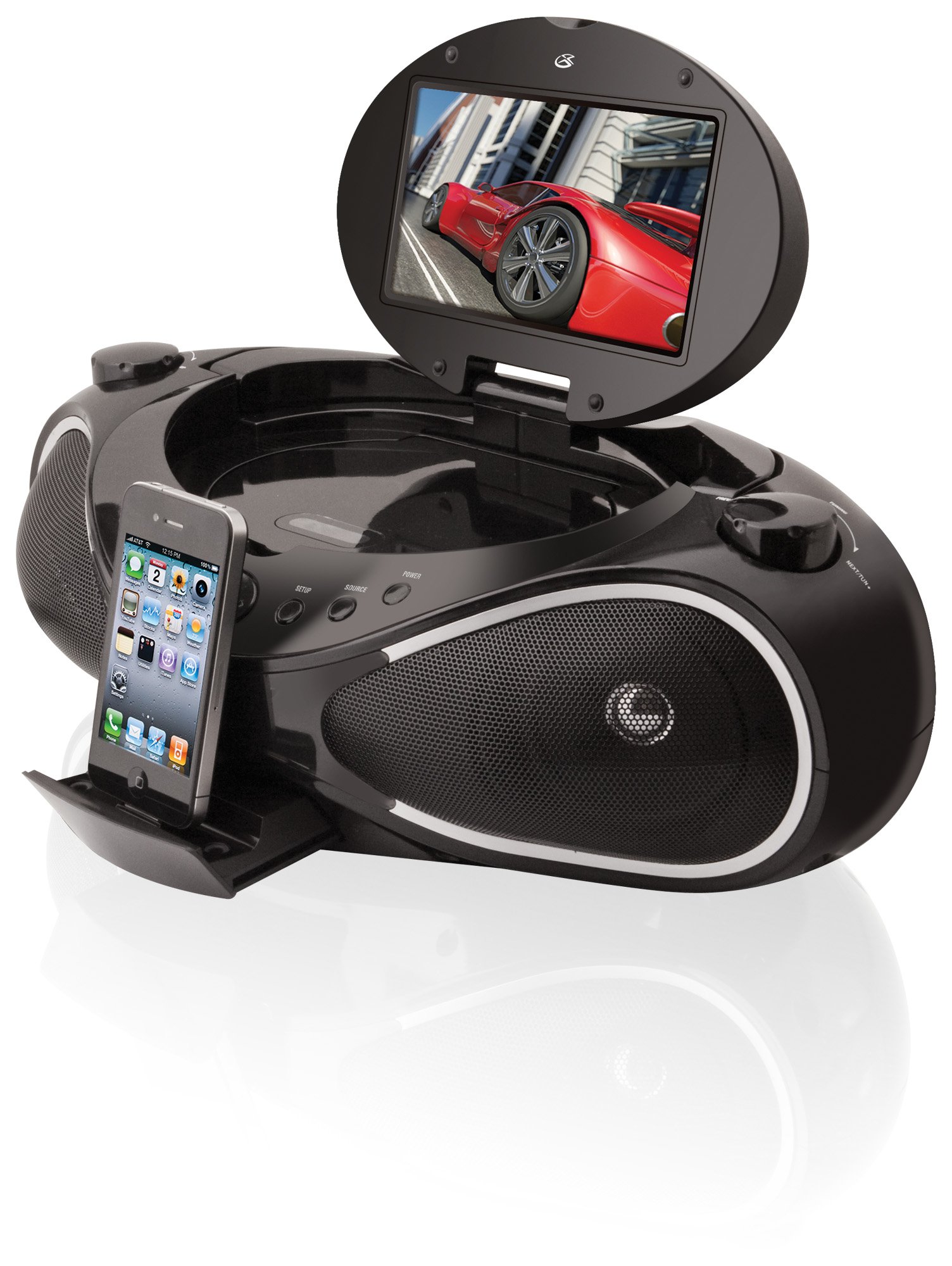
Figure 1: Front view of the iLive IBPD882B CD/DVD/iPhone Boombox. This image shows the main unit with its 7-inch TFT display, CD/DVD tray, and various control buttons. The iPhone/iPod dock is visible on the top surface.
3. Package Contents
Please check that all items are present:
- iLive IBPD882B Boombox Unit
- AC Power Adapter
- Remote Control
- User Manual (this document)
4. Controls and Connections
Familiarize yourself with the controls and connections on your boombox.
4.1. Front Panel
- 7-Inch TFT Display: Shows video playback, menu options, and status information.
- CD/DVD Tray: For inserting and removing discs.
- Power Button: Turns the unit on or off.
- Mode Button: Selects input source (CD/DVD, iPod/iPhone, FM, SD/MMC, AUX, Bluetooth).
- Volume +/- Buttons: Adjusts the audio output level.
- Play/Pause Button: Starts or pauses playback.
- Stop Button: Stops playback.
- Skip/Search Buttons: Skips tracks/chapters or fast forwards/rewinds.
- Menu/Setup Button: Accesses system settings and disc menus.
4.2. Top Panel
- iPhone/iPod Dock: Connector for compatible Apple devices.
- SD/MMC Card Slot: For inserting memory cards.
4.3. Rear Panel
- AC Power Input: Connects the AC power adapter.
- FM Antenna Jack: Connects the external FM antenna.
- Component Video Output (Y, Pb, Pr): Connects to a TV or external display for video output.
- AUX Input (3.5mm): Connects external audio devices.
5. Setup
5.1. Power Connection
- Insert the small end of the AC power adapter into the AC Power Input jack on the rear of the boombox.
- Plug the other end of the AC power adapter into a standard wall outlet.
5.2. FM Antenna Connection
- Connect the supplied FM antenna to the FM Antenna Jack on the rear of the unit.
- Extend the antenna fully and adjust its position for optimal FM reception.
6. Operating Instructions
6.1. Power On/Off
Press the Power button on the front panel or remote control to turn the unit on or off.
6.2. Volume Control
Use the Volume +/- buttons on the front panel or remote control to adjust the audio output level.
6.3. Mode Selection
Press the Mode button repeatedly to cycle through available input sources: CD/DVD, iPod/iPhone, FM Radio, SD/MMC, AUX, and Bluetooth.
6.4. CD/DVD Playback
- Press the Mode button to select CD/DVD mode.
- Gently open the CD/DVD tray and place a disc with the label side facing up.
- Close the tray. The unit will begin playing automatically or display the disc menu.
- Use Play/Pause, Stop, and Skip/Search buttons to control playback.
6.5. iPhone/iPod Dock Operation
- Carefully place your compatible iPhone or iPod onto the docking connector on the top panel.
- Press the Mode button to select iPod/iPhone mode.
- Use the boombox controls or your device's controls to select and play audio/video. The device will also charge while docked.
6.6. FM Radio Operation
- Press the Mode button to select FM Radio mode.
- Use the Skip/Search buttons to tune to desired radio stations. Press and hold to auto-scan.
- To save a preset, refer to the detailed instructions in the full manual (if available).
6.7. SD/MMC Card Playback
- Insert an SD or MMC memory card into the card slot on the top panel.
- Press the Mode button to select SD/MMC mode.
- The unit will automatically detect and display playable MP3 audio files or JPEG images. Use navigation buttons to select and play.
6.8. Bluetooth Operation
- Press the Mode button to select Bluetooth mode. The display will indicate 'Pairing' or 'Bluetooth'.
- On your Bluetooth-enabled device, search for available devices and select "IBPD882B" (or similar name).
- Once paired, you can stream audio wirelessly from your device to the boombox.
6.9. External Audio Input (AUX)
- Connect an external audio device (e.g., MP3 player, smartphone) to the AUX Input jack on the rear panel using a 3.5mm audio cable (not included).
- Press the Mode button to select AUX mode.
- Play audio from your connected device.
6.10. Component Video Output
- Connect component video cables (Y, Pb, Pr - not included) from the Component Video Output jacks on the rear of the boombox to the corresponding input jacks on your television or external display.
- Select the correct input source on your television.
- When playing a DVD or video from a docked iPhone/iPod, the video will be displayed on the connected screen.
7. Maintenance
7.1. Cleaning
- Always unplug the unit before cleaning.
- Use a soft, dry cloth to clean the exterior surfaces.
- For the display, use a soft, lint-free cloth. Do not use abrasive cleaners or chemical solvents.
- Keep the CD/DVD tray and lens clean. Use a specialized CD/DVD lens cleaner if necessary.
7.2. Storage
If storing the unit for an extended period, unplug it from the power source and store it in a cool, dry place away from direct sunlight and extreme temperatures.
8. Troubleshooting
Review the following common issues and solutions before seeking professional service.
| Problem | Possible Cause | Solution |
|---|---|---|
| No power | AC adapter not connected; Power outlet not active. | Ensure AC adapter is securely connected to the unit and a working power outlet. |
| No sound | Volume too low; Incorrect mode selected; Mute activated. | Increase volume; Select correct input mode; Deactivate mute function. |
| Disc not playing | Disc inserted incorrectly; Disc is dirty or scratched; Incorrect disc type. | Insert disc correctly (label side up); Clean or replace disc; Ensure disc is CD or DVD format. |
| iPhone/iPod not recognized | Device not properly docked; Device not compatible; Software issue on device. | Ensure device is securely docked; Check device compatibility; Restart your iPhone/iPod. |
| Poor FM reception | Antenna not extended or positioned correctly; Local interference. | Extend and reposition the FM antenna; Try moving the unit to a different location. |
| Bluetooth pairing fails | Boombox not in pairing mode; Device too far; Device already paired with another unit. | Ensure boombox is in Bluetooth pairing mode; Move device closer; Disconnect device from other Bluetooth connections. |
9. Specifications
| Feature | Detail |
|---|---|
| Brand | iLive Electronics |
| Model | IBPD882B |
| Display | 7-Inch TFT (480 x 234 Resolution) |
| Connectivity Technology | Bluetooth |
| Compatible Devices | MP3 Player, Smartphone, iPhone, iPod |
| Supported Standards | CD, DVD |
| Supported Audio Format | MP3 |
| Memory Card Reader | SD/MMC (for JPEG, MP3) |
| Radio | FM (PLL) |
| Item Dimensions (L x W x H) | 15 x 8 x 8 inches |
| Item Weight | 5.3 Pounds |
| Manufacturer | iLive |
| UPC | 047323882005 |
| ASIN | B0084EYXZM |
10. Warranty and Support
For warranty information and customer support, please refer to the documentation included with your product or visit the official iLive Electronics website. Keep your purchase receipt as proof of purchase for any warranty claims.
For technical assistance or further inquiries, please contact iLive customer service.


