
1. Introduction
The BrightSign HD220 is an Ethernet networked solid-state digital sign controller designed for reliable and efficient content delivery. This device facilitates networked content updates and live data feeds, ensuring flawless video playback. It supports Ethernet synchronization for video wall applications and offers UDP command interactivity, making it suitable for looping and interactive digital signage.
Key features include:
- Full HD 1080p video playback.
- Robust media handling for superior video and image performance.
- Support for looping video and networked content playback.
- Multi-zone and full-screen layouts for video, images, text tickers, and RSS media feeds.
- Network capabilities for remote content updates, Live Text, networked databases, RSS media, Twitter, and Flickr feed playback.
- IP streaming from IP cameras supporting RTSP unicast streaming protocol.
- Ethernet synchronization for creating unique video wall displays.
- Networked interactivity through UDP commands.
- Compatibility with the BrightSign App for user variable updates and UDP command interactivity.
- Dynamic playlists for updating content without republishing entire presentations.
- Integrated real-time clock for date, time zones, scheduling, and dayparting.
- Compact size for discreet mounting.
- HDMI and VGA connectivity options.
2. Product Overview
BrightSign HD220 Device
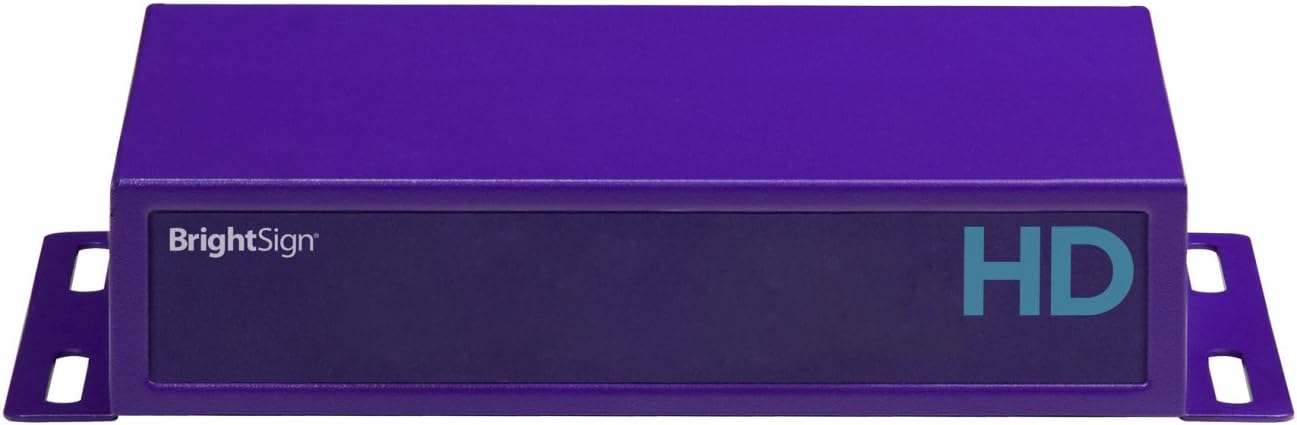
This image displays the front view of the BrightSign HD220 Digital Sign Controller. The device is a compact, purple-colored rectangular unit with mounting brackets on both sides. The front panel features the 'BrightSign' logo on the left and 'HD' in a teal color on the right, indicating its high-definition capabilities.
3. Setup
3.1 Hardware Connections
Before powering on the device, ensure all necessary connections are made.
- Display Connection: Connect your display device (monitor, TV, projector) to the BrightSign HD220 using either an HDMI or VGA cable.
- Network Connection: For networked content updates and features, connect an Ethernet cable from your network router or switch to the Ethernet port on the BrightSign HD220.
- Power Connection: Connect the provided power adapter to the device and then to a power outlet.
3.2 Software Installation
The BrightSign HD220 requires the BrightAuthor software for content creation, playlist management, and publishing. This software is included with the device.
- Install BrightAuthor on a compatible computer. Refer to the software's installation guide for detailed instructions.
- Ensure your computer and the BrightSign HD220 are on the same network for seamless content publishing.
4. Operating Instructions
4.1 Content Management with BrightAuthor
BrightAuthor software is the primary tool for managing content on your BrightSign HD220.
- Playlist Creation: Use BrightAuthor to design and arrange your digital signage content, including videos, images, text, and RSS feeds.
- Content Publishing: Publish your created presentations to the HD220 device over the network. BrightAuthor provides options for basic content delivery or more advanced hosted network management solutions.
- Remote Updates: Update your presentations remotely without physically accessing the device.
- Dynamic Playlists: Utilize dynamic playlists to update specific sets of content without requiring a full republish of the entire presentation.
4.2 Advanced Features
- Live Data Feeds: Integrate Live Text and connect to networked databases for real-time information display.
- Social Media Integration: Display RSS media, Twitter, and Flickr feeds directly on your digital signs.
- IP Streaming: Stream content from IP cameras that support the RTSP unicast streaming protocol.
- Video Walls: Achieve synchronized playback across multiple HD220 units for seamless video wall displays using Ethernet synchronization.
- UDP Interactivity: Implement networked interactivity through UDP commands for custom control and integration.
- BrightSign App: Use the BrightSign App for mobile control, including user variable updates and UDP command interactivity.
- Scheduling: Leverage the real-time clock for precise scheduling of content based on date, time zones, and dayparting.
5. Maintenance
To ensure optimal performance and longevity of your BrightSign HD220, consider the following maintenance guidelines:
- Cleaning: Keep the device free from dust and debris. Use a soft, dry cloth for cleaning. Avoid liquid cleaners directly on the unit.
- Ventilation: Ensure the device is placed in a well-ventilated area to prevent overheating. Do not block any ventilation openings.
- Firmware Updates: Periodically check the BrightSign website for firmware updates. Before applying any updates, review the release notes to ensure compatibility with your existing presentations and system configuration.
- Power Cycle: If the device becomes unresponsive, perform a power cycle by disconnecting the power adapter, waiting 10 seconds, and then reconnecting it.
6. Troubleshooting
If you encounter issues with your BrightSign HD220, consider the following basic troubleshooting steps:
- No Display Output:
- Verify that the display is powered on and set to the correct input source (HDMI/VGA).
- Check that the HDMI or VGA cable is securely connected to both the HD220 and the display.
- Ensure the HD220 has power and its status indicator light is active.
- Network Connectivity Issues:
- Confirm the Ethernet cable is properly connected to the HD220 and your network router/switch.
- Check your network settings and ensure the HD220 is configured correctly within BrightAuthor.
- Restart your network router/switch.
- Content Not Playing/Updating:
- Ensure the presentation has been successfully published from BrightAuthor to the device.
- Verify that the content files are not corrupted and are in supported formats.
- Check the device's storage capacity.
- Device Unresponsive:
- Perform a power cycle as described in the Maintenance section.
- If the issue persists, contact BrightSign support.
7. Specifications
| Feature | Detail |
|---|---|
| Product Dimensions | 4.9 x 5.4 x 1.3 inches |
| Item Weight | 1 pound |
| Model Number | HD220 |
| Connectivity | HDMI, VGA, Ethernet |
| Video Playback | Full HD 1080p |
| Date First Available | May 15, 2012 |
8. Warranty and Support
For warranty information, please refer to the official BrightSign website or the documentation included with your purchase. Specific warranty terms and conditions may vary.
For technical support, BrightSign typically provides assistance through email-based support tickets. Users are generally required to create an account on the BrightSign support portal to submit and track support requests. Please visit the official BrightSign support website for the most current support procedures and contact information.