
HAYNES PUBLISHER 5th Edition
Computer Manual
A Comprehensive Guide to Maintaining and Upgrading Your PC
Introduction
This fully revised fifth edition of the best-selling Computer Manual brings us right up to date with the latest technology. From understanding motherboard architecture to adding a new hard drive and memory, and from installing an expansion card to setting up a network, this manual, written in plain English, guides the reader through the essentials of maintaining and upgrading a home or small business PC. New topics covered in this fifth edition include Windows 7 (the successor to Vista), mobile broadband, installing Linux on an older computer, and using online applications to save money and make collaboration easier.
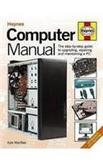
Figure 1: Front cover of the Computer Manual, illustrating the book's focus on internal computer components and maintenance.
Setup and Component Understanding
This section provides foundational knowledge for setting up and understanding the core components of a personal computer. Proper understanding of these elements is crucial for effective maintenance and upgrades.
Motherboard Architecture
The motherboard is the main printed circuit board (PCB) in general-purpose computers and other expandable systems. It holds and allows communication between many of the crucial electronic components of a system, such as the central processing unit (CPU) and memory, and provides connectors for other peripherals.
- CPU Socket: Where the processor is installed.
- RAM Slots: For installing memory modules.
- Expansion Slots (PCIe, PCI): For graphics cards, sound cards, network cards, etc.
- SATA Ports: For connecting storage devices like hard drives and SSDs.
- Power Connectors: For supplying power from the power supply unit (PSU).
Adding a New Hard Drive and Memory
Upgrading storage and memory can significantly improve PC performance. Follow these general steps:
- Safety First: Always power down and unplug the PC before opening the case. Discharge static electricity.
- Locate Slots/Bays: Identify available SATA ports and drive bays for hard drives, or empty RAM slots for memory.
- Installation:
- Hard Drive: Secure the drive in a bay, connect SATA data and power cables.
- Memory: Align the RAM module with the slot notch, press firmly until clips engage.
- Secure and Close: Ensure all components are securely fastened and close the PC case.
- Initial Boot: Power on the PC. New hardware may require driver installation or formatting (for new drives).
Installing an Expansion Card
Expansion cards, such as graphics cards or network adapters, enhance PC functionality.
- Preparation: Power off and unplug the PC. Open the case.
- Slot Selection: Choose an appropriate expansion slot (e.g., PCIe x16 for graphics cards).
- Installation: Remove the corresponding backplate cover. Align the card with the slot and press down firmly until it seats correctly. Secure with a screw or clip.
- Connectors: Attach any necessary power connectors (e.g., for high-end graphics cards).
- Close and Test: Close the case, power on, and install necessary drivers for the new card.
Setting Up a Network
Connecting your PC to a network allows internet access and file sharing.
- Wired Connection: Connect an Ethernet cable from your PC's network port to a router or modem.
- Wireless Connection: Ensure your PC has a Wi-Fi adapter. Access network settings in your operating system, select your Wi-Fi network, and enter the password.
- Network Configuration: Most home networks use DHCP for automatic IP address assignment. For advanced setups, manual IP configuration may be required.
Operating System and Software
This manual covers various aspects of operating systems and software, including Windows 7, Linux, and online applications.
Windows 7 Overview
Windows 7, as a successor to Windows Vista, introduced various improvements in user interface, performance, and stability. Key features include a redesigned taskbar, improved Aero Peek and Snap functionalities, and enhanced security features. The manual provides guidance on navigating and optimizing this operating system.
Installing Linux on Older Computers
Linux distributions are often an excellent choice for breathing new life into older computer hardware due to their efficiency and lower resource requirements. The manual details the process of installing a Linux distribution, covering aspects such as creating bootable media, partitioning hard drives, and selecting a suitable lightweight distribution.
Utilizing Online Applications
Online applications, also known as web applications or cloud-based software, offer numerous benefits including cost savings, accessibility from any device with internet, and simplified collaboration. Examples include online office suites, communication tools, and project management platforms. The manual explores how to leverage these tools effectively for personal and small business use.
Maintenance and Upgrades
Regular maintenance and strategic upgrades are vital for prolonging the life and improving the performance of your PC.
Routine Hardware Maintenance
- Dust Removal: Periodically clean dust from internal components (fans, heatsinks) using compressed air to prevent overheating.
- Cable Management: Ensure internal cables are neatly organized to improve airflow and prevent accidental disconnections.
- Component Checks: Verify all connections (power, data) are secure.
Software Maintenance
- Operating System Updates: Regularly install security patches and feature updates.
- Driver Updates: Keep hardware drivers current for optimal performance and compatibility.
- Antivirus Scans: Run regular scans to detect and remove malware.
- Disk Cleanup and Defragmentation: Free up space and optimize disk performance (for HDDs).
Strategic Upgrades
- RAM Upgrade: Adding more RAM can significantly improve multitasking performance.
- SSD Installation: Replacing a traditional hard drive with a Solid State Drive (SSD) dramatically speeds up boot times and application loading.
- Graphics Card Upgrade: Essential for improving gaming performance or demanding graphical tasks.
- CPU Upgrade: A more complex upgrade, often requiring a compatible motherboard.
Troubleshooting Common Issues
This section provides guidance on diagnosing and resolving common computer problems.
No Power / No Boot
- Check Power Connections: Ensure all power cables are securely plugged into the PC, monitor, and wall outlet.
- Power Supply Test: Listen for fan noise from the PSU. If none, the PSU might be faulty.
- Component Reseating: Reseat RAM modules and expansion cards to ensure proper contact.
Slow Performance
- Check Task Manager/Activity Monitor: Identify resource-intensive applications.
- Disk Space: Ensure sufficient free space on the primary drive.
- Malware Scan: Run a full system scan for viruses or malware.
- Driver Updates: Outdated drivers can cause performance issues.
Internet Connectivity Problems
- Router/Modem Restart: Power cycle your network equipment.
- Cable Check: Ensure Ethernet cables are properly connected.
- Wi-Fi Signal: Check Wi-Fi signal strength and ensure correct password entry.
- Network Adapter: Verify the network adapter is enabled and drivers are up to date.
Specifications
Key details about the "Computer Manual" (5th Edition).
| Attribute | Detail |
|---|---|
| ASIN | B0082ORDTW |
| Publisher | HAYNES PUBLISHER |
| Edition | 5th |
| Language | English |
| Print Length | 228 pages |
| ISBN-10 | 1844259285 |
| ISBN-13 | 978-1844259281 |
Support and Further Information
As this product is a published manual, direct product support or warranty typically applies to the physical book itself (e.g., for manufacturing defects) rather than the computer components it describes.
Publisher Information
For inquiries regarding the content of this manual, potential errata, or future editions, please refer to the publisher's official website or contact information provided within the book itself.
- Publisher: HAYNES PUBLISHER
- Author: Kyle MacRae
- Edition: 5th Edition
Always ensure you are using the most current edition of the manual for the most up-to-date information on computer technology and practices.