
1. Introduction
This user manual provides comprehensive instructions for the Western Digital WD XE 300 GB Enterprise SAS Hard Drive, model WD3001BKHG. It covers essential information regarding the drive's features, proper installation, operation, maintenance, and troubleshooting. Please read this manual thoroughly before installing or using your hard drive to ensure optimal performance and data integrity.
2. Product Overview
The WD XE SAS hard drive is designed for demanding enterprise server and storage applications. It offers high performance and reliability in a compact 2.5-inch form factor. This drive is engineered to meet the rigorous requirements of high-performance computing and mission-critical environments, providing efficient data storage and retrieval.

Figure 1: Top view of the Western Digital WD XE 300 GB Enterprise SAS Hard Drive. This image displays the drive's casing and label, indicating its compact 2.5-inch form factor suitable for server and enterprise storage applications.
3. Key Features
- Enterprise-Grade Performance: Ideal for demanding high-performance computing and mission-critical environments.
- Ultra-Fast SAS Interface: Features a 6 Gb/s SAS interface for high-speed data transfer, combined with low power consumption and industry-leading reliability.
- Dual Port Connectivity: Offers dual port, full duplex connectivity for enhanced reliability, performance, and data availability, eliminating single points of failure in high-availability enterprise systems.
- Broad Compatibility: Works with Windows, Windows Server, Linux, and Mac operating systems. Note that compatibility may vary based on the user's hardware configuration and specific operating system version.
- Compact Form Factor: 2.5-inch design, allowing for more system airflow and potentially lower cooling costs in dense server environments.
- Reliability: Backed by a 5-year limited warranty, reflecting its robust design for continuous operation.
4. Installation and Setup
Installing an internal SAS hard drive requires careful handling and adherence to safety procedures. It is recommended that installation be performed by a qualified technician or in accordance with your system's specific documentation.
4.1 Safety Precautions
- Always wear an anti-static wrist strap when handling the hard drive to prevent electrostatic discharge (ESD) damage.
- Ensure the system is powered off and unplugged from the power source before beginning installation.
- Handle the drive by its edges; avoid touching the circuit board or connector pins.
4.2 Physical Installation
- Prepare the System: Open your server or workstation chassis according to the manufacturer's instructions. Identify an available 2.5-inch drive bay.
- Mount the Drive: Securely slide the WD XE drive into the designated drive bay. Use mounting screws if required by your system's design.
- Connect Cables: Connect the SAS data cable from the drive to an available SAS port on your system's motherboard or RAID controller. Then, connect the power cable to the drive. Ensure all connections are firm.
- Close Chassis: Once the drive is securely installed and connected, close the system chassis.
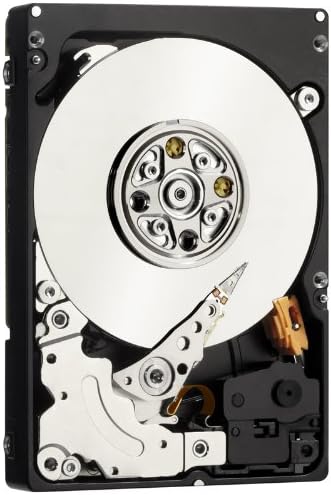
Figure 2: Internal view of the WD XE SAS Hard Drive. This image shows the internal platters and read/write heads, illustrating the precision engineering within the drive. This view is for informational purposes; the drive should not be opened by the user.
4.3 Initial Configuration
- Power On: Reconnect the system to power and turn it on.
- BIOS/UEFI Settings: Access your system's BIOS/UEFI settings to confirm the drive is detected.
- Operating System Setup: Depending on your operating system, you may need to initialize, partition, and format the drive before it can be used for storage. Refer to your operating system's documentation for detailed instructions. For RAID configurations, consult your RAID controller's manual.
5. Operating the Hard Drive
Once installed and configured, the WD XE SAS hard drive operates as a high-speed storage device within your system. Its 10,000 RPM rotational speed and SAS interface ensure rapid data access and transfer rates, crucial for enterprise applications.
- Data Storage: Use the drive for storing operating systems, applications, and critical data.
- Performance: The drive is optimized for continuous operation and high I/O workloads typical in server environments.
- Monitoring: Utilize system monitoring tools to check drive health, temperature, and performance metrics.
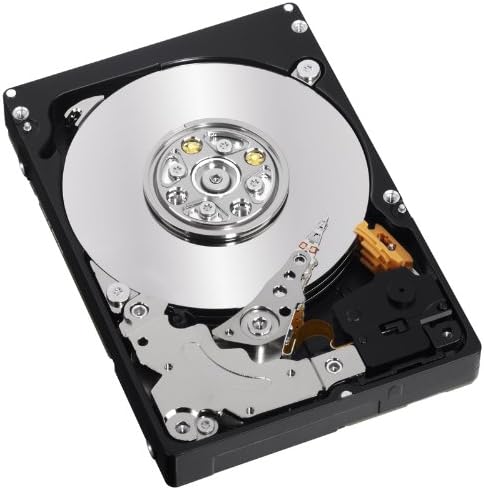
Figure 3: Angled internal view of the WD XE SAS Hard Drive. This perspective highlights the intricate mechanical components, including the actuator arm and spindle motor, which contribute to the drive's high performance and reliability.
6. Maintenance
Proper maintenance helps ensure the longevity and reliability of your WD XE hard drive.
- Data Backup: Regularly back up critical data to an external storage device or network location. Hard drives, like all mechanical devices, can fail.
- Firmware Updates: Check the Western Digital support website periodically for firmware updates. Apply updates as recommended by Western Digital or your system manufacturer.
- System Cooling: Ensure your system has adequate airflow and cooling to prevent the drive from overheating, which can degrade performance and lifespan.
- Physical Handling: Avoid dropping or subjecting the drive to physical shock, especially when it is operating.
7. Troubleshooting
If you encounter issues with your WD XE hard drive, consider the following common troubleshooting steps:
7.1 Drive Not Detected
- Check Connections: Ensure both the SAS data cable and power cable are securely connected to the drive and the system.
- Verify BIOS/UEFI: Confirm the drive is recognized in your system's BIOS/UEFI settings.
- RAID Controller: If using a RAID controller, check its configuration utility to see if the drive is detected and properly configured within the array.
- Driver Updates: Ensure your SAS controller drivers are up to date.
7.2 Performance Issues
- System Resources: Check if other system components (CPU, RAM) are bottlenecking performance.
- Drive Health: Use diagnostic tools (e.g., SMART status) to check the drive's health.
- Fragmentation: While less common with modern file systems, excessive file fragmentation can impact performance.
7.3 Unusual Noises
- Clicking or Grinding: These sounds often indicate a mechanical failure. Immediately back up any accessible data and consider replacing the drive.
- Vibration: Ensure the drive is securely mounted in its bay to prevent excessive vibration.
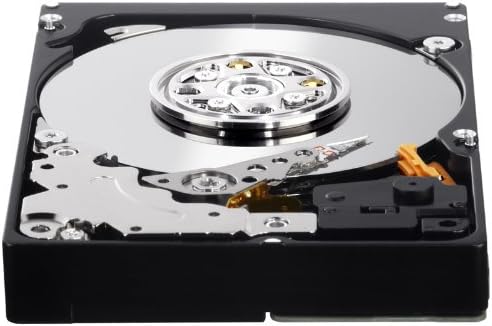
Figure 4: Close-up of the WD XE SAS Hard Drive's connector interface. This image details the SAS data and power connectors, which are crucial for proper installation and communication with the host system.
8. Technical Specifications
| Feature | Specification |
|---|---|
| Model Number | WD3001BKHG |
| Digital Storage Capacity | 300 GB |
| Hard Disk Interface | Serial Attached SCSI (SAS) |
| Connectivity Technology | SAS |
| Hard Disk Form Factor | 2.5 Inches |
| Hard Disk Rotational Speed | 10000 RPM |
| Cache Memory Installed Size | 32 MB |
| Data Transfer Rate | 204 Megabytes Per Second |
| Compatible Devices | Desktop (and server systems) |
| Installation Type | Internal Hard Drive |
| Item Weight | 8.16 ounces |
9. Warranty and Support
The Western Digital WD XE 300 GB Enterprise SAS Hard Drive (WD3001BKHG) comes with a 5-year limited warranty. This warranty covers defects in materials and workmanship under normal use.
For detailed warranty terms and conditions, or to initiate a warranty claim, please visit the official Western Digital support website or contact their customer service directly. Keep your proof of purchase for warranty validation.
9.1 Technical Support
If you require technical assistance, have questions about installation, or need help with troubleshooting beyond the scope of this manual, please refer to the following resources:
- Western Digital Support Website: https://support.wdc.com (Please note: This is a placeholder URL. Refer to official product packaging or the Western Digital corporate website for the most current support links.)
- Online Knowledge Base: Access FAQs, articles, and guides for common issues.
- Customer Service: Contact Western Digital customer service via phone or email for personalized support.


