
1. Introduction
The Magellan RoadMate 2230T-LM is a portable GPS navigation device designed to provide reliable guidance for your journeys. It features lifetime map updates and lifetime traffic alerts, ensuring you have the most current road information and can avoid congestion. This manual provides essential information for setting up, operating, and maintaining your device.

Figure 1.1: Front view of the Magellan RoadMate 2230T-LM GPS Navigator.
2. Safety Information
Please read and understand all safety information before using your Magellan RoadMate 2230T-LM. Failure to follow these instructions could result in injury or damage.
- Driving Safety: Always prioritize safe driving. Do not operate the device or input data while driving. Pull over to a safe location before making any adjustments or entering information.
- Traffic Laws: Always obey all traffic laws and regulations. The GPS device is a navigational aid and should not supersede actual road signs or traffic conditions.
- Mounting: Ensure the device is securely mounted and does not obstruct your view of the road or interfere with vehicle controls.
- Power Source: Use only the provided power adapter and cables. Using unauthorized accessories may damage the device and void the warranty.
- Temperature: Avoid exposing the device to extreme temperatures, direct sunlight for extended periods, or excessive moisture.
3. Package Contents
Verify that all items are present in your product package:
- Magellan RoadMate 2230T-LM GPS Navigator
- Windshield Mount
- USB Cable
- Vehicle Power Adapter
- Lithium Ion Battery (pre-installed)
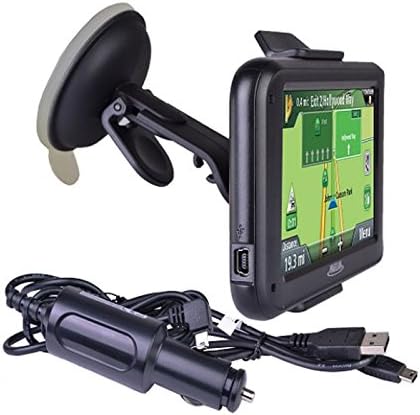
Figure 3.1: Included accessories: GPS unit, windshield mount, and charging cables.
4. Setup
4.1 Charging the Device
Before first use, fully charge your RoadMate 2230T-LM. Connect the USB cable to the device and then to the vehicle power adapter or a computer USB port. The battery indicator on the screen will show charging status. A full charge typically takes approximately 2 hours.
4.2 Mounting the Device
The RoadMate 2230T-LM comes with a windshield mount for secure placement in your vehicle.
- Clean the desired area on your windshield with a non-abrasive cleaner.
- Attach the mounting bracket to the back of the GPS unit until it clicks into place.
- Press the suction cup firmly against the clean windshield surface and flip the lever to secure it.
- Adjust the angle of the device for optimal viewing without obstructing your driving view.
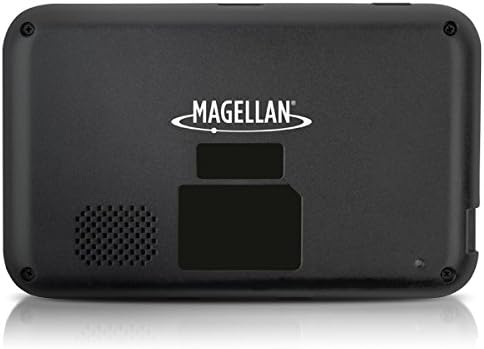
Figure 4.1: Rear view of the GPS unit, showing the speaker and mounting area.
5. Operating Instructions
5.1 Powering On/Off
Press and hold the power button located on the device's top edge to turn it on or off. A short press will put the device into sleep mode.
5.2 Basic Navigation
The RoadMate 2230T-LM features a touchscreen interface for all operations.
- Enter Destination: From the main menu, tap 'Go To' or 'New Destination'. You can enter an address, point of interest (POI), or select from recent destinations.
- Route Calculation: After entering your destination, the device will calculate the fastest or shortest route based on your preferences.
- Follow Instructions: Follow the spoken turn-by-turn directions and on-screen map guidance. The device will display upcoming turns, speed limits, and estimated arrival times.
5.3 Lifetime Map Updates
Your device includes lifetime map updates. To ensure you have the latest maps, connect your device to a computer with internet access and use the Magellan Content Manager software (available for download from the Magellan website). Follow the on-screen instructions to download and install map updates. Regular updates are recommended for optimal navigation accuracy.
5.4 Lifetime Traffic Alerts
The RoadMate 2230T-LM provides real-time traffic information to help you avoid delays. Traffic alerts are automatically received and displayed on the map. The device may suggest alternative routes to bypass heavy traffic or incidents.
5.5 Special Features
- Traffic Camera Alerts: Receive audible and visual warnings for upcoming traffic cameras.
- Best Parking: Find nearby parking options at your destination.
- Speed Limits: The device displays the current speed limit for the road you are on.
6. Maintenance
6.1 Cleaning the Device
Use a soft, lint-free cloth to clean the screen and exterior of the device. Do not use abrasive cleaners or solvents, as they may damage the surfaces.
6.2 Software and Map Updates
Regularly check for software and map updates via the Magellan website. Keeping your device updated ensures optimal performance and the most accurate navigation data.
6.3 Battery Care
To prolong battery life, avoid fully discharging the battery frequently. Store the device in a cool, dry place when not in use for extended periods.
7. Troubleshooting
If you encounter issues with your Magellan RoadMate 2230T-LM, refer to the following common problems and solutions:
- No GPS Signal: Ensure the device has a clear view of the sky. Move away from tall buildings or dense foliage. Allow several minutes for the device to acquire satellites.
- Unit Freezes or Reboots: Try performing a soft reset by pressing and holding the power button for 10-15 seconds until the device restarts. If the issue persists, ensure the software is up to date.
- Inaccurate Routing/Voice Prompts: Verify that your maps are up to date. Check your navigation settings for route preferences (e.g., fastest, shortest, avoid tolls). Ensure the device's time and date settings are correct.
- Poor Audio Quality: Check the volume settings on the device. Ensure the speaker is not obstructed.
- Battery Not Charging: Ensure the USB cable and power adapter are securely connected. Try a different USB port or power source.
For further assistance, visit the official Magellan support website or contact customer service.
8. Specifications
| Model Name | RoadMate 2230T-LM |
| Item Model Number | RM2230SGLUC |
| Product Dimensions | 13 x 6.1 x 7.1 inches |
| Item Weight | 5 ounces |
| Screen Size | 4.3 inches |
| Human Interface Input | Touchscreen |
| Connectivity Technology | USB |
| Battery Type | 1 Lithium Ion battery (included) |
| Battery Life | Up to 2 Hours |
| Map Type | North America |
| Mounting Type | Windshield Mount |
| Special Features | Traffic Camera Alerts, Best Parking, Touchscreen |
9. Warranty and Support
For information regarding your product's warranty, please refer to the warranty card included in your original packaging or visit the official Magellan website. For technical support, frequently asked questions, and additional resources, please visit Magellan Support.

