
1. Product Overview
The Corsair Air Series SP120 Quiet Edition Twin Pack Fans are designed to provide superior static pressure and airflow, making them ideal for use with heatsinks and radiators. These fans feature a wide body, low-pitch blade design, custom housing, and an Advanced Hydraulic Bearing for quiet and reliable operation. Each twin pack includes two fans and interchangeable colored rings (red, blue, white) to customize your system's aesthetics.

Image: Corsair SP120 Quiet Edition Twin Pack Fans, showcasing the two fans with red rings and the additional blue and white interchangeable rings.
2. Package Contents
- 2 x Corsair Air Series SP120 Quiet Edition Fans
- 6 x Interchangeable Color Rings (2x Red, 2x Blue, 2x White)
- 8 x Mounting Screws
- 2 x Low-Noise Adapter Cables (step-down resistors)
3. Setup and Installation
Follow these steps to install your Corsair SP120 Quiet Edition fans:
- Prepare Your System: Ensure your computer is powered off and unplugged from the wall outlet. Open your computer case to access the fan mounting locations.
- Choose Mounting Location: Identify the desired location for your fan(s) on your heatsink, radiator, or case. Ensure proper airflow direction for optimal cooling.
- Install Color Rings (Optional): If you wish to change the color of the rings, gently pry off the pre-installed ring from the fan frame. Align the desired color ring with the fan frame and press firmly until it snaps into place.
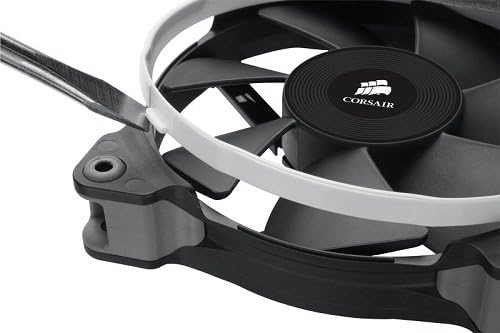
Image: Demonstrating the installation of an interchangeable white color ring onto the fan frame.
- Mount the Fan: Position the fan against the mounting holes. Use the included mounting screws to secure the fan firmly. Do not overtighten.
- Connect Power: Connect the fan's 3-pin power connector to an available 3-pin or 4-pin fan header on your motherboard or fan controller.
- Use Low-Noise Adapter (Optional): For even quieter operation, connect the included low-noise adapter cable (step-down resistor) between the fan's 3-pin connector and the motherboard/controller header. This will reduce the fan speed and noise level.
- Close Case and Power On: Once all connections are secure, close your computer case, plug it back in, and power on your system. Verify that the fans are spinning correctly.
4. Operating Instructions
The Corsair SP120 Quiet Edition fans are designed for continuous operation to maintain optimal system temperatures. Once installed and powered, they will operate automatically based on your motherboard's fan control settings or at a constant speed if connected directly to a power supply without speed control.
- Standard Operation: When connected directly to a 3-pin fan header, the fan will operate at its rated speed (1450 RPM).
- Quiet Operation (with Low-Noise Adapter): Using the included low-noise adapter will reduce the fan speed to approximately 1100 RPM, resulting in lower noise output.
- Motherboard Control: If connected to a 4-pin PWM header or a 3-pin header with voltage control capabilities, you can adjust the fan speed through your motherboard's BIOS/UEFI settings or dedicated software.
5. Maintenance
To ensure the longevity and optimal performance of your Corsair SP120 fans, periodic maintenance is recommended:
- Dust Removal: Over time, dust can accumulate on the fan blades and frame, reducing airflow and increasing noise. Regularly clean the fans using compressed air or a soft brush. Ensure the fan is powered off before cleaning.
- Bearing: The Advanced Hydraulic Bearing is designed for long-term, maintenance-free operation. No lubrication is required.
- Inspection: Periodically inspect the fan blades for any damage or obstructions. Ensure all mounting screws are secure.
6. Troubleshooting
If you encounter issues with your Corsair SP120 fans, refer to the following troubleshooting steps:
- Fan Not Spinning:
- Check all power connections to ensure they are securely seated on the motherboard or fan controller.
- Verify that the fan header on the motherboard is enabled in the BIOS/UEFI settings.
- Test the fan on a different fan header or with a known working power source to rule out a faulty fan or header.
- Unusual Noise:
- Ensure no cables or obstructions are touching the fan blades.
- Check that the fan is securely mounted and screws are not loose.
- If using the low-noise adapter, ensure it is properly connected.
- Dust accumulation can cause noise; clean the fan as described in the Maintenance section.
- Insufficient Cooling:
- Verify the fan's airflow direction is appropriate for your system's cooling setup (intake or exhaust).
- Ensure there are no significant obstructions blocking airflow to or from the fan.
- Consider removing the low-noise adapter if maximum airflow is desired.
- Clean any dust from the fan, heatsink, or radiator fins.
7. Specifications
| Feature | Specification |
|---|---|
| Model | CO-9050006-WW |
| Fan Size | 120mm x 25mm (4.72"L x 0.98"W x 4.72"H) |
| Noise (dBA) | 23 dBA (Standard), ~18 dBA (with Low-Noise Adapter) |
| Airflow (CFM) | 37.85 CFM (Standard), ~28 CFM (with Low-Noise Adapter) |
| Static Pressure (mm/H2O) | 1.29 mm/H2O (Standard), ~0.8 mm/H2O (with Low-Noise Adapter) |
| Fan Speed | 1450 RPM (Standard), 1100 RPM (with Low-Noise Adapter) |
| Power Draw (@ +12V) | 0.08A |
| Power Connector Type | 3-Pin |
| Voltage | 12 Volts |
| Bearing Type | Advanced Hydraulic Bearing |
| Material | Rubber (corners) |
| Item Weight | 1.1 Pounds (for twin pack) |
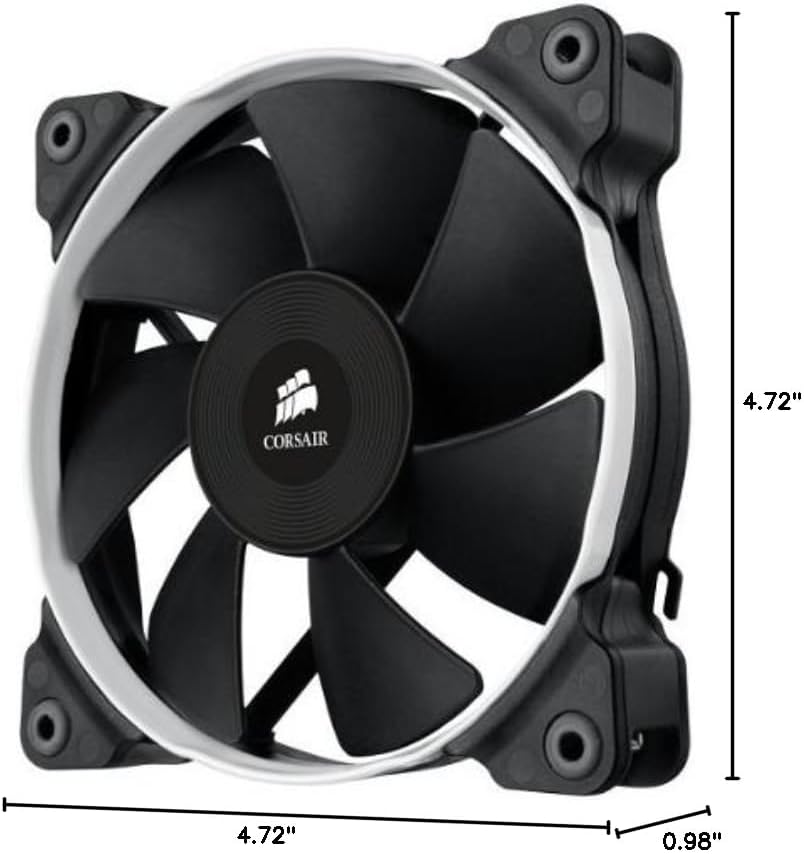
Image: Dimensional drawing of the Corsair SP120 fan.
8. Warranty Information
This Corsair Air Series SP120 Quiet Edition Twin Pack Fan comes with a 2 Year Warranty from the date of purchase. Please retain your proof of purchase for warranty claims. The warranty covers defects in materials and workmanship under normal use.
9. Support
For technical assistance, customer service, or warranty inquiries, please contact Corsair support:
- Phone: 1-888-222-4346 opt. 1
- Online Support: Visit the official Corsair website for support resources, FAQs, and contact forms.