
Introduction
This manual provides detailed instructions for the proper use and maintenance of your Magellan eXplorist 510 handheld GPS device. Please read this manual thoroughly before operating the device to ensure optimal performance and safety. The Magellan eXplorist 510 is designed for outdoor navigation, featuring a 3.2-inch LCD, a 3.2MP camera, and pre-loaded worldwide maps.
Setup
1. Unpacking the Device
Carefully remove all components from the packaging. Ensure the following items are present:
- Magellan eXplorist 510 Handheld GPS Unit
- USB Cable
- Quick Start Guide (if included)
2. Installing Batteries
The eXplorist 510 operates on two AA batteries. To install:
- Locate the battery compartment cover on the back of the device.
- Slide the cover latch to open the compartment.
- Insert two AA batteries, observing the correct polarity (+/-) indicated inside the compartment.
- Close the battery compartment cover securely until it clicks into place.
Note: The device has an average battery life of 15-16 hours. Rechargeable batteries are recommended for extended use.
3. Initial Power On and Satellite Acquisition
Press and hold the power button until the screen illuminates. The device will begin searching for GPS satellites. For best results, perform initial satellite acquisition outdoors in an open area with a clear view of the sky. This process may take a few minutes.
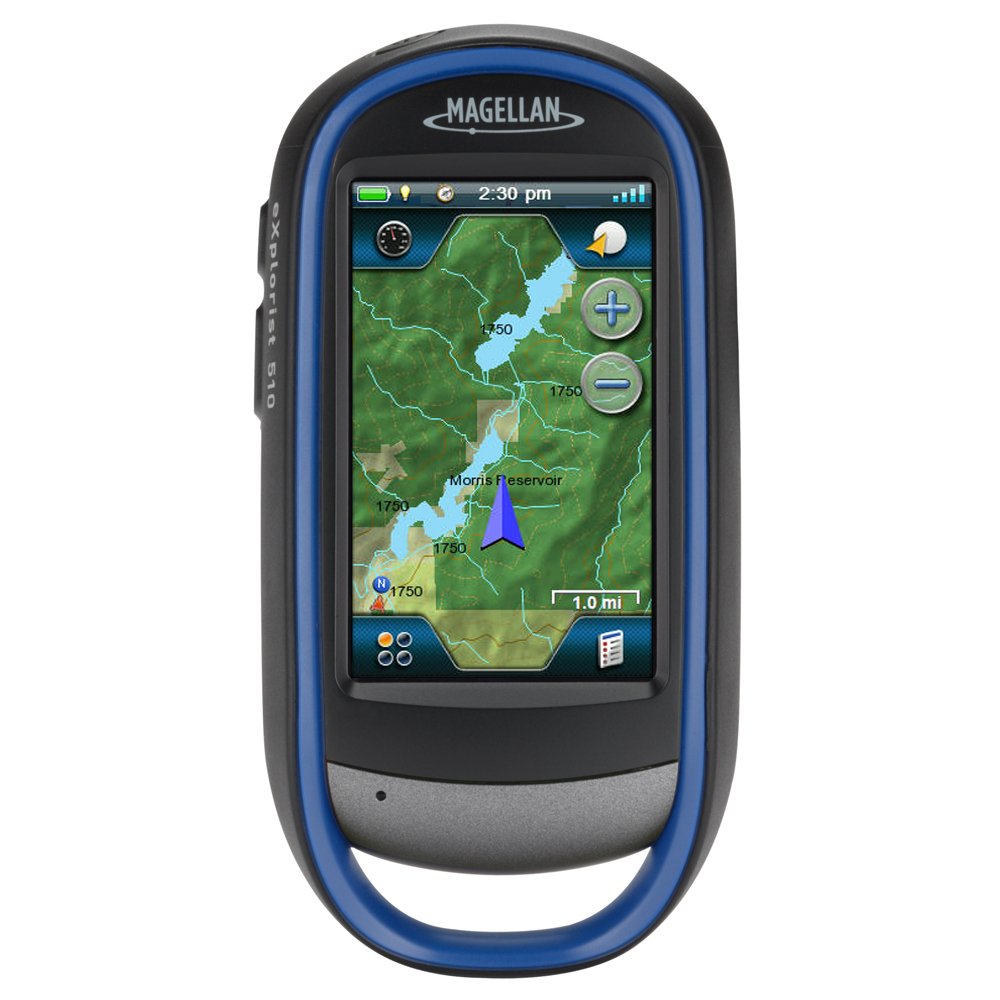
Image: The Magellan eXplorist 510 handheld GPS unit. This image displays the device's front face, including its 3.2-inch LCD screen and physical control buttons. The device is designed for rugged outdoor use.
4. MicroSD Card Installation (Optional)
To expand storage for additional maps or data, a microSD/SDHC card can be installed. The slot is located under the batteries. Ensure the device is powered off before installing or removing the card.
Operating Instructions
1. Navigating the Interface
The eXplorist 510 features a resistive touchscreen and physical buttons for navigation. Use light pressure on the touchscreen. The main menu provides access to various functions such as Map, Compass, Geocaching, Camera, and Settings.
2. Using the Map Screen
The Map screen displays your current location, tracks, waypoints, and pre-loaded topographical maps. You can pan and zoom using the touchscreen. Avoid accidentally setting waypoints when trying to scroll by using precise touch or a stylus.
- Zoom In/Out: Use the dedicated zoom buttons or pinch-to-zoom gesture (if supported by firmware).
- Pan: Drag your finger across the screen to move the map view.
- Orientation: Change map orientation between "North Up" and "Track Up" in the map settings.
3. Geocaching
The device supports paperless geocaching. You can load geocaches onto the unit via USB connection to a computer. The Geocaching menu allows you to view cache details, navigate to caches, and log finds directly on the device.
4. Using the Camera
The integrated 3.2-megapixel camera with auto-focus allows you to capture photos with geotags. Access the camera function from the main menu. Photos are stored on the device's internal memory or an installed microSD card.
5. Voice Interaction
The eXplorist 510 includes an integrated microphone and speaker for voice interaction features. Refer to the device's on-screen help or Magellan's support website for specific voice command functionalities.
Maintenance
1. Cleaning the Device
Wipe the device with a soft, damp cloth. Do not use abrasive cleaners or solvents. The device is waterproof, but avoid submerging it unnecessarily or exposing it to high-pressure water jets.
2. Battery Care
Remove batteries if the device will not be used for an extended period to prevent leakage. If using rechargeable batteries, follow the manufacturer's guidelines for charging and care.
3. Software Updates
Periodically check the Magellan website for firmware updates. Updates can improve performance, add features, and resolve known issues. Connect the device to a computer via USB to perform updates.
Troubleshooting
| Problem | Possible Cause | Solution |
|---|---|---|
| Device does not power on. | Dead or incorrectly installed batteries. | Replace batteries or ensure correct polarity. |
| Poor satellite reception. | Obstructed view of the sky (e.g., indoors, heavy tree cover). | Move to an open area with a clear view of the sky. |
| Touchscreen unresponsive or inaccurate. | Resistive touchscreen requires firm, precise touch; calibration needed; temporary software glitch. | Use a stylus or fingertip with firm pressure. Calibrate the touchscreen via settings. If frozen, remove and reinsert batteries to reset. |
| Device freezes or locks up. | Software error. | Remove and reinsert batteries to perform a hard reset. Ensure firmware is up to date. |
| MicroSD card door does not stay closed. | Design issue or improper installation. | Ensure the card is fully inserted. The battery compartment cover should help secure it. Contact support if the issue persists. |
Specifications
| Feature | Detail |
|---|---|
| Brand | Magellan |
| Model | eXplorist 510 |
| Screen Size | 3.2 Inches |
| Display Type | LCD |
| Touch Screen Type | Resistive |
| Camera | 3.2 Mega-Pixel with Auto Focus |
| Audio | Integrated Microphone and Speaker |
| Map Type | Topographical (World Edition Pre-loaded) |
| Battery Life | Approximately 15-16 Hours (AA batteries) |
| Mounting Type | Handheld |
| Supported Satellite System | GPS |
| UPC | 763357128437 |
Warranty and Support
For warranty information, product registration, and technical support, please visit the official Magellan website. Keep your proof of purchase for warranty claims. Contact information for customer service can typically be found on the Magellan support page.
Online Resources:
- Official Magellan Website: www.magellangps.com (Note: This is a placeholder URL, please verify the current official website for Magellan support.)
- Product Support Pages: Search for "eXplorist 510 support" on the official website.


