
Introduction
This manual provides comprehensive instructions for the setup, operation, maintenance, and troubleshooting of your DISH DISH211 4-Device Universal Remote. Designed for ease of use, this remote supports DISH TV receivers and can control up to four different devices, including TVs and other entertainment systems. Its ability to learn commands from original remotes makes it a versatile replacement.
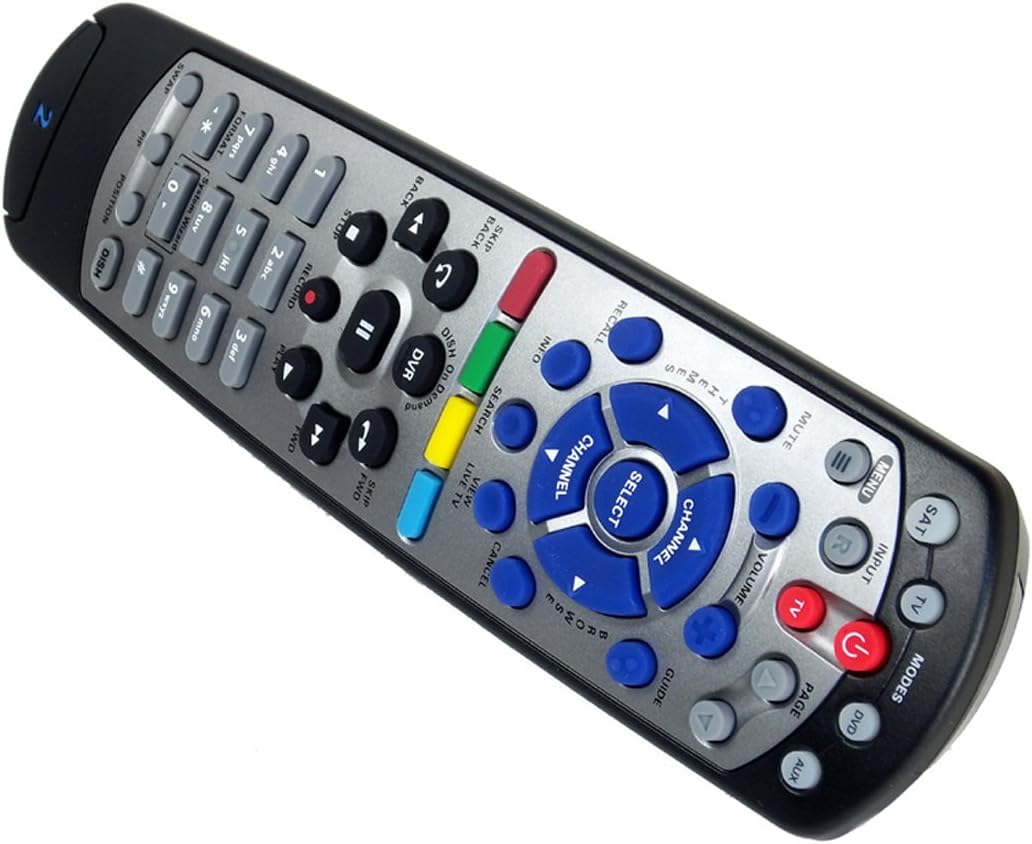
Figure 1: The DISH DISH211 4-Device Universal Remote, showcasing its ergonomic design and button layout.
Setup
1. Battery Installation
The DISH211 remote requires two (2) AA batteries for operation. To install:
- Locate the battery compartment on the back of the remote.
- Slide the battery cover downwards and lift to open.
- Insert two AA batteries, ensuring the positive (+) and negative (-) terminals align with the indicators inside the compartment.
- Replace the battery cover by sliding it upwards until it clicks into place.
2. Device Pairing and Programming
The DISH211 remote can be programmed to control your DISH receiver and other devices. It supports both Infrared (IR) and Ultra High Frequency (UHF) communication, depending on your receiver model.

Figure 2: Cover of the official DISH Remote User Guide, which provides detailed programming instructions.
For DISH Receiver Pairing (UHF/IR):
Some DISH receivers may require setting the remote's address and communication type (UHF or IR). A small switch near the battery compartment may allow selection between UHF and IR modes. Ensure this switch is set correctly for your receiver type.
To address the remote to your receiver:
- Press the System Info button on the front of your receiver to access the system information screen.
- Press and hold the SAT button on the remote until all mode lights illuminate.
- Enter a number between 1-15 on the remote keypad. This number corresponds to the TV-2 UHF address displayed on your receiver's screen.
- Press the # (pound) button once.
- Press the Record button three times.
- Select Done on the system info screen and test the remote's functionality.
For Other Devices (TV, DVD, AUX):
The remote has a large code library and can learn commands from your original remotes. Refer to the official DISH remote user guide (often included with the product or available online) for specific programming codes and learning instructions for various brands and device types.

Figure 3: The back of the DISH remote packaging, indicating compatible DISH receiver models for both IR and IR/UHF configurations.
Operating Instructions
The DISH211 remote is designed for intuitive control of your entertainment system. It features backlit active MODE keys for visibility in low light conditions and dedicated DVR controls.
1. Mode Selection
Press the desired mode button (e.g., SAT for DISH receiver, TV for television, DVD for DVD player, AUX for auxiliary device) at the top of the remote to select the device you wish to control. The selected mode button will illuminate.
2. Basic Controls
- Power: Press the POWER button to turn the selected device on or off.
- Volume: Use the VOLUME UP/DOWN buttons to adjust the audio level of your television.
- Channel: Use the CHANNEL UP/DOWN buttons to change channels on your DISH receiver or television.
- Mute: Press the MUTE button to silence the audio.
- Input: Press the INPUT button to cycle through video inputs on your television.
3. DVR Controls
The remote includes dedicated buttons for DVR functionality:
- Record: Initiates recording of the current program.
- Play/Pause: Starts or pauses playback of recorded content or live TV.
- Stop: Stops playback.
- Rewind/Fast Forward: Controls playback speed and direction.
- Skip Forward (DISH Skip Forward): Allows quick skipping through commercials or segments.
- Skip Back: Skips backward in recorded content.

Figure 4: Close-up view of the DISH DISH211 remote, highlighting the central navigation and DVR control buttons.
Maintenance
1. Battery Replacement
When the remote's performance degrades or buttons become unresponsive, it is likely time to replace the batteries. Follow the battery installation steps outlined in the Setup section.
2. Cleaning
To clean your remote, gently wipe the surface with a soft, dry cloth. For stubborn dirt, slightly dampen the cloth with water or a mild, non-abrasive cleaner. Avoid using excessive liquid or harsh chemicals, as these can damage the remote's electronics or finish.
Troubleshooting
Remote Not Responding
- Check Batteries: Ensure batteries are correctly installed and have sufficient charge. Replace if necessary.
- Line of Sight (IR): If using IR mode, ensure there is a clear line of sight between the remote and the device's IR receiver. Obstructions can block the signal.
- Mode Selection: Verify that the correct mode button (e.g., SAT, TV) is selected for the device you are trying to control.
- Remote Address/UHF-IR Switch: For DISH receivers, confirm the remote's address is correctly set and the UHF/IR switch (if present) matches your receiver's configuration. Incorrect settings can prevent communication.
Intermittent Functionality
- Interference: Other electronic devices or strong light sources (like plasma TV IR interference) can sometimes interfere with IR signals. Try operating the remote from a different angle or location.
- DVR Directory Update: If experiencing lag or unresponsiveness with DVR functions, ensure your DVR's directory is updated. Consult your DISH receiver's manual for instructions on updating its software or directory.
Buttons Not Working
- Clean Remote: Dirt or debris under buttons can cause them to stick or become unresponsive. Clean the remote as described in the Maintenance section.
- Reprogram: If specific buttons for a device are not working, the remote may need to be reprogrammed for that device.
Specifications
| Feature | Detail |
|---|---|
| Model Number | DISH211 |
| Brand | DISH |
| Product Dimensions | 1.75 x 4.81 x 11.38 inches |
| Item Weight | 9.6 ounces |
| Batteries Required | 2 AA batteries |
| Max Number of Supported Devices | 4 |
| Compatible Devices | Television, DISH TV receivers (TV1 and TV2 locations) |
| Connectivity Technology | Infrared (IR), Ultra High Frequency (UHF) |
| Special Features | Backlit keys, Universal compatibility, Learning capability |
Warranty and Support
Warranty Information
The DISH DISH211 Universal Remote typically comes with a Limited 90-Day Warranty. Please refer to the documentation enclosed with your product for specific terms, conditions, and details regarding warranty claims.
Customer Support
For further assistance with programming, troubleshooting, or general inquiries, it is recommended to consult the official DISH Network support resources. This may include their website, online user guides, or customer service contact information. The manufacturer of this product is Audiovox Accessories Corporation.