1. Introduction
This manual provides comprehensive instructions for the setup, operation, and maintenance of your Sony DVPSR510H DVD Player. Please read this manual thoroughly before using the product to ensure proper and safe operation.
The Sony DVPSR510H is a compact DVD player designed to deliver enhanced picture quality and sound. Key features include:
- HDMI Output for high-quality digital connection.
- 1080P Upscaling to improve the picture quality of standard DVDs on HD televisions.
- Support for JPEG and MP3 playback.
- Multi-Disc Resume function, allowing you to continue playback from where you left off.
- Multi-band TV Remote for convenient control.
- Energy Star compliant for power efficiency.

Figure 1: Front view of the Sony DVPSR510H DVD Player. The player features a sleek black design with a disc tray, power button, and basic control buttons on the front panel.
2. Safety Information
Observe the following safety precautions to prevent electric shock, fire, or damage to the unit:
- Power Source: Connect the unit only to a 120V, 60Hz AC power supply.
- Ventilation: Ensure adequate ventilation. Do not block ventilation openings.
- Water and Moisture: Do not expose the unit to rain or moisture. Do not place objects filled with liquids, such as vases, on the unit.
- Heat: Do not place the unit near heat sources such as radiators, heat registers, stoves, or other apparatus (including amplifiers) that produce heat.
- Cleaning: Unplug the unit from the wall outlet before cleaning. Use a dry cloth for cleaning.
- Servicing: Do not attempt to service this product yourself. Refer all servicing to qualified service personnel.
3. What's in the Box
Upon unpacking, verify that all items listed below are present:
- Sony DVPSR510H DVD Player
- Multi-Band TV Remote Control (RMT-D197A)
- Instruction Manual (this document)
- 3-RCA Component Video Coax Cable (for analog video/audio connection)
- AA Batteries (2x) for the remote control
Note: An HDMI cable is NOT included and must be purchased separately for digital high-definition connection.
4. Setup
4.1 Connecting to Your Television
The Sony DVPSR510H DVD Player offers multiple connection options to your television. For optimal picture and sound quality, an HDMI connection is recommended.
HDMI Connection (Recommended)
- Ensure both the DVD player and your television are powered off.
- Connect one end of an HDMI cable (not included) to the HDMI OUT port on the rear of the DVD player.
- Connect the other end of the HDMI cable to an available HDMI input port on your television. Note the HDMI input number (e.g., HDMI 1, HDMI 2).
- Proceed to "4.3 Power Connection" and "4.4 Initial TV Configuration".
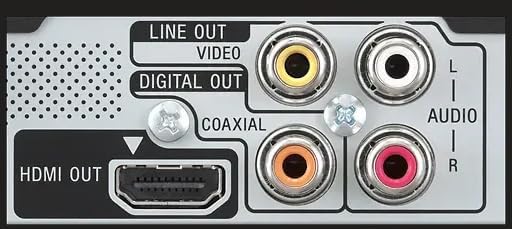
Figure 2: Rear panel connections of the Sony DVPSR510H DVD Player. The HDMI OUT port is clearly visible on the left, alongside coaxial digital audio out and analog video/audio (RCA) outputs.
RCA Component Video/Audio Connection (Alternative)
If your television does not have an HDMI input, you can use the supplied RCA cables.
- Ensure both the DVD player and your television are powered off.
- Connect the yellow video cable to the VIDEO LINE OUT port on the DVD player and the corresponding yellow video input on your TV.
- Connect the red audio cable to the AUDIO R LINE OUT port on the DVD player and the corresponding red audio input on your TV.
- Connect the white audio cable to the AUDIO L LINE OUT port on the DVD player and the corresponding white audio input on your TV.
- Proceed to "4.3 Power Connection" and "4.4 Initial TV Configuration".
4.2 Remote Control Batteries
Insert the two supplied AA batteries into the remote control, ensuring correct polarity (+/-) as indicated inside the battery compartment.
4.3 Power Connection
Plug the power cord of the DVD player into a standard 120V, 60Hz AC wall outlet.
4.4 Initial TV Configuration
After connecting the DVD player and powering on both the player and your TV:
- Use your TV's remote control to select the correct input source (e.g., HDMI 1, Video 1) that corresponds to the port where you connected the DVD player.
- The DVD player's menu or a blank screen should appear. If not, cycle through your TV's input sources.
- The default HDMI output resolution is 1920x1080p. This can be adjusted via your TV or projector settings if necessary.
5. Operating Instructions
5.1 Basic Playback
- Press the POWER button on the DVD player or remote control to turn on the unit. The green light next to the power button will illuminate.
- Press the OPEN/CLOSE button on the front panel or remote control to open the disc tray.
- Place a DVD or CD disc gently into the tray with the label side facing up.
- Press the OPEN/CLOSE button again to close the tray.
- Playback will usually begin automatically. If not, press the PLAY button on the remote control.
5.2 Remote Control Functions
The supplied remote control provides full functionality for the DVD player and can also control basic functions of compatible televisions.

Figure 3: The RMT-D197A remote control for the Sony DVPSR510H DVD Player. It includes buttons for power, volume, channel, disc navigation, playback controls, and special features like subtitle and audio selection.
- Power (I/O): Turns the DVD player on or off.
- VOL (+/-): Adjusts television volume (if TV is programmed).
- TV INPUT: Changes TV input source (if TV is programmed).
- Number Buttons (0-9): Direct selection of tracks or chapters.
- PLAY, PAUSE, STOP, FAST/SLOW PLAY, REPLAY, ADVANCE: Standard disc playback controls.
- SUBTITLE: Toggles subtitle display.
- AUDIO: Selects audio tracks or languages.
- MENU: Accesses disc menus.
- RETURN: Returns to the previous menu or screen.
- DISPLAY: Shows playback information on screen.
- Directional Buttons (Up/Down/Left/Right) and ENTER: Navigate menus and selections.
5.3 Upscaling Feature
The DVPSR510H features 1080p upscaling, which enhances the resolution of standard definition DVDs (720x480) to near high-definition quality (1920x1080) when connected via HDMI. This process interpolates additional pixels, resulting in a sharper and more detailed image on compatible HD televisions.
5.4 Fast/Slow Playback and Subtitles
- The player supports playback speeds of 0.6x, 0.8x, 1x (normal), 1.2x, and 1.4x. Press the FAST/SLOW PLAY button repeatedly to cycle through these speeds.
- Subtitles can be activated at the start of a DVD or at any time using the SUBTITLE button on the remote. Note that subtitles are typically only displayed at normal (1x) playback speed.
5.5 Supported Disc and File Formats
The player is compatible with a variety of disc and file formats:
- Supported Discs: DVD, DVD+R, DVD+R DL, DVD+RW, DVD-R, DVD-R DL, DVD-RW, CD, CD-R, CD-RW, Super VCD.
- Supported Video Formats: MPEG-1 (.mpg, .mpeg).
- Supported Photo Formats: JPEG (.jpg).
- Supported Audio Formats: MP3 (.mp3), WMA (.wma), M4A (.m4a), WAV (.wav).
Restrictions:
- Files with copyright protection (Digital Rights Management) cannot be played.
- Lossless audio files cannot be played.
- The player cannot play images in DVD-VR mode with CPRM (Content Protection for Recordable Media).
- DualDiscs and music discs encoded with copyright protection that do not conform to the Compact Disc (CD) standard may not be compatible.
- For media with complex folder hierarchies, it is recommended to create albums with no more than two hierarchies.
- The player recognizes a maximum of 200 albums and 600 files (or 300 photo and 300 music files if Photo/Music is selected).
- Video files larger than (720 width x 576 height)/2 GB cannot be played.
6. Maintenance
6.1 Cleaning the Unit
To maintain the appearance and performance of your DVD player:
- Wipe the exterior of the unit with a soft, dry cloth. Do not use abrasive pads, scouring powder, or solvents such as alcohol or benzene.
- For stubborn stains, lightly dampen a cloth with a mild detergent solution and wipe, then dry thoroughly with a soft, dry cloth.
6.2 Cleaning Discs
To ensure optimal playback, keep your discs clean:
- Handle discs by their edges to avoid fingerprints.
- Wipe discs from the center outwards with a soft, lint-free cloth.
- Do not use solvents such as benzene, thinner, commercially available cleaners, or anti-static sprays intended for vinyl LPs.
7. Troubleshooting
If you experience issues with your DVD player, refer to the following common problems and solutions:
| Problem | Solution |
|---|---|
| No power. | Ensure the power cord is securely plugged into both the player and a working wall outlet. |
| No picture or distorted picture. |
|
| No sound or distorted sound. |
|
| Disc does not play. |
|
| Remote control does not work. |
|
| Player automatically turns off. | The player has an auto shut-off feature that activates after approximately 30 minutes of inactivity (e.g., when paused or stopped). This is a power-saving feature and cannot be manually adjusted. |
8. Specifications
| Feature | Detail |
|---|---|
| Brand | Sony |
| Model Name | DVPSR510H |
| Item Weight | 1.98 pounds (approx. 900 grams) |
| Product Dimensions (W x D x H) | 10.63 x 8.23 x 1.52 inches (approx. 27 x 20.9 x 3.86 cm) |
| Color | Black |
| Media Type | CD, DVD |
| Special Feature | Compact, 1080p Upscaling |
| Resolution | 1920x1080 (Upscaled) |
| Connector Type | HDMI, RCA (Composite Video, Stereo Audio), Coaxial Digital Audio |
| Connectivity Technology | HDMI |
| Audio Output Mode | Stereo |
| Power Requirements | 120V, 60Hz |
| Power Consumption (Standby) | Less than 0.5 W |
| Region Code | DVD: 1 |
| Batteries Required | 2 AA batteries (for remote) |
9. Warranty and Support
9.1 Product Warranty
This Sony DVPSR510H DVD Player comes with a limited warranty:
- Parts: 1 Year
- Labor: 90 Days
Please retain your proof of purchase for warranty claims. The warranty covers defects in materials and workmanship under normal use. It does not cover damage caused by misuse, accident, modification, or unauthorized repair.
9.2 Legal Disclaimer
No returns.
9.3 Customer Support
For further assistance, technical support, or service inquiries, please visit the official Sony support website or contact Sony customer service. Refer to the official Sony website for the most current contact information and support resources.