
Sony DSC-W620/S
Sony Cyber-shot DSC-W620 Digital Camera User Manual
Model: DSC-W620/S
1. Introduction
Welcome to the user manual for your Sony Cyber-shot DSC-W620 digital camera. This guide provides essential information on setting up, operating, maintaining, and troubleshooting your camera to help you capture high-quality photos and videos. The DSC-W620 features a 14.1-megapixel sensor, 5x optical zoom, a 2.7-inch LCD, and various intelligent shooting modes.
2. Safety Information
To ensure safe operation and prevent damage to your camera, please observe the following precautions:
- Do not expose the camera to water or moisture. This camera is not water-resistant.
- Avoid exposing the camera to direct sunlight or extreme temperatures for extended periods.
- Use only genuine Sony batteries and accessories to prevent malfunction or damage.
- Keep the camera away from strong magnetic fields or static electricity.
- Do not attempt to disassemble or modify the camera. Refer all servicing to qualified personnel.
- Clean the lens and LCD screen gently with a soft, dry cloth.
3. Camera Components
Familiarize yourself with the various parts of your Sony Cyber-shot DSC-W620 camera.
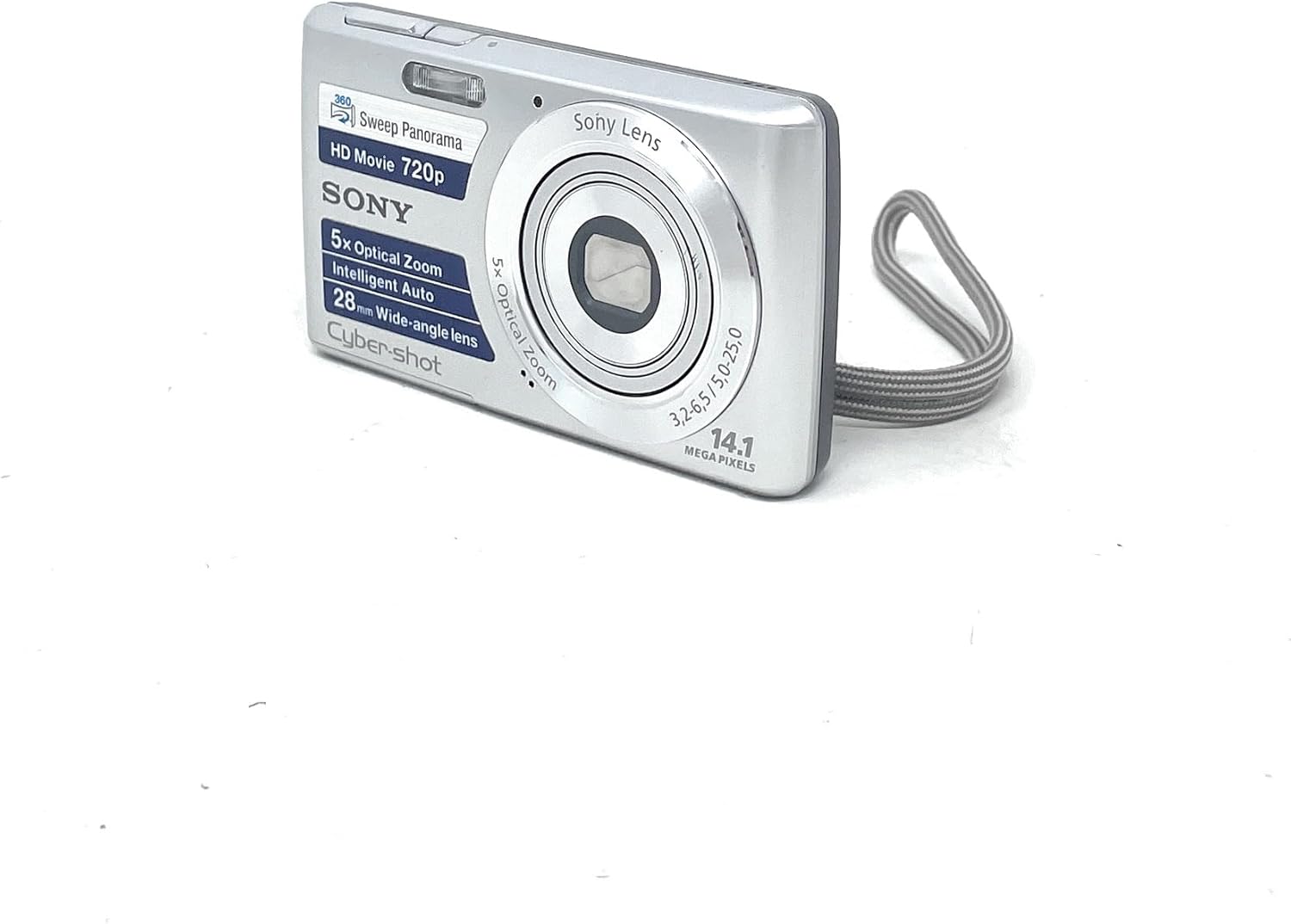
Figure 3.1: Front View
This image displays the front of the camera, highlighting the Sony Lens, built-in flash, and the Cyber-shot branding. Key features like 5x Optical Zoom and 14.1 Megapixels are visible.

Figure 3.2: Rear View
The rear of the camera features the 2.7-inch LCD display, along with navigation buttons, menu button, and playback controls for easy operation.

Figure 3.3: Side View with Ports
This angle shows the side of the camera, revealing the USB port for data transfer and charging, and the AV OUT port for connecting to external displays.

Figure 3.4: Bottom View
The bottom of the camera includes the battery and memory card compartment, secured by a latch, and a tripod mount for stable shooting.
Key Components:
- Lens: 5x Optical Zoom Sony Lens.
- Flash: Built-in flash for low-light conditions.
- Shutter Button: Activates the camera and takes photos.
- Zoom Lever: Controls optical and digital zoom.
- LCD Screen: 2.7-inch (230K dots) Clear Photo LCD for composing shots and reviewing images.
- Control Buttons: Navigation, Menu, Playback, Delete, and Display buttons.
- Battery/Memory Card Compartment: Located at the bottom for battery and memory card insertion.
- USB Port: For connecting to a computer or charger.
4. Setup
4.1. Installing the Battery
- Open the battery/memory card compartment cover on the bottom of the camera.
- Insert the supplied Lithium Ion battery (e.g., NP-BN1) into the compartment with the correct orientation, aligning the contacts.
- Close the compartment cover until it clicks securely.
4.2. Charging the Battery
Connect the camera to the supplied AC adapter using the USB cable. The charge lamp will illuminate during charging and turn off when charging is complete. A full charge typically takes approximately 2-3 hours.
4.3. Inserting a Memory Card
The camera supports various memory card types (e.g., SD, SDHC, Memory Stick Duo). Ensure the camera is off before inserting or removing a memory card.
- Open the battery/memory card compartment cover.
- Insert the memory card into the slot with the correct orientation until it clicks into place.
- Close the compartment cover.
5. Operating the Camera
5.1. Basic Photography
- Power On/Off: Press the ON/OFF button located on the top of the camera.
- Taking a Photo: Press the Shutter button halfway down to focus, then press it fully to take the picture.
- Zoom: Use the Zoom Lever around the shutter button to zoom in (T) or out (W).
5.2. Shooting Modes
- Intelligent Auto Mode (iAuto): This mode automatically optimizes camera settings by recognizing scenes, lighting conditions, and faces. Simply point and shoot for clear images.
- Sweep Panorama Mode: Capture breathtaking panoramic images by pressing the shutter button and sweeping the camera horizontally or vertically. The camera stitches multiple images together automatically. Supports up to 360° panoramas.
- Picture Effects: Add creative effects to your photos, such as Toy Camera, Pop Color, Partial Color, and Soft High-key. Access these through the camera's menu.
5.3. Advanced Features
- Face Detection Technology: Automatically detects up to eight individual faces and adjusts focus, exposure, and white balance for optimal portraits.
- Smile Shutter Technology: The camera automatically captures a photo when it detects a smile. You can adjust sensitivity and prioritize adult or child smiles.
- Soft Skin Mode: Reduces the appearance of blemishes and wrinkles in portraits for smoother skin tones.
- Dynamic Range Optimizer (DRO): Helps recover details in both shadows and highlights, particularly effective in backlit scenes or high-contrast environments.
- Self-Portrait Timer: Uses Face Detection to recognize when your face enters the frame, then triggers a 2-second timer before taking the picture, ideal for self-portraits.
5.4. Video Recording
The DSC-W620 can record high-definition videos.
- 720p HD Movie Mode: Record videos at 1280 x 720 resolution at 30 frames per second (fps) in AVI format.
- To start recording, press the dedicated Movie button (if available) or select movie mode from the menu and press the shutter button.
- Optical zoom is available during video recording.
5.5. Playback
To view your captured photos and videos:
- Press the Playback button (usually indicated by a triangle icon).
- Use the navigation buttons to scroll through your images and videos.
- Press the Enter button to play videos.
6. Maintenance
6.1. Cleaning the Camera
- Camera Body: Wipe with a soft, dry cloth. For stubborn dirt, use a cloth lightly dampened with water and then wipe dry.
- Lens: Use a lens brush to remove dust, then gently wipe with a lens cleaning cloth. Do not use chemical cleaners.
- LCD Screen: Wipe gently with a soft, dry cloth. Avoid pressing hard on the screen.
6.2. Storage
When not in use, store the camera in a cool, dry place, away from direct sunlight and extreme temperatures. Remove the battery if the camera will not be used for an extended period.
7. Troubleshooting
If you encounter issues with your camera, refer to the following common problems and solutions:
| Problem | Solution |
|---|---|
| Camera does not turn on. | Ensure the battery is fully charged and correctly inserted. Try reinserting the battery. |
| Images are blurry. | Check if the lens is clean. Ensure proper focus by pressing the shutter button halfway. Use sufficient lighting or the flash. |
| Battery drains quickly. | Reduce LCD brightness. Limit flash usage. Turn off the camera when not in use. Ensure the battery is not old or damaged. |
| Cannot record video. | Check if the memory card has sufficient free space. Ensure the camera is in video recording mode. |
| Memory card error. | Reinsert the memory card. Try a different memory card. Format the memory card (this will erase all data). |
8. Specifications
| Feature | Detail |
|---|---|
| Model Name | Cyber-shot DSC-W620 |
| Photo Sensor Resolution | 14.1 MP |
| Optical Zoom | 5x |
| Digital Zoom | 10x |
| Screen Size | 2.7 Inches |
| Display Type | LCD (230K dots) |
| Video Resolution | 720p (1280 x 720) at 30 fps |
| Image Stabilization | Optical |
| Connectivity Technology | USB |
| Battery Type | Lithium Ion |
| Item Weight | 116 Grams |
| Color | Silver |
9. Warranty and Support
9.1. Warranty Information
This product is covered by a 90-day Limited Hardware Warranty. For detailed terms and conditions, please refer to the official warranty document:
Sony 90-day Limited Hardware Warranty (PDF)
9.2. Customer Support
For further assistance, technical support, or service inquiries, please visit the official Sony support website or contact their customer service department. Keep your product model number (DSC-W620/S) and serial number ready when contacting support.