
Rollei Rollei PDF-S 240
Rollei PDF S 240 SE Multiscanner User Manual
Model: PDF-S 240 SE
Introduction
The Rollei PDF S 240 SE Multiscanner is a versatile device designed to digitize your cherished memories from various analog formats. This manual provides comprehensive instructions for setting up, operating, and maintaining your scanner, ensuring you can easily convert your old photos, negative films, slides, and business cards into high-quality digital files.

The Rollei PDF S 240 SE Multiscanner, a compact device for digitizing various media.
Key Features:
- Multiscanner for Photos, Slides, and Negatives: Digitize and convert old photos, negative films, slides, and business cards.
- High Resolution: Offers 1800 dpi resolution, interpolatable up to 2400 dpi, for detailed scans.
- Automatic Color Correction and Exposure: Ensures optimal image quality with automatic or manual adjustments.
- Standalone Operation: No computer connection required for scanning; view results on the integrated 2.4-inch TFT color screen.
- Direct Saving: Save scanned data directly to SD, SDHC, or MMC cards.
- USB Transfer: Easily transfer JPG files to your PC or Mac via USB.

Illustration of the scanner's 4-in-1 capabilities, including 135 film, 35mm slides, name cards, and postcards.
Setup
1. Unpacking and Checking Contents
Carefully unpack all items from the box. Ensure all components are present and undamaged. The standard package includes:
- 1x Rollei PDF-S 240 SE Scanner
- 1x Negative Holder
- 1x Slide Holder
- 1x Photo Tray
- 1x Power Cable
- 1x User Manual
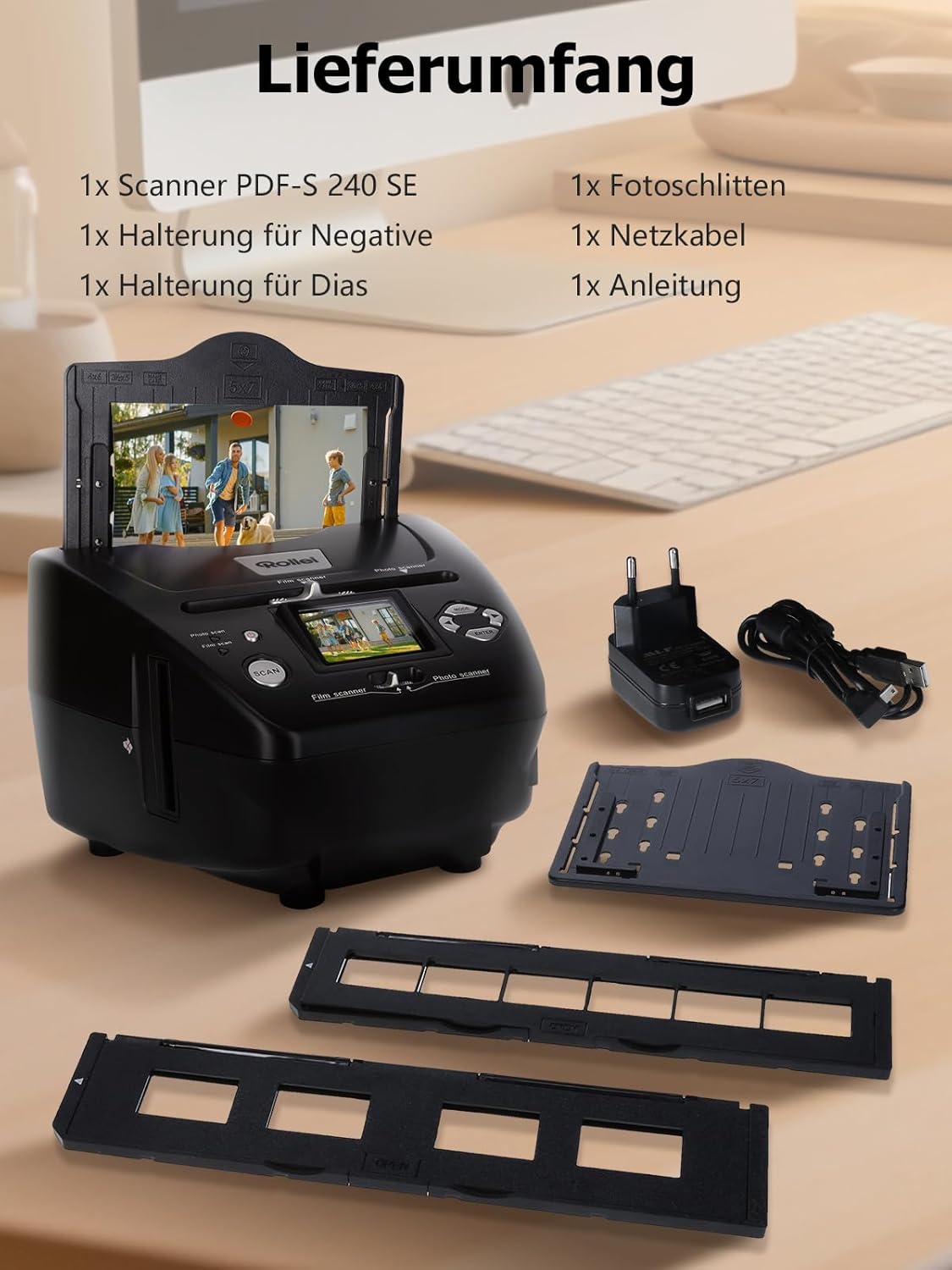
An overview of the items included in the Rollei PDF S 240 SE package, showing the scanner, various holders, and cables.
2. Power Connection
Connect the provided power cable to the scanner's power input and plug it into a standard electrical outlet. The scanner is ready for use once powered on.
3. Inserting a Memory Card (Optional)
To save scanned images directly on the device, insert a compatible SD, SDHC, or MMC memory card into the designated memory card slot. Ensure the card is inserted correctly until it clicks into place.
Operating Instructions
1. Device Overview and Controls
Familiarize yourself with the scanner's buttons and ports:

Diagram showing the various parts and controls of the Rollei PDF S 240 SE scanner, including buttons, ports, and holders.
- ON/OFF Switch
- Control LED Photo Scan Mode
- Control LED Film Scan Mode
- Scan Button
- Switch for Scan Mode
- Mini USB 2.0 Port
- Memory Card Slot for SD/SDHC and MMC Cards
- Left Button
- Enter Button
- Right Button
- Mode Button
- Input Slot for Photo Tray
- Slider for Selecting Scan Template
- 5.1 cm TFT-LCD Color Monitor
- Slide Holder in Input Slot for Slides and Negatives
- Slide Holder
- Negative Holder
- Photo Tray Size 9 x 13 cm
- Photo Tray Size 10 x 15 cm
- Photo Tray Size 13 x 18 cm
2. Scanning Films and Slides
Use the Negative Holder for film strips and the Slide Holder for mounted slides.
- Insert your film strip into the Negative Holder or your slide into the Slide Holder.
- Slide the loaded holder into the designated film scanner slot on the side of the device.
- Use the mode switch to select 'Film Scan' mode.
- Adjust settings like exposure and color correction using the navigation buttons and the 2.4-inch TFT display.
- Press the 'Scan' button to capture the image.
- The scanned image will appear on the display. You can then save it to your memory card.

Visual guide for film scanning, showing the negative and slide holders and their insertion into the scanner.
3. Scanning Photos and Business Cards
Use the Photo Tray for paper photos and business cards.
- Place your photo or business card onto the Photo Tray.
- Insert the Photo Tray into the top input slot of the scanner.
- Use the mode switch to select 'Photo Scan' mode.
- Adjust settings as needed using the display and navigation buttons.
- Press the 'Scan' button to capture the image.
- The scanned image will be displayed. Save it to your memory card.

Visual guide for scanning photos and business cards, illustrating the use of the photo tray.
4. Transferring Files to a Computer
To transfer your digitized photos to a PC or Mac:
- Connect the scanner to your computer using a USB cable.
- The scanner will be recognized as a removable storage device.
- Navigate to the scanner's drive and copy the JPG files to your computer.

Image demonstrating the USB connection for fast scanning and transferring digitized photos to a laptop.
Maintenance
Cleaning the Scanner
Regular cleaning ensures optimal performance and image quality.
- Exterior: Wipe the exterior of the scanner with a soft, dry, lint-free cloth. Do not use liquid cleaners or abrasive materials.
- Scanning Area: Use a soft brush or compressed air to gently remove dust and debris from the film and photo scanning slots. Avoid touching the internal lens or sensor directly.
- Holders: Clean the film and photo holders with a soft, dry cloth. Ensure they are free of dust before inserting media.
Storage
When not in use, store the scanner in a cool, dry place, away from direct sunlight and extreme temperatures. Keep it covered to prevent dust accumulation.
Troubleshooting
This section addresses common issues you might encounter with your Rollei PDF S 240 SE Multiscanner.
| Problem | Possible Cause | Solution |
|---|---|---|
| Scanner does not turn on. | No power supply; loose cable. | Check power cable connection; ensure outlet is functional. |
| Scanned images are blurry or unclear. | Dust on media or scanner lens; incorrect focus/settings. | Clean media and scanner lens; adjust focus/exposure settings. |
| Colors are inaccurate. | Incorrect color correction settings. | Use automatic color correction or manually adjust color balance. |
| Cannot save images to memory card. | Memory card full or incompatible; card not inserted correctly. | Check card compatibility and free space; reinsert card; try a different card. |
| Cannot transfer files to computer. | Loose USB cable; driver issue; scanner not recognized. | Ensure USB cable is securely connected; try a different USB port; restart computer and scanner. |
Specifications
Detailed technical specifications for the Rollei PDF S 240 SE Multiscanner:
- Brand: Rollei
- Manufacturer: RCP Technik GmbH & Co. KG
- Model/Series: PDF-S 240 SE
- Product Dimensions: 14.7 x 20.8 x 22 cm
- Model Number: Rollei PDF-S 240
- Color: Black
- Display Size: 2.4 inches
- Wattage: 4.5 Watts
- Drive Type: AC
- Batteries Included: No
- Item Weight: 890 g
- Media Type: Photo, Film
- Scanner Type: Film
- Connectivity Technology: USB 2.0
- Resolution: 1800 dpi
- Color Depth: 24 bits
Warranty and Support
Warranty Information
The Rollei PDF S 240 SE Multiscanner comes with an Exchange Warranty for a full 24 months from the date of purchase. Please retain your proof of purchase for warranty claims.
Customer Support
For any questions, technical assistance, or support, our experts are available to help you.


Images illustrating the availability of help and support, along with contact details and warranty information.
- Phone Support: +49 40 270 750 277 (Monday-Friday, 10:00 AM to 4:00 PM CET)
- Free Returns: Conveniently within 14 days.
For additional resources and FAQs, please visit the official Rollei website or contact our support team directly.
Ask a question about this manual
Ask about setup, troubleshooting, compatibility, parts, safety, or missing instructions. Manuals+ will review the question and use this page’s manual context to help answer it.