
PreSonus AudioBox 22VSL
PreSonus AudioBox 22VSL USB 2.0 Audio Interface
User Manual
Introduction
The PreSonus AudioBox 22VSL is a 2-in, 2-out audio/MIDI interface designed for professional-caliber 24-bit, 96 kHz audio recording. Its rugged, compact enclosure makes it suitable for both studio and mobile use. Featuring two mic/instrument inputs with PreSonus' Class A XMAX preamps, the AudioBox 22VSL integrates seamlessly with the included PreSonus Studio One 3 Artist DAW and is compatible with most Mac and Windows audio-recording software.
Key Features
- 24-bit / 96 kHz 2x2 USB 2.0 recording interface
- 2 dual-purpose front-panel input channels with Class A XMAX preamps
- Mixer control for blending input signal with computer playback for zero-latency monitoring
- Headphone jack with dedicated level control
- Main-output level control
- LED clip indicator for each channel
- Includes Studio One Artist digital audio workstation software
- Includes Virtual StudioLive™ (VSL) control software for real-time effects processing
Setup Guide
Follow these steps to set up your PreSonus AudioBox 22VSL:
- Driver Installation: Before connecting the AudioBox 22VSL to your computer, visit the official PreSonus website to download and install the latest drivers for your operating system (Windows or macOS). Ensure your computer meets the minimum system requirements.
- Software Installation: Install the included PreSonus Studio One Artist digital audio workstation software. The AudioBox 22VSL also comes with Virtual StudioLive (VSL) control software, which should be installed for full functionality, including real-time effects processing.
- Hardware Connection:
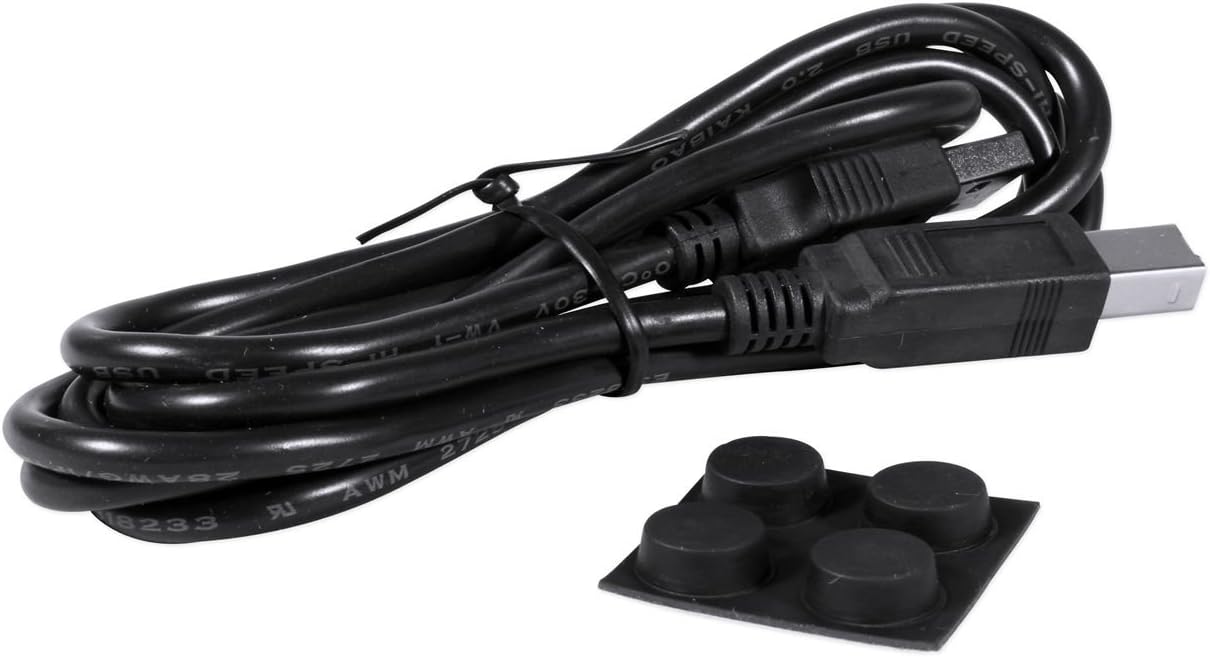
- Connect the AudioBox 22VSL to your computer using the provided USB 2.0 cable.
- Connect your microphones or instruments to the dual-purpose input channels on the front panel.
- Connect your studio monitors to the Main Out (L/R) jacks on the rear panel.
- If using MIDI devices, connect them to the MIDI In/Out ports.
- Power On: The AudioBox 22VSL is USB bus-powered, meaning it draws power directly from your computer via the USB connection. No external power supply is typically needed.
- Software Configuration: Open your DAW (e.g., Studio One Artist) and select the AudioBox 22VSL as your audio input and output device in the software's audio settings.


Operating Instructions
This section covers basic operation of your AudioBox 22VSL.
Recording Audio:
- Connect Input: Plug your microphone or instrument into one of the front-panel input jacks.
- Adjust Gain: Slowly turn the "Gain" knob for the corresponding channel clockwise until the signal is strong but the "Clip" LED does not light up consistently. Occasional flashes on loud peaks are acceptable.
- Monitor Mix: Use the "Mixer" knob to blend between the direct input signal (Input) and the playback from your computer (Playback). This allows for zero-latency monitoring of your input signal.
- Headphone Level: Adjust the "Phones" knob to set the desired listening volume for your headphones.
- DAW Recording: In your DAW, create a new track, select the appropriate input channel from the AudioBox 22VSL, and arm the track for recording. Begin recording your performance.
Using Virtual StudioLive (VSL) Software:
The VSL software provides access to Fat Channel processing (compression, limiting, EQ, high-pass filter) and customizable reverb and delay effects with near-zero latency. Launch the VSL application on your computer to control these features. You can apply these effects to your monitoring mix without recording them directly to your DAW, or you can choose to record the processed signal.
Video 1: An overview of the PreSonus AudioBox VSL series, demonstrating the real-time effects processing capabilities and integration with StudioLive mixer features. This video highlights how the VSL software allows for monitoring with effects like reverb, compression, and EQ without audible delay, enhancing recording performance.
Maintenance
Proper maintenance ensures the longevity and optimal performance of your AudioBox 22VSL.
- Cleaning: Use a soft, dry cloth to clean the exterior of the unit. Avoid abrasive cleaners or solvents.
- Storage: When not in use, store the interface in a cool, dry place away from direct sunlight and extreme temperatures.
- Cable Management: Ensure all cables are connected securely and are not under strain. Avoid sharp bends or kinks in the USB and audio cables.
- Software Updates: Regularly check the PreSonus website for driver and firmware updates to ensure compatibility and access to the latest features and bug fixes.
Troubleshooting
If you encounter issues with your AudioBox 22VSL, refer to the following common troubleshooting steps:
- No Sound/Input:
- Verify that the AudioBox 22VSL is selected as the input/output device in your computer's sound settings and your DAW.
- Check all cable connections (USB, audio inputs, outputs).
- Ensure input gain knobs are turned up and the "Mixer" knob is set appropriately for monitoring.
- Confirm phantom power (48V) is enabled if using condenser microphones.
- Latency Issues:
- Increase the buffer size in your DAW's audio settings. Note that higher buffer sizes reduce latency but increase processing load.
- Utilize the "Mixer" knob on the AudioBox 22VSL for zero-latency direct monitoring of your input signal.
- Ensure you are using the ASIO driver (Windows) or Core Audio driver (macOS) for optimal performance.
- Distortion/Clipping:
- Reduce the input gain for the offending channel until the "Clip" LED no longer lights up excessively.
- Check the output level of your instrument or microphone.
- Software Not Recognizing Interface:
- Reinstall the latest drivers from the PreSonus website.
- Try connecting the AudioBox 22VSL to a different USB port on your computer.
- Restart your computer and the AudioBox 22VSL.
Specifications
| Brand | PreSonus |
| Model | AudioBox 22VSL |
| Connectivity Technology | USB 2.0 |
| Number of Channels | 2 Input / 2 Output |
| Sample Rate / Bit Depth | Up to 96 kHz / 24-bit |
| Preamps | 2 x Class A XMAX mic preamps |
| Compatible Devices | Laptop, Personal Computer |
| Supported Software | PreSonus Studio One Artist, Virtual StudioLive (VSL) |
| Operating System | Windows, macOS |
| Item Weight | 1.6 Pounds |
Warranty and Support
Warranty Description: The PreSonus AudioBox 22VSL comes with a 1-year warranty covering parts and labor.
For technical support, driver downloads, or further assistance, please visit the official PreSonus website or contact their customer support directly. Keep your proof of purchase for warranty claims.
Related documentsAudioBox 22VSL


Ask a question about this manual
Ask about setup, troubleshooting, compatibility, parts, safety, or missing instructions. Manuals+ will review the question and use this page’s manual context to help answer it.