
1. Introduction
This manual provides essential information for the safe and efficient operation of your Technical Pro AX2000 2-Channel Professional Power Amplifier. The AX2000 is designed to deliver reliable audio amplification for various professional applications, including studio monitoring, small stage sound systems, and mobile DJ setups. Please read this manual thoroughly before using the amplifier to ensure proper setup and performance.
2. Important Safety Instructions
Always follow these basic safety precautions when operating the AX2000 amplifier:
- Power Source: Connect the unit only to a 110V AC power outlet. Ensure the power cord is not damaged or pinched.
- Ventilation: Do not block ventilation openings. Ensure adequate airflow around the unit to prevent overheating. The amplifier features dual cooling fans for thermal management.
- Water and Moisture: Do not expose this appliance to rain or moisture. Do not place objects filled with liquids, such as vases, on the apparatus.
- Heat: Do not place the unit near heat sources such as radiators, heat registers, stoves, or other apparatus (including amplifiers) that produce heat.
- Servicing: Do not attempt to service this unit yourself. Refer all servicing to qualified service personnel. Opening the unit may expose you to dangerous voltages or other hazards.
- Cleaning: Unplug the unit from the wall outlet before cleaning. Use a dry cloth for cleaning.
- Grounding: This unit must be grounded. Do not defeat the safety purpose of the polarized or grounding-type plug.
3. Package Contents
Verify that all items are present in the package:
- Technical Pro AX2000 2-Channel Professional Power Amplifier
- AC Power Cord
- User Manual (this document)
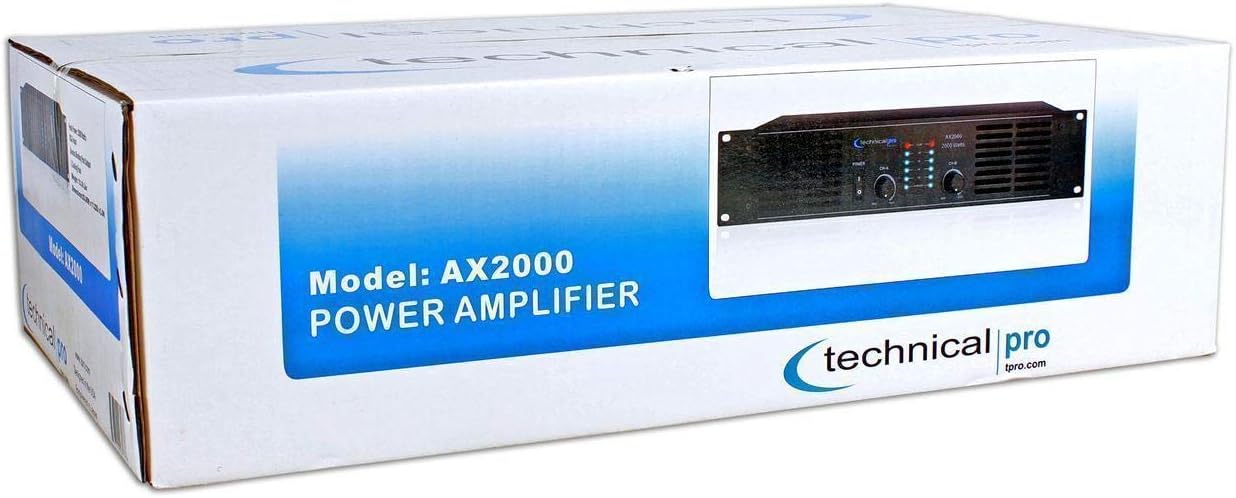
Figure 3.1: Packaging box for the Technical Pro AX2000 amplifier, showing the product image and model number.

Figure 3.2: Included AC power cord with a standard three-prong plug for connecting the amplifier to a power source.
4. Product Overview
4.1 Front Panel

Figure 4.1: Front view of the Technical Pro AX2000 amplifier, displaying controls and indicators.
- Power Switch: Toggles the amplifier's power on or off.
- Channel A Volume Control: Adjusts the output level for Channel A.
- Channel B Volume Control: Adjusts the output level for Channel B.
- Level Indicators (Blue LED Meters): Display the audio signal level for each channel.
- Clip Indicators (Red LED): Illuminates when the input signal is too high, indicating potential audio clipping.
4.2 Rear Panel
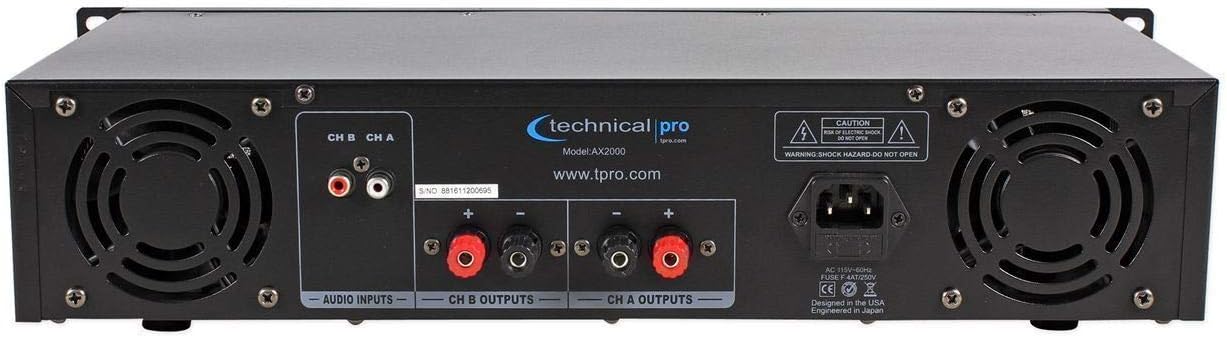
Figure 4.2: Rear view of the Technical Pro AX2000 amplifier, showing input, output, and power connections.
- Audio Inputs (RCA): Connect your audio source (e.g., mixer, pre-amplifier) to these RCA jacks for Channel A and Channel B.
- Channel A Outputs (Banana Binding Post): Connect your speakers to these binding posts for Channel A.
- Channel B Outputs (Banana Binding Post): Connect your speakers to these binding posts for Channel B.
- AC Power Inlet: Connect the provided AC power cord here.
- Cooling Fans: Dual fans for maintaining optimal operating temperature.
5. Setup
5.1 Rack Mounting
The AX2000 is designed for standard 19-inch rack mounting. Secure the amplifier using appropriate rack screws (not included) to prevent movement and ensure proper ventilation within the rack. The unit occupies 2U of rack space.
5.2 Connecting Audio Sources
Use RCA cables to connect your audio source (e.g., mixer, CD player, audio interface) to the RCA input jacks on the rear panel. Ensure that Channel A input is connected to the left channel output of your source and Channel B input to the right channel output.
5.3 Connecting Speakers
Connect your passive speakers to the banana binding post outputs on the rear panel. Ensure correct polarity (+ to + and - to -) for each channel. The banana binding posts are compatible with banana plugs or bare wire connections.
5.4 Power Connection
After all audio connections are made, connect the provided AC power cord to the AC power inlet on the rear panel of the amplifier and then to a grounded 110V AC power outlet.
6. Operating Instructions
6.1 Powering On/Off
- Ensure all volume controls on the amplifier are set to their minimum position before powering on.
- Press the Power Switch on the front panel to turn the amplifier on. The power indicator will illuminate.
- To power off, press the Power Switch again.
6.2 Adjusting Volume Levels
Slowly turn up the Channel A and Channel B Volume Controls to achieve the desired output level. Adjust the volume gradually to avoid sudden loud sounds.
6.3 Monitoring Signal Levels
Observe the blue LED level meters on the front panel to monitor the audio signal strength. If the red CLIP indicator illuminates, it means the input signal is too strong, and clipping is occurring. Reduce the input level from your source or the amplifier's volume controls to prevent distortion and potential speaker damage.
7. Maintenance
7.1 Cleaning
Regularly clean the exterior of the amplifier with a soft, dry cloth. Do not use liquid cleaners or solvents. Ensure the unit is unplugged from the power source before cleaning.
7.2 Cooling System
Periodically check the cooling fan vents for dust accumulation. Use a soft brush or compressed air to clear any obstructions. Proper ventilation is crucial for the amplifier's longevity and stable operation.
8. Troubleshooting
| Problem | Possible Cause | Solution |
|---|---|---|
| No power | Power cord not connected; Power switch off; Outlet not active | Check power cord connection; Turn power switch on; Test outlet with another device |
| No sound output | Input cables disconnected; Speaker cables disconnected or incorrect polarity; Volume controls too low; Source device not playing | Verify all audio cable connections; Check speaker wiring and polarity; Increase amplifier volume; Ensure audio source is active and playing |
| Distorted sound / Clip LED on | Input signal too high; Amplifier overloaded | Reduce input level from the audio source; Lower amplifier volume controls |
| Excessive fan noise | Dust in fan vents; High operating temperature | Clean fan vents; Ensure adequate ventilation around the unit |
9. Specifications
| Feature | Specification |
|---|---|
| Model | AX2000 |
| Peak Power | 2000 Watts |
| RMS Power @ 2 ohms | 600 watts |
| RMS Power @ 4 ohms | 460 watts |
| RMS Power @ 8 ohms | 240 watts |
| Number of Channels | 2 |
| Frequency Response | 20Hz - 20KHz |
| Signal to Noise Ratio | 79dB |
| Input Impedance | 10 k ohm unbalanced |
| Inputs | RCA |
| Outputs | Banana binding post |
| Voltage | 110 Volts |
| Cooling | Dual cooling speed fans |
| Indicators | Iridescent blue LED meter, Power, Level & Clipping indicators per channel |
| Dimensions (L x W x H) | 19 x 8 x 3.5 inches |
| Weight | 9 Pounds |
| Mounting Type | Rackmount (2U) |
| Color | Black |
| Compliance | FCC |
10. Warranty & Support
10.1 Warranty Information
The Technical Pro AX2000 amplifier comes with a 1-year limited warranty from the date of purchase. This warranty covers manufacturing defects and workmanship under normal use. It does not cover damage caused by misuse, accident, unauthorized modification, or improper installation. Please retain your proof of purchase for warranty claims.
10.2 Customer Support
For technical assistance, service inquiries, or further information regarding your Technical Pro AX2000 amplifier, please visit the official Technical Pro website or contact their customer support department. Contact details can typically be found on the manufacturer's website or product packaging.
Online Resources: For additional support and product information, please visit the Technical Pro Store on Amazon or the official Technical Pro website.


