
1. Introduction
The Tenda W322UA is a 300Mbps Wireless N Enhanced USB Adapter designed to provide wireless connectivity for desktop and laptop computers. This device allows your computer to connect to a wireless network at speeds up to 300Mbps, offering improved performance for online activities such as streaming and browsing. It features two external antennas for enhanced signal reception and supports various security protocols to protect your network.

Figure 1: Tenda W322UA Wireless N USB Adapter. This image shows the white USB adapter with its two adjustable external antennas extended upwards.
2. Features
- Wireless N Technology: Achieves wireless speeds up to 300Mbps, providing faster data transfer compared to older wireless G devices.
- Enhanced Wireless Reception: Equipped with two 3dBi external antennas that can be rotated and adjusted to optimize signal reception and performance.
- Soft AP Support: Allows the adapter to function as a virtual wireless access point, enabling other devices to connect to its network.
- Easy Security Setup: Supports Wi-Fi Protected Setup (WPS) for quick and simple encryption configuration.
- Backward Compatibility: Fully compatible with 802.11b/g devices, allowing seamless integration into existing networks.
- Advanced Security: Utilizes WPA/WPA2 encryption to protect your wireless network from unauthorized access.
3. Setup Guide
Follow these steps to install and set up your Tenda W322UA USB Adapter:
3.1 Driver Installation
- Do Not Plug In Yet: Before plugging the W322UA adapter into your computer, install the necessary drivers.
- Insert Driver CD: Insert the provided driver CD into your computer's CD-ROM drive. If your computer does not have a CD-ROM drive, download the latest drivers from the official Tenda website (www.tenda.com.cn).
- Run Setup: Navigate to the CD or downloaded driver folder and run the setup executable (e.g., "setup.exe" or "install.exe").
- Follow On-Screen Instructions: Follow the prompts to complete the driver installation. You may need to restart your computer after installation.
- Linux/Raspberry Pi Users: For some Linux distributions, including Raspbian, drivers may be pre-installed. You can often plug in the adapter directly and verify its recognition using system commands.
3.2 Hardware Connection
- Connect Adapter: Once drivers are installed (and computer restarted if prompted), plug the Tenda W322UA USB Adapter into an available USB 2.0 port on your desktop or laptop computer.
- Adjust Antennas: Rotate and adjust the two external antennas to an upright position or an angle that provides the best signal reception.
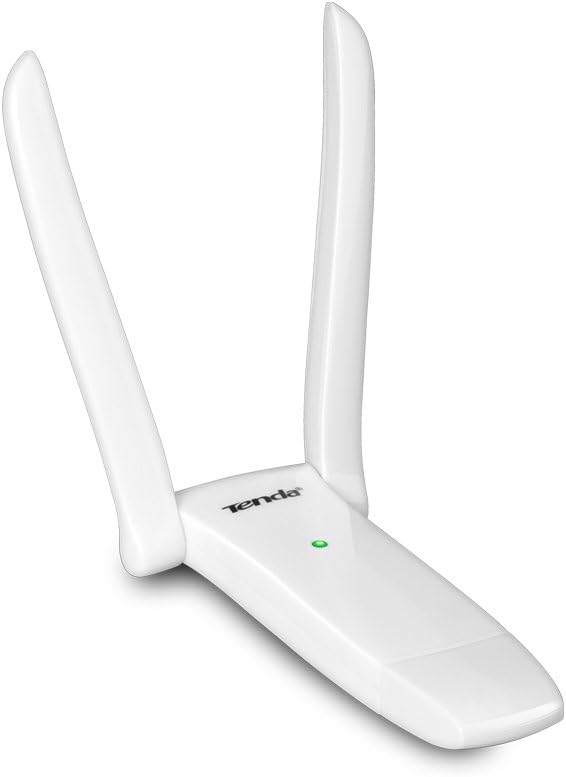
Figure 2: Tenda W322UA USB Adapter with antennas folded. This image shows the compact form factor of the adapter with its two adjustable external antennas folded down.
4. Operating Instructions
4.1 Connecting to a Wireless Network
- Access Network Settings: On your computer, open the wireless network settings. This is typically found in the system tray (Windows) or menu bar (macOS).
- Select Network: A list of available wireless networks (SSIDs) will appear. Select your desired network.
- Enter Password: If the network is secured, enter the Wi-Fi password (security key) when prompted.
- Connect: Click "Connect" to establish the wireless connection. The adapter's LED indicator should show activity once connected.
4.2 Using Soft AP Mode
The Soft AP feature allows the W322UA to act as a virtual wireless access point, sharing your computer's internet connection with other Wi-Fi devices. This feature is typically enabled and configured through the Tenda utility software installed with the drivers.
- Launch Utility: Open the Tenda wireless utility software from your desktop or system tray.
- Enable Soft AP: Locate the "Soft AP" or "Access Point Mode" option within the utility.
- Configure Settings: Set an SSID (network name) and a password for your new wireless network.
- Start AP: Activate the Soft AP mode. Other devices can now connect to the network created by your adapter.
5. Maintenance
- Driver Updates: Periodically check the official Tenda website for updated drivers to ensure optimal performance and compatibility.
- Physical Care: Keep the adapter clean and free from dust. Avoid exposing it to extreme temperatures or moisture.
- Secure Connection: Regularly update your Wi-Fi network password and ensure WPA2 encryption is enabled for maximum security.
- Antenna Positioning: Adjust the antennas as needed to maintain the best possible signal strength.
6. Troubleshooting
6.1 No Wireless Connection
- Check Driver Installation: Ensure the drivers are correctly installed. Reinstall if necessary.
- Verify Adapter Connection: Make sure the adapter is securely plugged into a working USB port. Try a different USB port.
- Enable Wireless: Confirm that your computer's wireless function is enabled.
- Router Status: Check if your wireless router is powered on and broadcasting a signal.
6.2 Slow Connection Speed
- Signal Strength: Check the signal strength indicator. Move closer to your wireless router or adjust the adapter's antennas for better reception.
- Interference: Reduce interference from other electronic devices (e.g., microwaves, cordless phones) operating on the same frequency.
- Router Settings: Ensure your wireless router is configured for 802.11n mode and using appropriate channels.
- Driver Updates: Ensure you have the latest drivers installed for the adapter.
6.3 Adapter Not Recognized
- Reinstall Drivers: Completely uninstall and then reinstall the drivers.
- Try Another Port/Computer: Test the adapter on a different USB port or another computer to rule out a port or hardware issue.
- Check Device Manager (Windows): In Windows Device Manager, check for any unknown devices or devices with error symbols.
7. Specifications
| Feature | Description |
|---|---|
| Model Number | W322UA |
| Brand | Tenda |
| Hardware Interface | USB 2.0 |
| Data Transfer Rate | 300 Megabits Per Second (Mbps) |
| Compatible Devices | Desktop, Laptop |
| Antennas | Two 3dBi External Antennas |
| Wireless Standards | IEEE 802.11n, IEEE 802.11g, IEEE 802.11b |
| Security Features | WPA/WPA2, WPS |
| Item Weight | 0.2 Pounds |
| Certifications | CE, FCC |
8. Warranty and Support
For warranty information and technical support, please refer to the documentation included with your purchase or visit the official Tenda website. Tenda provides customer support and resources for their products.
Official Tenda Website: www.tenda.com.cn
You can also visit the Tenda Store on Amazon for product information and support resources: Tenda Amazon Store


