
Introduction
This manual provides comprehensive instructions for the setup, operation, maintenance, and troubleshooting of your Avaya 9508 Digital Phone. The Avaya 9508 is designed to deliver reliable, high-quality communication for business environments, offering functionality similar to the Avaya 9600 Series IP Deskphones in a digital telephony setting.
Product Overview
The Avaya 9508 Digital Phone is a robust communication device featuring a sleek design suitable for various business users. It integrates essential telephony functions with an intuitive interface.

Figure 1: Front view of the Avaya 9508 Digital Phone, showing the handset, display, and keypad.

Figure 2: Side view of the Avaya 9508 Digital Phone, illustrating its ergonomic design with the desk stand.
Setup Instructions
1. Unpacking the Device
Carefully remove all components from the packaging. Ensure the following items are present:
- Avaya 9508 Digital Phone unit
- Handset
- Handset cord
- Line cord
- Desk stand
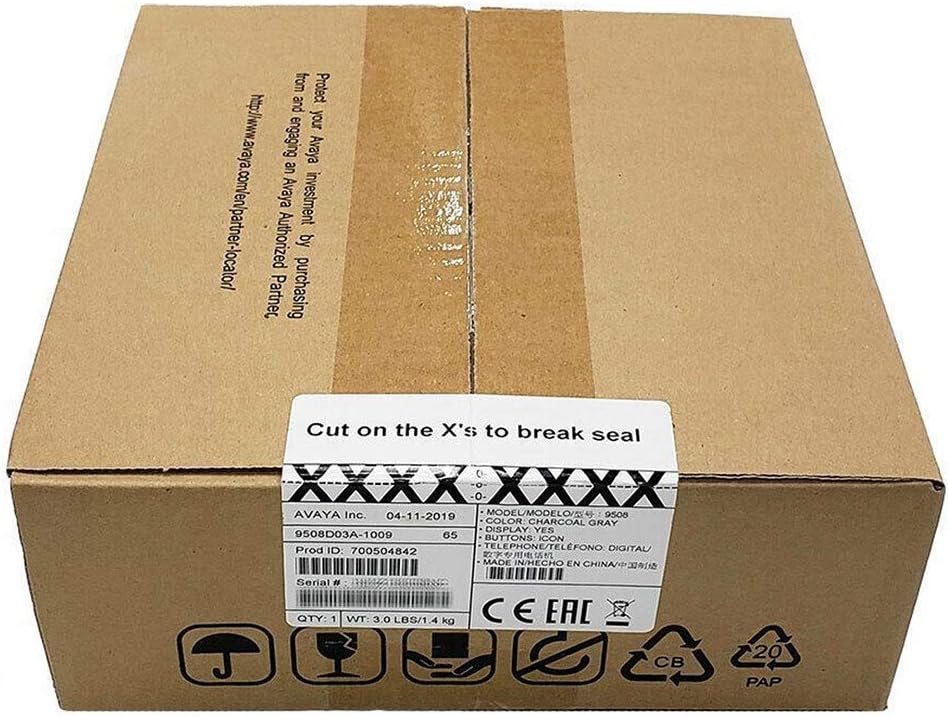
Figure 3: The Avaya 9508 Digital Phone packaging box, indicating product details and sealing instructions.
2. Attaching the Desk Stand
- Locate the slots on the back of the phone unit.
- Align the tabs on the desk stand with these slots.
- Slide the stand into place until it clicks securely.
3. Connecting the Handset
- Plug one end of the coiled handset cord into the handset.
- Plug the other end into the designated handset port on the phone unit (usually marked with a handset icon).
4. Connecting to the Phone System
The Avaya 9508 is a digital phone and requires connection to a compatible Avaya phone system. It cannot be directly connected to a standard analog phone line or a modem/router for VoIP services without the appropriate system infrastructure.
- Connect one end of the line cord to the port labeled "LINE" or "DIGITAL" on the back of the phone.
- Connect the other end of the line cord to the digital station port on your Avaya communication system.
- Ensure the phone receives power from the system or an external power adapter (if required and not included).
Operating Instructions
Basic Call Functions
- Making a Call: Lift the handset or press the Speaker button, then dial the number.
- Answering a Call: Lift the handset or press the Speaker button when the phone rings.
- Ending a Call: Replace the handset or press the Speaker button again.
- Redial: Press the Redial button to call the last dialed number.
Advanced Features
- Hold: During a call, press the Hold button.
- Transfer: During a call, press the Transfer button, dial the new extension or number, and then press Transfer again.
- Conference: During a call, press the Conference button, dial the next participant, and then press Conference again to join all parties.
- Voicemail: Press the Voicemail button (often represented by an envelope icon) to access your messages. Follow the audio prompts for setup and retrieval.
- Volume Adjustment: Use the volume up/down buttons on the side of the phone to adjust handset, speaker, or ringer volume.
Maintenance
Cleaning
To maintain the appearance and functionality of your phone:
- Use a soft, damp cloth to wipe the phone's surface.
- Avoid using abrasive cleaners, solvents, or strong chemicals, as these can damage the plastic and electronic components.
- Ensure the phone is disconnected from the power source before cleaning.
Storage
If storing the phone for an extended period, disconnect all cables and store it in a cool, dry place away from direct sunlight and extreme temperatures.
Troubleshooting
| Problem | Possible Cause | Solution |
|---|---|---|
| No dial tone | Phone not properly connected to the system. | Check all cable connections, especially the line cord to the phone system. Ensure the phone system is operational. |
| Cannot hear caller / Caller cannot hear me | Handset or speaker volume too low; faulty cord. | Adjust volume. Check handset cord connection. Test with another handset if available. |
| Display is blank | No power; phone system issue. | Verify power connection. Contact your system administrator if other phones are also affected. |
| Buttons unresponsive | Temporary software glitch. | Disconnect and reconnect the phone from the system (power cycle). |
If issues persist after attempting these solutions, please contact your system administrator or Avaya support.
Specifications
- Model: Avaya 9508 Digital Phone
- Part Number: 700504842
- Dimensions (L x W x H): 1.97 x 1.97 x 1.97 inches (approximate, based on product data)
- Item Weight: 7.1 ounces (200 Grams)
- Color: Black
- Material: Plastic
- Telephone Type: Digital Landline
- Power Source: Corded Electric (typically powered by the Avaya communication system)
- Compatible Devices: Requires connection to a compatible Avaya digital communication system.
- First Available: May 3, 2013
Warranty and Support
For warranty information, please refer to the documentation provided at the time of purchase or contact your Avaya reseller. Technical support is typically provided by your organization's IT department or the Avaya certified partner who installed your communication system.
For general information about Avaya products, visit the official Avaya website: www.avaya.com


