
1. Product Overview
The Logitech M525 Wireless Mouse offers micro-precise scrolling, ultra-smooth cursor control, and extended battery life. Its compact and ergonomic design ensures comfortable use for extended periods, making it ideal for home, office, or on-the-go computing.
This mouse is designed for precision performance and personal style, available in various color combinations. It features advanced optical tracking for reliable performance on diverse surfaces.
2. What's in the Box
- Logitech M525 Wireless Mouse
- Logitech Unifying receiver
- Two AA batteries
- User documentation
3. Setup Guide
Follow these steps for initial setup of your Logitech M525 Wireless Mouse:
- Install Batteries: Open the battery compartment on the underside of the mouse. Insert the two AA batteries provided, ensuring correct polarity. Close the compartment securely.
- Connect Unifying Receiver: Locate an available USB port on your computer (laptop or desktop). Insert the tiny Logitech Unifying receiver into the USB port. The mouse is designed for plug-and-play functionality, and your computer should automatically detect it.
- Power On: Slide the ON/OFF switch on the underside of the mouse to the 'ON' position. A small green light will indicate that the mouse is powered on and ready for use.
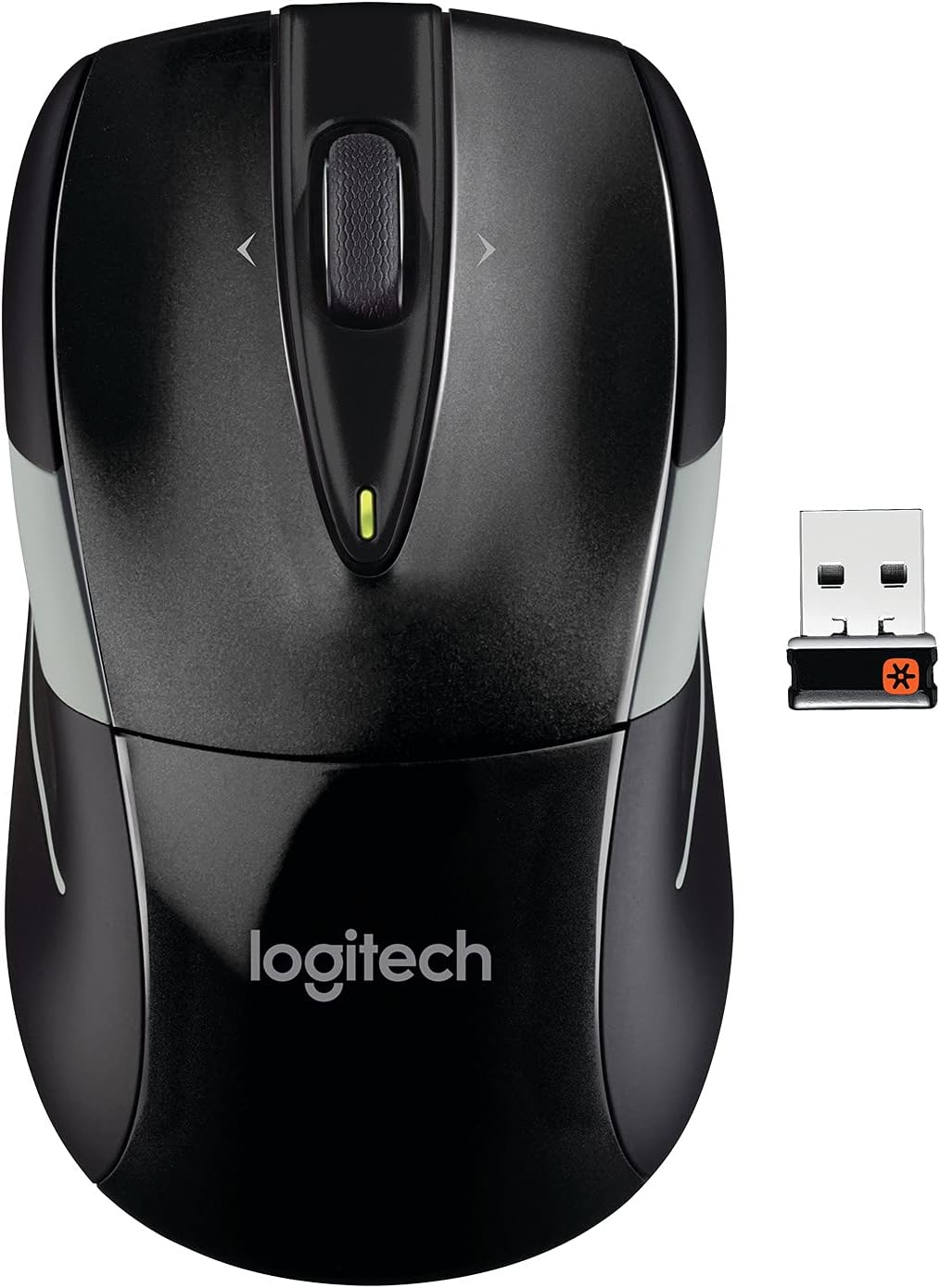
Image: The Logitech M525 Wireless Mouse shown alongside its compact Unifying USB receiver, ready for connection.
4. Operating Your Mouse
The Logitech M525 is designed for intuitive and efficient navigation:
- Micro-Precise Scrolling: The innovative scroll wheel provides more control with more grooves per millimeter, allowing for faster and easier web navigation and scrolling through long documents.
- Tilt Wheel: The tilt wheel functionality allows you to move backward and forward on web pages, similar to a swipe gesture. (Note: Tilt wheel functionality for backward/forward navigation may not be supported on Mac computers, but may support Dashboard, Exposé, or Spaces if selected in System Preferences).
- Right and Left Clicks: Standard right and left click buttons provide reliable and responsive input.
- Advanced Optical Tracking: Experience laser-grade precision even on smooth, glossy surfaces that often challenge standard optical mice. This technology also uses less power, contributing to longer battery life.
- Logitech Unifying Receiver: The included Unifying receiver can connect up to 6 Unifying-compatible devices. This allows you to add a keyboard or switch between mice without changing receivers or occupying multiple USB ports.

Image: A side view of the Logitech M525 mouse, highlighting its ergonomic shape and scroll wheel.

Image: An overhead view of the Logitech M525, emphasizing its comfortable contours designed to fit the hand.
5. Maintenance
To ensure optimal performance and longevity of your Logitech M525 mouse:
- Battery Life: The mouse boasts an impressive 3-year battery life, which may vary based on user and computing conditions. Utilize the on-off switch and smart sleep mode to conserve power when not in use.
- Battery Indicator Light: A battery indicator light is present to eliminate surprises regarding power levels.
- Cleaning: Regularly wipe the mouse with a soft, dry cloth to remove dust and debris. Avoid using harsh chemicals or abrasive materials.

Image: Product packaging emphasizing the extended 36-month battery life of the Logitech M525 mouse.
6. Troubleshooting
If you experience any unusual behavior with your mouse, such as issues with left or right clicks, try the following:
- Static Discharge: Remove the batteries from the mouse. Hold down both the left and right click buttons for approximately one minute. This can help discharge any built-up static electricity that might be causing erratic behavior. Reinsert the batteries and test the mouse.
- Re-pairing: If the mouse is not responding, ensure the Unifying receiver is securely plugged into a USB port. You may need to re-pair the mouse with the receiver using Logitech's Unifying software (available for download from the Logitech support website).
- Surface Check: While the mouse features advanced optical tracking, ensure you are using it on a suitable surface. Avoid highly reflective or transparent surfaces if issues persist.
7. Specifications
| Feature | Detail |
|---|---|
| Product Dimensions | 8.27 x 2.28 x 7.09 inches |
| Item Weight | 0.16 ounces |
| Item Model Number | 910-002696 |
| Batteries Required | 2 AA batteries (included) |
| Connectivity Technology | USB (via Unifying Receiver) |
| Movement Detection Technology | Optical |
| Color | Black/Gray |
8. Warranty and Support
The Logitech M525 Wireless Mouse comes with a 3-year limited hardware warranty. For detailed warranty information, technical support, or to download the latest software and drivers, please visit the official Logitech support website.
You can also refer to the official User Guide for more in-depth information:


