
Introduction
This manual provides essential instructions for setting up, operating, and maintaining your Canon PowerShot ELPH 310 HS digital camera. Please read this manual thoroughly to ensure proper use and to maximize your camera's performance.
What's in the Box
Upon unpacking, verify that all the following items are included:
- Canon PowerShot ELPH 310 HS Camera
- Battery Pack NB-4L
- Battery Charger CB-2LV
- Wrist Strap
- USB Cable
- CD-ROM (Software/Drivers)
Setup
1. Charging the Battery
Insert the Battery Pack NB-4L into the Battery Charger CB-2LV. Plug the charger into a power outlet. The charging indicator light will show the charging status. Once fully charged, remove the battery.
2. Inserting the Battery and Memory Card
Open the battery/card compartment cover on the camera. Insert the charged battery pack, ensuring correct orientation. Insert a compatible SD/SDHC/SDXC memory card into the card slot until it clicks into place. Close the compartment cover securely.

Image: Front view of the Canon PowerShot ELPH 310 HS digital camera, showcasing its silver finish and lens.
Operating the Camera
1. Power On/Off
Press the ON/OFF button located on the top or side of the camera to power it on or off. The lens will extend when powered on.
2. Basic Photography
- Focusing: Gently press the shutter button halfway down to focus. The camera will emit a beep and display a green frame when focus is achieved.
- Taking a Picture: Press the shutter button fully down to capture the image.
- Zoom: Use the zoom lever around the shutter button to adjust the optical zoom (8x).
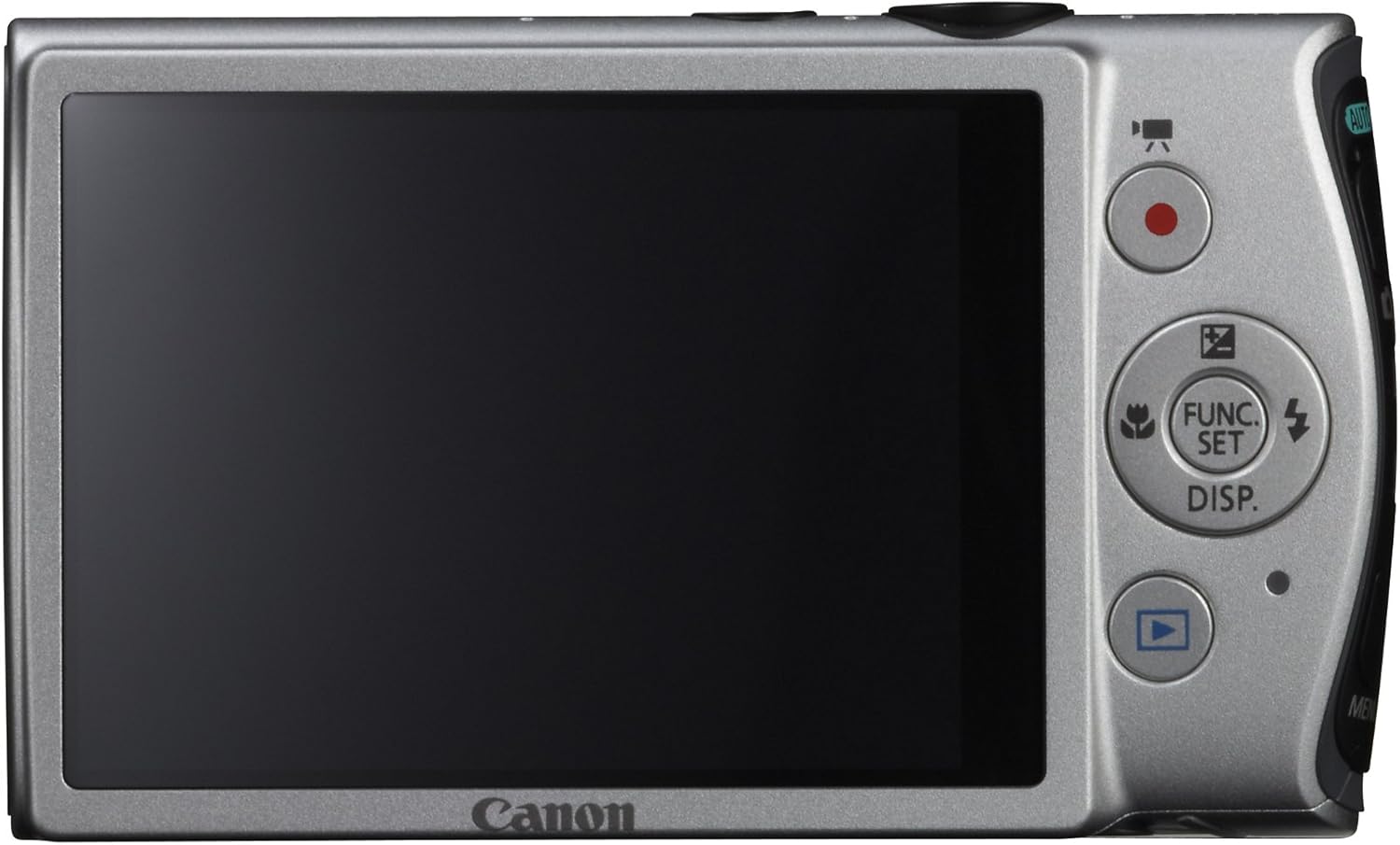
Image: Rear view of the Canon PowerShot ELPH 310 HS, displaying the 3.0-inch LCD screen and various control buttons for navigation and function selection.
3. Shooting Modes
The PowerShot ELPH 310 HS offers various shooting modes to suit different situations. Use the mode dial or menu to select:
- Smart AUTO: Automatically detects scenes and applies optimal settings for point-and-shoot simplicity.
- Program (P): Allows for automatic aperture/shutter speed selection based on conditions, with some user control.
- Movie Digest: Records a short video clip before each still image, combining them into a daily video.
- High-Speed Burst: Captures rapid action at approximately 8.7 frames per second.
- Super Slow Motion Movie: Records video at high frame rates (up to 240 fps) for slow-motion playback.
- Special Scene Modes: Includes options like Handheld Night Scene, Portrait, Beach, Snow, Fireworks, Fisheye Effect, Miniature Effect, Toy Camera Effect, and more for specific photographic effects.
4. Video Recording
To record videos, press the dedicated movie button. The camera supports Full HD 1080p video at 24 fps and 720p HD video at 30 fps. The iFrame movie format is also supported for easier editing.
5. Image Stabilization (Intelligent IS)
The camera features Intelligent IS, which automatically selects the best shake correction method for your shooting situation. This includes modes for stills (Normal, Panning, Macro, Tripod) and videos (Dynamic, Powered, Macro, Tripod) to ensure steady images and footage.
Maintenance
1. Cleaning the Camera
- Lens: Use a soft, lint-free cloth specifically designed for camera lenses. Avoid touching the lens directly with fingers.
- LCD Screen: Wipe gently with a soft, dry cloth. Do not use abrasive cleaners.
- Camera Body: Use a soft, dry cloth to wipe away dust and smudges.
2. Battery Care
- Store batteries in a cool, dry place when not in use.
- Avoid fully discharging the battery frequently to prolong its lifespan.
- Do not expose batteries to extreme temperatures.
3. Storage
When storing the camera for extended periods, remove the battery and memory card. Store the camera in a dry, dust-free environment, preferably in a camera bag or case.
Troubleshooting
| Problem | Possible Cause / Solution |
|---|---|
| Camera does not power on. | Battery may be depleted or incorrectly inserted. Ensure battery is charged and inserted correctly. |
| Images are blurry. | Camera shake, subject movement, or incorrect focus. Ensure proper grip, use Intelligent IS, or check focus settings. |
| Memory card error. | Memory card may be full, corrupted, or incompatible. Try formatting the card (this will erase all data) or use a different card. |
| Flash does not fire. | Flash may be set to OFF or Red-Eye Reduction mode. Check flash settings in the menu. |
| Cannot record video. | Memory card may be full or too slow. Ensure sufficient space and use a high-speed memory card. |
Specifications
| Feature | Detail |
|---|---|
| Model Name | Canon PowerShot ELPH 310 HS |
| Image Sensor | 12.1 Megapixel CMOS |
| Image Processor | DIGIC 4 |
| Optical Zoom | 8x |
| Lens | 28mm Wide-Angle (35mm equivalent: 28-224mm) |
| Image Stabilization | Optical (Intelligent IS) |
| Video Recording | Full HD 1080p (24 fps), HD 720p (30 fps) |
| LCD Screen | 3.0-inch PureColor LCD (461,000 dots) |
| Storage Media | SD, SDHC, SDXC Memory Cards |
| Connectivity | HDMI, USB |
| Battery | NB-4L Lithium-ion Battery Pack |
| Weight | Approx. 0.31 Pounds (including battery and memory card) |
Warranty and Support
For warranty information and technical support, please refer to the documentation included with your product or visit the official Canon website. Keep your purchase receipt as proof of purchase for warranty claims.
Canon Support Website: www.usa.canon.com/support