
APC BE650G1
APC Back-UPS BE650G1 User Manual
Model: BE650G1
Introduction
The APC Back-UPS BE650G1 is an Uninterruptible Power Supply (UPS) designed to provide guaranteed power and surge protection for your electronic devices. This unit safeguards wireless networks, computers, and other sensitive electronics from power outages, damaging power surges, and voltage fluctuations. It ensures your data remains protected and your devices stay connected during unexpected power events.

Figure 1: Front view of the APC Back-UPS BE650G1 unit.
Package Contents
Verify that all components are present in the package:
- APC Back-UPS BE650G1 Unit
- USB cable
- User manual (this document)
Setup
Follow these steps to set up your APC Back-UPS BE650G1:
- Unpack the Unit: Carefully remove the UPS from its packaging.
- Connect the Battery: The battery may be disconnected for shipping. Refer to the battery compartment instructions, usually located on the bottom or side of the unit, to connect the internal battery.
- Placement: Place the UPS in a cool, dry location, away from direct sunlight and heat sources. Ensure adequate ventilation around the unit.
- Connect to Wall Outlet: Plug the UPS power cord directly into a grounded 3-prong wall outlet. Avoid using extension cords or surge protectors with the UPS input.
- Initial Charge: Allow the UPS to charge for at least 10 hours before connecting any equipment. This ensures maximum runtime capacity.
- Connect Equipment:
- Battery Backup & Surge Protection Outlets: Connect critical equipment such as your computer, monitor, external hard drives, and network router to the outlets labeled "Battery Backup + Surge Protection". These outlets provide power during outages and protection against surges.
- Surge Protection Only Outlets: Connect non-critical equipment like printers or speakers to the outlets labeled "Surge Protection Only". These outlets provide surge protection but do not offer battery backup.
- Dataline Protection: For network equipment, connect your Ethernet cable (RJ45 10/100 ports) through the dataline surge protection ports on the back of the UPS to protect against surges traveling through the network line.
- USB Connection (Optional): Connect the supplied USB cable from the UPS to your computer for PowerChute UPS management software functionality. This allows for automatic shutdown of your computer during extended power outages.
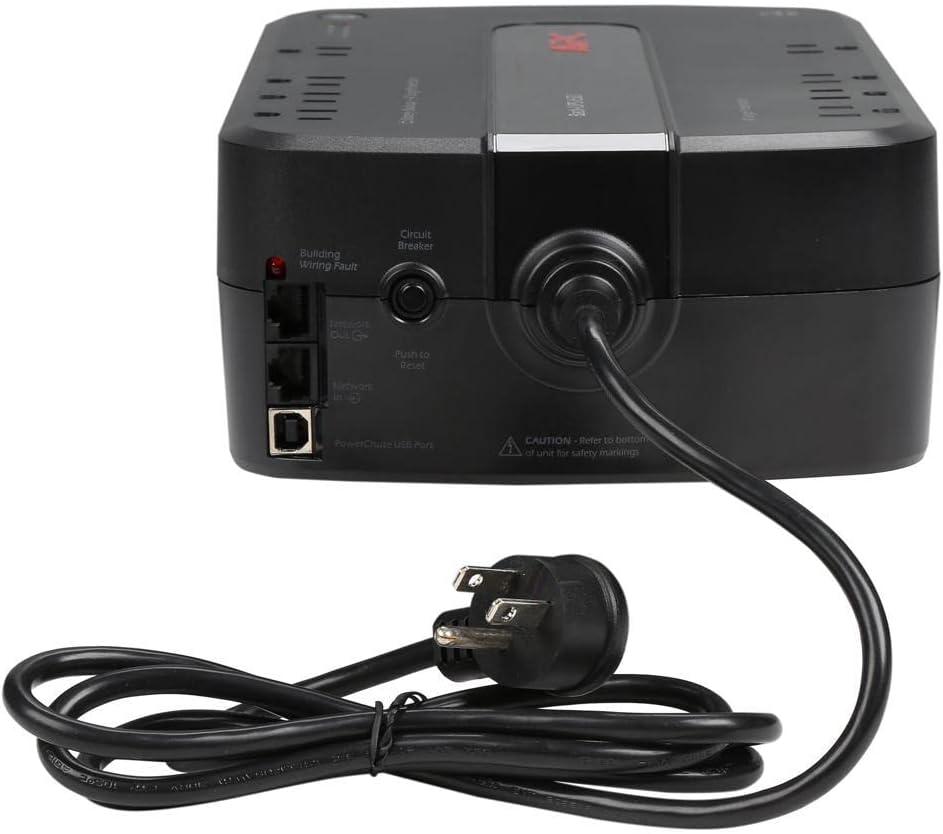
Figure 2: Rear view of the APC Back-UPS BE650G1 showing power cord and data ports.
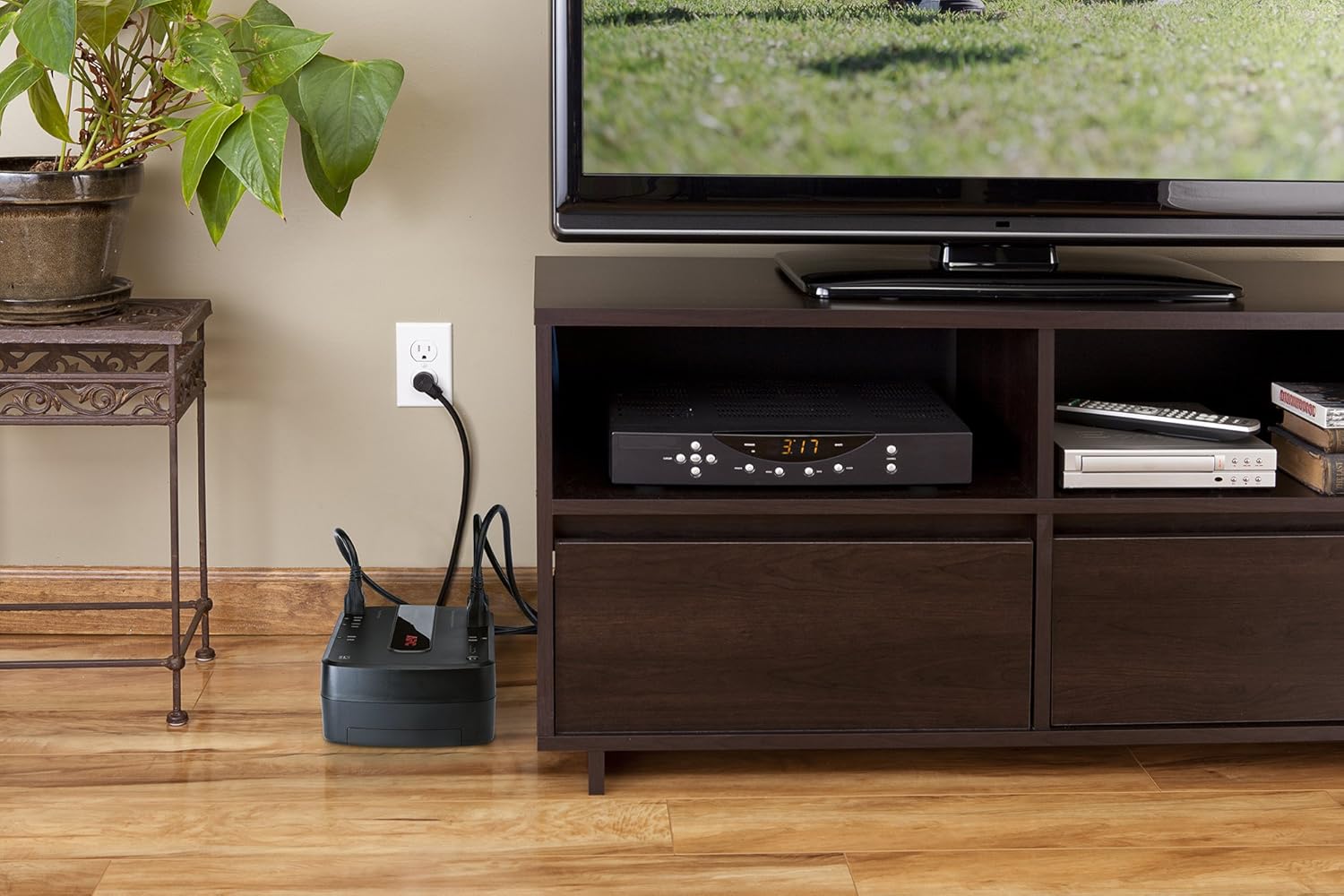
Figure 3: Example setup of the APC Back-UPS BE650G1 protecting a home entertainment system.
Operating the UPS
Once set up and charged, the UPS operates automatically to protect your connected equipment.
- Power On/Off: Press the power button on the front of the unit to turn the UPS on or off.
- Power Outage: During a power outage, the UPS will automatically switch to battery power. It will emit an audible alarm (beeping) to indicate it is operating on battery. The alarm will stop when utility power returns or when the battery is nearly depleted.
- Battery Runtime: The runtime provided by the battery depends on the load connected to the battery backup outlets. Reduce the load to extend runtime.
- PowerChute Software: For advanced management and automatic graceful shutdown of your computer, install the PowerChute software. This software is compatible with Windows 10 (22H2 Pro), Windows 11 Pro. For Mac OS, use native "Energy Saver" settings.

Figure 4: The UPS provides reliable power backup for various electronics.

Figure 5: Stay connected and productive even when the power goes out.
Maintenance
Proper maintenance ensures the longevity and optimal performance of your UPS.
- Battery Replacement: The internal battery is user-replaceable. The typical battery life is 3-5 years, but this can vary based on usage and environmental conditions. When the "Replace Battery" indicator illuminates, it is time to replace the battery. Use only genuine APC replacement battery, model RBC17.
- Battery Disposal: Dispose of old batteries properly according to local regulations.
- Cleaning: Keep the UPS clean and free of dust. Use a dry cloth to wipe the exterior. Do not use liquid cleaners or solvents.
- Storage: If storing the UPS for an extended period, ensure the battery is fully charged, then disconnect it. Recharge the battery every 3-6 months to prevent deep discharge and maintain battery health.
Troubleshooting
This section provides solutions to common issues you might encounter with your UPS.
| Problem | Possible Cause | Solution |
|---|---|---|
| UPS does not turn on. | Battery not connected or discharged. | Ensure the internal battery is properly connected. Plug the UPS into a wall outlet and allow it to charge for at least 10 hours. |
| UPS beeps continuously or frequently. | Operating on battery power; Overload; Low battery. | If on battery, utility power is out. If overloaded, remove non-essential equipment from battery backup outlets. If battery is low, allow it to recharge. |
| "Replace Battery" indicator is lit. | Battery has reached end of life. | Replace the battery with a genuine APC RBC17 replacement battery. |
| No power to connected equipment. | UPS is off; Circuit breaker tripped; Overload. | Ensure UPS is turned on. Check the circuit breaker on the back of the unit and reset if tripped. Reduce load if overloaded. |
Specifications
| Feature | Detail |
|---|---|
| Model Number | BE650G1 |
| Capacity | 650VA / 390W |
| Output Voltage | 120 Volts |
| Outlets | 8 (4 Battery Backup & Surge, 4 Surge Only) |
| Dataline Protection | Ethernet (RJ45 10/100 ports) |
| Battery Type | Sealed Lead Acid, 12V |
| Typical Recharge Time | 10 hours (for initial charge) |
| Dimensions (H x W x D) | 3.39 x 7.09 x 11.18 inches |
| Weight | 13.64 pounds |
| Color | Black |
| Country of Origin | Philippines |
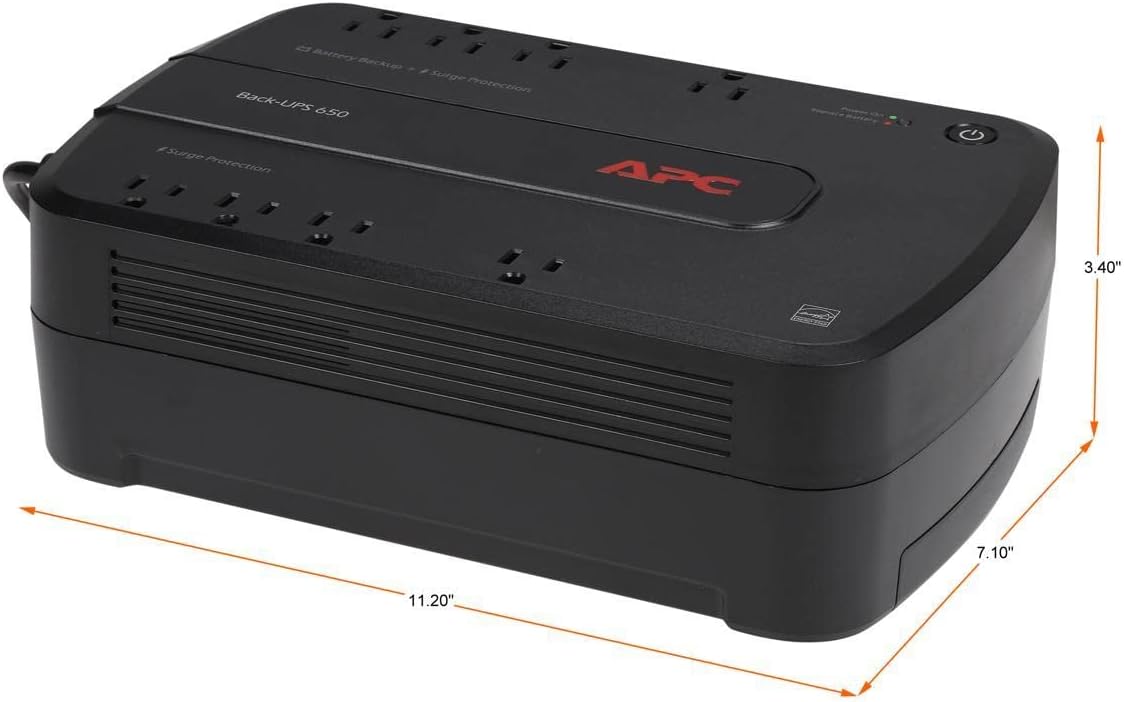
Figure 6: Dimensions of the APC Back-UPS BE650G1.
Warranty and Support
APC provides comprehensive support for its products. For detailed warranty information and technical assistance, please refer to the official APC website or contact their customer service.
- Online Resources: Visit the official APC website for product documentation, FAQs, and support forums.
- Customer Service: Contact APC customer support for technical assistance, warranty claims, or replacement parts.
- User Manual (PDF): A digital version of the user manual is available for download: Download User Manual
Important Safety Information
Read these instructions carefully before installing, operating, servicing, or maintaining the equipment. Safety is paramount when dealing with electrical devices.
- Do not install the UPS in direct sunlight, near heat sources, or where there is excessive dust, humidity, or corrosive substances.
- Connect the UPS power cable directly to a wall outlet. Do not use surge protectors or extension cords.
- The UPS contains a battery that can present a risk of electrical shock and burn from high short-circuit current.
- Servicing of batteries should be performed or supervised by personnel knowledgeable about batteries and the required precautions.
- Do not dispose of batteries in a fire as they may explode.
- Do not open or mutilate batteries. Released electrolyte is harmful to the skin and eyes. It may be toxic.
Related documentsBE650G1


Ask a question about this manual
Ask about setup, troubleshooting, compatibility, parts, safety, or missing instructions. Manuals+ will review the question and use this page’s manual context to help answer it.