
Magellan 2055T-LM
Magellan RoadMate 2055T-LM GPS User Manual
Your comprehensive guide to operating and maintaining your Magellan RoadMate 2055T-LM.
Introduction
The Magellan RoadMate 2055T-LM is a 4.7-inch LCD touchscreen GPS device designed to provide reliable navigation and enhance your driving experience. It comes equipped with features such as Free Lifetime Maps and Traffic updates, Bluetooth connectivity for hands-free calling, and integrated AAA TourBook information.
This manual provides detailed instructions on setting up, operating, maintaining, and troubleshooting your device to ensure optimal performance.
Setup
Unboxing and Initial Charge
Upon unboxing your RoadMate 2055T-LM, ensure all components are present, including the device itself and the Dashboard Mount. The device includes a Lithium Ion battery, which may require initial charging before first use. Connect the device to a power source using the provided charging cable. A full charge provides approximately 3 hours of battery life.
Mounting the Device
Utilize the included Dashboard Mount to securely position your GPS unit within your vehicle. Choose a location that does not obstruct your view of the road or interfere with airbag deployment. Ensure the mount is stable and the device is firmly attached to prevent movement during driving.

Figure 1: Magellan RoadMate 2055T-LM mounted and displaying a navigation screen.
First Power On
Press and hold the power button until the Magellan logo appears. Follow the on-screen prompts to complete the initial setup, which may include language selection and time zone settings.
Operating Your Device
Navigation Basics
The RoadMate 2055T-LM features a responsive touchscreen interface for all interactions. To begin navigation, tap the 'Menu' button on the main screen.
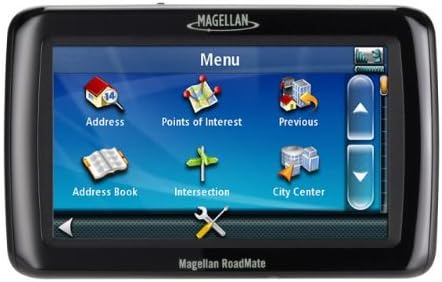
Figure 2: Main menu screen for destination input.
From the menu, you can select various methods to input your destination:
- Address: Enter a specific street address.
- Points of Interest (POI): Search for nearby attractions, businesses, or services.
- Previous: Select from recently visited destinations.
- Address Book: Access saved addresses.
- Intersection: Navigate to the intersection of two streets.
- City Center: Navigate to the center of a specified city.
Searching for Points of Interest (POI)
The device allows you to search for various categories of points of interest, such as gas stations, restaurants, and emergency services.
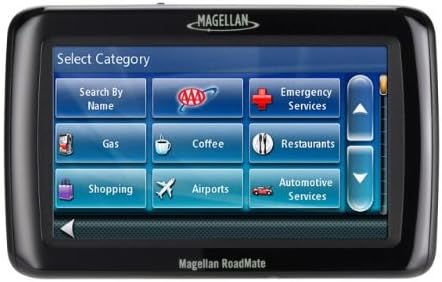
Figure 3: Points of Interest category selection screen.
Bluetooth Connectivity
The RoadMate 2055T-LM features Bluetooth connectivity, allowing you to pair your compatible mobile phone for hands-free calling. This feature utilizes the device's built-in microphone and speaker for clear communication while driving. Refer to the device's settings menu to enable Bluetooth and pair your phone.
Lifetime Maps and Traffic
Your device includes Free Lifetime Maps, ensuring your navigation data is always up-to-date without additional subscription fees. It also provides Free Lifetime Traffic updates, offering real-time alerts to help you avoid congestion and delays on your route. These features are designed to automatically update when the device is connected to a compatible network or computer with the Magellan software.
AAA TourBook Integration
The device integrates AAA TourBook information, providing descriptions and Diamond Ratings for hotels, restaurants, and attractions. This feature can be accessed through the Points of Interest menu, offering valuable travel planning resources directly on your GPS.
Maintenance
Cleaning Your Device
To maintain the clarity of the touchscreen and the overall appearance of your RoadMate 2055T-LM, gently wipe the screen and casing with a soft, lint-free cloth. Avoid using abrasive cleaners or solvents, as these can damage the device's surfaces.
Software Updates
Periodically check for software updates to ensure your device has the latest features and performance enhancements. Updates are typically managed through Magellan's official software, which can be downloaded and installed on a computer. Regular updates are crucial for maintaining accurate map data and traffic information.
Troubleshooting
Device Not Powering On
Ensure the device is fully charged. Connect it to a power source and allow it to charge for at least 30 minutes before attempting to power it on again. If the issue persists, try performing a soft reset by holding the power button for an extended period (e.g., 10-15 seconds).
GPS Signal Loss
If your device is having difficulty acquiring a GPS signal, ensure it has a clear view of the sky. Obstructions such as tall buildings, dense foliage, or being inside a garage can interfere with signal reception. Move to an open area and allow the device a few minutes to re-acquire the signal.
Screen Unresponsive
If the touchscreen becomes unresponsive, try restarting the device. If a simple restart does not resolve the issue, a factory reset might be necessary (note: this will erase personal data and settings). Consult the Magellan support website for instructions on performing a factory reset.
Specifications
| Feature | Detail |
|---|---|
| Product Dimensions | 13 x 6.1 x 7.1 inches |
| Item Weight | 14.4 ounces |
| ASIN | B005FPT5MY |
| Item Model Number | 2055T-LM |
| Batteries | 1 Lithium Ion battery (included) |
| Connectivity Technologies | Bluetooth |
| Special Features | Includes lifetime map updates |
| Other Display Features | Wireless |
| Human Interface Input | Touchscreen, Microphone |
| What's in the Box | Dashboard Mount |
| Manufacturer | Magellan |
| Date First Available | August 1, 2011 |
| Brand | Magellan |
| Vehicle Service Type | SUV, Car, Truck |
| Screen Size | 4.7 Inches |
| Map Type | US and Canada |
| Audio Output Mode | Speaker |
| Battery Life | 3 Hours |
| Mounting Type | Dashboard Mount |
Warranty and Support
For information regarding your product's warranty, please refer to the documentation included with your purchase or visit the official Magellan website. Magellan provides customer support for product inquiries, technical assistance, and warranty claims.
It is recommended to register your product with Magellan to receive important updates and support information.
Ask a question about this manual
Ask about setup, troubleshooting, compatibility, parts, safety, or missing instructions. Manuals+ will review the question and use this page’s manual context to help answer it.