
1. Introduction
The DXT Ergonomic Vertical Mouse PD7DXT 2 is designed to promote a neutral wrist posture, reducing strain during computer use. Its unique vertical orientation and precision grip aim to enhance comfort and accuracy for both left and right-handed users. This manual provides detailed instructions for setting up, operating, and maintaining your DXT mouse.

2. Product Features
The DXT Ergonomic Vertical Mouse PD7DXT 2 incorporates several features designed for user comfort and performance:
- Scientifically Proven Design: Engineered to support a natural hand and wrist position.
- Increased Comfort: Reduces wrist pronation and muscle strain.
- Improved Accuracy: Precision grip allows for finer cursor control.
- Ambidextrous Use: Easily switch between right and left-hand operation.
- Compact and Portable: Small footprint suitable for various workspaces and travel.
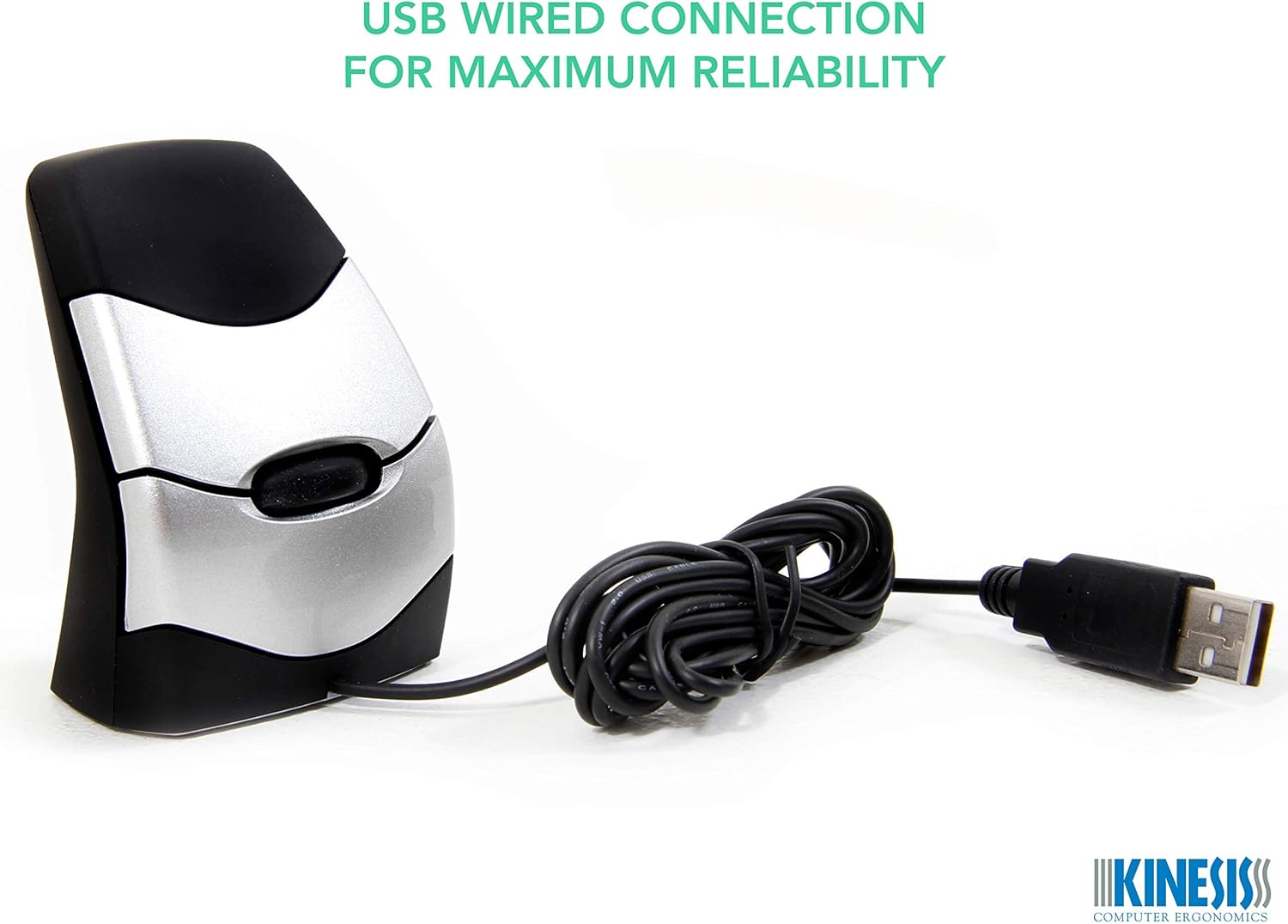
- USB Wired Connectivity: Ensures reliable and consistent performance.
- Optical Movement Detection: Provides smooth and accurate tracking.
- Adjustable DPI: Four sensitivity levels (500, 1000, 1500, 2000) for customized control.

3. Setup
Setting up your DXT Ergonomic Vertical Mouse is a straightforward process:
- Connect the USB Cable: Locate an available USB port on your computer. Insert the USB connector of the DXT mouse into the port.
- Automatic Driver Installation: The mouse is plug-and-play. Your operating system (Windows, macOS, etc.) will typically detect the device and install the necessary drivers automatically. This process may take a few moments.
- Verify Functionality: Once installed, the mouse cursor should respond to your movements. If not, try a different USB port or restart your computer.
4. Operating Instructions
4.1 Holding the Mouse
Grasp the DXT mouse like a pen, using a light fingertip hold. This precision grip engages smaller finger muscles for fine movements, promoting a neutral wrist position and reducing strain on larger muscle groups.

4.2 Left/Right Hand Mode
The DXT mouse is ambidextrous, allowing for comfortable use with either hand. To switch between left and right-hand modes, locate the prominent button at the base of the thumb side of the mouse. A single click will toggle the mouse's orientation for the desired hand.

4.3 Button Functions
- Left Click: Primary selection and activation.
- Right Click: Accesses contextual menus.
- Scroll Wheel: Scrolls content vertically. The scroll wheel can also be pressed for middle-click functionality in some applications.
4.4 DPI Adjustment
The DXT mouse features four adjustable DPI sensitivity levels: 500, 1000, 1500, and 2000. To change the DPI setting, locate the small button on the underside of the mouse. Pressing this button cycles through the available sensitivities, allowing you to select the speed that best suits your preference and task.

5. Maintenance
Proper maintenance ensures the longevity and optimal performance of your DXT mouse:
- Cleaning the Surface: Regularly clean the mouse surface with a soft, slightly damp cloth. Avoid using harsh chemicals, abrasive cleaners, or solvents, as these can damage the finish.
- Cleaning the Optical Sensor: Ensure the optical sensor on the underside of the mouse is free from dust, lint, and debris. A soft brush or compressed air can be used to gently clear the sensor area.
- Cable Care: Avoid sharp bends or excessive pulling on the USB cable to prevent internal damage.
6. Troubleshooting
If you encounter issues with your DXT Ergonomic Vertical Mouse, refer to the following troubleshooting tips:
- Mouse Not Responding:
- Ensure the USB cable is securely connected to your computer.
- Try connecting the mouse to a different USB port.
- Restart your computer.
- Erratic Cursor Movement:
- Clean the optical sensor on the underside of the mouse.
- Ensure you are using the mouse on a clean, non-reflective, and uniform surface. Avoid glass or highly reflective surfaces.
- Buttons or Scroll Wheel Unresponsive:
- Check for any physical obstructions around the buttons or scroll wheel.
- If the issue persists, contact customer support.
7. Specifications
| Feature | Detail |
|---|---|
| Product Dimensions | 2.2 x 1.8 x 3.3 inches |
| Item Weight | 3.68 ounces |
| Manufacturer | KINESIS |
| Model Number | DXT02 |
| Connectivity Technology | USB, Wired |
| Movement Detection Technology | Optical |
| DPI Sensitivity Levels | 500, 1000, 1500, 2000 |
| Color | Black Silver |

8. Warranty and Support
For warranty information, technical assistance, or customer support regarding your DXT Ergonomic Vertical Mouse PD7DXT 2, please contact DXT or Kinesis customer service. Refer to the product packaging or the manufacturer's official website for the most current contact details and warranty terms.