
Hitachi 0F12450
Hitachi HDS723030ALA640 3.5" 3TB 7200RPM SATA Hard Drive User Manual
Model: 0F12450
1. Introduction
This manual provides essential information for the installation, operation, maintenance, and troubleshooting of your Hitachi HDS723030ALA640 3.5" 3TB 7200RPM SATA internal hard drive. This device is designed for use in desktop computer systems, offering high-capacity storage and reliable performance.
2. Safety Information
- Electrostatic Discharge (ESD) Precautions: Always handle the hard drive by its edges. Wear an anti-static wrist strap or frequently touch a grounded metal object before handling to prevent ESD damage.
- Physical Handling: Avoid dropping or subjecting the hard drive to sudden impacts. Internal components are delicate and can be damaged by physical shock.
- Power Connections: Ensure your computer is powered off and unplugged from the wall outlet before connecting or disconnecting the hard drive's power and data cables.
- Ventilation: Ensure adequate airflow around the hard drive within your computer case to prevent overheating.
- Warranty: The warranty may be void if any label or screw is removed or broken.
3. Setup and Installation
Follow these steps to properly install your Hitachi HDS723030ALA640 hard drive into a desktop computer system.
3.1. Pre-installation Checklist
- SATA data cable (not included)
- SATA power connector from your power supply unit (PSU)
- Screws for mounting (typically included with your computer case)
- Phillips head screwdriver
- Anti-static wrist strap (recommended)
3.2. Physical Installation
- Prepare Your System: Power off your computer and unplug it from the wall outlet. Open the computer case.
- Locate a Drive Bay: Identify an available 3.5-inch drive bay in your computer case.
- Mount the Drive: Carefully slide the hard drive into the drive bay. Secure it with screws on both sides of the drive bay to prevent vibration.
- Connect Data Cable: Connect one end of the SATA data cable to the SATA port on the hard drive and the other end to an available SATA port on your motherboard.
- Connect Power Cable: Connect a SATA power connector from your PSU to the power port on the hard drive.
- Close Case: Once all connections are secure, close your computer case.
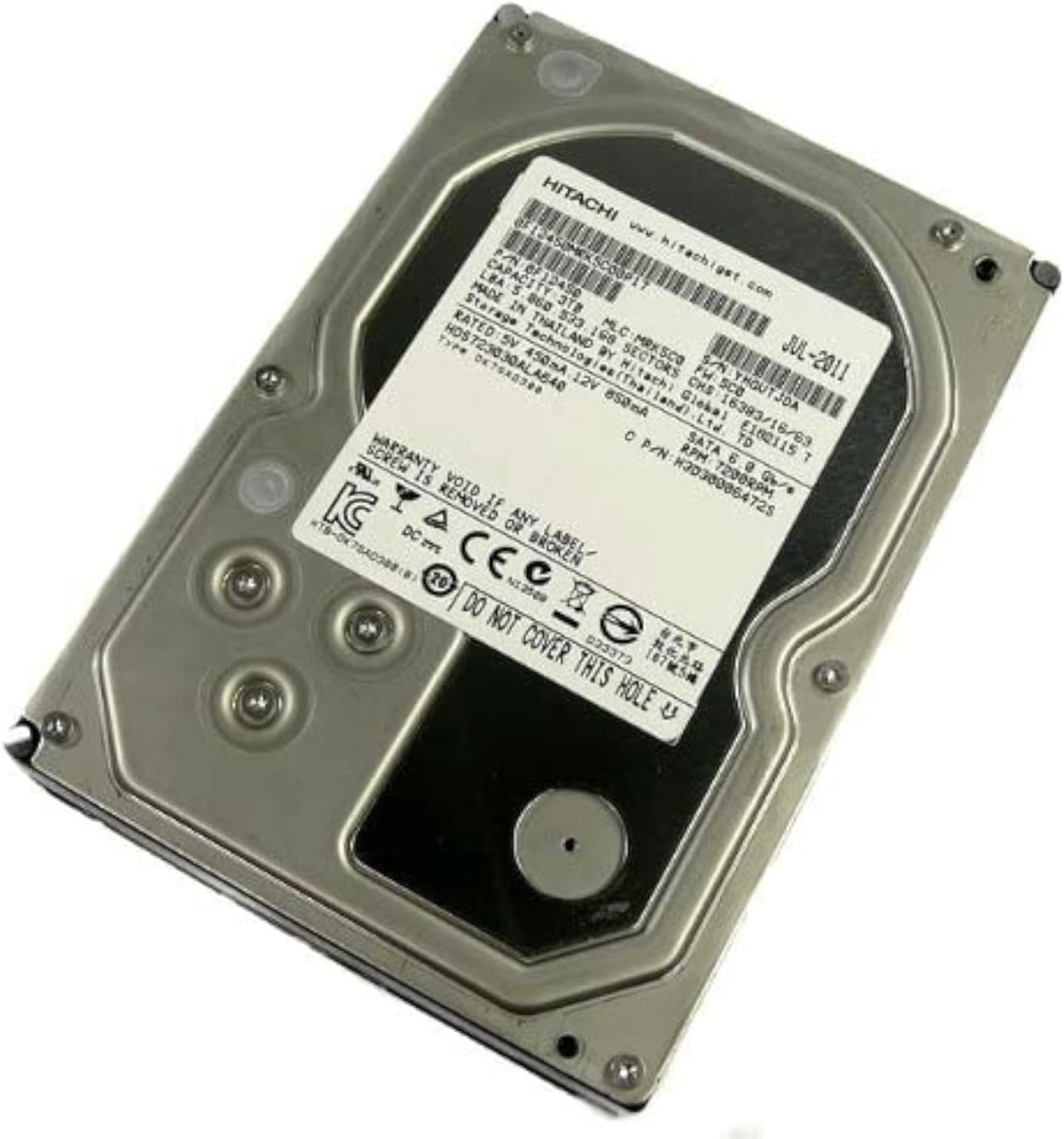
An overhead view of the Hitachi HDS723030ALA640 internal hard drive, showing its metallic casing and the product label with specifications such as model number, capacity, and manufacturing details. This image illustrates the physical appearance of the hard drive for installation reference.
3.3. Software Setup
- Power On: Plug in your computer and power it on.
- BIOS/UEFI Check: Enter your system's BIOS/UEFI settings (usually by pressing Del, F2, or F10 during boot-up) to confirm the hard drive is detected.
- Initialize and Format: For new drives, you will need to initialize and format the drive within your operating system's Disk Management utility (Windows) or Disk Utility (macOS/Linux). This process prepares the drive for data storage.
4. Operating the Hard Drive
The Hitachi HDS723030ALA640 is an internal component whose operation is managed by your computer's operating system. Once installed and formatted, it functions as a storage device for your files, applications, and operating system.
- Data Storage: Save documents, photos, videos, and other files directly to the drive.
- Application Installation: Install software applications onto the drive.
- Operating System: The drive can host your operating system, serving as the primary boot drive.
Accessing and managing files on the drive is done through your operating system's file explorer or equivalent interface.
5. Maintenance and Care
Proper maintenance can extend the lifespan and ensure the reliability of your hard drive.
- Regular Backups: Regularly back up important data to an external drive or cloud storage. Hard drives can fail, and backups are crucial for data recovery.
- Keep Cool: Ensure your computer case has good airflow to prevent the drive from overheating. High temperatures can degrade performance and lifespan.
- Avoid Physical Shock: Do not move or bump your computer while the hard drive is operating. Physical shock can cause permanent damage.
- Software Maintenance: Periodically run disk defragmentation (for HDDs on Windows) and error-checking utilities provided by your operating system.
- Cleanliness: Keep the interior of your computer case free of dust, which can impede airflow and cause overheating.
6. Troubleshooting
If you encounter issues with your hard drive, consider the following common solutions:
- Drive Not Detected:
- Check all power and data cable connections to ensure they are secure.
- Verify the drive is enabled in your system's BIOS/UEFI settings.
- Try a different SATA port on the motherboard or a different power cable.
- Ensure the drive is initialized and formatted in Disk Management (Windows) or Disk Utility (macOS/Linux).
- Slow Performance:
- Check for excessive background processes or malware.
- Ensure the drive is not nearly full.
- Run disk defragmentation (for HDDs on Windows).
- Check drive health using S.M.A.R.T. monitoring tools.
- Unusual Noises:
- Clicking, grinding, or loud whirring noises can indicate a failing drive. Immediately back up any critical data and consider replacing the drive.
- Data Corruption/Loss:
- Run disk error-checking utilities.
- If data is lost, stop using the drive immediately to prevent overwriting and consult data recovery specialists.
7. Specifications
| Feature | Specification |
|---|---|
| Model Number | 0F12450 |
| Digital Storage Capacity | 3 TB (3000 GB) |
| Hard Disk Form Factor | 3.5 Inches |
| Hard Disk Interface | Serial ATA (SATA) |
| Connectivity Technology | SATA |
| SATA Speed | 6.0 Gb/s |
| Rotational Speed (RPM) | 7200 RPM |
| Cache | 64 MB |
| Hard Disk Description | Mechanical Hard Disk |
| Compatible Devices | Desktop |
| Installation Type | Internal Hard Drive |
| Item Weight | 2 pounds |
| Package Dimensions | 8 x 6 x 4 inches |
| Manufacturer | HITACHI |
| Date First Available | June 3, 2011 |
8. Warranty and Support
For information regarding the warranty of your Hitachi hard drive, please refer to the documentation included with your purchase or visit the official Hitachi support website. Warranty terms typically cover manufacturing defects for a specified period.
Important: As noted on the product label, the warranty may be void if any label or screw is removed or broken.
For technical support, driver downloads, or further assistance, please visit the official Hitachi support portal or contact their customer service. You can often find support resources by searching for "Hitachi support" online.
Online Resources:
- Hitachi Global Storage Technologies (HGST) website: www.hgst.com (Note: HGST is now part of Western Digital)
- Western Digital Support: support.wdc.com
Ask a question about this manual
Ask about setup, troubleshooting, compatibility, parts, safety, or missing instructions. Manuals+ will review the question and use this page’s manual context to help answer it.