
ProCut 1350II
ProCut Saga Standard Servo 1350II Vinyl Cutter User Manual
Model: 1350II
1. Introduction
This manual provides essential instructions for the safe and efficient operation of your ProCut Saga Standard Servo 1350II Vinyl Cutter. Please read this manual thoroughly before operating the device to ensure proper setup, usage, and maintenance. Retain this manual for future reference.
2. Safety Information
- Always ensure the power supply matches the specifications listed on the device.
- Keep hands and loose clothing away from moving parts during operation.
- Do not operate the cutter in wet or excessively humid environments.
- Unplug the device from the power outlet before performing any maintenance or cleaning.
- Use only approved accessories and replacement parts.
- Keep the work area clear and well-lit.
3. Package Contents
Verify that all items are present in the package:
- ProCut Saga Standard Servo 1350II Vinyl Cutter Unit
- Floor Stand
- Material Basket
- Power Cable
- USB Cable
- VinylMaster Cut Software
- User Manual (this document)
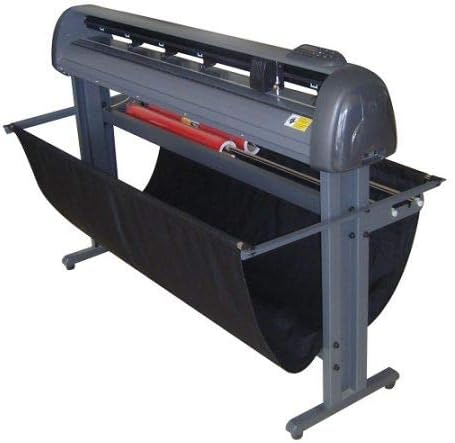
Figure 3.1: ProCut Saga Standard Servo 1350II Vinyl Cutter (unloaded)
4. Setup
4.1 Assembly
- Assemble the Floor Stand: Follow the included diagram to securely assemble the floor stand components. Ensure all screws are tightened.
- Attach the Cutter Unit: Carefully place the vinyl cutter unit onto the assembled floor stand. Secure it using the provided fasteners.
- Install the Material Basket: Attach the material basket to the designated points on the stand. This basket collects cut material.
4.2 Connecting to Power and Computer
- Power Connection: Connect the power cable to the cutter's power input and then to a grounded electrical outlet (AC110V-240V / 50-60HZ).
- USB Connection: Connect the USB cable from the cutter to an available USB port on your computer. The cutter functions as a printer.
4.3 Software Installation
- Install VinylMaster Cut: Insert the VinylMaster Cut software disc (or download from the official website) and follow the on-screen instructions for installation.
- Install Drivers: The necessary drivers for the cutter to be recognized as a printer will typically install with VinylMaster Cut or can be found on the provided media/website. These drivers enable direct cutting from applications like CorelDRAW, Illustrator, AutoCAD, FreeHand, and MS Word.
- Mac Compatibility: For Mac users, compatibility is primarily with SignCut software.
5. Operating Instructions
5.1 Loading Material
- Ensure the cutter is powered on and in standby mode.
- Lift the pinch rollers.
- Carefully feed the vinyl or other cutting material into the cutter, ensuring it is aligned straight. The maximum feeding width is 53 inches.
- Lower the pinch rollers to secure the material. Ensure the material is taut and free of wrinkles.

Figure 5.1: ProCut Saga Standard Servo 1350II Vinyl Cutter with material loaded
5.2 Basic Cutting Operations
- Design Preparation: Create or open your design in VinylMaster Cut or your preferred design software (e.g., CorelDRAW, Illustrator).
- Send to Cutter: Use the "Print" or "Cut" function within your software to send the design to the ProCut Saga 1350II.
- Adjust Settings: On the cutter's control panel or within the software, adjust cutting force (0.1-1.7 lbs) and speed (straight-line: 1.96-19.69 in/s, curve: 1.96-11.8 in/s) as needed for your material.
- Start Cutting: Initiate the cutting process. The cutter will automatically begin processing the design.
5.3 Contour Cutting
The Saga 1350II supports contour cutting using its laser sensor. This feature allows for precise cutting around pre-printed designs. Refer to the VinylMaster Cut software manual for detailed instructions on setting up and executing contour cuts.
6. Maintenance
6.1 Cleaning
- Regularly clean the exterior of the cutter with a soft, dry cloth.
- Periodically inspect and clean the pinch rollers to ensure proper material feeding.
- Keep the cutting strip clean and free of debris.
6.2 Blade Replacement
When cutting performance degrades, the blade may need replacement. Refer to the cutter's specific blade holder instructions for safe removal and installation of new blades. Always use caution when handling sharp blades.
7. Troubleshooting
| Problem | Possible Cause | Solution |
|---|---|---|
| Cutter not powering on | Power cable loose; no power from outlet | Check power cable connections; test outlet with another device. |
| Cutter not recognized by computer | USB cable loose; drivers not installed | Ensure USB cable is secure; reinstall cutter drivers. |
| Poor cutting quality | Dull blade; incorrect force/speed settings; material not loaded correctly | Replace blade; adjust cutting force and speed; re-load material ensuring proper alignment. |
| Material slips during cutting | Pinch rollers not engaged; rollers dirty; material too wide/narrow | Ensure pinch rollers are down; clean rollers; verify material width is within specifications. |
8. Specifications
| Feature | Detail |
|---|---|
| Max. Cutting Speed | 37.8 in/s |
| Straight-line Speed | 1.96-19.69 in/s |
| Curve Speed | 1.96-11.8 in/s |
| Motor & Driver | DC Servo |
| Motor Power | 25 Watt |
| Cutting Force | 0.1-1.7 lbs (0.022 lbs/step) |
| Memory | 512K/4MB |
| CPU | 64bit DSP 32MFlash |
| Mechanical Resolution | 0.001 in/pulse |
| Repeating Precision | 0.0039 in |
| Interface | USB |
| Format | DMPL/HPGL |
| Power Supply | AC110V-240V / 50-60HZ 6A |
| Machine Power Consumption | <100 Watt |
| Max. Feeding Width | 53 in |
| Max. Cutting Width | 49.6 in |
| Dimensions (Packed) | 64 x 14 x 17 in |
| Weight (Net/Gross) | 77 lbs / 84 lbs |
| Environmental Temperature | 35-95°F |
| Environmental Humidity | 30%-70% (non-condensing) |
9. Warranty and Support
The ProCut Saga Standard Servo 1350II Vinyl Cutter comes with a 5-year warranty. For warranty claims, technical support, or service inquiries, please contact your authorized ProCut dealer or visit the official ProCut support website. Ensure you have your model number (1350II) and purchase information available when contacting support.