
1. Introduction
The EDUP EP-MS150N is a 150Mbps Wireless USB WiFi Adapter designed to provide high-speed wireless connectivity for your desktop or laptop computer. Featuring an external 5dBi antenna, it enhances signal reception and transmission, ensuring a stable and reliable connection to your wireless network. This adapter supports IEEE 802.11n, 802.11g, and 802.11b standards, operating on the 2.4 GHz frequency band.
2. Setup Guide
2.1 Package Contents
- EDUP EP-MS150N Wireless USB WiFi Adapter
- Driver CD (may vary by package)
- Quick Installation Guide
2.2 Hardware Installation
- Insert the Adapter: Locate an available USB port on your computer. Carefully insert the EDUP EP-MS150N USB WiFi Adapter into the USB port. Ensure it is firmly seated.
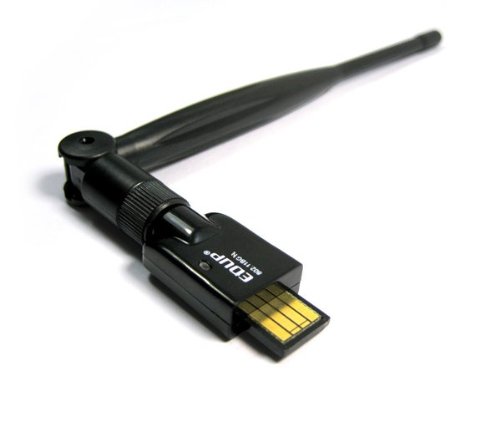
Image: The EDUP EP-MS150N Wireless USB WiFi Adapter, showing its compact design and USB connector, ready for insertion into a computer's USB port.
2.3 Driver Installation
For optimal performance and compatibility, it is recommended to install the latest drivers for your operating system.
- Using the Driver CD: If your package includes a driver CD, insert it into your computer's CD-ROM drive. Follow the on-screen instructions to install the drivers.
- Downloading Drivers Online: If you do not have a CD drive or wish to obtain the latest drivers, visit the official EDUP support website. Navigate to the support section, find your model (EP-MS150N), and download the appropriate drivers for your operating system (Windows, macOS, Linux). Run the downloaded installer and follow the prompts.
- Verify Installation: After installation, check your computer's Device Manager (Windows) or System Information (macOS/Linux) to ensure the adapter is recognized and functioning correctly.
2.4 Connecting to a Wireless Network
- Access Network Settings: On your computer, open the wireless network settings. This is typically found in the system tray (Windows) or menu bar (macOS/Linux).
- Scan for Networks: The adapter will automatically scan for available wireless networks.
- Select Network: Choose your desired wireless network (SSID) from the list.
- Enter Password: If prompted, enter the network security key or password (WPA/WPA2-PSK).
- Connect: Click 'Connect' to establish a connection. Once connected, you should have internet access.
3. Operating Instructions
3.1 Checking Connection Status
To verify your wireless connection status:
- Windows: Click the network icon in the system tray. It will display the name of the connected network and its status.
- macOS: Click the Wi-Fi icon in the menu bar. It will show the connected network.
- Linux: Check the network manager applet in your desktop environment.
3.2 Disconnecting from a Network
To disconnect from a wireless network:
- Access your network settings as described above.
- Select the currently connected network.
- Choose the 'Disconnect' option.
4. Maintenance
4.1 Driver Updates
Periodically check the EDUP official website for updated drivers. Keeping your drivers current can improve performance, stability, and compatibility with new operating system versions or network technologies.
4.2 Physical Care
- Keep the adapter clean and free from dust. Use a soft, dry cloth for cleaning.
- Avoid exposing the adapter to extreme temperatures, humidity, or direct sunlight.
- Do not attempt to disassemble or repair the adapter yourself, as this will void the warranty.
5. Troubleshooting
5.1 No Internet Access
- Check Router: Ensure your wireless router is powered on and functioning correctly.
- Verify Connection: Confirm that the adapter is properly connected to your computer's USB port and that you are connected to the correct wireless network.
- Restart Devices: Try restarting your computer and your wireless router.
- Driver Check: Ensure the drivers are correctly installed and up to date. Reinstall them if necessary.
5.2 Slow Connection Speed
- Signal Strength: Move closer to your wireless router to improve signal strength. Obstacles like walls and large appliances can degrade signal quality.
- Interference: Other electronic devices (e.g., cordless phones, microwaves) operating on the 2.4 GHz band can cause interference. Try changing your router's wireless channel.
- Router Settings: Ensure your router is configured for optimal performance (e.g., using WPA2 encryption, appropriate channel width).
- Driver Update: Ensure you have the latest drivers installed.
5.3 Adapter Not Detected
- USB Port: Try plugging the adapter into a different USB port on your computer.
- Restart Computer: A simple restart can often resolve detection issues.
- Driver Installation: Reinstall the drivers for the adapter.
- Device Manager (Windows): Check Device Manager to see if the adapter appears under 'Network adapters' or 'Other devices'. If it has a yellow exclamation mark, reinstall drivers.
6. Specifications
| Model Number | EP-MS150N |
| Brand | EDUP |
| Wireless Standards | IEEE 802.11n, IEEE 802.11g, IEEE 802.11b |
| Frequency Range | 2.4 - 2.4835 GHz |
| Wireless Speed | Up to 150Mbps |
| Antenna Type | External 5dBi Antenna |
| Interface | USB |
| Effective Working Distance | Up to 200 meters indoors, 830 meters outdoors (environment dependent) |
| UPC | 847231017403 |
7. Warranty & Support
7.1 Product Warranty
EDUP products typically come with a limited warranty. Please refer to the warranty card included with your product or visit the official EDUP website for detailed warranty terms and conditions specific to the EP-MS150N model. Keep your purchase receipt as proof of purchase for warranty claims.
7.2 Technical Support
For technical assistance, driver downloads, or further inquiries, please visit the official EDUP support website. You may find FAQs, troubleshooting guides, and contact information for customer service there. When contacting support, please have your product model number (EP-MS150N) and a description of your issue ready.


