
1. Product Overview
The Stein INOPDF-702S is a 7-inch digital photo frame designed to display your favorite photos with ease. Featuring a clear display and simple touchscreen controls, it's an ideal way to bring your digital memories to life in any room.
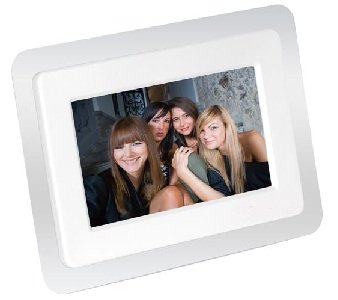
Figure 1: Front view of the Stein INOPDF-702S 7-inch Digital Photo Frame. The image shows the device with its screen and a white bezel.
2. Safety Information
Please read all safety instructions carefully before using this product. Failure to follow these instructions may result in electric shock, fire, or damage to the device.
- Do not expose the device to rain or moisture.
- Do not disassemble the device. Refer all servicing to qualified personnel.
- Use only the provided AC adapter.
- Keep the device away from direct sunlight and heat sources.
- Ensure proper ventilation around the device.
3. Package Contents
Verify that all items are present in the package:
- Stein INOPDF-702S Digital Photo Frame
- AC Power Adapter
- USB Cable
- User Manual (this document)
4. Setup
4.1. Powering On
- Connect the AC power adapter to the DC IN port on the back of the photo frame.
- Plug the other end of the adapter into a standard electrical outlet.
- The photo frame will automatically power on and display the initial setup screen or main menu.
4.2. Inserting a Memory Card or USB Drive
The photo frame supports SD/SDHC memory cards and USB flash drives for photo storage.
- Locate the memory card slot or USB port on the side or back of the frame.
- Insert your memory card or USB drive firmly into the corresponding slot/port. Ensure it is inserted in the correct orientation.
- The frame should automatically detect the storage device and prompt you to view photos or access the file browser.
5. Operating Instructions
The INOPDF-702S features a touchscreen interface for easy navigation.
5.1. Main Menu Navigation
From the main menu, you can access various functions:
- Photos: Start a slideshow of images from your inserted storage.
- Settings: Adjust display, time, slideshow, and system settings.
- File Browser: Manually browse files on your memory card or USB drive.
5.2. Adjusting Settings
Tap the "Settings" icon on the main menu to customize your photo frame:
- Display Settings: Adjust brightness, contrast, and aspect ratio.
- Slideshow Settings: Configure transition effects, display time per photo, and playback order.
- Time & Date: Set the current time and date.
- System Information: View firmware version and storage details.
5.3. Playing a Slideshow
- Ensure a memory card or USB drive with photos is inserted.
- From the main menu, tap "Photos".
- The slideshow will begin automatically. You can tap the screen to pause, skip photos, or access slideshow options.
6. Maintenance
6.1. Cleaning the Screen
To clean the screen, gently wipe it with a soft, lint-free cloth. For stubborn smudges, slightly dampen the cloth with water or a screen-cleaning solution. Do not spray liquids directly onto the screen.
6.2. General Care
- Avoid dropping the device or subjecting it to strong impacts.
- Keep the device away from extreme temperatures.
- Unplug the power adapter when the device is not in use for extended periods.
7. Troubleshooting
| Problem | Possible Cause | Solution |
|---|---|---|
| Frame does not power on. | Power adapter not connected or faulty. | Ensure the power adapter is securely connected to both the frame and a working electrical outlet. Try a different outlet. |
| No photos displayed. | No memory card/USB drive inserted, or files are not in a supported format. | Insert a memory card or USB drive with supported image files (e.g., JPEG). Ensure the storage device is properly formatted. |
| Screen is unresponsive. | Temporary software glitch. | Disconnect the power adapter, wait 10 seconds, then reconnect it to restart the device. |
8. Specifications
| Feature | Detail |
|---|---|
| Model Number | INOPDF-702S |
| Screen Size | 7 Inch |
| Resolution | 480 x 234 pixels |
| Connectivity | USB |
| Power Source | AC Adapter |
| Input Interface | Touchscreen |
| Compatible Devices | Smartphone, Tablet, PC (for file transfer) |
9. Warranty and Support
This product comes with a standard manufacturer's warranty. For specific warranty terms and conditions, please refer to the warranty card included in your product packaging or visit the official Stein website.
For technical support, product inquiries, or service requests, please contact Stein customer service through their official channels. Contact information can typically be found on the manufacturer's website or on the product packaging.
Please retain your proof of purchase for warranty claims.