
StarTech ICUSB2321F
StarTech.com 1-Port FTDI USB to Serial RS232 Adapter Cable User Manual
Model: ICUSB2321F
Brand: StarTech
1. Product Overview
The StarTech.com 1-Port FTDI USB to Serial RS232 Adapter Cable (Model ICUSB2321F) converts an available USB 1.1 or 2.0 port into an RS232 serial DB9 port. This allows for connection, monitoring, and control of various serial devices. It features COM retention, ensuring the same COM port value is automatically re-assigned upon disconnection/reconnection or system reboot. The adapter utilizes an FTDI chipset, offering enhanced customization, advanced features, and broad compatibility across multiple operating systems.
Key Features:
- Multi-Use Functionality: Ideal for digital signage, point-of-sale systems, and barcode scanners.
- Customizable Solution: FTDI chipset provides high customizability and compatibility.
- Compact Design: USB powered, eliminating the need for external power adapters.
- Easy Installation: Features COM port retention for robust serial connectivity and simplified setup.
- Broad OS Compatibility: Supports Windows, Windows CE, Mac OS, and Linux.

Figure 1: StarTech.com 1-Port FTDI USB to Serial RS232 Adapter Cable. This image shows the adapter with its USB-A connector on one end and the DB9 serial port on the other, connected by a cable.
2. Setup and Installation
Follow these steps to set up your StarTech.com USB to Serial RS232 Adapter Cable:
- Connect the Adapter: Plug the USB-A connector of the adapter cable into an available USB port on your computer.
- Driver Installation:
- For most modern operating systems (e.g., Windows 10/11, recent macOS versions), the necessary drivers for the FTDI chipset will install automatically upon connection.
- If automatic installation does not occur, or if you are using an older operating system, drivers can be downloaded from the StarTech.com website. A driver CD may also be included with the product.
- Verify Installation: After driver installation, verify the adapter is recognized by your system.
- On Windows, open Device Manager and look under "Ports (COM & LPT)". You should see an entry for "USB Serial Port (COMX)", where X is the assigned COM port number.
- On macOS or Linux, consult your system's documentation for verifying serial port recognition.
- Connect Serial Device: Connect your RS232 serial device (e.g., modem, barcode scanner, digital camera, GPS, POS device) to the DB9 male connector on the adapter. Ensure the connection is secure.
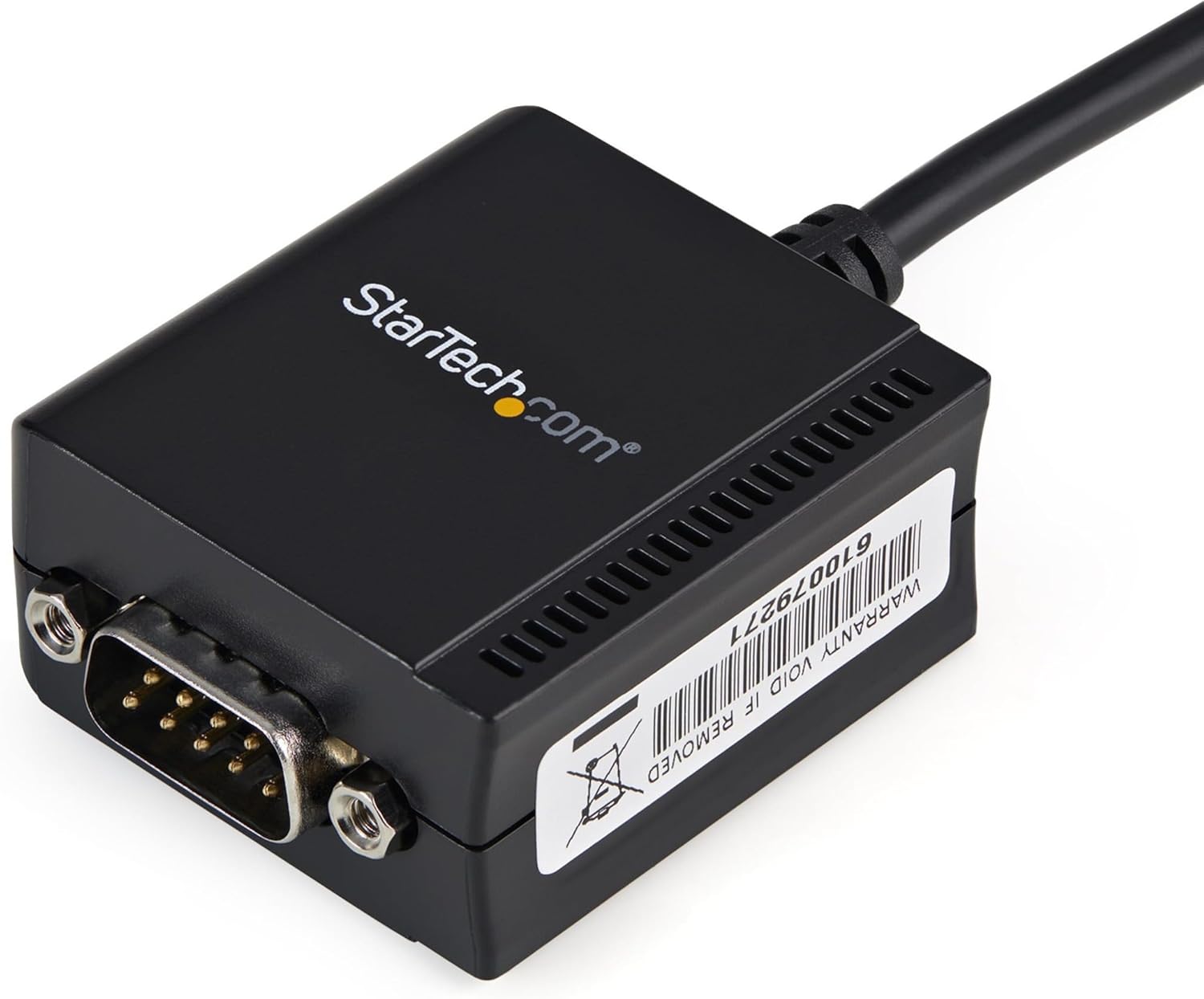
Figure 2: Close-up view of the DB9 serial port on the adapter, showing the screw-in connectors for a secure attachment to a serial device.
3. Operating Instructions
Once the adapter is installed and recognized by your operating system, it functions as a standard serial COM port. Applications that communicate via serial ports can now interact with your connected serial device.
- COM Port Retention: A key feature of this adapter is COM port retention. This means that if you disconnect the adapter from your computer and then reconnect it, or if you reboot your system, the operating system will automatically re-assign the same COM port number to the adapter. This eliminates the need to reconfigure your serial communication software each time.
- Software Configuration: Open your serial communication software (e.g., HyperTerminal, PuTTY, custom application) and select the COM port number assigned to the StarTech.com adapter. Configure the serial port settings (baud rate, data bits, parity, stop bits, flow control) to match those of your connected serial device.
- Data Transfer: Initiate communication through your software. The adapter will facilitate the data transfer between your computer's USB port and the serial device.
4. Maintenance
The StarTech.com USB to Serial RS232 Adapter Cable requires minimal maintenance to ensure long-term performance:
- Cleaning: Use a soft, dry cloth to clean the exterior of the adapter. Avoid using liquid cleaners or solvents, which may damage the device.
- Storage: Store the adapter in a cool, dry place away from direct sunlight and extreme temperatures.
- Handling: Avoid bending or twisting the cable excessively, as this can damage internal wires. Do not apply excessive force when connecting or disconnecting the adapter.
- Firmware/Driver Updates: Periodically check the StarTech.com website for updated drivers or firmware, which may offer improved performance or compatibility.
5. Troubleshooting
If you encounter issues with your StarTech.com USB to Serial RS232 Adapter Cable, refer to the following common troubleshooting steps:
| Problem | Possible Solution |
|---|---|
| Adapter not recognized by computer. |
|
| Serial device not communicating. |
|
| COM port number changes unexpectedly. |
|
6. Specifications
| Attribute | Detail |
|---|---|
| Product Dimensions (L x W x H) | 1.8 x 1.6 x 0.9 inches |
| Item Weight | 3.17 ounces |
| Model Number | ICUSB2321F |
| Connector Type | DB-9, USB Type A |
| Chipset | FTDI FT232RL |
| Max Baud Rate | 115.2 Kbps |
| FIFO Buffer | 256 Bytes |
| Parity Modes | None/Odd/Even/Mark |
| Data Bits | 7 or 8 |
| Stop Bits | 1 or 2 |
| Cable Length | 6 feet (1.8 meters) |
| Color | Black |
| Compatible Devices | Monitor (general term for serial devices), Digital signage, Point of sale systems, Barcode scanners |
| Manufacturer | StarTech.com |
7. Warranty and Support
StarTech.com products are designed for reliability and performance. For detailed warranty information and technical support, please refer to the official StarTech.com website or the documentation included with your product.
- Manufacturer: StarTech.com
- Official User Manual (PDF): For the most comprehensive information, you can download the official user manual from the StarTech.com support page or via this link: StarTech.com USB to Serial Adapter User Manual.
- Technical Support: Visit the StarTech.com support website for drivers, FAQs, and contact information for technical assistance.
Related documentsICUSB2321F


Ask a question about this manual
Ask about setup, troubleshooting, compatibility, parts, safety, or missing instructions. Manuals+ will review the question and use this page’s manual context to help answer it.