
Linksys E1200
Linksys E1200 (N300) Wireless Router User Manual
Model: E1200
Introduction
The Linksys E1200 Wireless-N Router is designed to provide fast speed and reliable range for creating a powerful wireless home network. It enables connection of computers, wireless printers, and other Wi-Fi devices at speeds up to 300Mbps. This router incorporates WPA/WPA2 encryption and an SPI firewall to enhance network security against viruses and hackers. Setup is streamlined with the included Cisco Connect software, offering intuitive tools for network management, including the ability to establish a separate guest network and implement Parental Controls for internet access management. MIMO antenna technology ensures broad wireless coverage, making surfing, emailing, and wireless printing an easy process.

Figure 1: Front view of the Linksys E1200 Wireless Router, showcasing its sleek black design with the Linksys E1200 logo on top.
Package Contents
- Linksys E1200 Wireless-N Router
- Power Adapter
- Ethernet Cable
- Quick Installation Guide (or CD with Cisco Connect software)
Setup Instructions
Follow these steps to set up your Linksys E1200 Wireless Router:
- Unpack the Router: Carefully remove the router and all accessories from the packaging.
- Connect the Router to Your Modem:
- Disconnect the power from your modem.
- Connect one end of the provided Ethernet cable to the yellow "Internet" port on the back of the Linksys E1200 router.
- Connect the other end of the Ethernet cable to the Ethernet port on your modem.
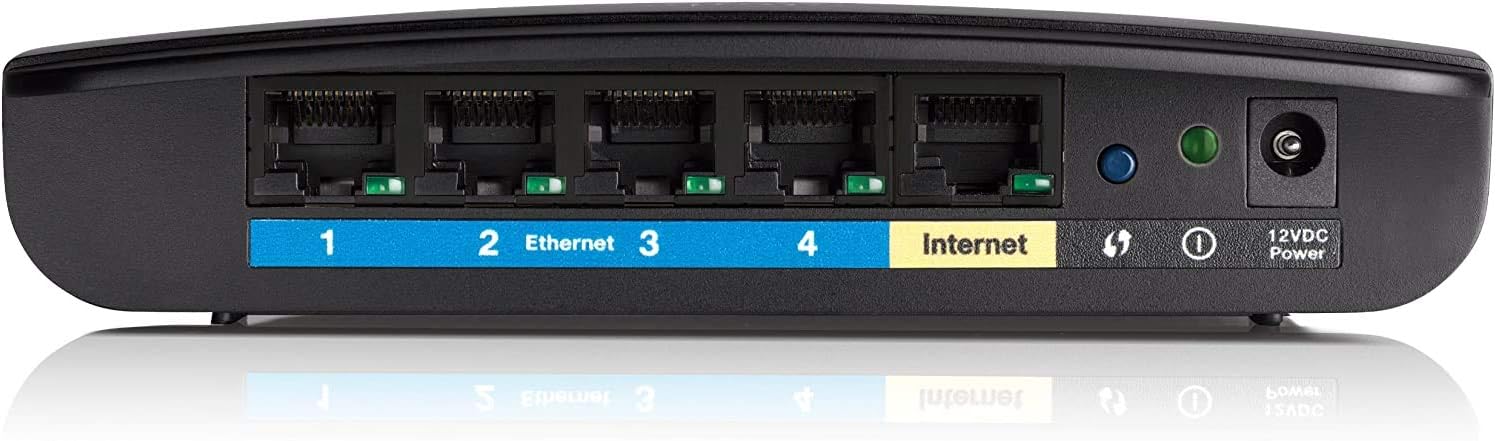
Figure 2: Rear panel of the Linksys E1200 router, highlighting the four blue Ethernet LAN ports (1-4), the yellow Internet WAN port, and the 12VDC Power input.
- Connect Power:
- Connect the power adapter to the "12VDC Power" port on the router.
- Plug the other end of the power adapter into an electrical outlet.
- Reconnect power to your modem. Wait for the modem to fully boot up (usually indicated by stable lights).
- Connect Your Computer:
- For wired connection: Connect an Ethernet cable from your computer's network port to any of the blue "Ethernet 1-4" ports on the router.
- For wireless connection: On your computer or wireless device, search for available Wi-Fi networks. The default network name (SSID) is typically "Linksys" followed by a series of numbers/letters. The default password can be found on a sticker on the bottom of the router.
- Run Cisco Connect Software:
- Insert the Cisco Connect CD into your computer's CD/DVD drive, or download the software from the Linksys support website.
- Follow the on-screen instructions to complete the setup process, which will guide you through naming your network and setting a secure password.
Operating Your Router
The Linksys E1200 router offers various features to manage your home network:
- Wireless Connectivity: Enjoy Wireless-N300 (802.11n) for surfing the web, emailing, and wireless printing. Connect devices at up to 300 Mbps transfer speed.
- Wired Connections: Utilize the four Fast Ethernet (10/100 Mbps) ports to directly connect wired devices such as desktop computers, gaming consoles, or network-attached storage (NAS) devices.
- Network Security: Keep your network protected with customizable security settings, including WPA/WPA2 Personal encryption and SPI firewall protection. Access these settings via the router's web-based interface.
- Guest Access: Create a separate, password-protected guest network. This allows visitors to access the internet without gaining access to your main network's computers or data, enhancing security and privacy.
- Parental Controls: Use the Parental Controls feature to block specific websites and restrict internet access during certain hours for connected devices. This feature is managed through the Cisco Connect software or the router's web interface.
- MIMO Antenna Technology: Benefit from broad wireless coverage provided by the integrated MIMO antenna technology, ensuring a strong signal throughout your home.
Maintenance
To ensure optimal performance and longevity of your Linksys E1200 router, consider the following maintenance tips:
- Firmware Updates: Regularly check the Linksys support website for firmware updates. Updating the firmware can improve performance, add new features, and fix security vulnerabilities.
- Router Placement: Place the router in a central location in your home, away from obstructions like large metal objects, concrete walls, and other electronic devices that may cause interference (e.g., cordless phones, microwaves).

Figure 3: Top view of the Linksys E1200 router, showing its compact and unobtrusive design, suitable for various placements.
- Regular Reboot: Periodically reboot your router (unplug the power adapter for 10-15 seconds, then plug it back in). This can resolve minor connectivity issues and refresh the network.
- Cleanliness: Keep the router clean and free from dust. Dust accumulation can lead to overheating. Use a soft, dry cloth to wipe the exterior. Ensure ventilation openings are not blocked.
- Strong Passwords: Regularly review and update your Wi-Fi network password and router administration password to strong, unique combinations.
Troubleshooting
If you encounter issues with your Linksys E1200 router, try the following solutions:
| Problem | Possible Cause | Solution |
|---|---|---|
| No Internet Connection | Modem issue, incorrect cable connection, router not configured. |
|
| Slow Wireless Speed | Interference, router placement, too many devices, outdated firmware. |
|
| Cannot Connect to Wi-Fi Network | Incorrect password, network not broadcasting, device issue. |
|
| Forgotten Router Password | Lost administrative password for router settings. |
|
Specifications
| Feature | Detail |
|---|---|
| Brand | Linksys |
| Model Name | E1200 |
| Item Model Number | E1200-CA |
| Wireless Type | 802.11n (Wireless-N300) |
| Wireless Communication Standard | 802.11n |
| Frequency Band Class | Single-Band (2.4 GHz) |
| Connectivity Technology | Wireless, Wired (Ethernet) |
| Ethernet Ports | 4 x Fast Ethernet (10/100 Mbps) |
| Security Features | WPA/WPA2 Personal, SPI Firewall |
| Special Feature | WPS (Wi-Fi Protected Setup) |
| Compatible Devices | Computers, Wireless Printers, Smartphones, other Wi-Fi devices |
| Operating System Compatibility | Windows, Mac OS |
| Item Weight | 1.3 pounds (approx. 0.59 kg) |
| Product Dimensions (LxWxH) | 12.66 x 10.12 x 2.63 inches (approx. 32.16 x 25.70 x 6.68 cm) |
| Color | Black |
| Manufacturer | Linksys |
| Date First Available | August 7, 2012 |
Warranty and Support
For detailed warranty information, technical support, and additional resources, please refer to the documentation included with your product or visit the official Linksys support website:
The Linksys support website provides access to:
- Latest firmware downloads
- Frequently Asked Questions (FAQs)
- Knowledge Base articles
- Contact information for technical assistance
Related documentsE1200


Ask a question about this manual
Ask about setup, troubleshooting, compatibility, parts, safety, or missing instructions. Manuals+ will review the question and use this page’s manual context to help answer it.