
Introduction
This manual provides essential instructions for the setup, operation, maintenance, and troubleshooting of your ACTIVISION Wireless Guitar Controller for Nintendo Wii. This controller is designed to enhance your gaming experience with compatible music rhythm games.
The wireless guitar controller is compatible with all Guitar Hero games and Rock Band 2 and 3. Please note that it is not compatible with Rock Band 1 or games that require microphones.
Setup
1. Unpacking and Assembly
Carefully remove all components from the packaging. The guitar neck is detachable for compact storage. To assemble, align the neck with the body of the guitar and slide it into place until it clicks securely. Ensure the connection is firm before use.

Image: Back view of the assembled white wireless guitar controller with a black strap, showing the battery compartment and the Guitar Hero logo.
2. Battery Installation
The guitar controller is battery-powered. Locate the battery compartment on the back of the guitar body. Open the compartment cover, insert the required batteries (typically AA, refer to packaging for exact type and quantity), ensuring correct polarity. Close the compartment cover securely.
3. Inserting the Wii Remote
The Wii Remote (not included) is required for the guitar controller to function. Locate the Wii Remote slot on the front of the guitar body. Open the access panel and carefully slide your Wii Remote into the slot. Ensure the remote is fully seated and the connection cable is properly inserted into the remote's expansion port.
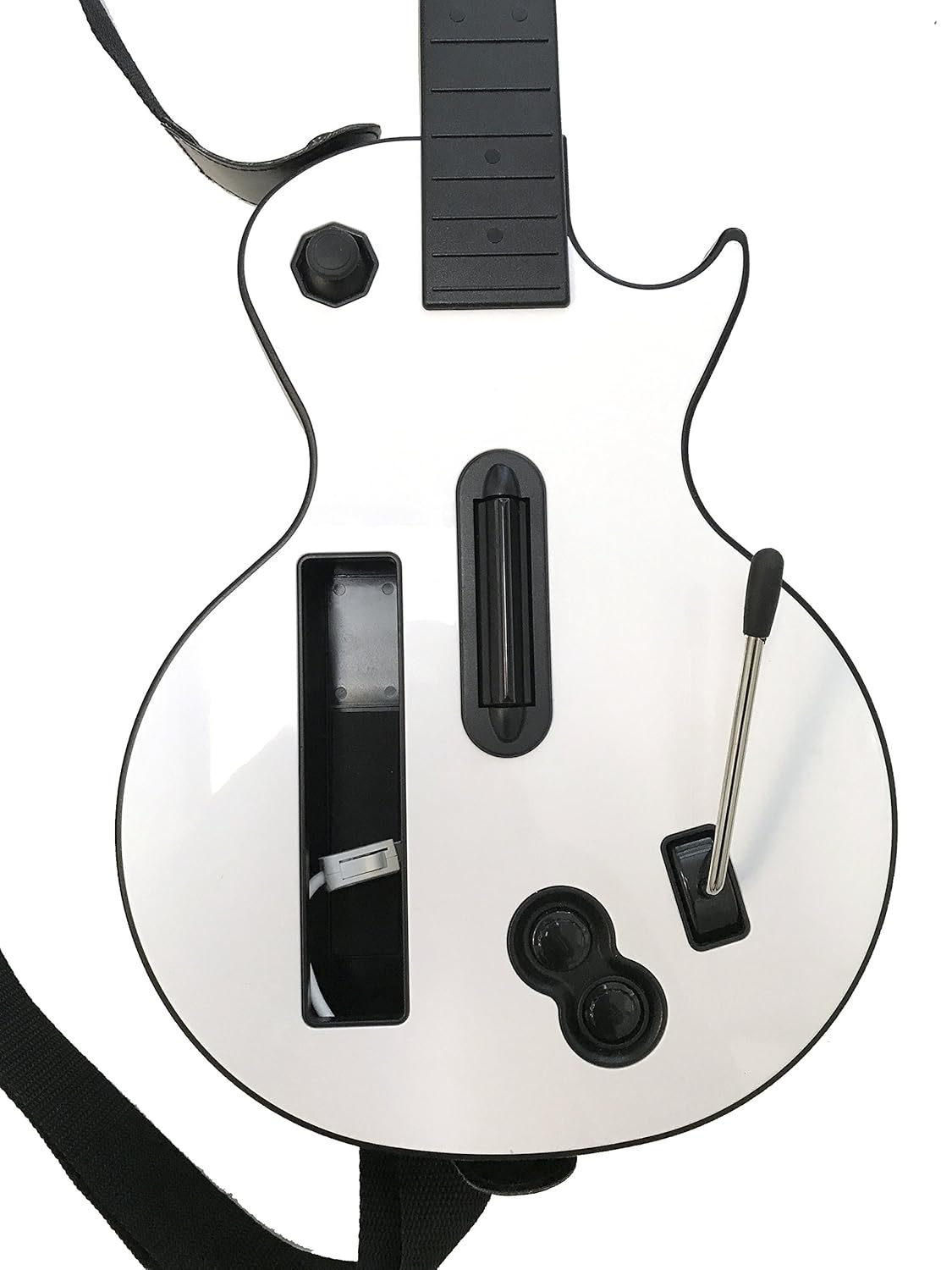
Image: Front view of the white wireless guitar controller, highlighting the dedicated slot for the Wii Remote, the strum bar, and the whammy bar.

Image: A detailed view of the Wii remote connection port located within the guitar controller's slot, showing where the remote's cable connects.
4. Connecting to the Wii Console
With the Wii Remote inserted and powered on, press the SYNC button on the Wii Remote and then the SYNC button on your Wii console (usually located behind the battery cover or a small flap). The indicator lights on the Wii Remote will flash and then remain solid when connected. The guitar controller will now be ready for use.
Operating Instructions
Once connected, the guitar controller functions as your primary input device for compatible music games. Familiarize yourself with the controls:
- Fret Buttons: Located on the neck, these colored buttons (green, red, yellow, blue, orange) correspond to notes in the game.
- Strum Bar: Positioned on the guitar body, use this to strum up or down to hit notes.
- Whammy Bar: Located near the strum bar, this lever is used to alter the pitch of sustained notes.
- Start/Pause Button: Typically used to start a song or pause gameplay.
- Directional Pad/Joystick: Used for menu navigation.

Image: A close-up view of the five colored fret buttons (green, red, yellow, blue, orange) on the neck of the guitar controller.
For specific gameplay mechanics and advanced techniques, refer to the instruction manual provided with your game title.
Maintenance
Cleaning
To clean the guitar controller, use a soft, dry cloth. For stubborn dirt, slightly dampen the cloth with water. Avoid using harsh chemicals, solvents, or abrasive cleaners, as these can damage the finish and internal components.
Storage
When not in use, store the guitar controller in a cool, dry place away from direct sunlight and extreme temperatures. If storing for an extended period, it is recommended to remove the batteries to prevent leakage. The guitar neck can be detached for more compact storage.
Troubleshooting
If you encounter issues with your wireless guitar controller, please try the following steps:
- Controller Not Responding: Ensure the Wii Remote is correctly inserted into the guitar slot and securely connected. Check that the batteries in the Wii Remote are fresh and correctly installed. Re-sync the controller with the Wii console as described in the Setup section.
- Buttons or Strum Bar Not Working: Verify that no debris is obstructing the buttons or strum bar. Gently press and release the affected controls multiple times. If the issue persists, ensure the guitar neck is fully attached and the connection is secure.
- Lag or Disconnection: Ensure there are no significant obstructions between the guitar controller and the Wii console. Move closer to the console if necessary. Other wireless devices operating on similar frequencies may cause interference; try to minimize their use during gameplay.
- Game Compatibility: Confirm that the game you are playing is compatible with this wireless guitar controller. This controller is not compatible with Rock Band 1.
Specifications
| Brand | ACTIVISION |
| Model Number | B004XDCJ4A |
| Compatible Devices | Nintendo Wii |
| Controller Type | Guitar |
| Connectivity Technology | Wireless |
| Additional Features | Wireless |
| Button Quantity | 16 |
| Hardware Platform | Nintendo Wii |
| Power Source | Battery Powered |
| Item Weight | 3.5 Pounds |
| Item Dimensions | 17.5 x 3.2 x 13.7 inches |
| Color | White |
| UPC | 695881011025 |
Warranty Information
Specific warranty details for this ACTIVISION Wireless Guitar Controller are not provided in this manual. For information regarding warranty coverage, terms, and conditions, please refer to the documentation included with your purchase or contact the manufacturer directly.
Support
For further assistance or technical support, please contact the manufacturer, ACTIVISION, or the retailer from whom you purchased the product. Have your model number (B004XDCJ4A) and purchase details ready when contacting support.


