
Product Overview
The Logitech M325 Wireless Mouse is designed for comfortable and precise navigation, especially for web browsing. Its compact size and ergonomic design make it suitable for various hand sizes and ideal for travel. The mouse operates wirelessly via a USB receiver, offering freedom from tangled cables.

Figure 1: Logitech M325 Wireless Mouse in Dark Silver.

Figure 2: Top view of the mouse, highlighting the scroll wheel and main buttons.
Setup
1. Insert Battery:
Locate the battery compartment on the underside of the mouse. Slide the cover open and insert one AA battery, ensuring correct polarity. The mouse requires one AA battery for operation.

Figure 3: Underside of the mouse with the battery compartment and USB receiver storage area.
2. Connect USB Receiver:
The USB receiver is typically stored inside the battery compartment for safekeeping. Remove the small USB receiver from its storage slot. Plug this receiver into an available USB port on your computer (laptop or desktop PC).

Figure 4: The compact USB receiver inserted into a laptop's USB port.
3. Power On Mouse:
Slide the On/Off switch located on the underside of the mouse to the "On" position. A small green indicator light may illuminate briefly on the top of the mouse, indicating it is powered on and ready for use.
4. Compatibility:
The Logitech M325 Wireless Mouse is compatible with various operating systems, including Windows, macOS, and Chrome OS. It utilizes Logitech's Unifying Receiver technology, allowing multiple compatible Logitech devices to connect to a single USB receiver.
Operating Instructions
Basic Navigation:
Use the left button for primary clicks (selecting items, opening links). Use the right button for secondary clicks (context menus, properties). The scroll wheel allows for vertical scrolling through documents and web pages.
Horizontal Scrolling:
The scroll wheel also supports horizontal scrolling. Tilt the scroll wheel to the left or right to scroll horizontally, useful for wide spreadsheets or web pages.
Ergonomics:
The mouse features a contoured shape with textured rubber grips on the sides, providing a comfortable and secure hold for extended periods of use.
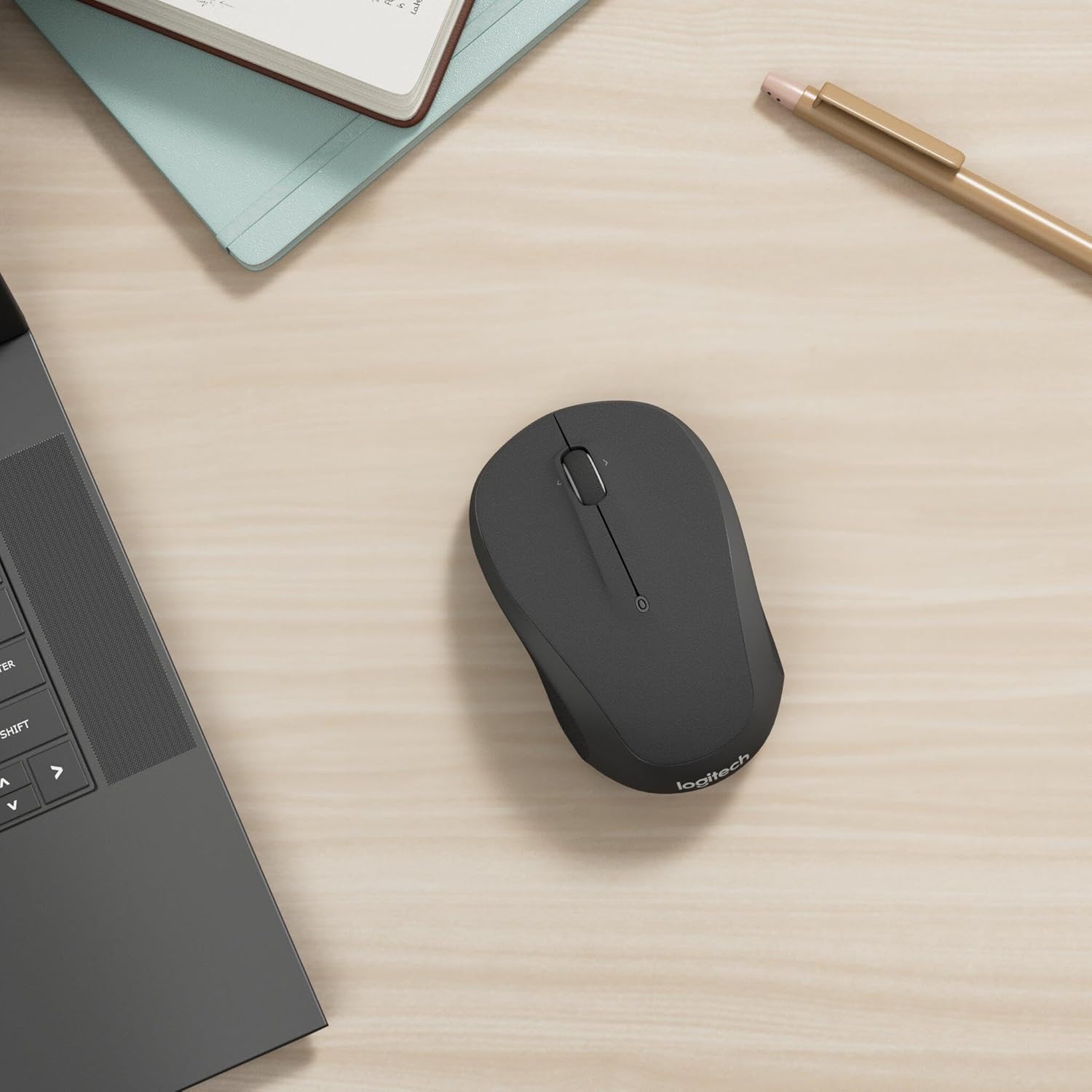
Figure 5: Side profile of the mouse, illustrating its ergonomic shape and textured grip.
Maintenance
Battery Replacement:
The mouse is powered by one AA battery. Average battery life is approximately 18 months, depending on usage. When the mouse performance degrades or the indicator light (if present) signals low battery, replace the AA battery by opening the compartment on the underside.
Cleaning:
To maintain optimal performance, regularly clean the mouse. Use a soft, lint-free cloth slightly dampened with water or a mild cleaning solution. Avoid harsh chemicals or abrasive materials. Ensure the optical sensor on the bottom is free of dust and debris.
Troubleshooting
| Problem | Solution |
|---|---|
| Mouse not responding / Cursor erratic |
|
| Scroll wheel not working |
|
Specifications
| Feature | Detail |
|---|---|
| Brand | Logitech |
| Model Number | 910-002142 |
| Wireless Type | 2.4 GHz (via USB receiver) |
| Movement Detection Technology | Optical |
| Average Battery Life | 18 months (1 AA battery) |
| Item Weight | 3.28 ounces |
| Product Dimensions (LxWxH) | 1.54 x 3.73 x 2.24 inches |
| Color | Dark Silver |
| Operating System Compatibility | macOS, Windows, Chrome OS |
Warranty and Support
Logitech products are backed by a limited hardware warranty. For specific warranty details, please refer to the warranty information included with your product packaging or visit the official Logitech support website.
For technical assistance, troubleshooting, or to access drivers and software, please visit the Logitech support page or contact their customer service directly. Keep your product's model number and serial number handy for faster service.


