
1. Introduction
Thank you for purchasing the FILCO Majestouch-2 NKR Tactile Action USA Keyboard. This high-quality mechanical keyboard is designed for durability and a superior typing experience, featuring Cherry MX Brown switches for a tactile feel and ergonomic click action. It includes full N-key Rollover functionality, ensuring every keystroke is registered accurately.

Figure 1.1: FILCO Majestouch-2 Keyboard (FKBN104M/EB2)
2. Setup
The FILCO Majestouch-2 keyboard is designed for simple plug-and-play setup.
2.1 Connecting the Keyboard
- Locate an available USB port on your computer.
- Connect the USB cable from the keyboard to the USB port on your computer.
- If using a PS/2 connection (adapter may be included), connect the USB cable to the PS/2 adapter, then connect the adapter to the PS/2 port on your computer. Ensure the computer is powered off before connecting via PS/2.
- Your operating system should automatically detect and install the necessary drivers. No additional software installation is typically required.

Figure 2.1: Keyboard with attached USB cable for connection.
2.2 Adjusting Keyboard Height
For optimal typing comfort, you can adjust the keyboard's angle using the retractable feet located on the underside.
- Gently pull out the two kickstands on the rear underside of the keyboard to raise the back.
- Push them back in to return the keyboard to a flat position.

Figure 2.2: Retractable kickstand on the keyboard underside.
3. Operating Instructions
3.1 Basic Keyboard Functions
The FILCO Majestouch-2 operates as a standard 104-key USA layout keyboard. All keys function according to their standard assignments in your operating system.
- N-Key Rollover (NKRO): This keyboard supports full N-key Rollover, meaning all keys pressed simultaneously will be registered. This is particularly beneficial for fast typists and gamers.
- Cherry MX Brown Switches: The keyboard features Cherry MX Brown mechanical switches, known for their tactile bump without an audible click, providing a balanced typing experience suitable for both typing and gaming.
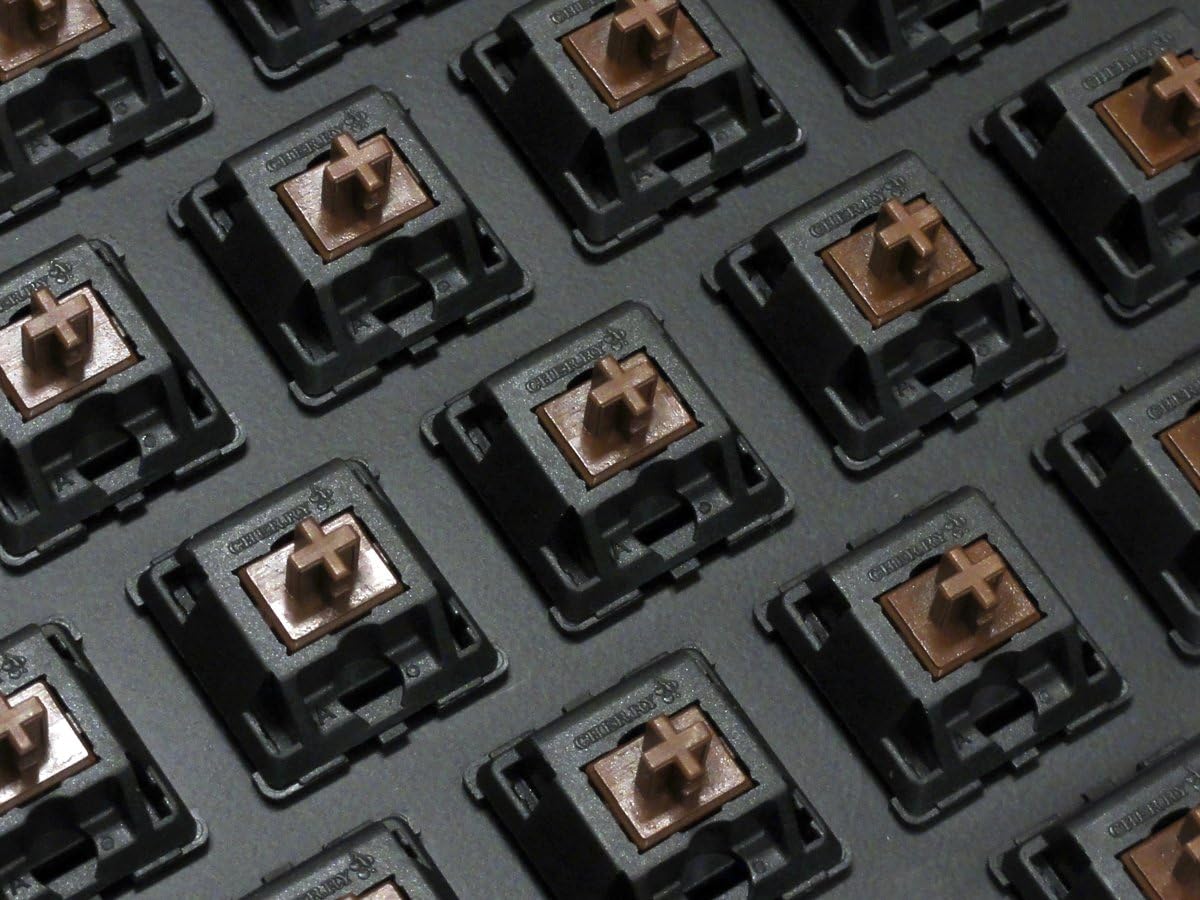
Figure 3.1: Cherry MX Brown switches, providing tactile feedback.
3.2 Indicator Lights
The keyboard includes indicator lights for Num Lock, Caps Lock, and Scroll Lock, located above the numeric keypad. These lights illuminate when the respective function is active.

Figure 3.2: Indicator lights for keyboard status.
4. Maintenance
4.1 Cleaning the Keyboard
Regular cleaning helps maintain the performance and appearance of your keyboard.
- General Cleaning: Use a soft, lint-free cloth slightly dampened with water or a mild cleaning solution to wipe down the keycaps and keyboard frame. Avoid excessive moisture.
- Dust and Debris: Use compressed air to remove dust and debris from between the keycaps.
- Deep Cleaning (Keycap Removal): Keycaps can be carefully removed for deeper cleaning. Use a keycap puller (not included) to avoid damaging the keycaps or switches. Clean the keycaps with mild soap and water, ensuring they are completely dry before reattaching. Clean the exposed switches and plate with compressed air or a soft brush.
Caution: Do not immerse the keyboard in water or any liquid. Ensure the keyboard is disconnected from the computer before cleaning.
5. Troubleshooting
If you encounter issues with your FILCO Majestouch-2 keyboard, try the following steps:
- Keyboard Not Responding:
- Ensure the USB cable is securely connected to both the keyboard and the computer.
- Try connecting the keyboard to a different USB port on your computer.
- If using a USB hub, try connecting the keyboard directly to the computer.
- Restart your computer.
- Test the keyboard on another computer to determine if the issue is with the keyboard or the computer's setup.
- Specific Keys Not Working:
- Check for any physical obstructions or debris under the non-functioning keycap. Carefully remove the keycap and clean the switch area.
- If a key feels sticky or unresponsive, it might be due to a spill. Refer to the cleaning section for guidance.
- N-Key Rollover Issues:
- Ensure your operating system and applications fully support N-key Rollover. While the keyboard supports it, some software environments might limit simultaneous key presses.
- If using a PS/2 adapter, NKRO should be fully functional. USB connections are typically limited to 6-key rollover by the USB specification, though many modern keyboards overcome this.
Note: The provided video titled "left shift key problem happened on the first day I use it!" is from a customer and not an official troubleshooting guide. For official support, please refer to the manufacturer's website.
6. Specifications
| Feature | Detail |
|---|---|
| Brand | FILCO |
| Model Number | FKBN104M/EB2 |
| Product Dimensions | 5.43 x 17.32 x 1.42 inches |
| Item Weight | 2.65 pounds |
| Connectivity Technology | USB |
| Keyboard Description | Ergonomic |
| Recommended Uses | Office, Gaming |
| Special Feature | Ergonomic |
| Color | Black |
| Number of Keys | 109 |
| Keyboard Backlighting | Single Color (Indicator lights only, no full backlighting) |
| Style | Modern |
| Manufacturer | Filco |
| Date First Available | April 7, 2011 |
| What's in the Box | Keyboard |
7. Warranty and Support
7.1 Product Warranty
Specific warranty terms and conditions for the FILCO Majestouch-2 keyboard are provided by the manufacturer, Filco, or the authorized seller at the time of purchase. Please retain your proof of purchase for warranty claims. For detailed warranty information, refer to the documentation included with your product or visit the official Filco website.
7.2 Customer Support
For technical assistance, troubleshooting beyond this manual, or warranty inquiries, please contact Filco customer support through their official website or the retailer from whom you purchased the product. Ensure you have your product model number (FKBN104M/EB2) and purchase details ready when contacting support.
You can find more information about FILCO products at the FILCO Store on Amazon.