
1. Introduction
This manual provides essential information for the safe and efficient use of your HP D6021-69070 750 Watt Power Supply. Please read this manual thoroughly before installation and operation to ensure proper functionality and to prevent damage to the unit or other components.
The HP D6021-69070 is a high-performance 750 Watt power supply designed for personal computer systems, providing stable and reliable power to all internal components.
2. Safety Information
Always observe the following safety precautions to prevent injury or damage:
- Ensure the computer system is completely powered off and unplugged from the wall outlet before installing or removing the power supply.
- Do not open the power supply casing. There are no user-serviceable parts inside, and dangerous voltages may be present even after the unit is unplugged.
- Handle the power supply by its casing, avoiding contact with internal components or circuit boards.
- Install the power supply in a well-ventilated area to prevent overheating.
- Use only the cables provided with the power supply or compatible cables specified by HP.
- If you notice any smoke, unusual odors, or strange noises, immediately disconnect power and contact qualified service personnel.
3. Setup and Installation
Follow these steps to properly install your HP D6021-69070 Power Supply:
- Prepare Your System: Power off your computer completely and unplug the power cord from the wall outlet. Open your computer case.
- Remove Old Power Supply (if applicable): Disconnect all power cables from your motherboard, graphics card, drives, and any other components. Unscrew and remove the old power supply from its mounting bracket.
- Install New Power Supply: Carefully slide the HP D6021-69070 into the power supply bay of your computer case. Ensure it is oriented correctly so the fan faces the appropriate direction for airflow (usually outwards or downwards, depending on case design).
- Secure the Power Supply: Use the screws provided with your computer case or the power supply to secure it firmly to the case.
- Connect Cables:
- Connect the 24-pin ATX main power connector to your motherboard.
- Connect the 4-pin or 8-pin CPU power connector to your motherboard.
- Connect PCIe power cables (6-pin or 8-pin) to your graphics card(s) if required.
- Connect SATA power cables to your hard drives, SSDs, and optical drives.
- Connect Molex power cables to any other peripherals that require them.
- Cable Management: Route cables neatly to improve airflow and aesthetics within your case.
- Close Case and Power On: Close your computer case, plug the power cord back into the wall outlet, and power on your system.
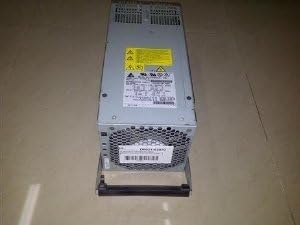
Figure 3.1: Top-down view of the HP D6021-69070 750 Watt Power Supply, showing its compact design and fan grill.
4. Operation
Once installed, the HP D6021-69070 Power Supply operates automatically to provide stable DC power to your computer's components. It is designed for continuous operation within its specified wattage limits.
The power supply's fan will activate as needed to maintain optimal operating temperatures. Ensure that the fan intake and exhaust vents are not obstructed to allow for proper airflow.
Avoid overloading the power supply by connecting components that collectively exceed its 750 Watt capacity. Refer to the power requirements of your components (CPU, GPU, etc.) to ensure compatibility.
5. Maintenance
Proper maintenance can extend the lifespan of your power supply:
- Dust Removal: Periodically (every 3-6 months, or more often in dusty environments) power off and unplug your computer. Use compressed air to gently blow dust out of the power supply's fan and vents. Hold the fan blades to prevent them from spinning rapidly during cleaning, which can damage the bearings.
- Cable Inspection: Occasionally inspect all power cables connected to the power supply for any signs of wear, fraying, or damage. Replace any damaged cables immediately.
- Environmental Conditions: Ensure the computer is operated in a clean, dry, and well-ventilated environment. Avoid extreme temperatures or humidity.
6. Troubleshooting
If you encounter issues with your power supply, consider the following troubleshooting steps:
| Problem | Possible Cause | Solution |
|---|---|---|
| Computer does not power on. | Power cable loose; PSU switch off; insufficient power; faulty component. | Check all power connections. Ensure the PSU's main switch is in the 'ON' position. Verify wall outlet power. Test components individually if possible. |
| System powers on but shuts down immediately. | Overload; overheating; short circuit. | Reduce load (disconnect non-essential components). Ensure proper ventilation. Check for loose screws or components causing a short. |
| Unusual noise from PSU. | Fan obstruction; faulty fan bearing. | Power off and unplug. Check for obstructions in the fan. If noise persists, the fan may be failing; consider professional service. |
| Burning smell. | Component failure; short circuit. | Immediately power off and unplug the system. Do not attempt to use. Contact qualified service personnel. |
If these steps do not resolve the issue, contact HP support or a qualified technician.
7. Specifications
| Feature | Detail |
|---|---|
| Model Number | D6021-69070 |
| Brand | HP |
| Output Wattage | 750 Watts |
| Compatible Devices | Personal Computer |
| ASIN | B004MU3MU4 |
| Manufacturer | HP |
| First Available Date | February 25, 2013 |
8. Warranty and Support
For information regarding the warranty of your HP D6021-69070 Power Supply, please refer to the warranty card included with your purchase or visit the official HP support website. Warranty terms and conditions may vary by region and retailer.
For technical support, driver downloads, or further assistance, please visit the official HP support portal or contact HP customer service directly. Have your product model number (D6021-69070) and serial number ready when contacting support.
You can find more information and support resources at the Official HP Store on Amazon.