
Introduction
This manual provides comprehensive instructions for the Logilink UA0107 HDD Enclosure, designed to house a 3.5-inch SATA hard disk drive and connect it to your computer via USB 3.0. Its robust aluminum casing ensures durability and efficient heat dissipation, protecting your valuable data.

Image: The Logilink UA0107 HDD Enclosure, showcasing its sleek black aluminum design.
The UA0107 supports hot-swap functionality and offers high-speed data transfer rates up to 5 Gbit/s, making it an ideal solution for external storage, data backups, and efficient data transfer between systems.
Package Contents
Please verify that all items listed below are included in your package. If any items are missing or damaged, please contact your retailer immediately.
- Logilink UA0107 3.5" HDD Enclosure
- USB 3.0 Cable
- Power Adapter
- Screws for HDD mounting
- Mini Screwdriver

Image: The Logilink UA0107 HDD Enclosure alongside its retail box, indicating included accessories.
Setup Instructions
- Prepare the Enclosure: Carefully slide open the enclosure casing. The aluminum cover should slide off to reveal the internal tray.
- Install the Hard Drive: Connect your 3.5-inch SATA hard disk drive to the SATA data and power connectors on the internal circuit board. Ensure a firm connection. Secure the HDD to the tray using the provided screws and screwdriver.
- Close the Enclosure: Slide the aluminum casing back onto the internal tray until it clicks securely into place.
- Connect to Power: Plug the power adapter into the enclosure's DC input port, then connect the adapter to a wall outlet.
- Connect to Computer: Connect one end of the supplied USB 3.0 cable to the enclosure's USB 3.0 port and the other end to an available USB 3.0 port on your computer. For optimal performance, use a USB 3.0 port.
The enclosure is typically plug-and-play, and your operating system should automatically detect and install the necessary drivers. If the drive is new, it may need to be initialized and formatted through your operating system's Disk Management utility (Windows) or Disk Utility (macOS) before use.
Operating the Enclosure
- Power On: Once connected to power and your computer, the enclosure will power on. An LED indicator (if present) will typically illuminate.
- Accessing Data: The hard drive will appear as a removable disk drive in "My Computer" (Windows) or "Finder" (macOS). You can now access, transfer, and store files as you would with any other drive.
- Hot-Swap Functionality: The UA0107 supports hot-swapping, meaning you can connect or disconnect the enclosure while your computer is running. However, always ensure data transfer is complete and safely eject the drive before disconnecting to prevent data corruption.
- Safe Removal: Before disconnecting the enclosure, always use the "Safely Remove Hardware and Eject Media" option in Windows or drag the drive icon to the Trash/Eject icon in macOS to ensure all data operations are finalized.
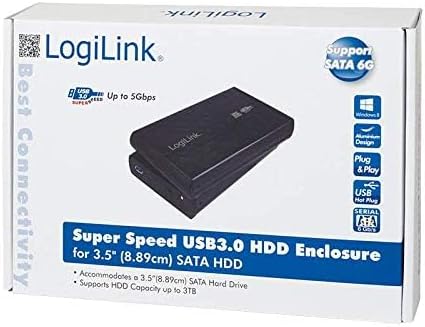
Image: The product packaging, emphasizing its Super Speed USB 3.0 and SATA 6G capabilities.
Maintenance
- Cleaning: Use a soft, dry cloth to clean the exterior of the enclosure. Do not use liquid cleaners or solvents.
- Storage: Store the enclosure in a cool, dry place away from direct sunlight and extreme temperatures.
- Handling: Avoid dropping or subjecting the enclosure to strong impacts, as this can damage the internal hard drive.
- Ventilation: Ensure the enclosure has adequate ventilation during operation to prevent overheating, especially during prolonged use.
Troubleshooting
- Problem: Drive not detected by computer.
- Solution:
- Ensure the power adapter is securely connected to the enclosure and a working power outlet.
- Verify the USB cable is firmly connected to both the enclosure and your computer's USB port. Try a different USB port.
- Check the internal SATA connection of the hard drive within the enclosure.
- For new drives, ensure they are initialized and formatted in your operating system's Disk Management (Windows) or Disk Utility (macOS).
- Test the enclosure with a different hard drive, or test the hard drive in another enclosure/system to isolate the issue.
- Problem: Slow data transfer speeds.
- Solution:
- Ensure you are connected to a USB 3.0 port on your computer. USB 2.0 ports will result in significantly slower speeds.
- Verify the USB 3.0 cable is not damaged.
- The performance of the hard drive itself can affect transfer speeds.
- Problem: Enclosure disconnects randomly.
- Solution:
- Ensure the power supply is stable.
- Check for loose USB cable connections.
- Disable USB selective suspend settings in your computer's power options (Windows).
Specifications
| Feature | Detail |
|---|---|
| Model Number | UA0107 |
| Compatible Devices | Laptop (and Desktop PCs) |
| Hard Disk Form Factor | 3.5 Inches |
| Max Supported Capacity | 6 TB |
| Data Transfer Rate | 6 Gigabits Per Second (USB 3.0) |
| Hardware Interface | USB 3.0, SATA |
| Material | Aluminum |
| Color | Black |
| Item Dimensions (LxWxH) | 10.43 x 7.09 x 2.05 inches |
| Item Weight | 10.6 ounces (0.3 Kilograms) |
Warranty and Support
Logilink products are designed for reliability and performance. For specific warranty information or technical support, please refer to the documentation included with your purchase or visit the official Logilink website. It is recommended to keep your proof of purchase for any warranty claims.