
Dell Computers NK762
Dell NK762 German Keyboard User Manual
Model: NK762
Introduction
This manual provides comprehensive instructions for the installation, operation, maintenance, and troubleshooting of your Dell NK762 German Keyboard. Designed as a replacement component, this keyboard ensures seamless integration and functionality with compatible Dell laptop models.
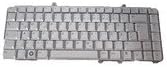
Figure 1: Dell NK762 German Keyboard. This image displays the full layout of the keyboard, including all keys and the mounting points.
Setup and Installation
The Dell NK762 keyboard is intended for internal replacement in compatible Dell laptop models. Professional installation is recommended due to the delicate nature of laptop components. Always ensure the laptop is powered off and disconnected from all power sources before beginning installation.
Required Tools:
- Small Phillips head screwdriver
- Plastic pry tool (spudger)
- Anti-static wrist strap (recommended)
Installation Steps:
- Power Off: Shut down your laptop completely and disconnect the AC adapter and remove the battery (if removable).
- Disassembly: Carefully follow your specific laptop model's service manual for instructions on how to access and remove the existing keyboard. This typically involves removing screws from the bottom case, detaching the palm rest, or releasing keyboard latches.
- Disconnect Old Keyboard: Gently disconnect the ribbon cable(s) connecting the old keyboard to the motherboard. Note the orientation of the cable(s) and the locking mechanism of the connector.
- Remove Old Keyboard: Carefully lift and remove the old keyboard from its housing.
- Install New Keyboard: Position the new Dell NK762 keyboard into the laptop's keyboard housing. Ensure it sits flush and all mounting points align.
- Connect New Keyboard: Reconnect the ribbon cable(s) of the new keyboard to the motherboard, ensuring they are fully seated and the locking mechanism is secured.
- Reassembly: Reassemble the laptop by reversing the disassembly steps. Ensure all screws are tightened appropriately and no cables are pinched.
- Power On and Test: Reconnect the battery and AC adapter. Power on the laptop and test all keys on the new keyboard to ensure proper functionality.
If you encounter any difficulties during installation, consult a qualified technician or refer to your laptop's official service documentation.
Operating Instructions
The Dell NK762 German keyboard operates as a standard QWERTZ layout keyboard. Once properly installed, it requires no additional drivers for basic functionality on most operating systems. The keyboard features a standard German layout, including specific characters and key placements common to the German language.
Key Functions:
- Standard Alphanumeric Keys: For typing letters, numbers, and symbols.
- Function Keys (F1-F12): Perform various system functions, often in combination with the Fn key. These functions may include adjusting brightness, volume, enabling/disabling Wi-Fi, etc., depending on your laptop model.
- Special Characters: Access German specific characters like ä, ö, ü, and ß using their designated keys.
- Modifier Keys: Shift, Ctrl, Alt, Alt Gr, and Windows key for various shortcuts and command combinations.
Refer to your operating system's documentation for specific keyboard shortcuts and customization options.
Maintenance
Proper maintenance can extend the lifespan of your keyboard and ensure optimal performance.
Cleaning:
- Dust and Debris: Use a can of compressed air to blow away dust and crumbs from between the keys. Hold the can upright to prevent propellant discharge.
- Surface Cleaning: Dampen a soft, lint-free cloth with a small amount of isopropyl alcohol (70% or less) or a mild, non-abrasive cleaning solution. Gently wipe the keycaps and surrounding surfaces. Avoid excessive moisture.
- Avoid: Do not spray cleaning solutions directly onto the keyboard. Do not use harsh chemicals, abrasive cleaners, or solvents.
General Care:
- Avoid spilling liquids on the keyboard.
- Do not apply excessive force to the keys.
- Keep the keyboard away from extreme temperatures and direct sunlight.
Troubleshooting
If you experience issues with your Dell NK762 keyboard, try the following troubleshooting steps:
| Problem | Possible Cause | Solution |
|---|---|---|
| Keyboard not responding | Loose ribbon cable connection; Driver issue; Hardware failure |
|
| Certain keys not working | Debris under keycap; Damaged key mechanism; Localized hardware failure |
|
| Incorrect character output | Incorrect language settings; Software conflict |
|
For persistent issues not resolved by these steps, contact Dell support or a certified technician.
Specifications
| Feature | Detail |
|---|---|
| Brand | Dell |
| Model Number | NK762 |
| Layout | German (QWERTZ) |
| Manufacturer | Dell Computers |
| Item Weight | 500 g |
| ASIN | B004GUVNRE |
| First Available Date | 27 February 2010 |
Warranty and Support
For information regarding warranty coverage for your Dell NK762 keyboard, please refer to the warranty documentation provided with your original laptop purchase or contact Dell customer support directly. Dell provides various support resources, including online knowledge bases, driver downloads, and technical assistance.
Dell Support Website: www.dell.com/support
When contacting support, please have your laptop's service tag and the keyboard's model number (NK762) available.
Ask a question about this manual
Ask about setup, troubleshooting, compatibility, parts, safety, or missing instructions. Manuals+ will review the question and use this page’s manual context to help answer it.