
1. Product Overview
The Hard Candy Stylus Pen is a versatile dual-purpose instrument designed for precise interaction with capacitive touchscreens and traditional writing. It combines a high-quality capacitive stylus with a refillable ink pen, offering convenience and functionality in a single, elegantly designed tool.
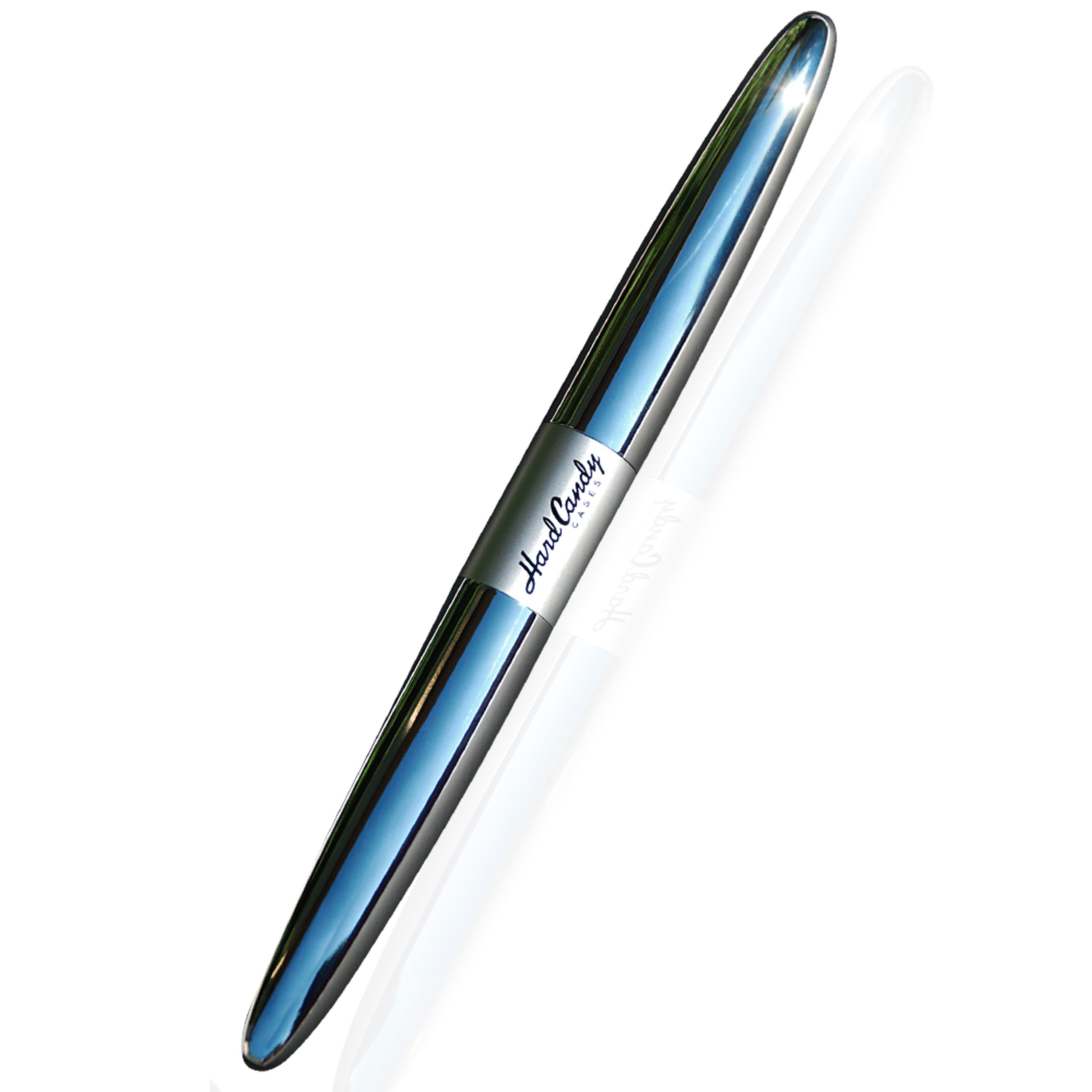
This image displays the Hard Candy Stylus Pen, highlighting its dual functionality. On the left, the stylus end with its rounded capacitive tip is visible. On the right, the traditional ink pen tip is shown, ready for writing.
2. Features
- Lustrous, Chrome Finished Body: Provides a sleek and durable exterior.
- Capacitive Stylus: Compatible with various capacitive touchscreen devices, including iPhone 4, iPad (1st and 2nd generation), and iPod Touch.
- Secondary Ink Pen Function: Features a traditional ink pen with a refillable reservoir for conventional writing.
- Durable Construction: Built with quality materials for long-lasting use.
3. Setup
- Unboxing: Carefully remove the Hard Candy Stylus Pen from its packaging.
- Initial Inspection: Inspect the stylus pen for any visible damage. Ensure both the stylus tip and the pen tip are protected by their respective caps.

The product packaging for the Hard Candy Stylus Pen is shown, featuring the stylus visible through a clear window in a dark box.
4. Operating Instructions
4.1. Using the Capacitive Stylus
- Remove Cap: Gently remove the cap from the stylus end. The stylus features a silk-tipped capacitive point.
- Interaction: Hold the stylus comfortably and gently touch the screen of your capacitive device to navigate, draw, or write. No significant pressure is required for the stylus to register input.
- Protect Tip: Replace the cap when the stylus is not in use to protect the tip from damage and debris.

The Hard Candy Stylus Pen is depicted in use, interacting with an application on an iPad. This illustrates the stylus's precision and ease of use on a capacitive touchscreen device.
4.2. Using the Ink Pen
- Remove Cap: Remove the cap from the ink pen end.
- Writing: Use the pen for traditional writing on paper.
- Protect Tip: Ensure the cap is replaced after use to prevent the ink from drying out.
5. Maintenance
- Stylus Tip Care: Keep the capacitive stylus tip clean and free from dust or debris. If necessary, gently wipe the tip with a soft, dry, lint-free cloth. Avoid using abrasive materials or harsh chemicals, as these can damage the tip.
- Ink Pen Refill: When the ink runs out, the pen's reservoir is designed to be refillable. To replace the ink cartridge, carefully unscrew the pen barrel and insert a compatible refill. Refer to standard pen refill instructions for your chosen cartridge type.
- General Cleaning: Wipe the body of the stylus pen with a soft, dry cloth to maintain its chrome finish and remove fingerprints.
- Storage: Always cap both ends of the stylus pen when not in use. This protects the tips from damage and prevents accidental marks.
6. Troubleshooting
6.1. Stylus Not Responding
- Clean Tip and Screen: Ensure both the stylus tip and your device's touchscreen are clean. Dust, oils, or debris on either surface can interfere with conductivity.
- Device Functionality: Verify that your device's touchscreen is functioning correctly with finger input.
- Restart Device: If issues persist, try restarting your touchscreen device. The stylus is passive and does not require batteries.
6.2. Ink Pen Not Writing
- Check Ink Level: Confirm that the ink cartridge is not empty. Replace if necessary.
- Clear Clog: If the pen has not been used for a while, the tip may be clogged with dried ink. Gently try writing on a scrap piece of paper or lightly moisten the tip to dislodge any blockage.
7. Compatible Devices
The Hard Candy Stylus Pen is designed for broad compatibility with devices featuring capacitive touchscreens. This includes, but is not limited to, the following:
- Apple Devices: iPad (all generations with capacitive screens, including 1st and 2nd generation), iPhone (iPhone 4, iPhone 3G, iPhone 3GS), iPod Touch.
- Capacitive Screen Mobile Media Players: Examples include Samsung Yepp YP-P, Coby MP837 Touch Multimedia Player.
- Capacitive Screen Mobile Phones: Examples include BlackBerry Storm, Google Nexus One, HTC Desire.
- Capacitive Screen Notebooks and Track Pads: Examples include MacBook and MacBook Pro track pads, Sony VAIO FW and NW Series, Toshiba Satellite E105, M505, L305, A505, P505D, Dell Inspiron 15 and 17 Series, all HP Touchsmart products, HP Pavilion DV4.
8. Specifications
| Model Number | HC-STYLUS-SLV |
| Color | Silver |
| Material | Polycarbonate (PC) |
| Batteries Required | No |
| UPC / GTIN | 815741010443 |
9. Warranty and Support
This product is covered by a standard manufacturer's warranty. For specific details regarding warranty terms and conditions, please refer to the documentation included with your purchase or visit the official Hard Candy website.
For technical support, troubleshooting assistance, or to initiate a warranty claim, please contact Hard Candy customer service. It is recommended to retain your purchase receipt as proof of purchase for warranty validation.