
Avery 5877
Avery 5877 Clean Edge Business Cards User Manual
Model: 5877 | Brand: Avery
1. Introduction and Overview
The Avery 5877 Clean Edge Business Cards are designed for professional-looking business cards without the need for professional printing services. These cards feature patented Clean Edge technology, ensuring smooth, non-perforated edges once separated. They are compatible with laser printers and can be printed on both sides, offering versatility for various uses such as personal contact cards, appointment reminders, coupons, loyalty cards, and gift tags.
- Clean Edge Technology: Cards snap apart with smooth, non-perforated edges.
- Double-Sided Printing: Utilize both sides for comprehensive information, maps, or promotions.
- Customizable: Print only the quantity needed and update designs as frequently as required.

Figure 1.1: Packaging for Avery 5877 Clean Edge Business Cards, highlighting "New and Improved!" and "Thicker Cards With No Perforations!". The box indicates compatibility with laser printers and contains 400 cards, each measuring 2" x 3-1/2".
2. Setup and Preparation
Before printing, ensure your printer is ready and you have the correct templates. These cards are specifically designed for laser printers.
2.1. Software and Templates
Avery provides free templates and design software through Avery Design & Print. It is recommended to use these resources for optimal alignment and design flexibility. Visit the official Avery website to download the appropriate template for model 5877.
2.2. Loading Cards into Printer
Carefully load the Avery 5877 card sheets into your laser printer's paper tray. Ensure the sheets are aligned correctly according to your printer's instructions for the specific paper type (card stock or heavy paper). Avoid overfilling the tray to prevent paper jams.

Figure 2.1: A user preparing to print business cards, demonstrating the use of design software on a laptop connected to a laser printer. The card sheets are visible, ready for printing.
3. Operating Instructions
Follow these steps to design, print, and separate your business cards.
3.1. Designing Your Cards
Using Avery Design & Print, select the 5877 template. Customize your design with text, logos, and images. For double-sided printing, design both the front and back of the cards within the software. Preview your design to ensure all elements are correctly positioned.
3.2. Printing Process
- Printer Settings: Before printing, adjust your printer settings to match the paper type (e.g., "Card Stock," "Heavy Paper," or "Labels") and ensure the correct paper size (3-1/2" x 2" or custom size if applicable).
- Test Print: It is highly recommended to perform a test print on a plain sheet of paper first to check alignment and design accuracy. Hold the test print against a card sheet to verify.
- Duplex Printing: If printing on both sides, follow your printer's specific instructions for duplex printing. Some printers require manual re-insertion of the paper.

Figure 3.1: An illustration demonstrating the capability of printing on both sides of the business cards. The front displays contact information, while the back lists multiple office locations.
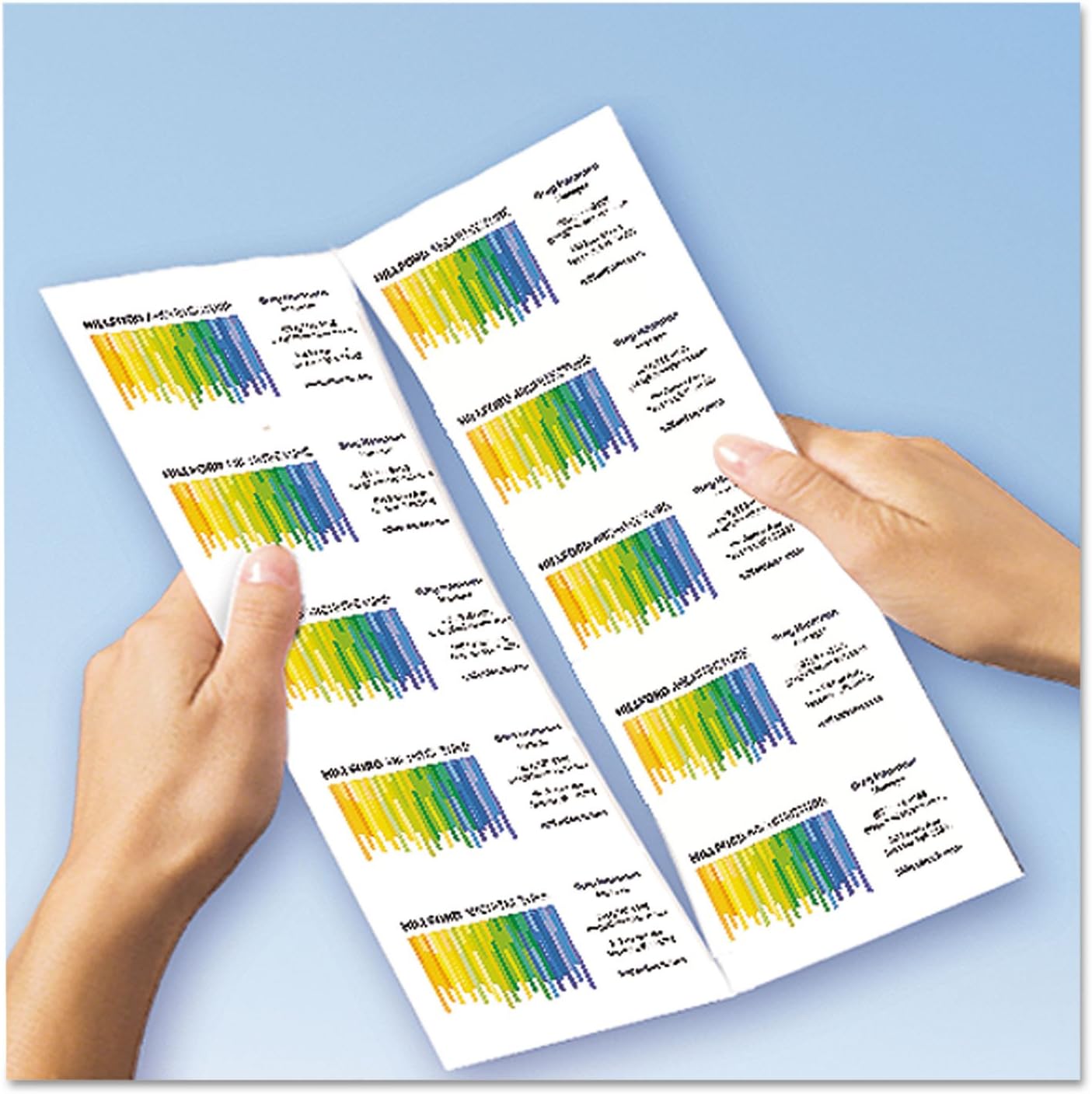
Figure 3.2: Two hands holding two sheets of printed business cards, illustrating the appearance of the cards directly after printing and before they are separated using the Clean Edge technology.
3.3. Separating the Cards (Clean Edge Technology)
Once printed, the cards can be easily separated from the sheet. Gently fold the sheet along the perforations (if any, though Clean Edge aims for non-perforated) or simply snap the cards apart. The patented Clean Edge technology ensures a smooth, professional edge without the need for cutting tools.
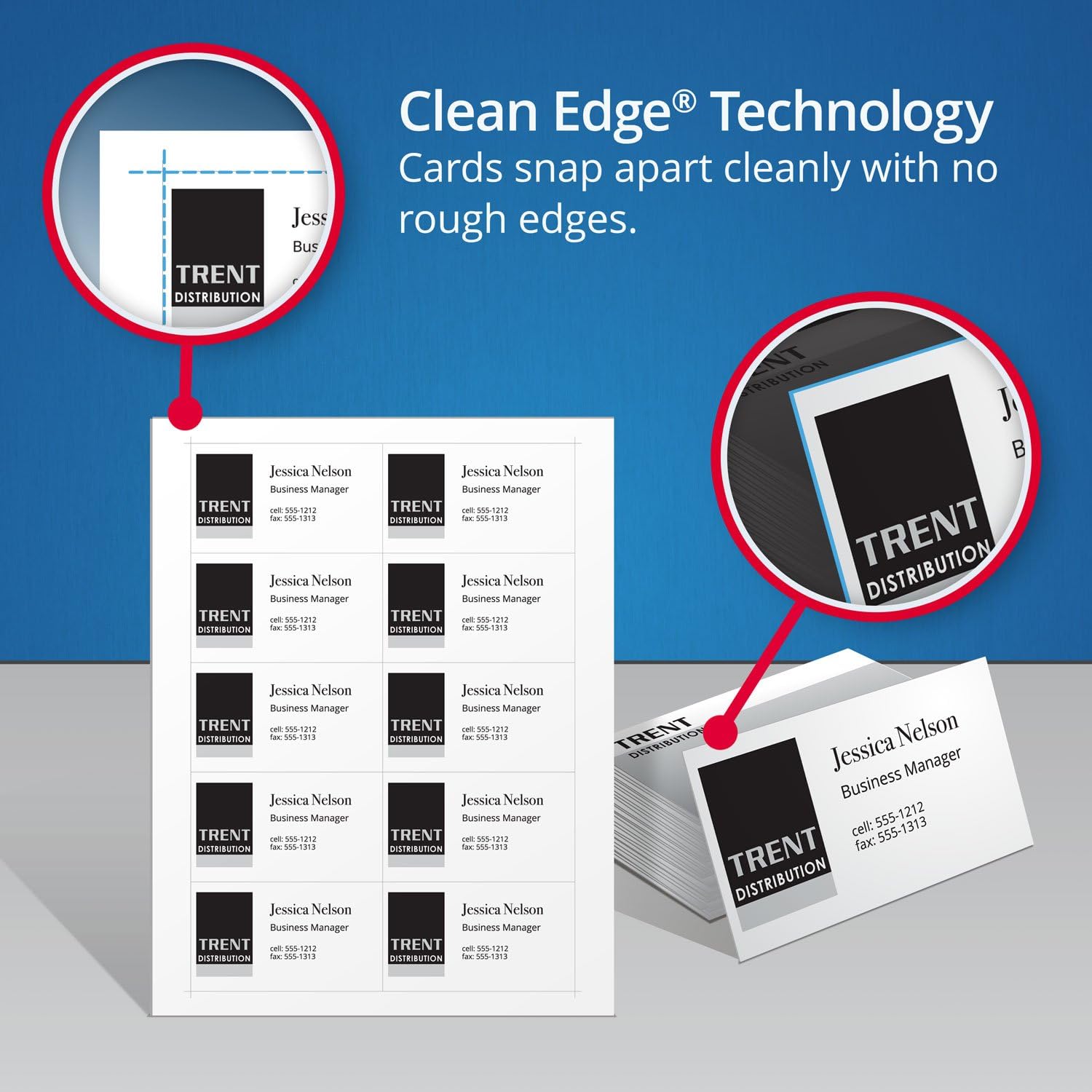
Figure 3.3: A visual representation of Avery's Clean Edge Technology, demonstrating how individual business cards cleanly detach from the sheet without leaving rough or perforated edges.
4. Maintenance and Storage
Proper storage of your Avery business card stock ensures optimal printing results and card quality.
- Store unused card stock in its original packaging in a cool, dry place.
- Avoid exposing the cards to extreme temperatures or high humidity, which can affect paper quality and printer performance.
- Keep cards flat to prevent bending or curling, which can lead to printer jams.
5. Troubleshooting
If you encounter issues while using your Avery 5877 Business Cards, consider the following common solutions:
- Cards Jamming in Printer:
- Ensure the paper tray is not overfilled.
- Verify that the paper guides in the tray are snug against the card stock.
- Check your printer settings to ensure the correct paper type (e.g., "Card Stock" or "Heavy Paper") is selected.
- Print Misalignment:
- Confirm you are using the correct Avery template (model 5877).
- Perform a test print on plain paper and compare it to the card sheet.
- Adjust printer margins or scaling settings if necessary.
- Cards Not Separating Cleanly:
- Ensure the cards are fully printed and the ink/toner is dry.
- Gently snap the cards apart. Excessive force is not required.
- Verify the product is genuine Avery Clean Edge stock.
- Poor Print Quality:
- Check your laser printer's toner levels.
- Clean the printer's fuser or rollers as per your printer's manual.
- Ensure the card stock is not damp or damaged.
6. Specifications
| Feature | Detail |
|---|---|
| Model Number | 5877 |
| Card Dimensions | 3-1/2 inches x 2 inches |
| Cards Per Box | 400 |
| Material Type | Paper |
| Color | White |
| Printer Compatibility | Laser Printers |
| Item Weight | 0.01 ounces (per card, approximate) |
| Product Dimensions (Packaging) | 2 x 3.5 x 2 inches |
7. Warranty and Support
Avery products are manufactured to high-quality standards. For specific warranty information or technical support regarding your Avery 5877 Business Cards, please refer to the official Avery website or contact Avery customer service directly. Contact details can typically be found on the product packaging or the Avery website.
Online Resources: www.avery.com
Related documents5877

Ask a question about this manual
Ask about setup, troubleshooting, compatibility, parts, safety, or missing instructions. Manuals+ will review the question and use this page’s manual context to help answer it.