
1. Introduction
The Avery 5315 Note Cards with Envelopes are designed for creating personalized messages, invitations, announcements, and more. These heavyweight, matte-coated cardstock sheets are optimized for laser printers, ensuring vibrant colors and crisp text. Each box contains 60 cards, with two cards per sheet, and includes matching envelopes for convenience. This manual provides essential information for setting up, operating, and maintaining your Avery 5315 Note Cards.

Image 1.1: The packaging for Avery 5315 Note Cards, showing the product name, quantity, and key features.
2. Setup and Design
To begin using your Avery 5315 Note Cards, it is recommended to utilize Avery's free online design software, Avery Design & Print. This platform offers a wide range of templates and customization options to help you create professional-looking cards.
2.1 Accessing Design & Print Software
- Visit the official Avery website.
- Navigate to the 'Design & Print' section.
- Enter product number 5315 to find specific templates for your note cards.
2.2 Customizing Your Cards
- Choose from pre-designed templates or start with a blank canvas.
- Add text, images, and graphics to personalize your cards.
- The software allows for easy formatting and ensures proper alignment for printing.

Image 2.1: A user designing note cards on a laptop using Avery's software, with a laser printer ready for printing.
2.3 Card Layout
Each sheet of Avery 5315 Note Cards contains two individual cards, separated by ultra-fine perforations for easy folding and detachment.

Image 2.2: A visual representation of how two note cards are arranged on a single sheet, indicating the perforation line.
3. Operating (Printing)
The Avery 5315 Note Cards are specifically designed for use with laser printers. Follow these guidelines for optimal printing results.
3.1 Loading Cards into Your Printer
- Ensure your printer is a laser printer.
- Load the note card sheets into your printer's paper tray according to your printer's instructions. Pay attention to the correct orientation for printing on the desired side.
- It is recommended to print a test sheet on plain paper first to verify alignment.
3.2 Printing Process
- From the Avery Design & Print software, select the print option.
- Follow the on-screen prompts to send your design to your laser printer.
- The heavyweight cardstock is designed to feed automatically from the paper tray.
- You can print on both sides of the card to maximize your message or leave the inside blank for handwritten notes.
3.3 Finishing Your Cards
- Once printed, carefully separate the two cards along the ultra-fine perforations.
- Fold each card along the pre-scored line to create a neat, professional fold.
- Place the finished cards into the included envelopes for mailing or presentation.

Image 3.1: Examples of finished, folded note cards with printed designs, alongside an accompanying envelope.
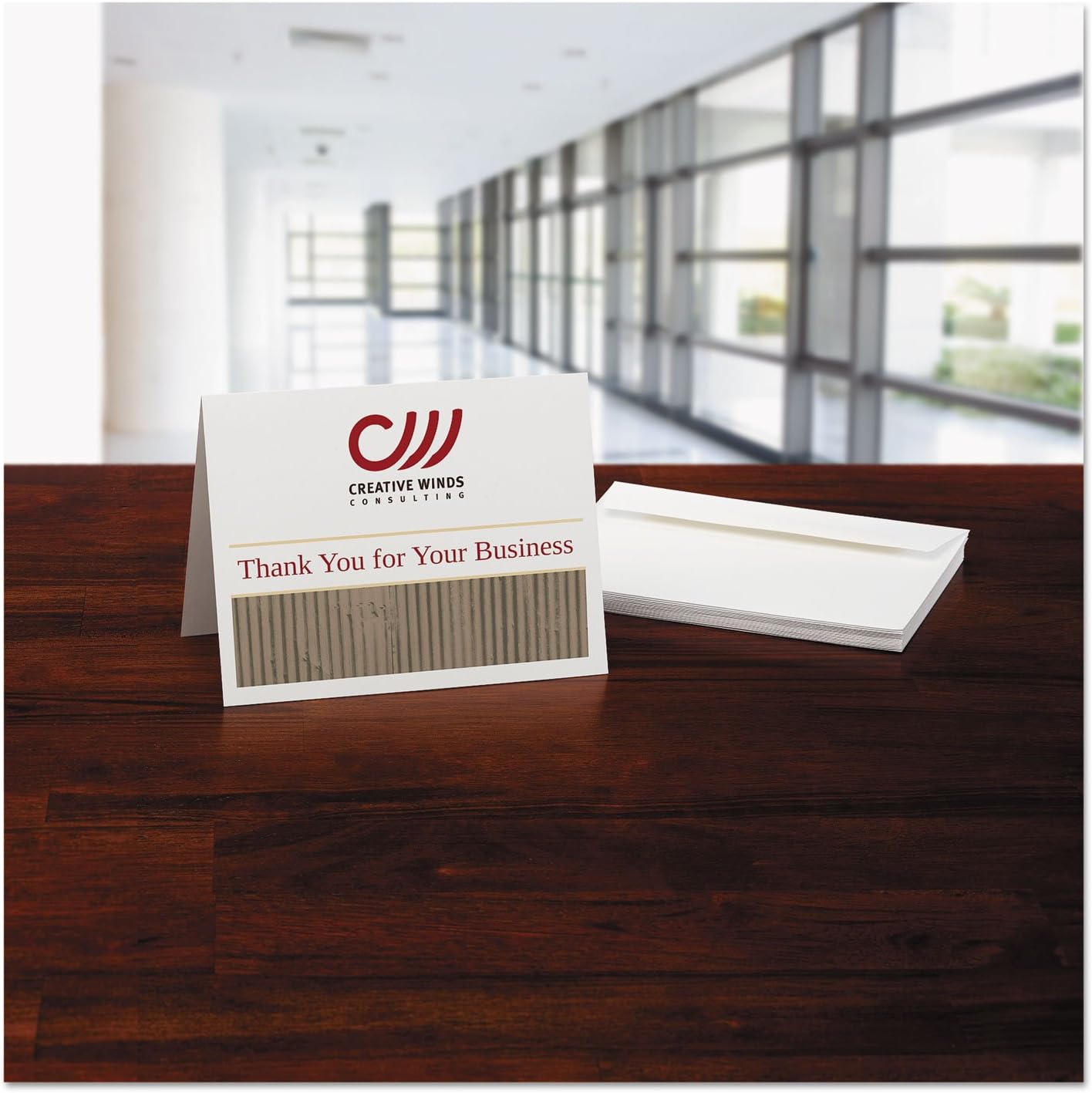
Image 3.2: A completed note card displaying a 'Thank You' message, with a stack of envelopes in the background, ready for use.
4. Maintenance and Storage
To ensure the longevity and quality of your Avery 5315 Note Cards, proper storage is essential.
- Storage: Store unused note card sheets and envelopes in their original packaging or a clean, dry, and flat environment.
- Temperature and Humidity: Avoid extreme temperatures and high humidity, which can cause the paper to warp or affect print quality.
- Handling: Handle sheets by the edges to prevent fingerprints or smudges on the printable surface.
5. Troubleshooting
If you encounter issues while using your Avery 5315 Note Cards, consider the following common problems and solutions:
5.1 Print Alignment Issues
- Check Software Settings: Ensure you have selected the correct Avery product number (5315) in the Avery Design & Print software.
- Printer Settings: Verify that your printer settings match the paper type (e.g., 'Cardstock' or 'Heavy Paper') and size (e.g., 'Custom Size' or 'Letter' if printing two cards per letter sheet).
- Test Print: Always perform a test print on a plain sheet of paper before printing on your note cards to check alignment.
5.2 Paper Jams
- Proper Loading: Ensure the note card sheets are loaded correctly and evenly in the paper tray, without being bent or creased.
- Overloading: Do not overload the paper tray beyond its recommended capacity for cardstock.
- Printer Manual: Refer to your printer's user manual for specific instructions on clearing paper jams.
5.3 Poor Print Quality
- Laser Printer Compatibility: These cards are designed for laser printers. Using an inkjet printer may result in smudging or poor ink absorption.
- Toner/Ink Levels: Check your printer's toner or ink levels. Low levels can lead to faded or inconsistent prints.
- Printer Maintenance: Perform routine printer maintenance, such as cleaning print heads or drums, as recommended by your printer manufacturer.
6. Specifications
| Attribute | Detail |
|---|---|
| Brand | Avery |
| Model Number | AVE5315 |
| Manufacturer | AVERY-DENNISON-KNM |
| Card Size | 4-1/4 x 5-1/2 inches (folded) |
| Material Type | Paper (Heavyweight Cardstock, Matte Coated) |
| Sheet Count | 60 cards (30 sheets, 2 cards/sheet) |
| Item Weight | 0.01 ounces (per card, approximate) |
| Printer Compatibility | Laser Printers |
7. Warranty and Support
7.1 Warranty Information
As a consumable product, specific warranty details for Avery 5315 Note Cards are typically not provided. However, Avery stands by the quality of its products. If you experience any manufacturing defects or issues with the product's performance as described, please retain your proof of purchase and contact Avery customer support.
7.2 Customer Support
For further assistance, technical support, or to access additional design resources, please visit the official Avery website:
You can find FAQs, troubleshooting guides, and contact information for Avery's customer service team on their website.