
1. Introduction
This manual provides essential instructions for setting up, operating, and maintaining your Magellan RoadMate 9055 GPS Navigator. The RoadMate 9055 features a 7-inch display, Bluetooth connectivity, and lifetime traffic alerts to assist you with navigation.
2. Setup
2.1 Package Contents
Verify that your package contains the following items:
- Magellan RoadMate 9055 Device
- Vehicle Power Adapter
- Mounting Bracket (e.g., Suction Cup Mount or Heavy Duty Extension Mount)
- USB Cable
- Quick Start Guide (if included)
2.2 Mounting the Device
The RoadMate 9055 is designed for secure placement in your vehicle. Use the provided mounting bracket to attach the device to your dashboard or windshield. Ensure the mount is stable and does not obstruct your view of the road or interfere with vehicle controls.
For larger vehicles like SUVs, trucks, or RVs, the Heavy Duty Extension Mount (if included) allows for optimal positioning on deep dashboards.
2.3 Powering On and Charging
Connect the vehicle power adapter to the device's power port and then to your vehicle's 12V accessory outlet. The device will typically power on automatically when the vehicle's ignition is turned on. To fully charge the internal battery, keep the device connected to power for several hours.
Note:
- The device requires 1 product-specific battery.
- Battery life is approximately 2.25 hours on a full charge.
2.4 Initial Setup and GPS Signal Acquisition
Upon first power-on, the device may guide you through initial setup steps, such as language selection and time zone. Place the device in an open area with a clear view of the sky to acquire a GPS satellite signal. This process may take a few minutes initially.
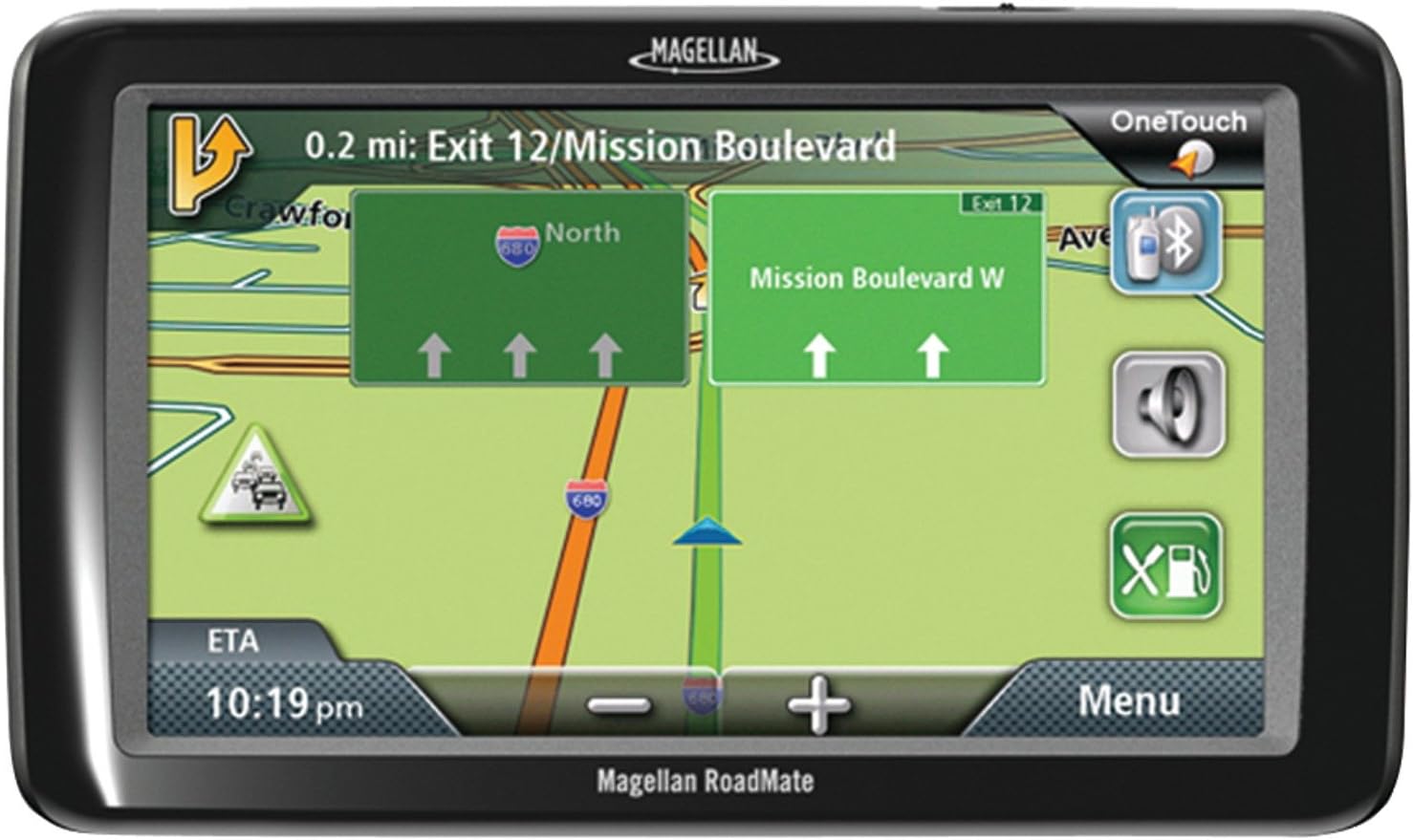
Figure 1: The Magellan RoadMate 9055 displaying a navigation screen with upcoming turns, traffic information, and estimated time of arrival.
3. Operating the Device
3.1 Entering a Destination
From the main menu, select "Go To" or "Address" to enter your desired destination. You can input addresses, points of interest (POIs), or select from your saved favorites.
3.2 Navigation and Map View
Once a destination is set, the device will calculate a route and provide turn-by-turn voice guidance and on-screen directions. The 7-inch screen offers clear map views. You can typically switch between 2D and 3D map perspectives and adjust zoom levels.
- Lane Assist: This feature helps guide you to the correct lane for upcoming turns and exits.
- Traffic Alerts: The RoadMate 9055 provides subscription-free lifetime traffic alerts, offering real-time information and suggesting alternate routes to avoid delays.
3.3 Points of Interest (POIs) and AAA TourBook
The device includes preinstalled POIs. You can search for gas stations, restaurants, hotels, and other destinations. The integrated AAA TourBook provides additional information and ratings for various POIs.
3.4 OneTouch Favorites Menu
The OneTouch favorites menu allows for quick access to frequently used destinations or functions. You can customize up to 12 icons to save locations like "Home," "Work," or specific search categories.
3.5 Bluetooth Hands-Free Calling
Pair your Bluetooth-enabled mobile phone with the RoadMate 9055 for hands-free calling. This feature allows you to make and receive calls through the device's built-in microphone and speaker, enhancing safety while driving.
Refer to your phone's manual for specific Bluetooth pairing instructions if needed.
3.6 Location Screen for Roadside Assistance
In case of an emergency or breakdown, the device features a specialized location screen. With a single touch, it displays your current location coordinates, which can be relayed to roadside assistance services. The AAA roadside assistance phone number is also displayed on this screen.
4. Maintenance
4.1 Cleaning the Device
Use a soft, lint-free cloth to clean the screen and exterior of the device. Avoid abrasive cleaners or solvents, as they may damage the display or casing.
4.2 Battery Care
To prolong battery life, avoid exposing the device to extreme temperatures. If the device will not be used for an extended period, store it in a cool, dry place with a partial charge.
4.3 Software and Map Updates
Periodically check the Magellan website for available software and map updates. Keeping your device's software and maps current ensures optimal performance and accurate navigation data.
5. Troubleshooting
This section addresses common issues you might encounter with your RoadMate 9055.
- Device does not power on: Ensure the device is properly connected to a power source and the vehicle's ignition is on. Check the power adapter for damage.
- No GPS signal: Move the device to an open area with a clear view of the sky. Ensure no obstructions are blocking the signal.
- Screen freezes or becomes unresponsive: Perform a soft reset by pressing and holding the power button for approximately 10-15 seconds until the device restarts. If the issue persists, ensure the device's software is up to date.
- Bluetooth connectivity issues: Ensure Bluetooth is enabled on both the RoadMate 9055 and your mobile phone. Delete previous pairings and attempt to re-pair the devices. If the screen freezes after pairing, consider disabling the Bluetooth feature if it consistently causes instability.
- Inaccurate or outdated map data/POIs: Map data can become outdated over time. Check the Magellan website for available map updates.
- Recalculation issues: If the device repeatedly tries to route you back to a previous path, ensure you are following the intended route or allow the device sufficient time to recalculate based on your current position.
For further assistance, refer to the support resources mentioned in Section 7.
6. Specifications
| Model Name | RoadMate 9055 |
| Screen Size | 7 Inches |
| Product Dimensions | 4.56 x 7.5 x 0.63 inches |
| Item Weight | 7.8 ounces |
| Connectivity Technology | Bluetooth |
| Map Type | US and Canada |
| Battery Life | 2.25 Hours |
| Mounting Type | Dashboard Mount |
| Special Features | Built-in microphone, OneTouch favorites menu, AAA TourBook, Hands-free calling via Bluetooth, Preinstalled POIs, Built-in speaker |
7. Warranty and Support
For information regarding product warranty, technical support, or to download the latest software and map updates, please visit the official Magellan website or contact Magellan customer service. Keep your purchase receipt as proof of purchase for warranty claims.
Online Support: www.magellangps.com/support (Example link, actual link may vary)


