
Introduction
The Lightspeed Aviation Sierra ANR Aviation Headset is designed to provide clear communication and comfort in aviation environments. This manual provides essential information for the proper setup, operation, and maintenance of your headset.

Image: The Lightspeed Aviation Sierra ANR Aviation Headset, featuring the headset itself, the in-line control box, and the dual general aviation plugs, all laid out on a white background.
Features Overview
- Active Noise Reduction (ANR): Advanced technology for maximum noise cancellation, reducing engine noise and improving clarity.
- Comfortable Design: Lightweight construction with a reversible headband and microphone, featuring ear seals designed for comfort and pressure distribution.
- Bluetooth Connectivity: Seamless pairing with mobile devices for communication and audio.
- Integrated Control Box: Easy-to-use controls with auxiliary input for connecting multiple devices.
- Soft Mute Feature: Automatically lowers auxiliary audio during radio or intercom transmissions, then gently restores the volume for a smooth listening experience.
- Durable Construction: Built for longevity in demanding flight environments.
Setup
1. Unpacking and Inspection
Carefully remove all components from the packaging. Inspect the headset, cables, and control box for any signs of damage. The package includes the headset and a protective case.

Image: A black protective case with the Lightspeed logo, designed to store the Sierra headset.
2. Battery Installation
The headset requires 2 AA batteries for Active Noise Reduction and Bluetooth functions. Locate the battery compartment on the control box, insert the batteries according to the polarity indicators, and close the compartment securely.
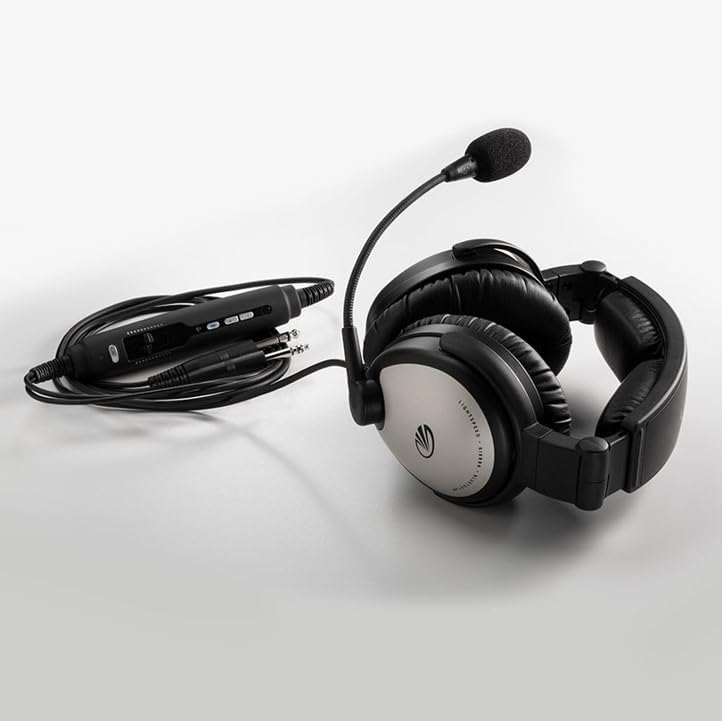
Image: The Lightspeed Aviation Sierra headset's in-line control box, showing the various ports and controls, connected to the headset and dual general aviation plugs.
3. Connecting to Aircraft
Connect the dual general aviation plugs from the headset cable into the corresponding audio jacks in the aircraft's cockpit. Ensure a firm connection for optimal performance.
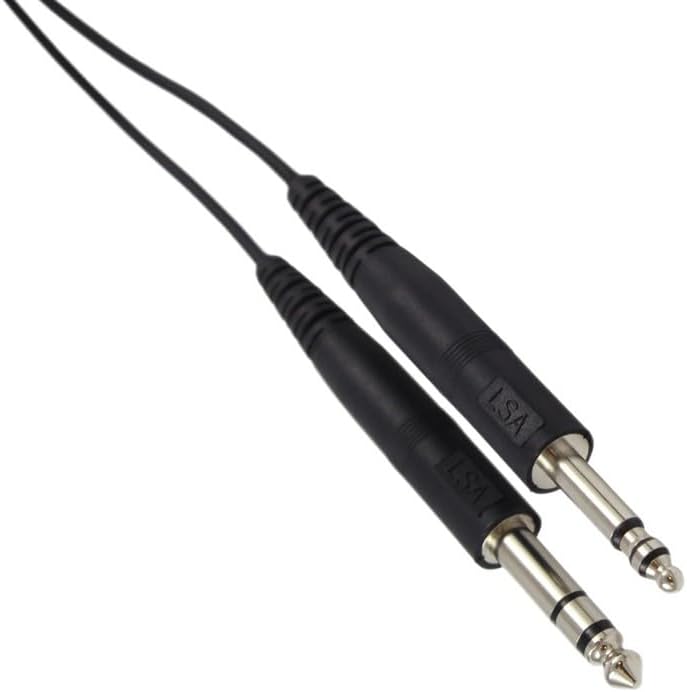
Image: Close-up of the dual general aviation plugs (PJ-068 and PJ-055B) used to connect the headset to an aircraft's intercom system.
Operating Instructions
1. Powering On/Off
Press and hold the power button on the control box to turn the headset on or off. An indicator light will confirm the power status.
2. Adjusting Fit and Microphone
Adjust the headband for a comfortable and secure fit. The microphone boom is reversible and flexible; position it approximately 1/4 inch from your mouth for clear voice transmission. The ear seals are designed for optimal comfort and noise isolation.
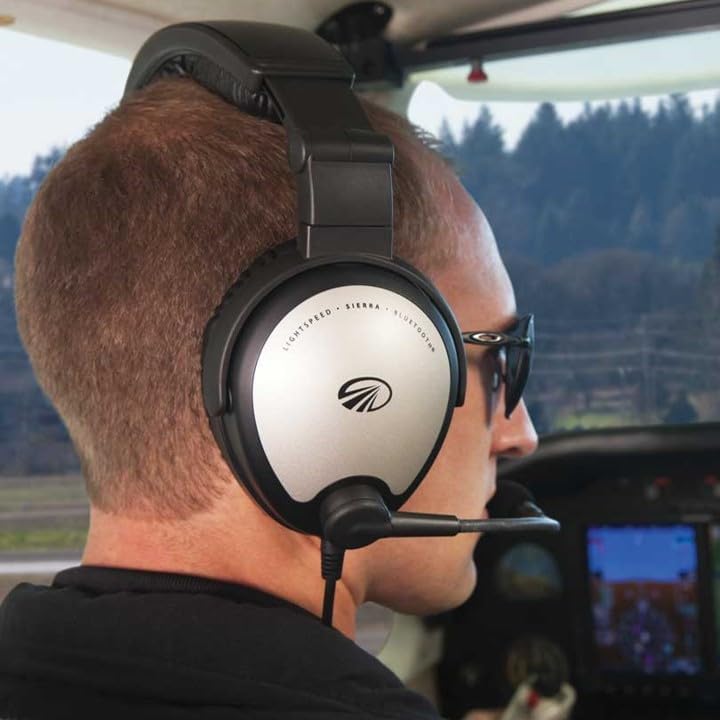
Image: A male pilot wearing the Lightspeed Aviation Sierra headset in a cockpit, demonstrating the comfortable fit and microphone positioning.

Image: A female pilot wearing the Lightspeed Aviation Sierra headset in a cockpit, highlighting the headset's design and fit.
3. Bluetooth Pairing
To pair your mobile device, activate Bluetooth on your device and put the headset into pairing mode (refer to the control box for specific instructions, usually a long press of the Bluetooth button). Select "Lightspeed Sierra" from your device's Bluetooth menu. Once paired, you can stream audio or make calls.
4. Auxiliary Input and Soft Mute
The integrated control box includes an auxiliary input for connecting external audio devices. The headset features a soft mute function that automatically lowers the volume of any auxiliary device during radio or intercom transmissions, then gently restores the volume for a smooth listening experience.
Maintenance
1. Cleaning
Wipe the headset and control box with a soft, damp cloth. Avoid using harsh chemicals or abrasive materials. Regularly clean the ear seals and microphone windscreen.
2. Storage
When not in use, store the headset in its protective case to prevent damage from dust, moisture, and impacts. Remove batteries if storing for extended periods.
3. Battery Replacement
Replace AA batteries as needed. Low battery indicators will typically alert you when replacement is due.
Troubleshooting
| Problem | Possible Cause | Solution |
|---|---|---|
| No power/ANR not working | Dead or incorrectly installed batteries. | Check battery orientation; replace with fresh AA batteries. |
| No audio from aircraft intercom | Loose connection to aircraft jacks; aircraft intercom system issue. | Ensure plugs are fully inserted. Check aircraft's intercom system. |
| Cannot pair via Bluetooth | Headset not in pairing mode; device Bluetooth off; interference. | Ensure headset is in pairing mode. Turn device Bluetooth off/on. Move closer to device. |
| Poor microphone transmission | Microphone not positioned correctly; windscreen damaged. | Adjust microphone to 1/4 inch from mouth. Replace windscreen if damaged. |
Specifications
| Feature | Detail |
|---|---|
| Product Dimensions | 15 x 13 x 9 inches |
| Item Weight | 1 pounds |
| Item Model Number | Sierra |
| Batteries | 2 AA batteries required |
| Wireless Communication | Bluetooth |
| Connectivity Technologies | Bluetooth, Wireless |
| Special Features | 5-Year Warranty, Adjustable Headband, Integrated Remote Control, Lightweight, Noise Cancellation |
| Form Factor | On Ear |
| Color | Black, Silver |
| What's in the Box | Protective Case |
| Manufacturer | Lightspeed Aviation |
| Date First Available | June 18, 2010 |
Warranty and Support
The Lightspeed Aviation Sierra ANR Aviation Headset comes with a 5-Year Warranty. For warranty claims, technical support, or service inquiries, please contact Lightspeed Aviation directly. Refer to the official Lightspeed Aviation website for the most current contact information and detailed warranty terms.
Manufacturer: Lightspeed Aviation
For additional resources, visit the LIGHTSPEED Store on Amazon.


