
HEWLETT PACKARD JC507A
HP 3502 IP Phone User Manual
Model: JC507A
1. Introduction
This manual provides comprehensive instructions for the setup, operation, and maintenance of your HP 3502 IP Phone. The HP 3502 is a robust Voice over IP (VoIP) telephone designed for business environments, featuring four softkeys and full-duplex speakerphone capabilities for clear communication.
2. Package Contents
Please verify that all items listed below are present in your package. If any items are missing or damaged, contact your vendor immediately.
- HP 3502 IP Phone Unit
- Handset
- Handset Cord
- Ethernet Cable (RJ-45)
- Power Adapter (if not using Power over Ethernet - PoE)
- Quick Start Guide
3. Product Overview
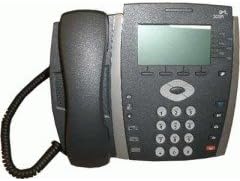
Figure 3.1: Front view of the HP 3502 IP Phone. The image displays the phone's handset resting on its cradle on the left side. The main unit features a rectangular display screen at the top, below which are four softkeys. To the right of the display is a navigation cluster, and below that is a standard numeric keypad with additional function buttons.
The HP 3502 IP Phone is designed for intuitive use and reliable performance. Key features include:
- Display Screen: A 4.3-inch screen for call information, menus, and status.
- Softkeys: Four context-sensitive buttons located directly below the display, whose functions change based on the phone's current state.
- Full-Duplex Speakerphone: Allows for hands-free conversations with clear audio.
- Numeric Keypad: Standard 0-9 keys for dialing, along with * and #.
- Navigation Cluster: Buttons for menu navigation and selection.
- Dedicated Function Buttons: Includes buttons for volume control, mute, headset, speaker, and message waiting indicator.
- Power Source: Supports both Corded Electric power and Power over Ethernet (PoE).
4. Setup
4.1 Physical Connection
- Connect the Handset: Plug one end of the coiled handset cord into the handset and the other end into the handset port on the phone base.
- Connect to Network:
- Locate the "LAN" or "NETWORK" port on the back of the phone.
- Connect one end of the Ethernet cable to this port and the other end to an active network port (e.g., a wall jack or network switch).
- Connect Power:
- If your network supports Power over Ethernet (PoE), the phone will power on automatically once the Ethernet cable is connected.
- If PoE is not available, connect the provided power adapter to the "POWER" port on the phone and then plug the adapter into a standard electrical outlet.
- Initial Boot-up: The phone will power on and begin its boot sequence. This may take a few moments. The display will show boot progress and then indicate network status.
4.2 Network and Account Configuration
The HP 3502 IP Phone typically obtains network settings (IP address, subnet mask, gateway, DNS) automatically via DHCP. VoIP account registration (SIP or H.323) is usually provisioned by your IT administrator or service provider. Consult your IT department for specific configuration details if manual setup is required.
- Automatic Provisioning: Most enterprise deployments use automatic provisioning servers to configure the phone.
- Manual Configuration: If manual configuration is necessary, access the phone's menu system (often via a "Menu" or "Settings" button) to enter network parameters and SIP/H.323 account details. Refer to your IT administrator's instructions for these values.
5. Operating Instructions
5.1 Making Calls
- Lift Handset: Pick up the handset, or press the Speaker button for hands-free mode. You will hear a dial tone.
- Dial Number: Enter the desired phone number using the numeric keypad.
- Initiate Call: Press the Dial softkey (if available) or wait a few seconds for the call to automatically connect.
5.2 Receiving Calls
- When the phone rings, lift the handset to answer.
- Alternatively, press the Speaker button to answer in hands-free mode, or press the Answer softkey.
5.3 In-Call Functions
- Volume Control: Use the Volume buttons (usually +/-) to adjust the handset, headset, or speakerphone volume during a call.
- Mute: Press the Mute button to mute your microphone. Press it again to unmute.
- Hold: Press the Hold softkey or button to place the current call on hold. Press it again to resume the call.
- Transfer:
- During an active call, press the Transfer softkey or button.
- Dial the number to which you want to transfer the call.
- Press the Transfer softkey again to complete a blind transfer, or wait for the other party to answer and then press Transfer for a supervised transfer.
- Conference:
- During an active call, press the Conference softkey or button.
- Dial the number of the third party.
- Once the third party answers, press the Conference softkey again to join all parties.
- End Call: Replace the handset in the cradle, or press the End Call softkey or Speaker button if in hands-free mode.
6. Maintenance
Proper care ensures the longevity of your HP 3502 IP Phone.
- Cleaning: Use a soft, dry, lint-free cloth to clean the phone's surface. For stubborn marks, slightly dampen the cloth with water. Avoid using harsh chemicals, abrasive cleaners, or solvents.
- Environment: Keep the phone away from excessive heat, direct sunlight, and moisture. Ensure adequate ventilation around the device.
- Handling: Avoid dropping the phone or subjecting it to strong impacts.
7. Troubleshooting
This section addresses common issues you might encounter with your HP 3502 IP Phone.
| Problem | Possible Cause | Solution |
|---|---|---|
| No dial tone / Phone not powering on | No power, network cable loose, network issue. |
|
| Cannot make or receive calls | No network connection, incorrect VoIP account registration, firewall issues. |
|
| Poor audio quality (echo, static) | Network congestion, faulty cable, environmental interference. |
|
If the problem persists after attempting these solutions, please contact your IT support or the product manufacturer for further assistance.
8. Specifications
| Feature | Detail |
|---|---|
| Brand | HP (Hewlett Packard) |
| Model Number | JC507A |
| Product Type | IP Phone (VoIP Phone) |
| Display Size | 4.3 Inches |
| Power Source | Corded Electric, Power over Ethernet (PoE) |
| Dialer Type | Single Keypad |
| Answering System Type | Digital |
| Multiline Operation | Multi-Line Operation |
| Item Weight | 3.95 Pounds (approx. 1.79 kg) |
| Package Dimensions | 14.9 x 10.7 x 4.4 inches (approx. 37.8 x 27.2 x 11.2 cm) |
| UPC | 885631695951 |
| First Available Date | July 13, 2010 |
9. Warranty and Support
The HP 3502 IP Phone is covered by a standard manufacturer's warranty. For specific warranty terms and conditions, please refer to the warranty card included with your product or visit the official HP support website.
For technical support, troubleshooting assistance beyond this manual, or to inquire about service, please contact HP customer support or your authorized HP reseller. Contact information can typically be found on the HP official website or in your product documentation.
HP Support Website: www.hp.com/support
Related documentsJC507A


Ask a question about this manual
Ask about setup, troubleshooting, compatibility, parts, safety, or missing instructions. Manuals+ will review the question and use this page’s manual context to help answer it.