1. Introduction
This manual provides essential information for the proper use and maintenance of your Canon AS-1200 12-digit desktop calculator. Please read these instructions carefully before using the device to ensure optimal performance and longevity.

Figure 1.1: Front view of the Canon AS-1200 12-Digit Desktop Calculator. This image displays the calculator's full keypad and large digital display.
2. Initial Setup
The Canon AS-1200 calculator operates on a dual power system, utilizing both solar energy and a single LR44 battery. This ensures continuous operation in various lighting conditions.
2.1 Power Source
- Solar Power: The calculator is equipped with a solar panel. For optimal performance, ensure the solar panel is exposed to sufficient light.
- Battery Power: A single LR44 battery provides power when light is insufficient. The battery is typically pre-installed.
2.2 Turning On/Off
- To turn on the calculator, press the ON/CA button.
- The calculator will automatically power off after a period of inactivity to conserve battery life.
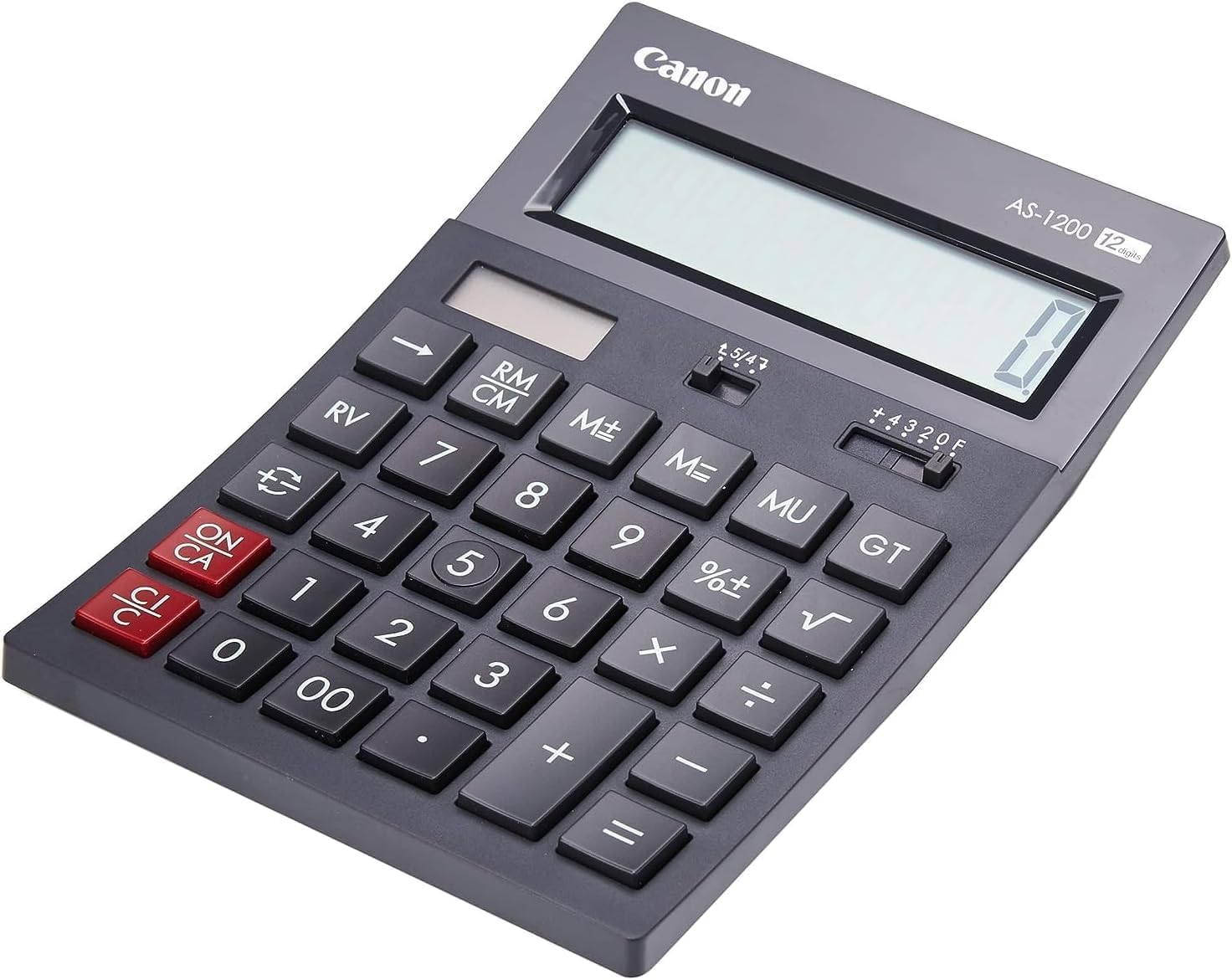
Figure 2.1: Angled view of the Canon AS-1200, highlighting the solar panel located above the display. Ensure this area is exposed to light for solar power functionality.
3. Operating Instructions
This section details the various functions and operations of your Canon AS-1200 calculator.
3.1 Basic Arithmetic Operations
- Addition (+): Enter the first number, press +, enter the second number, then press =.
- Subtraction (-): Enter the first number, press -, enter the second number, then press =.
- Multiplication (x): Enter the first number, press x, enter the second number, then press =.
- Division (÷): Enter the first number, press ÷, enter the second number, then press =.
3.2 Clear Functions
- ON/CA (Clear All): Clears all entries and memory, resetting the calculator to its initial state.
- C/CE (Clear Entry): Clears the last entered number or the current calculation entry. Pressing it twice may clear the entire calculation depending on the sequence.
3.3 Memory Functions
- M+ (Memory Plus): Adds the displayed value to the memory.
- M- (Memory Minus): Subtracts the displayed value from the memory.
- RM/CM (Recall Memory/Clear Memory): Press once to recall the value stored in memory. Press twice to clear the memory.
3.4 Special Functions
- MU (Mark-up): Used for calculating selling prices based on cost and desired profit margin.
- RV (Reverse): This function is typically used for tax calculations or other reverse operations.
- GT (Grand Total): Accumulates the results of multiple calculations. Pressing GT displays the sum of all previous results.
- % (Percentage): Used for percentage calculations. For example, to calculate 10% of 200, enter 200 x 10 %.
- √ (Square Root): Calculates the square root of the displayed number.
- +/- (Sign Change): Changes the sign of the displayed number from positive to negative or vice versa.
- Decimal Selector (F, 4, 3, 2, 0): Selects the number of decimal places for calculations. 'F' (Float) allows for floating decimal points.
- Rounding Selector (5/4, CUT, UP):
- 5/4: Rounds up if the next digit is 5 or greater, otherwise rounds down.
- CUT: Truncates the number, cutting off all digits after the selected decimal place.
- UP: Always rounds up to the next digit.

Figure 3.1: Close-up view of the Canon AS-1200 keypad, showing the layout of numerical and function keys, including MU, GT, and RV.
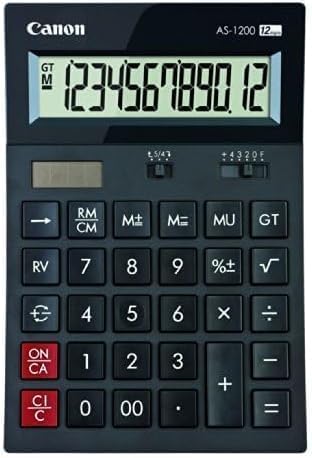
Figure 3.2: The 12-digit display of the Canon AS-1200, illustrating its clear readability for numerical outputs.
4. Care and Maintenance
Proper care will extend the life and functionality of your calculator.
4.1 Cleaning
- Wipe the calculator's surface with a soft, dry cloth.
- For stubborn dirt, slightly dampen the cloth with water or a mild, non-abrasive cleaner. Do not use strong solvents.
- Avoid getting moisture into the display or keypad areas.
4.2 Battery Replacement
The calculator uses one LR44 button cell battery. If the display becomes dim or unresponsive in low light, the battery may need replacement.
- Locate the battery compartment on the back of the calculator.
- Carefully open the compartment cover using a small screwdriver if necessary.
- Remove the old LR44 battery and insert a new one, ensuring correct polarity (+/-).
- Close the battery compartment securely.
Dispose of used batteries according to local regulations.

Figure 4.1: General view of the Canon AS-1200, suitable for illustrating overall handling and cleaning.
5. Troubleshooting
If you encounter issues with your Canon AS-1200, refer to the following common problems and solutions.
| Problem | Possible Cause | Solution |
|---|---|---|
| Display is blank or dim. | Insufficient light for solar power, or depleted battery. | Ensure adequate light exposure to the solar panel. If the problem persists, replace the LR44 battery. |
| Incorrect calculation results. | Incorrect decimal or rounding settings. | Check the decimal and rounding selectors (F, 4, 3, 2, 0, 5/4, CUT, UP) and adjust as needed. Press ON/CA to clear previous calculations. |
| Keys are unresponsive or sticky. | Dust, dirt, or debris under the keys. | Gently clean around the keys with a soft, dry cloth or a small brush. Avoid excessive force. |
| Equals key (=) requires multiple presses. | Wear and tear on the key mechanism. | This may indicate mechanical wear. Ensure firm and deliberate presses. If the issue significantly impacts usability, consider contacting support. |
6. Technical Specifications
Below are the technical specifications for the Canon AS-1200 desktop calculator.
- Model: AS-1200
- Display: 12-digit, wide-angle LCD
- Power Source: Dual power (Solar and 1 x LR44 battery)
- Dimensions (W x D x H): Approximately 119 x 177 x 37 mm (4.69 x 6.97 x 1.46 inches)
- Weight: Approximately 145 grams (0.32 lbs)
- Material: Plastic
- Features: Mark-up (MU), Reverse (RV), Grand Total (GT), Percentage (%), Square Root (√), Decimal and Rounding selectors.
- Country of Origin: China
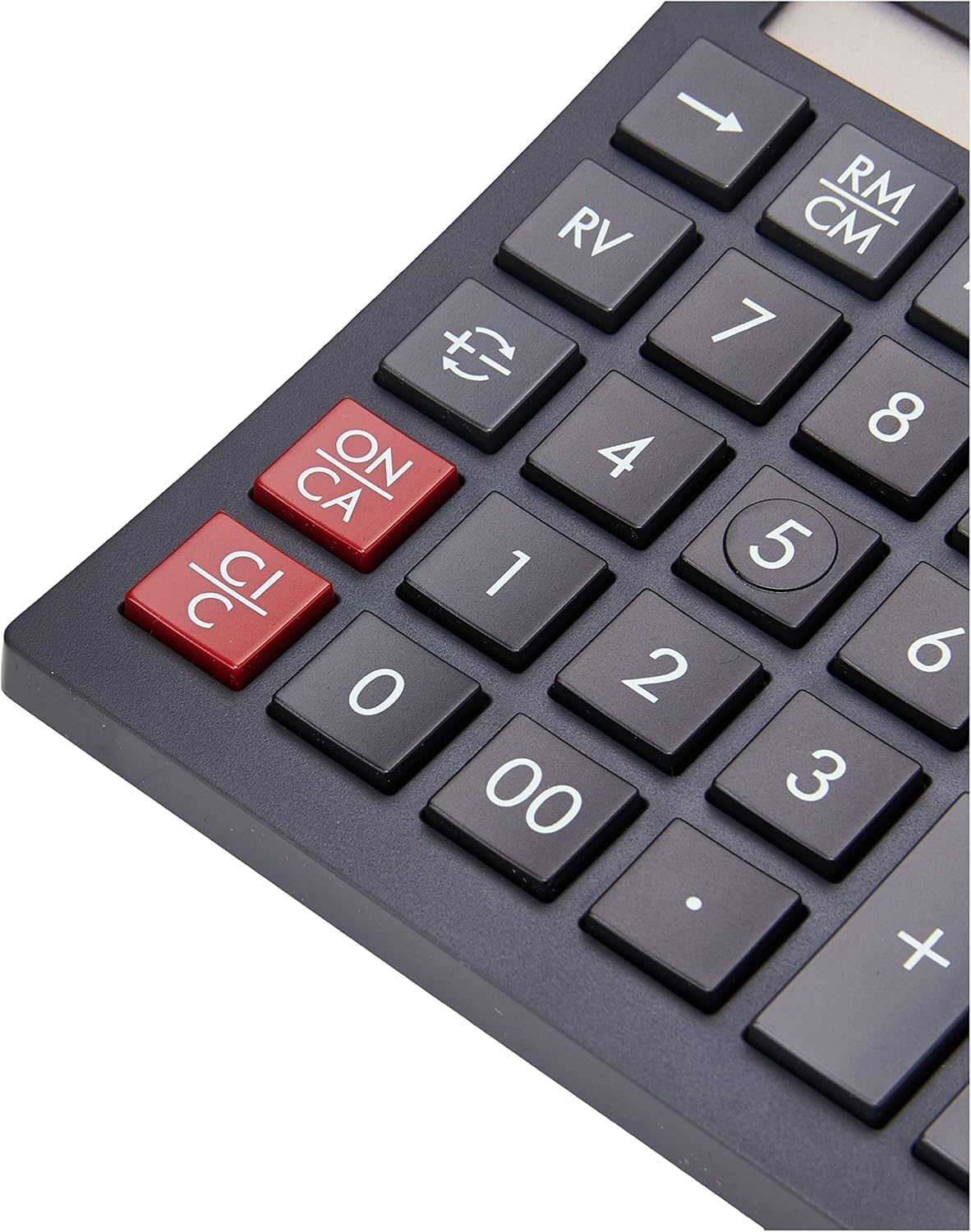
Figure 6.1: The Canon AS-1200 calculator displayed with approximate dimensions for size reference.
7. Warranty and Support
For information regarding warranty coverage, technical support, or service for your Canon AS-1200 calculator, please refer to the warranty card included with your product or visit the official Canon support website. Contact details for customer service are typically available on the manufacturer's website.


