
1. Introduction
This manual provides instructions for the setup, operation, maintenance, and troubleshooting of your Produplicator 1 to 5 CD DVD Duplicator. This standalone unit is designed for efficient and reliable duplication of CDs and DVDs without the need for a computer.
The Produplicator 1 to 5 model features one source drive and five target drives, allowing for simultaneous copying of up to five discs from a single master disc.
2. Safety Information
- Do not turn off the unit while it is actively copying, testing, or performing any other operation. Interrupting these processes can lead to data corruption or damage to the discs and the unit.
- This machine is designed for duplicating unprotected media. It will not copy discs with copy protection or encryption, such as retail DVDs or rental discs.
- Ensure the unit is placed on a stable, level surface with adequate ventilation. Do not block ventilation openings.
- Keep the unit away from water, moisture, and excessive heat.
- Only use the power cord supplied with the unit.
- Do not attempt to open or service the unit yourself. Refer all servicing to qualified personnel.
3. Package Contents
Verify that all items are present in the package:
- Produplicator 1 to 5 CD DVD Duplicator Unit
- Power Cable
- User Manual (this document)
4. Product Overview
Familiarize yourself with the components and controls of your duplicator.

Figure 4.1: Front view of the Produplicator 1 to 5 CD DVD Duplicator.
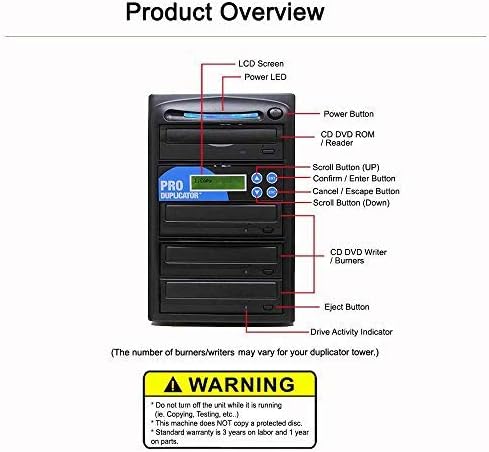
Figure 4.2: Front Panel Components
- LCD Screen: Displays menu options, status, and error messages.
- Power LED: Indicates power status.
- Power Button: Turns the unit on or off.
- CD DVD ROM / Reader (Top Drive): This is the source drive where the master disc is inserted.
- Scroll Button (UP): Navigates up through menu options.
- Confirm / Enter Button: Selects menu options or confirms actions.
- Cancel / Escape Button: Exits current menu or cancels an operation.
- Scroll Button (Down): Navigates down through menu options.
- CD DVD Writer / Burners (Lower Drives): These are the target drives where blank discs are inserted for duplication.
- Eject Button: Opens or closes disc trays.
- Drive Activity Indicator: Lights indicate drive activity (reading or writing).
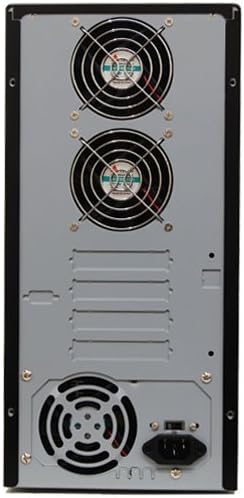
Figure 4.3: Rear Panel Components (Power input and cooling fans)
5. Setup
- Unpack the Unit: Carefully remove the duplicator from its packaging.
- Placement: Place the unit on a flat, stable surface. Ensure there is sufficient space around the unit for proper ventilation, especially at the rear where the cooling fans are located.
- Connect Power: Connect the provided power cable to the power input on the rear of the duplicator (refer to Figure 4.3) and then plug it into a standard electrical outlet.
- Power On: Press the Power Button on the front panel (refer to Figure 4.2). The LCD screen will illuminate, and the unit will perform a self-test.
6. Operating Instructions
The Produplicator is a standalone unit, requiring no computer or software for operation. It features automatic master disc recognition.
6.1 Supported Disc Formats
- DVD: 4.7GB DVD-R/RW and DVD+R/RW, 8.5GB DVD-R DL Dual Layer and DVD+R DL Double Layer, Mini DVD.
- CD: 80min/700MB CD-R, 74min/650MB CD-RW, CD-TEXT, Video CD, 3" Mini CD-R, Photo CD (Single & Multi-session), Business Card CD-R.
6.2 Basic Duplication Process
- Power On: Ensure the duplicator is powered on and has completed its startup sequence.
- Insert Master Disc: Press the Eject button on the top drive (CD DVD ROM / Reader) to open the tray. Place your master disc (the disc you want to copy) onto the tray, label side up. Close the tray.
- Insert Blank Discs: Press the Eject buttons on the lower drives (CD DVD Writer / Burners) to open the trays. Place blank discs onto each tray, label side up. Close all trays.
- Select Copy Function: The unit will automatically detect the master disc. Use the Scroll Up/Down buttons to navigate the menu on the LCD screen. Select the "Copy" or "Disc Copy" option.
- Start Duplication: Press the Confirm / Enter button to begin the duplication process. The LCD screen will display the progress, often showing bytes copied and percentage complete. Drive Activity Indicators will light up during the process.
- Completion: Once duplication is complete, the unit will typically eject the copied discs and display a completion message. Remove the discs.
6.3 Creating a Mix CD
The duplicator allows you to collect and edit tracks from multiple CD source discs to compile your own custom mix CD. Refer to the on-screen menu options for detailed steps on how to access and utilize the Mix CD feature. This typically involves selecting tracks from various source CDs and then burning them to a single blank CD.
7. Maintenance
Proper maintenance ensures the longevity and optimal performance of your duplicator.
- Cleaning: Regularly wipe the exterior of the unit with a soft, dry cloth. Do not use liquid cleaners or abrasive materials.
- Dust Management: The unit incorporates an anti-dust design to minimize dust accumulation within the drives. However, it is recommended to keep the operating environment as dust-free as possible. Avoid operating in excessively dusty areas.
- Disc Trays: Keep disc trays clean and free of debris. Gently clean them with a soft, lint-free cloth if necessary.
- Ventilation: Ensure the rear cooling fans and vents remain unobstructed to prevent overheating.

Figure 7.1: Anti-Dust Design Feature.
8. Troubleshooting
If you encounter issues with your duplicator, refer to the following common problems and solutions:
- Unit Does Not Power On:
- Check if the power cable is securely connected to both the duplicator and the electrical outlet.
- Verify that the electrical outlet is functional.
- Duplication Fails / Error Message:
- Ensure the master disc is clean and free of scratches or damage.
- Verify that the blank discs are compatible with the duplicator and are of good quality.
- Confirm that the master disc is not copy-protected. The unit cannot duplicate protected media.
- Try using a different brand of blank media.
- Clean the disc trays and optical lenses (if accessible and with appropriate cleaning tools).
- Discs Not Ejecting:
- Ensure the duplication process has fully completed.
- Press the Eject button firmly.
- If a disc is stuck, power off the unit, wait a few seconds, then power it back on. This may reset the drive and allow ejection.
- Slow Duplication Speed:
- Duplication speed can vary based on the type and quality of the master and blank discs.
- Ensure the drives are clean and free of dust.
If the problem persists after attempting these solutions, please contact customer support.
9. Specifications
| Feature | Detail |
|---|---|
| Brand | Produplicator |
| Model Number | PDE22X05 |
| Series | PDE22X05 |
| Hardware Platform | PC (Standalone operation) |
| Operating System | N/A (Standalone) |
| Item Weight | 0.01 ounces (Note: This value may be a placeholder or incorrect, actual weight is higher for a tower unit) |
| Product Dimensions (LxWxH) | 16.25 x 15.75 x 11.25 inches |
| Hard Drive Interface | Serial ATA (Internal drive connections) |
| Optical Storage Write Speed | 24X |
| Optical Storage Read Speed | 24X |
| Special Feature | External USB Connection Option, Hard Drive OR Flash Memory Slot Upgrade (Optional, not included) |
| Hardware Interface | CD-RW, DVD-R, Mini DVD |
10. Warranty and Support
10.1 Warranty Information
Your Produplicator unit comes with a standard warranty:
- Parts: 1 year
- Labor: 3 years
This warranty covers defects in materials and workmanship under normal use. Please retain your proof of purchase for warranty claims.
10.2 Technical Support
Produplicator offers lifetime technical support for this product. For assistance with setup, operation, troubleshooting, or warranty claims, please contact Produplicator customer service. Refer to the contact information provided with your purchase or on the official Produplicator website.