
Introduction
The Logitech HD Webcam C310 is designed to provide clear and reliable video communication. Featuring HD 720p video calling and 5-megapixel snapshot capabilities, it's ideal for various applications. This manual provides essential information for setting up, operating, maintaining, and troubleshooting your webcam.
Setup
Follow these steps to set up your Logitech HD Webcam C310:
- Unpack the Webcam: Carefully remove the webcam from its packaging. Ensure all components, including the webcam unit and its integrated USB cable, are present.
- Position the Webcam: The C310 features a flexible clip/stand designed to securely attach to the top of your monitor or laptop screen. It can also be placed on a flat surface. Adjust the clip to fit snugly without obstructing your screen.
- Connect to your Computer: Plug the integrated USB cable from the webcam into an available USB port on your computer. The webcam is plug-and-play, meaning your operating system should automatically detect and install the necessary drivers.
- Software Installation (Optional): While the webcam functions with standard drivers, for enhanced features like advanced settings and photo/video capture software, you may visit the official Logitech support website to download and install the latest software for your C310.
- Verify Installation: Open a video conferencing application (e.g., Skype, Zoom, Google Meet) or your computer's camera application to confirm the webcam is recognized and displaying video.

Figure 1: Front view of the Logitech HD Webcam C310.

Figure 2: The C310 webcam positioned on a computer monitor for video calls.

Figure 3: Operating system compatibility for the Logitech C310 webcam.
Operating the Webcam
The Logitech C310 is designed for ease of use with various communication platforms. Here are its key operational features:
- HD 720p Video Calls: Enjoy high-definition video calls on most major instant messaging applications and Logitech Vid HD. The webcam provides fluid, widescreen HD 720p video for clear communication.
- 5-Megapixel Snapshots: Capture high-resolution still images at up to 5 megapixels (software enhanced).
- One-Click Upload to Social Media: Easily capture HD video (720p) and upload it to platforms like Facebook or YouTube with a single click (requires Logitech software).
- Built-in Microphone with RightSound™: The integrated microphone ensures clear conversations by reducing background noise.
- RightLight™ 2 Technology: This feature intelligently adjusts the camera's settings to produce the best possible image, even in dim or poorly backlit environments.
- Logitech Video Effects: Add fun and creativity to your video calls with various video effects, including neon splashes and fish-eye distortions (requires Logitech software).
- IM Compatibility: The webcam is compatible with popular instant messaging applications such as Skype, Windows Live Messenger, Yahoo! Messenger, and AOL Instant Messenger (AIM®).
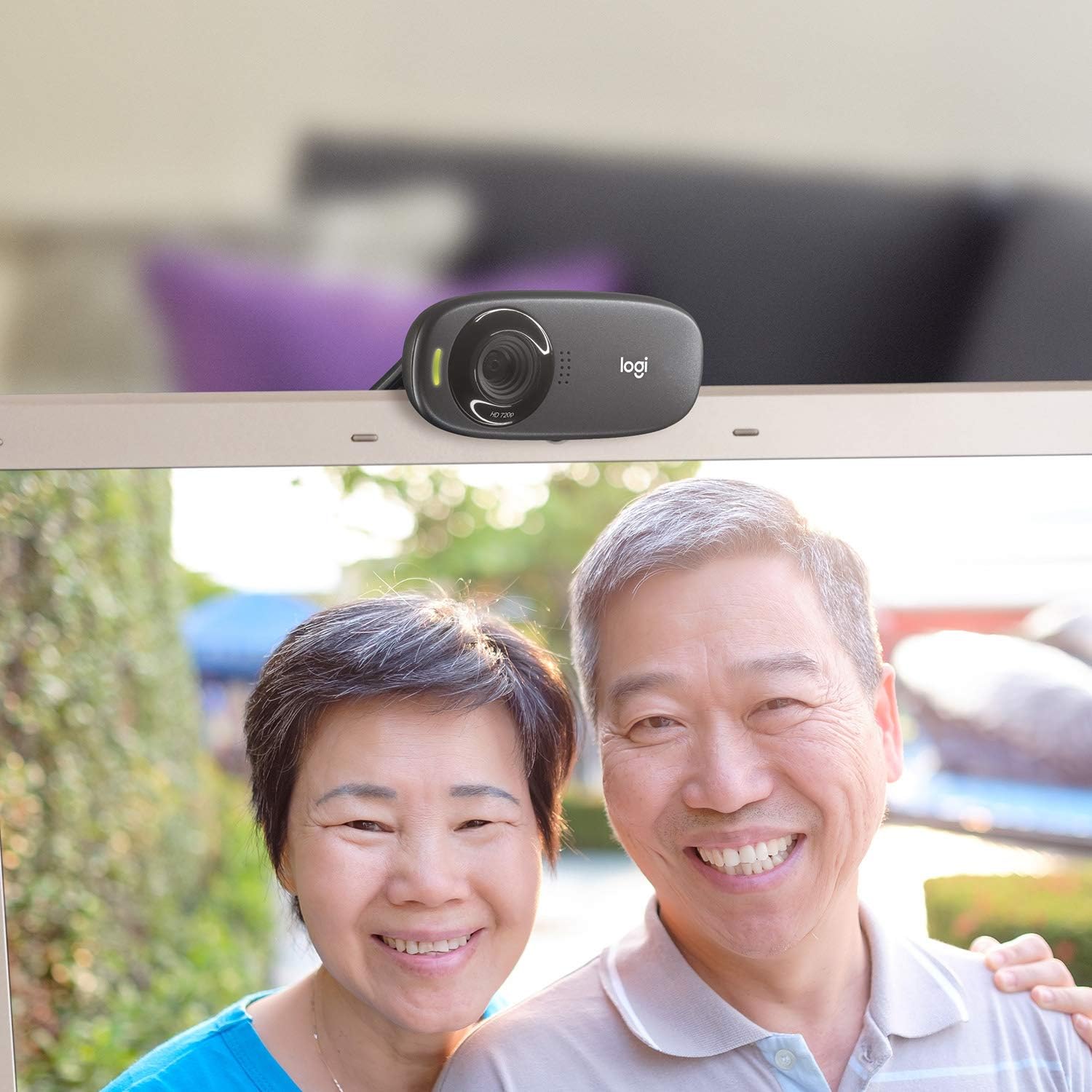
Figure 4: Example of a clear video call using the C310 webcam.
Maintenance
Proper maintenance ensures the longevity and optimal performance of your webcam:
- Cleaning: Use a soft, lint-free cloth to gently wipe the webcam lens and body. Avoid abrasive cleaners or solvents that could damage the surface.
- Storage: When not in use, store the webcam in a clean, dry place away from direct sunlight and extreme temperatures.
- Cable Care: Do not excessively bend or pull the USB cable. This can damage the internal wires and affect connectivity.
Troubleshooting
If you encounter issues with your Logitech HD Webcam C310, try the following solutions:
- Webcam Not Detected:
- Ensure the USB cable is securely plugged into a working USB port. Try a different USB port.
- Restart your computer.
- Check your computer's Device Manager (Windows) or System Information (Mac) to see if the webcam is listed and recognized.
- Update your computer's USB drivers.
- Poor Video Quality:
- Ensure adequate lighting in your environment. RightLight™ 2 technology helps, but sufficient ambient light is crucial.
- Clean the webcam lens with a soft cloth.
- Check your internet connection speed, especially during video calls, as a slow connection can degrade video quality.
- Close other applications that might be using significant bandwidth or system resources.
- Microphone Issues:
- Verify that the Logitech C310 microphone is selected as the default input device in your operating system's sound settings and in your video conferencing application.
- Check microphone volume levels in your system settings.
- Ensure no physical obstructions are blocking the microphone holes on the webcam.
Specifications
| Product Dimensions | 8.27 x 2.99 x 5.98 inches |
| Item Weight | 8 ounces |
| Item Model Number | 960-000637 |
| Video Capture Resolution | 720p |
| Photo Sensor Technology | CMOS |
| Connectivity Technology | USB |
| Built-in Microphone | Yes, with RightSound™ noise reduction |
| Automatic Light Correction | Yes, with RightLight™ 2 technology |
| Still Image Capture | Up to 5 megapixels (software enhanced) |
| Manufacturer | Logitech |
| Date First Available | November 12, 2010 |
Warranty and Support
The Logitech HD Webcam C310 typically comes with a 2-year limited hardware warranty. For detailed warranty information, technical support, or to access additional resources, please visit the official Logitech support website or refer to the documentation included with your product.
You may also consider purchasing extended protection plans for additional coverage:
- 2-Year Protection Plan
- 3-Year Protection Plan
- Complete Protect: One plan covers all eligible past and future purchases (monthly billing option available).
For further assistance, contact Logitech Customer Service.