
1. Introduction
This manual provides detailed instructions for the setup, operation, maintenance, and troubleshooting of your Inland Pro Bluetooth Optical Mouse (Model 07347). Please read this manual thoroughly before using the device to ensure proper functionality and to prevent damage.
The Inland Pro Bluetooth Optical Mouse offers wireless convenience and precise optical tracking for various computing tasks. Its ergonomic design aims to provide comfortable use.
2. Package Contents
Verify that all items listed below are present in your product packaging:
- Inland Pro Bluetooth Optical Mouse (Model 07347)
- User Manual (this document)
- Note: 2 AAA batteries are required for operation and are not included.
3. Product Overview
The Inland Pro Bluetooth Optical Mouse is designed for ease of use and reliable performance. Key features include:
- Bluetooth Wireless Interface: Provides a cable-free connection to your compatible device.
- Optical Technology: Delivers accurate and responsive cursor control.
- Ergonomic Design: Shaped for comfortable handling during extended use.
- Two Buttons and Scroll Wheel: Standard navigation controls for efficient interaction.
- 1000 DPI Sensor: Offers a fixed sensitivity for general computing tasks.
Mouse Components
Refer to the image below for an illustration of the mouse components.
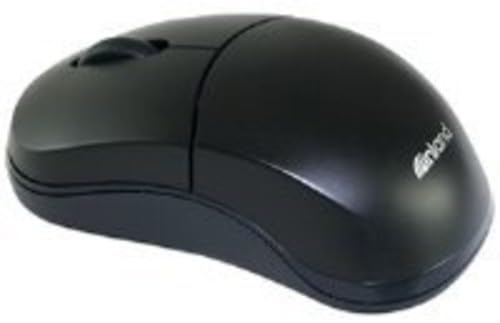
Figure 1: Inland Pro Bluetooth Optical Mouse (Model 07347). This image displays the top and side profile of the black optical mouse, highlighting its ergonomic shape and standard button layout.
- Left Click Button
- Right Click Button
- Scroll Wheel
- Optical Sensor (located on the underside)
- Battery Compartment (located on the underside)
- Bluetooth Connection/Pairing Button (located on the underside)
- Power On/Off Switch (located on the underside)
4. Setup
4.1. Installing Batteries
- Turn the mouse over to access the underside.
- Locate the battery compartment cover. Slide or lift the cover to open it.
- Insert two (2) AAA batteries, ensuring the positive (+) and negative (-) terminals align correctly with the markings inside the compartment.
- Replace the battery compartment cover securely.
- Slide the Power On/Off switch to the 'On' position.
4.2. Bluetooth Pairing
Follow these steps to connect your mouse to a compatible device:
- Ensure the mouse has fresh batteries and is powered on.
- On your computer or device, enable Bluetooth and open the Bluetooth settings or device manager.
- Press and hold the Bluetooth Connection/Pairing Button on the underside of the mouse for approximately 3-5 seconds. An indicator light on the mouse (if present) may flash to indicate pairing mode.
- On your device, search for new Bluetooth devices. The mouse should appear as "Inland Pro Mouse" or a similar identifier.
- Select the mouse from the list of available devices to initiate the connection.
- If prompted for a passkey, enter "0000" or consult your device's Bluetooth instructions. Some devices may not require a passkey.
- Once connected, the mouse indicator light may stop flashing or turn solid, and your device should confirm the successful pairing.
Compatibility Note: This mouse is compatible with Windows 2000, Windows XP, Windows Vista, and Mac OS. Compatibility with other operating systems or specific Bluetooth adapters may vary.
5. Operating Instructions
After successful pairing, the mouse is ready for use.
- Moving the Cursor: Move the mouse across a flat, non-reflective surface to control the cursor on your screen.
- Left Click: Press the left button to select items, open links, or activate functions.
- Right Click: Press the right button to open context menus or access additional options.
- Scroll Wheel: Roll the scroll wheel up or down to navigate through documents and web pages. The scroll wheel can also be pressed as a middle click button for some functions.
6. Maintenance
6.1. Cleaning the Mouse
To maintain optimal performance and appearance:
- Ensure the mouse is powered off before cleaning.
- Use a soft, lint-free cloth slightly dampened with water or a mild cleaning solution.
- Wipe the exterior surfaces of the mouse gently.
- Avoid using harsh chemicals, abrasive cleaners, or excessive moisture, as these can damage the mouse.
- Do not spray cleaners directly onto the mouse.
6.2. Battery Replacement
When the mouse's performance degrades or it stops responding, it may be time to replace the batteries. Follow the steps in Section 4.1 to replace the two (2) AAA batteries.
Note: Dispose of used batteries responsibly according to local regulations.
7. Troubleshooting
If you encounter issues with your Inland Pro Bluetooth Optical Mouse, refer to the following common problems and solutions:
- Mouse does not respond or cursor does not move:
- Ensure the mouse is powered on. Check the On/Off switch on the underside.
- Replace the batteries with fresh AAA batteries.
- Ensure the mouse is within the effective range of your Bluetooth device (typically up to 10 meters).
- Verify that the mouse is properly paired with your device. If not, re-pair it following the steps in Section 4.2.
- Try connecting the mouse to a different Bluetooth-enabled device to rule out an issue with your primary device's Bluetooth adapter.
- Connection fails or mouse frequently disconnects:
- Ensure there are no other strong wireless signals or devices interfering with the Bluetooth connection.
- Turn the mouse off and then on again using the power switch on the underside. This can often re-establish the connection.
- Remove the mouse from your device's Bluetooth paired devices list and then re-pair it.
- Update your computer's Bluetooth drivers.
- If your device requests a code during pairing and none was provided, try common codes like "0000" or "1234". If issues persist, consult your device's operating system documentation.
- Cursor movement is erratic or imprecise:
- Clean the optical sensor on the underside of the mouse with a soft, dry cloth.
- Use the mouse on a clean, uniform, non-reflective surface. Avoid highly reflective or transparent surfaces.
8. Specifications
| Brand | Inland |
| Model Number | 07347 |
| Connectivity Technology | Bluetooth, Wireless (2.4 GHz Radio Frequency, 802.11abg) |
| Movement Detection Technology | Optical |
| DPI (Dots Per Inch) | 1000 dpi |
| Number of Buttons | 2 (plus scroll wheel click) |
| Color | Black |
| Operating System Compatibility | Windows 2000, Windows XP, Windows Vista, Mac OS |
| Batteries Required | 2 x AAA (not included) |
| Item Weight | 109 g |
| Product Dimensions (L x W x H) | 20.32 x 6.35 x 18.29 cm (approximate packaging dimensions) |
9. Warranty and Support
For warranty information, please refer to the documentation provided at the time of purchase or contact your retailer. Inland typically offers a limited warranty against defects in materials and workmanship.
For technical support or further assistance, please visit the official Inland website or contact their customer service department. Contact details are usually available on the product packaging or the manufacturer's website.