
1. Introduction
This manual provides instructions for the proper use and care of your Blacell Stylus Pen, Model 288344. This stylus is designed to enhance interaction with capacitive touchscreens, such as those found on Apple iPad devices, by offering a precise and comfortable alternative to finger input.
The Blacell Stylus Pen helps to reduce fingerprints on your screen and provides improved accuracy for tasks like writing, drawing, and navigating user interfaces.
2. Product Overview
The Blacell Stylus Pen features a durable brass body and a soft, conductive rubber tip. It is designed for comfortable handling and smooth interaction with your device's screen.

Image: The Blacell Stylus Pen, featuring its silver body and black soft tip, with a clip for easy portability.
Key components:
- Soft Touch Tip: The primary interface with your device's screen, designed for smooth gliding and precise input.
- Pen Body: Constructed from brass, providing a balanced and comfortable grip.
- Integrated Clip: Allows for convenient attachment to pockets or tablet cases.
3. Setup
The Blacell Stylus Pen is a passive stylus and does not require batteries, Bluetooth pairing, or any software installation. It is ready for use immediately upon unboxing.
- Remove the stylus from its packaging.
- Ensure the soft touch tip is clean and free of debris.
- The stylus is now ready to be used with your compatible touchscreen device.
4. Operating Instructions
Using the Blacell Stylus Pen is intuitive and similar to using your finger on a touchscreen, but with added precision.

Image: A Blacell Stylus Pen being used to interact with an application icon on an Apple iPad screen.
- Holding the Stylus: Hold the stylus as you would a traditional pen or pencil, ensuring a comfortable grip.
- Screen Interaction: Gently touch the soft tip of the stylus to the screen to perform actions such as tapping, swiping, or dragging.
- Writing and Drawing: For writing or drawing, apply light, consistent pressure. The soft tip is designed to glide smoothly across the screen.
- Precision: Utilize the fine tip for tasks requiring greater accuracy than finger input, such as selecting small icons or detailed drawing.
Note: Avoid excessive force when using the stylus, as this is unnecessary and could potentially damage the stylus tip or your device's screen.
5. Maintenance
Proper maintenance ensures the longevity and optimal performance of your Blacell Stylus Pen.
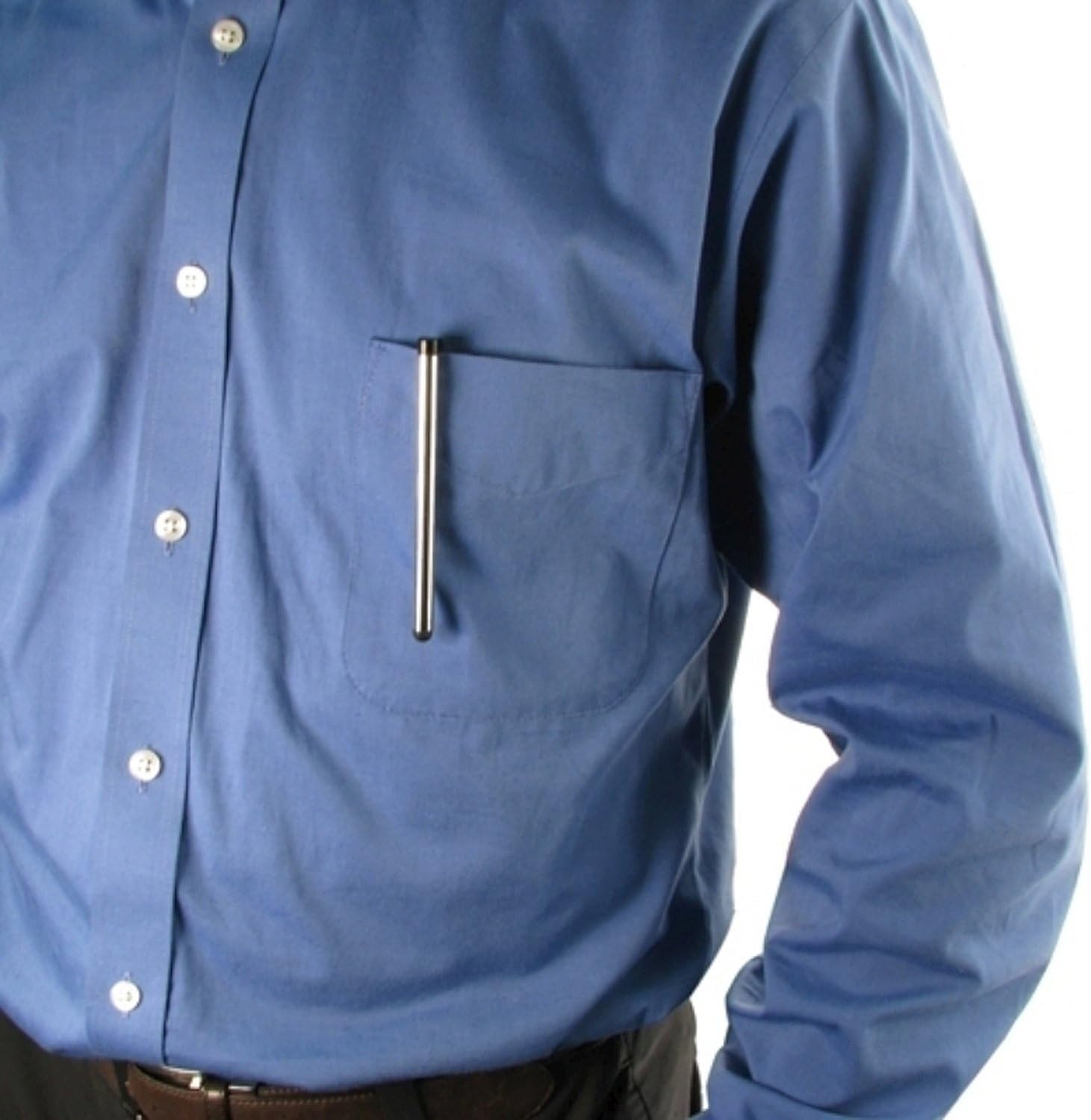
Image: A Blacell Stylus Pen conveniently clipped into a shirt pocket, demonstrating its portability and ease of storage.
- Cleaning the Tip: Periodically wipe the soft touch tip with a clean, dry, lint-free cloth to remove any dust or oils that may accumulate. Do not use abrasive cleaners or harsh chemicals.
- Cleaning the Body: The brass body can be wiped clean with a soft, damp cloth. Ensure the stylus is completely dry before storage.
- Storage: Store the stylus in a clean, dry place when not in use. The integrated clip allows for secure storage in a pocket or pen loop. Avoid exposing the stylus to extreme temperatures or direct sunlight for extended periods.
- Tip Inspection: Regularly inspect the soft tip for any signs of wear or damage. A worn tip may reduce responsiveness or scratch the screen.
6. Troubleshooting
If you encounter issues with your Blacell Stylus Pen, refer to the following common problems and solutions:
| Problem | Possible Cause | Solution |
|---|---|---|
| Stylus is unresponsive or inconsistent. | Dirty stylus tip or screen; worn tip. | Clean the stylus tip and your device's screen with a lint-free cloth. Ensure the tip is not damaged. |
| Stylus scratches the screen. | Damaged or hardened stylus tip; debris on tip. | Immediately stop using the stylus. Inspect the tip for any damage or embedded particles. Clean the tip thoroughly. If the tip is damaged, discontinue use. |
| Stylus feels sticky or drags on screen. | Oils or residue on the screen or tip. | Clean both the stylus tip and the device screen thoroughly with appropriate cleaning solutions for electronics. |
7. Specifications
- Model Number: 288344
- Product Dimensions: 0.2 x 0.2 x 3.26 inches (L x W x H)
- Item Weight: 0.64 ounces (0.04 pounds)
- Material: Brass
- Color: Silver
- Compatible Devices: Designed for capacitive touchscreens, including various models of Apple iPad, Kindle Fire, Google Nexus, Microsoft Surface, and Samsung Galaxy Tab series.
- Batteries Required: No
8. Warranty and Support
For information regarding warranty coverage and customer support for your Blacell Stylus Pen, please refer to the purchase documentation or contact the retailer where the product was acquired. Keep your proof of purchase for warranty claims.
If you have questions or require assistance beyond the scope of this manual, please reach out to the manufacturer or seller's customer service department.