
1. Introduction
This manual provides detailed instructions for the setup, operation, and maintenance of your Vivitek D511 Portable DLP Projector. The D511 is designed to deliver sharp, detailed images with 2600 lumens of brightness and a 3000:1 contrast ratio, utilizing DLP and BrilliantColor technologies. It is also 3D-ready, supporting future media content. Please read this manual thoroughly before using the projector to ensure proper and safe operation.
2. Safety Information
- Ventilation: Ensure adequate ventilation around the projector. Do not block any ventilation openings. Overheating can cause damage to the projector and pose a fire hazard.
- Power Source: Use only the specified power adapter and connect to a grounded power outlet.
- Lamp Safety: The projector lamp operates at high temperatures and pressure. Do not attempt to replace the lamp immediately after use. Allow the projector to cool down for at least 20 minutes before handling the lamp. Refer to the "Maintenance" section for lamp replacement instructions.
- Eye Protection: Avoid looking directly into the projector lens when the lamp is on, as the intense light can cause eye damage.
- Placement: Place the projector on a stable, level surface. Avoid placing it in direct sunlight, near heat sources, or in environments with high humidity or dust.
- Cleaning: Disconnect the power cord before cleaning. Use a soft, dry cloth. Do not use liquid or aerosol cleaners.
3. Product Overview
3.1 Front View
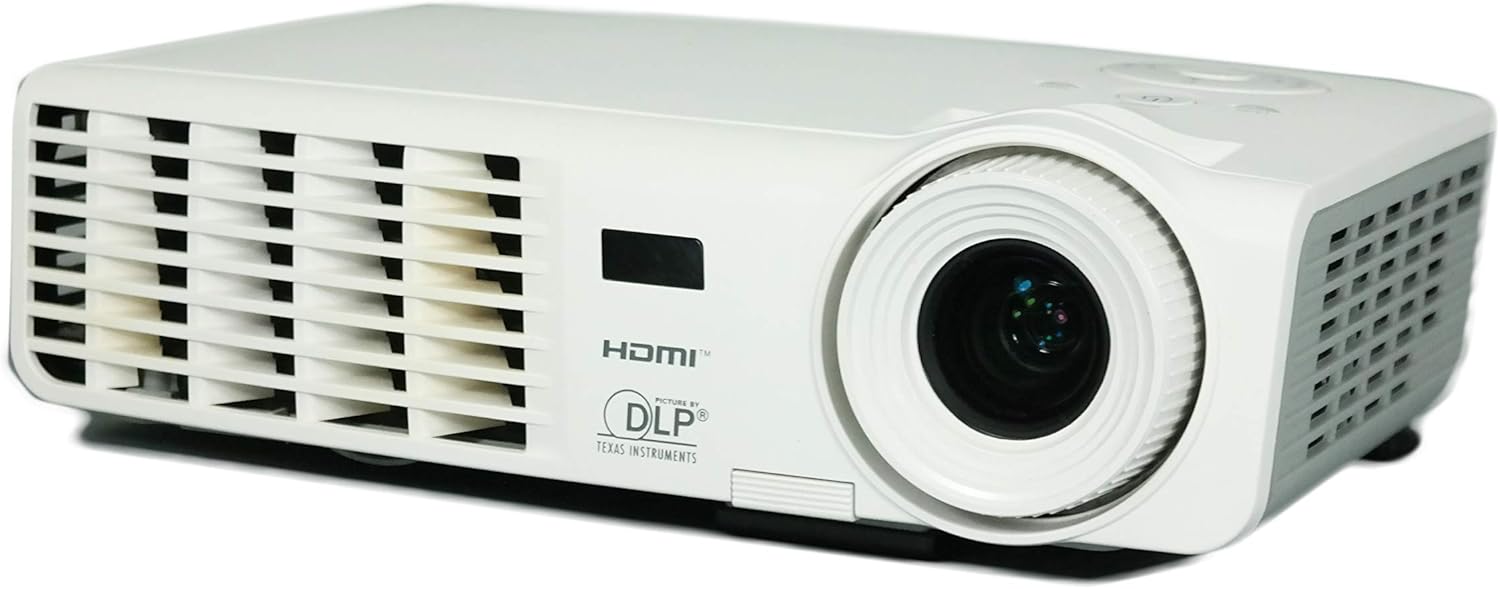
Image 3.1: Front view of the Vivitek D511 projector, showing the projection lens and front ventilation grille.
The front of the projector features the main projection lens, which is used to focus the image onto your screen or surface. The front also includes ventilation openings to ensure proper airflow and cooling during operation.
3.2 Rear Panel (Connectivity)

Image 3.2: Rear panel of the Vivitek D511 projector, displaying various input and output ports.
The rear panel provides a range of connectivity options for various devices:
- HDMI: High-Definition Multimedia Interface for digital audio and video input.
- VGA (Input 1 & 2): D-sub 15-pin connectors for analog video input from computers.
- Composite Video: RCA yellow jack for standard definition video input.
- S-Video: Mini-DIN 4-pin connector for enhanced standard definition video input.
- Audio In (L-Audio-R & Mini-Jack): RCA red/white jacks and a 3.5mm mini-jack for audio input.
- RS-232: Serial port for projector control via a computer or control system.
- Power Input: AC power connector.
3.3 Top Panel (Control Buttons)

Image 3.3: Top panel of the Vivitek D511 projector, showing the control buttons and indicator lights.
The top panel houses the primary control buttons for operating the projector without the remote control. These include the Power button, Source selection, Menu access, Auto adjustment, and navigation buttons. Indicator lights for LAMP and TEMP provide status information.
3.4 Side Views (Ventilation)

Image 3.4a: Left side view with ventilation.

Image 3.4b: Right side view with ventilation.
Both sides of the projector feature ventilation grilles crucial for dissipating heat generated during operation. Ensure these areas are unobstructed to maintain optimal performance and prevent overheating.
3.5 Bottom View (Label and Lamp Access)

Image 3.5: Bottom view of the Vivitek D511 projector, showing the product label and lamp access panel.
The bottom of the projector contains the product information label, including the model number (D511), serial number, and regulatory compliance marks. It also features an access panel for lamp replacement. Always refer to the safety warnings regarding lamp replacement on this label.
4. Setup
4.1 Projector Placement
Place the projector on a stable, flat surface. The D511 is designed for tabletop mounting. Ensure the projector is positioned at an appropriate distance from the screen to achieve the desired image size. Avoid placing it where ventilation grilles could be blocked.
4.2 Connecting Devices
Connect your source devices (e.g., laptop, gaming console, DVD player) to the appropriate input ports on the projector's rear panel (refer to Image 3.2).
- HDMI: For high-quality digital video and audio, connect an HDMI cable from your source device to the projector's HDMI port.
- VGA: For analog video from a computer, connect a VGA cable to one of the VGA ports. If connecting a computer, you may also need to connect an audio cable to the Audio In mini-jack.
- Composite/S-Video: For older video sources, connect the appropriate cable to the Composite Video or S-Video port. Connect audio cables to the L-Audio-R RCA jacks.
4.3 Powering On/Off
- Power On: Connect the power cord to the projector and a power outlet. Press the Power button on the top panel or the remote control. The projector will initiate its startup sequence.
- Power Off: Press the Power button again. A confirmation message may appear. Press the Power button a second time to confirm shutdown. The projector will enter a cooling cycle before completely shutting down. Do not unplug the projector during the cooling cycle.
5. Operating the Projector
5.1 Basic Controls
The projector can be controlled using the buttons on the top panel (refer to Image 3.3) or the included remote control.
- SOURCE: Press to cycle through available input sources (HDMI, VGA, Composite, S-Video).
- MENU: Press to open the On-Screen Display (OSD) menu for advanced settings. Use the arrow buttons to navigate and ENTER (often the central button) to select.
- AUTO: Automatically adjusts the image for optimal display, particularly useful for VGA sources.
- Arrow Buttons (Up/Down/Left/Right): Navigate menus and adjust settings.
5.2 Adjusting the Image
- Focus: Rotate the focus ring on the projector lens until the image appears sharp and clear.
- Keystone Correction: If the image appears trapezoidal (wider at the top or bottom), use the keystone correction function (usually found in the OSD menu) to adjust it. The D511 supports vertical keystone correction up to 30 inches.
- Zoom: If available, use the zoom ring on the lens to adjust the image size without moving the projector.
5.3 3D Functionality
The Vivitek D511 is 3D-ready. To experience 3D content, you will need compatible 3D source material, a 3D-capable player, and active shutter 3D glasses (sold separately). Refer to your 3D source device's manual for specific setup instructions. The projector will automatically detect and display 3D signals when properly configured.
6. Maintenance
6.1 Lamp Replacement
The projector lamp has an operating life of approximately 4000 hours. When the lamp reaches the end of its life, the LAMP indicator light may illuminate, or the image brightness may significantly decrease. Refer to the caution label on the bottom of the projector (Image 3.5) before attempting replacement.
- Cool Down: Ensure the projector has been powered off and allowed to cool for at least 20 minutes before proceeding. The lamp operates at high temperatures.
- Disconnect Power: Unplug the power cord from the projector.
- Access Panel: Locate the lamp access panel on the bottom of the projector. Unscrew the retaining screw(s) and carefully remove the cover.
- Remove Old Lamp: Unscrew the screws holding the lamp module in place. Carefully pull the lamp module out by its handle.
- Install New Lamp: Insert the new lamp module, ensuring it is seated correctly. Secure it with the screws.
- Close Panel: Replace the lamp access cover and secure it with its screw(s).
- Reset Lamp Timer: After replacing the lamp, you must reset the lamp timer in the projector's OSD menu to accurately track the new lamp's life.
6.2 Cleaning
- Projector Casing: Use a soft, lint-free cloth to wipe the exterior of the projector. For stubborn marks, slightly dampen the cloth with water. Avoid harsh chemicals.
- Projector Lens: Gently clean the lens with a lens cleaning cloth or a soft, dry, lint-free cloth specifically designed for optical surfaces. Do not use abrasive materials or excessive force.
- Ventilation Grilles: Periodically check the ventilation grilles for dust accumulation. Use a soft brush or compressed air to clear any blockages.
7. Troubleshooting
| Problem | Possible Cause | Solution |
|---|---|---|
| No image on screen |
|
|
| Image is blurry |
|
|
| Image is trapezoidal |
|
|
| Projector overheats / TEMP indicator on |
|
|
| No audio |
|
|
8. Specifications
| Feature | Detail |
|---|---|
| Brand | Vivitek |
| Model Number | D511 |
| Display Type | DLP |
| Native Resolution | 1024 x 768 (XGA) |
| Maximum Display Resolution | 1600 x 1200 |
| Brightness | 2600 Lumens |
| Contrast Ratio | 3000:1 |
| Special Feature | 3D-Ready |
| Connectivity Technology | HDMI, VGA, Composite Video, S-Video, RS-232 |
| Lamp Wattage | 180 Watts |
| Light Source Operating Life | 4000 Hours |
| Form Factor | Portable |
| Mounting Type | Tabletop Mount |
| Item Weight | 4.2 Pounds |
| Color | White |
| Control Method | Remote Control, On-device buttons |
| Picture Quality Enhancement | BrilliantColor |
9. Warranty and Support
For warranty information, technical support, or service inquiries, please contact Vivitek customer support. Details regarding your product's specific warranty period and terms can typically be found on the Vivitek official website or included in your product packaging. Please have your model number (D511) and serial number ready when contacting support.