
1. Introduction
The Xtreamer PRO is a versatile media player and network streamer designed to deliver high-definition entertainment to your television. It supports streaming of HD (MKV H.264) movies, high-quality digital music, and high-resolution photo slideshows. Featuring dual 3.5-inch SATA hard drive bays, the device offers significant storage capacity, up to 4 TB, for your media library. It is equipped with 512MB memory and an ultra-fast eSATA connector for enhanced performance and connectivity.
2. Key Features
- Two 3.5-inch Hard Drive Bays with support for up to 4TB total storage capacity.
- Integrated dedicated eSATA controller and PC eSATA bracket included for high-speed external storage.
- 512MB total memory (256MB DDR2 SDRAM & 256MB Flash) for efficient operation.
- High-Definition Graphical User Interface (GUI) for intuitive navigation.
- Full 7.1 HD Audio Support (requires pending firmware update for DTS-HD MA & Dolby True-HD).
- Supports BluRay ISO with simple navigation and commercial DVD with menus.
- Multilingual On Screen Display, Subtitles, and GUI.
3. Setup
3.1 Unpacking
Carefully remove all components from the packaging. Verify that all items listed in the product documentation are present. Retain the packaging for future transport or storage.
3.2 Hard Drive Installation
The Xtreamer PRO supports two 3.5-inch SATA hard drives. To install:
- Ensure the device is powered off and disconnected from the power source.
- Open the hard drive bay cover.
- Gently slide the 3.5-inch SATA hard drive(s) into the designated bays, ensuring they are securely seated in the connectors.
- Close the hard drive bay cover.
- Upon first use, the device will prompt you to format the installed hard drive(s). It is recommended to format the drives within the device using the NTFS file system for optimal compatibility and performance.
3.3 Connecting to Your TV
Connect the Xtreamer PRO to your television using one of the following methods:
- HDMI: For high-definition video and audio, connect an HDMI cable from the Xtreamer PRO's HDMI v1.3a port to an HDMI input on your TV. This supports resolutions up to 1080p.
- Composite Video: For standard definition video, connect a composite video cable (yellow RCA) from the Xtreamer PRO to your TV's composite video input.
- Audio: For audio, use the HDMI connection (if available), or connect stereo analog audio cables (red/white RCA) or an S/PDIF optical digital audio cable to your audio receiver or TV.
3.4 Network Connection
Connect the device to your home network for streaming and network storage functionality:
- Wired: Connect an Ethernet cable from the Xtreamer PRO's 10/100 RJ-45 port to your router or network switch.
- Wireless (Optional): If you have an optional USB WiFi 802.11n antenna (sold separately), connect it to an available USB port. Configure the wireless connection through the device's network settings menu.
3.5 Initial Power On
After all connections are made, connect the power adapter to the Xtreamer PRO and then to a power outlet. Power on the device. Follow the on-screen instructions for initial setup, including language selection and network configuration.
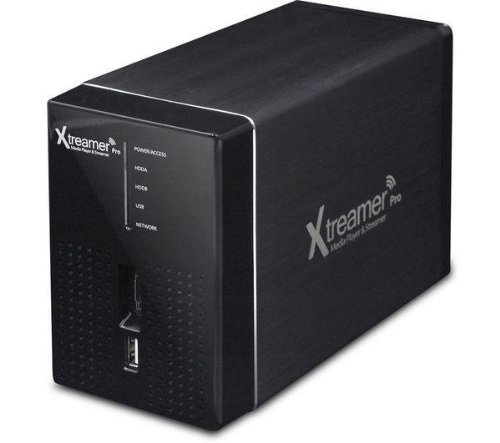
Figure 1: Front view of the Xtreamer PRO Media Player, showcasing its compact design and dual hard drive bays.
4. Operation
4.1 User Interface Navigation
Navigate the Xtreamer PRO's graphical user interface (GUI) using the included remote control. The interface is designed for ease of use, allowing access to various media categories and settings.
4.2 Media Playback
The device supports a wide range of media formats. To play media:
- Select the desired media type (e.g., Movies, Music, Photos) from the main menu.
- Browse your internal hard drives, connected USB devices, or network shares to locate your media files.
- Select a file to begin playback. The device supports various video codecs (e.g., MKV H.264), audio formats, and image types.
4.3 Network Streaming
The Xtreamer PRO can stream content from your local network. Ensure the device is connected to your network (wired or wireless). You can access shared folders on your computers or Network Attached Storage (NAS) devices directly through the Xtreamer PRO's interface.
4.4 File Management (NAS Functionality)
The Xtreamer PRO functions as a Network Attached Storage (NAS) device. Once connected to your network, you can access the internal hard drives from other devices on your network (e.g., computers) to transfer files. This allows you to easily copy media files to and from the Xtreamer PRO's internal storage.
5. Maintenance
5.1 Cleaning
To clean the device, power it off and disconnect it from the power source. Use a soft, dry cloth to wipe the exterior. Avoid using liquid cleaners or abrasive materials, as these can damage the finish or internal components.
5.2 Firmware Updates
Periodically check the official Xtreamer website for firmware updates. Firmware updates can improve performance, add new features, and resolve known issues. Follow the instructions provided with the firmware update package carefully to avoid damaging the device.
6. Troubleshooting
6.1 Common Issues and Solutions
- Device reboots spontaneously:
Ensure the power adapter is securely connected. Check for any loose internal hard drive connections. Consider performing a firmware update, as this can resolve stability issues. If the problem persists, contact support. - "UNKNOWN AUDIO FORMAT" error during playback:
This indicates that the device does not support the specific audio codec used in the media file. While the Xtreamer PRO supports many formats, some less common or proprietary codecs may not be compatible. Try converting the audio track of the file to a widely supported format (e.g., AC3, MP3) or check if a newer firmware update adds support. - TV screen flickers or displays no signal:
Verify that the HDMI or composite video cable is securely connected at both ends. Try a different cable or HDMI port on your TV. Ensure the correct input source is selected on your TV. Check the video output settings on the Xtreamer PRO to ensure they match your TV's capabilities. A firmware update might also address display issues. - Difficulty accessing online services (e.g., YouTube):
Confirm that the device has a stable internet connection (check network settings). Ensure your router is functioning correctly. Some online services may require specific firmware versions or may have regional restrictions. - Hard drive not recognized or formatting issues:
Ensure the hard drive is properly seated in its bay. If it's a new drive, ensure it is formatted within the Xtreamer PRO device, preferably using the NTFS file system, as this is the recommended method for compatibility.
7. Specifications
| Feature | Specification |
|---|---|
| Product Dimensions | 6.89 x 4.72 x 3.23 inches |
| Item Weight | 4.72 pounds |
| Item Model Number | pro2bayms |
| Chipset | Realtek 1283X, JM20336 (Dedicated Storage Controller) |
| Memory | 512MB Total (256MB DDR2 SDRAM & 256MB Flash) |
| Video Outputs | HDMI v1.3a (up to 1080p), Composite Video |
| Audio Outputs | Stereo Analog Audio, S/PDIF Optical Digital Audio |
| USB Interfaces | 1x USB 2.0 slave, 2x USB 2.0 host |
| Internal Storage | 2x Internal SATA 2 (for 3.5" HDDs) |
| External Storage | eSATA Front |
| Network | Ethernet 10/100 RJ-45, OPTIONAL USB WIFI 802.11n Antenna |
| Media Support | BluRay ISO (Simple Navigation), Commercial DVD (with menus) |
| Date First Available | March 24, 2010 |
| Manufacturer | Xtreamer |
8. Warranty and Support
For information regarding the product warranty, please refer to the documentation included with your purchase or visit the official Xtreamer website. For technical support, firmware downloads, and community forums, please consult the manufacturer's official support channels.