
1. Introduction
This manual provides comprehensive instructions for the safe and effective operation of your Ibiza LC192DMX 192-Channel DMX Light Controller. Please read this manual thoroughly before using the device to ensure proper setup, programming, and maintenance. Retain this manual for future reference.
2. Safety Instructions
Observe the following safety precautions to prevent damage to the device or injury to yourself:
- Power Supply: Connect the device only to the specified power source (9-12Vdc). Ensure the voltage matches the device requirements.
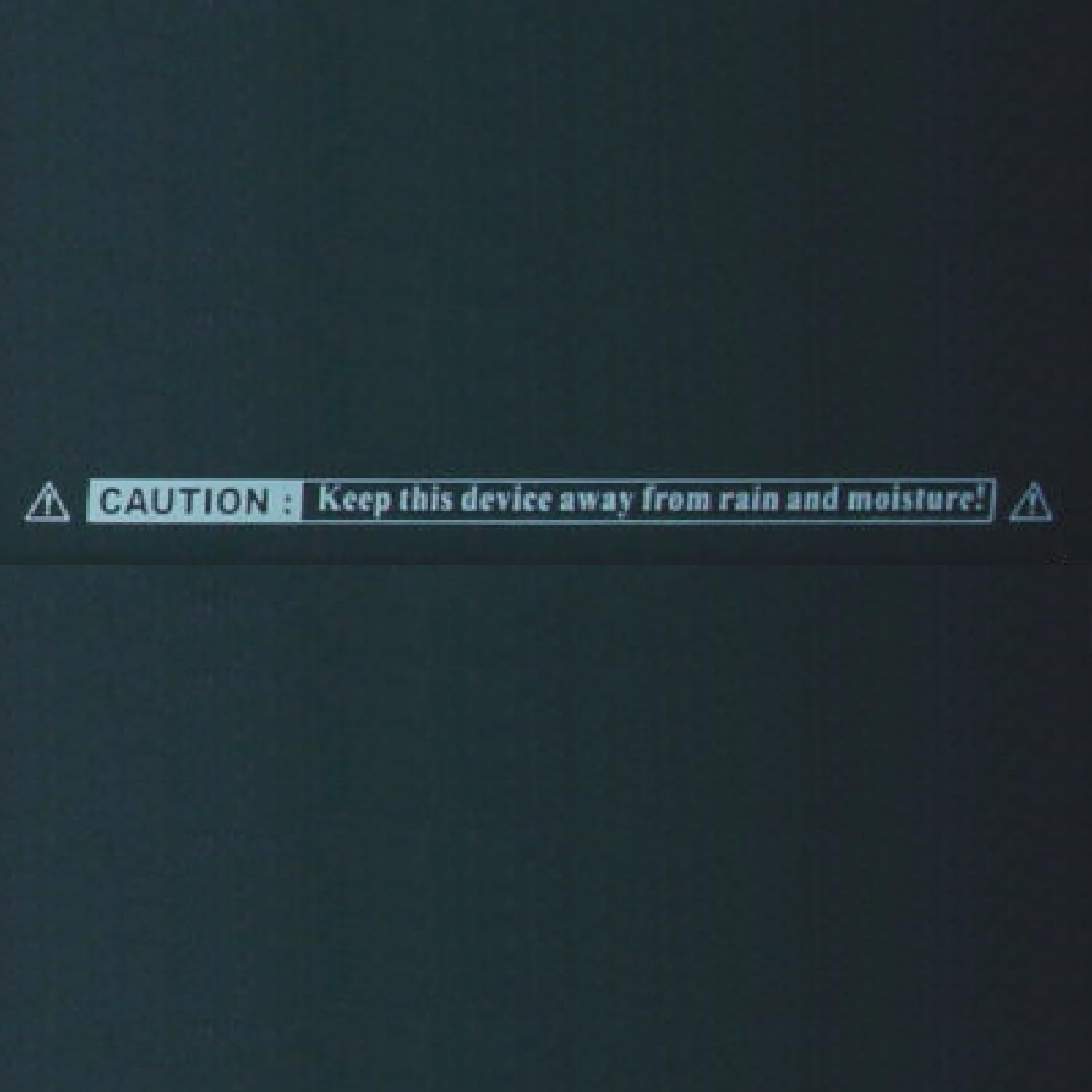
- Moisture: Keep this device away from rain and moisture. Do not expose it to dripping or splashing liquids.
- Ventilation: Ensure adequate ventilation around the unit. Do not block ventilation openings.
- Heat: Avoid placing the unit near heat sources such as radiators, heat registers, stoves, or other apparatus that produce heat.
- Cleaning: Disconnect from power before cleaning. Use a dry cloth only.
- Servicing: Do not attempt to service this unit yourself. Refer all servicing to qualified service personnel.
- Placement: Place the unit on a stable, flat surface. Avoid excessive vibration or shock.
3. Product Overview
The Ibiza LC192DMX is a 192-channel DMX controller designed for managing various DMX lighting effects. It features intuitive controls for programming scenes, chases, and adjusting parameters.
3.1. Front Panel Layout

The front panel provides access to all operational controls:
- Scanner Selection Buttons (SCAN 1-12): Used to select individual DMX fixtures or groups of fixtures. Each button has an indicator LED.
- Channel Faders (1-16): Control the DMX values for each of the 16 channels per selected scanner.
- Scene Buttons (SCENE 1-8): Store and recall programmed lighting scenes.
- Bank Up/Down Buttons: Navigate through the 30 memory banks.
- Program Button: Initiates and exits programming mode.
- Chase Buttons (CHASE 1-6): Store and recall programmed chase sequences.
- Speed and Time Faders: Adjust the speed and fade time of chases and scenes.
- LED Display: Shows current mode, bank, scene, or chase number.
- Operating Mode Buttons: AUTO/DEL, MUSIC/BANK COPY, MIDI/ADD for selecting operational modes and functions.
- TAP SYNC/DISPLAY Button: Used for tap tempo input and display mode selection.
- BLACKOUT Button: Instantly turns off all DMX output.


3.2. Rear Panel Connections

The rear panel houses all necessary connections:
- MIDI In/Out: For MIDI control and synchronization.
- DMX Output: 3-pin XLR connector for connecting to DMX lighting fixtures.
- DC Input (9V 500mA): Power input for the controller.
- LAMP: Connector for an optional gooseneck lamp.
- POWER Switch: Main power on/off switch.

4. Setup
Follow these steps to set up your DMX controller:
- Placement: Position the controller on a stable, flat surface or mount it in a standard 19-inch rack.
- Power Connection: Connect the provided power adapter to the DC Input port on the rear panel, then plug the adapter into a suitable power outlet.
- DMX Connection: Connect a 3-pin DMX cable from the DMX Output port on the controller to the DMX input of your first DMX lighting fixture. Daisy-chain additional DMX fixtures by connecting the DMX output of one fixture to the DMX input of the next. Ensure all DMX fixtures are properly terminated.
- MIDI Connection (Optional): If using MIDI control, connect MIDI cables to the MIDI In/Out ports as required by your MIDI setup.
- Lamp Connection (Optional): If desired, connect a gooseneck lamp to the LAMP port for illumination of the control surface.
- Power On: Flip the POWER switch on the rear panel to the 'ON' position. The LED display and indicator lights on the front panel should illuminate.
5. Operating Instructions
The LC192DMX offers various modes for controlling your lighting setup.
5.1. DMX Channel Assignment
Before operation, ensure your DMX fixtures are set to their correct DMX start addresses. The LC192DMX controls up to 12 scanners (fixtures), each with 16 DMX channels.
5.2. Programming Scenes
A scene is a static lighting state. The controller can store 8 scenes per bank, across 30 banks (240 scenes total).
- Press the PROGRAM button to enter programming mode. The PROGRAM LED will flash.
- Use BANK UP/DOWN to select the desired memory bank (1-30).
- Select the desired scanner(s) using the SCAN 1-12 buttons.
- Adjust the CHANNEL FADERS (1-16) to set the desired DMX values for the selected scanner(s).
- Press the MIDI/ADD button.
- Press one of the SCENE 1-8 buttons to save the scene. The display will flash to confirm.
- Repeat for additional scenes. Press PROGRAM to exit programming mode.
5.3. Programming Chases
A chase is a sequence of scenes played back in order. The controller can store 6 programmable chase memories.
- Press the PROGRAM button to enter programming mode.
- Select the desired CHASE 1-6 button. The CHASE LED will flash.
- Use BANK UP/DOWN to select the bank containing the scenes you wish to add to the chase.
- Press the SCENE 1-8 button for the scene you want to add.
- Press the MIDI/ADD button to add the scene to the chase.
- Repeat steps 3-5 to add more scenes from different banks to the chase.
- Press PROGRAM to exit programming mode.
5.4. Operating Modes
- Manual Mode: Directly control DMX channels using the faders.
- Automatic Mode: Press AUTO/DEL to activate. The controller will cycle through programmed chases. Adjust speed and fade time using the dedicated faders.
- Sound Activated Mode: Press MUSIC/BANK COPY to activate. The built-in microphone will trigger scenes or chases based on audio input.
- MIDI Mode: The controller can receive MIDI commands for external control. Refer to the MIDI implementation chart for details.
5.5. TAP SYNC and Speed Control
In automatic or sound-activated modes, use the TAP SYNC/DISPLAY button to manually set the tempo of chases by tapping it multiple times. The SPEED and TIME faders allow fine-tuning of chase speed and scene fade duration.
5.6. Blackout Function
Press the BLACKOUT button to instantly turn off all DMX output, effectively turning off all connected lights. Press it again to restore the previous lighting state.
6. Maintenance
Regular maintenance ensures the longevity and optimal performance of your DMX controller.
- Cleaning: Periodically wipe the exterior with a soft, dry cloth. Do not use abrasive cleaners or solvents.
- Dust: Keep the unit free from dust accumulation, especially around faders and buttons, to prevent operational issues.
- Storage: When not in use for extended periods, store the controller in a cool, dry place, protected from dust and extreme temperatures.
- Cable Inspection: Regularly inspect all cables (power, DMX, MIDI) for signs of wear or damage. Replace damaged cables immediately.
7. Troubleshooting
If you encounter issues with your LC192DMX controller, refer to the following common problems and solutions:
| Problem | Possible Cause | Solution |
|---|---|---|
| Controller does not power on. | No power, faulty adapter, power switch off. | Check power connection, ensure adapter is working, verify power switch is ON. |
| Lights are not responding to DMX. | Incorrect DMX cabling, incorrect fixture addressing, Blackout engaged. | Check DMX cable connections, verify fixture DMX addresses, ensure Blackout button is disengaged. |
| Scenes or chases are not playing correctly. | Incorrect programming, wrong operating mode selected. | Review programming steps, ensure correct operating mode (Auto, Music) is selected. |
| Faders or buttons are unresponsive. | Dust or debris, internal fault. | Clean the control surface. If problem persists, contact support. |
8. Specifications
- DMX Channels: 192
- Controllable Fixtures: Up to 12 DMX light effects
- Channels per Fixture: 16
- Memory Banks: 30 (each containing 8 programmable scenes)
- Programmable Chases: 6
- Fade Time: Adjustable
- Operating Modes: Sound activated, automatic, manual, MIDI
- Microphone: Built-in
- Display: 4-digit LED
- Input Voltage: 9-12Vdc
- Output Voltage (Adapter): 230Vac/50Hz (120Vac/60Hz) 300mA, 9Vdc 300mA
- Dimensions: 482 x 132 x 73 mm
- Weight: 2.5 kg
- Model Number: 15-1180
9. Warranty and Support
This product is covered by a standard manufacturer's warranty. For specific warranty terms and conditions, please refer to the documentation provided with your purchase or contact your retailer. For technical support, troubleshooting assistance, or spare parts inquiries, please contact the manufacturer or your authorized dealer.