
Introduction
The Tek Pal 6-Button Remote Control is designed for ease of use, featuring large, lighted buttons for clear visibility and simple operation. This palm-sized remote simplifies controlling your television and compatible cable/satellite receivers.
It includes only six oversized buttons to turn the TV on or off, adjust volume, and change channels, minimizing complexity. The remote operates using Infrared (IR) technology and is not compatible with RF (radio frequency) devices. Its ergonomic design ensures a comfortable grip.

Image: The Tek Pal remote control, showcasing its six large, glowing green buttons for power, volume, and channel control.
Setup
1. Battery Installation
The Tek Pal remote requires two AA batteries (not included). To install:
- Locate the battery compartment on the back of the remote control.
- Slide the battery compartment cover off.
- Insert two AA batteries, ensuring correct polarity (+ and -) as indicated inside the compartment.
- Replace the battery compartment cover.
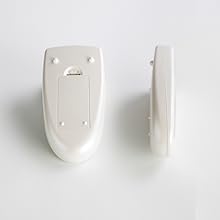
Image: Back and side view of the Tek Pal remote, illustrating the location of the battery compartment.
2. Programming for Television (TV)
Follow these steps to program your Tek Pal remote for your television:
- Turn on your TV.
- Press and hold the ON/OFF and MUTE buttons together until the indicator light illuminates (3 seconds).
- Press and release the CH+ button repeatedly until the TV turns off. (The Tek Pal contains more than 200 codes).
- Press and release the MUTE button immediately after the TV turns off to confirm setup.
- Power the TV on using ON/OFF. If the TV does not power back on, you may have pressed CH+ after the TV turned off. Proceed with setup again, but this time, if the TV turns off, wait a few seconds before pressing the MUTE button.
- For TV-only users (no cable box or satellite receiver): Test the VOL+/-, CH+/-, and ON/OFF buttons. If any buttons do not function, proceed with setup again.
- For cable box/satellite box users: Test ON/OFF and VOL+/-. If ON/OFF or VOL+/- buttons do not function, proceed with setup again to find a better code.
3. Programming for Cable/Satellite Devices (Additional Setup)
If you use a cable or satellite box, follow these additional steps:
- Program your TV first using the instructions above.
- Power on your cable/satellite device.
- Press and hold MUTE and then the ON/OFF button together until the indicator light illuminates (3 seconds).
- Press and release the VOL+ repeatedly until the cable or satellite device turns off.
- Press and release MUTE immediately after the cable or satellite device turns off. (Note: If the device does not power off, rather a message may appear, press TV ON/OFF).
- Power the device back on manually or using your old remote.
- Press and hold the ON/OFF and CH+ buttons together until the indicator light illuminates (3 seconds). This step configures the Tek Pal to change channels on the cable or satellite device.
- If the channels do not change, proceed with setup of cable or satellite device again.
- To enable Master Power (power on both the TV and cable or satellite device): Press and hold MUTE and then ON/OFF together. If the indicator light illuminates (3 seconds), press and release ON/OFF three times. Press and release MUTE.

Image: Detailed programming instructions for the Tek Pal remote, as found on its packaging.
Operating Instructions
The Tek Pal remote features six large, easy-to-press buttons. When any button is pressed, the buttons will light up green for easy visibility in low light conditions.

Image: The Tek Pal remote shown in both illuminated and dark environments, highlighting its backlit buttons.
- ON/OFF: Powers your television or programmed device on or off.
- MUTE: Mutes or unmutes the audio.
- VOL+ / VOL-: Increases or decreases the volume.
- CH+ / CH-: Changes the channel up or down.
For optimal performance, point the remote directly at your TV or cable/satellite box. The maximum effective range is approximately 10 meters (33 feet).
Maintenance
Battery Replacement
When the remote's performance diminishes or the indicator light fails to illuminate, it's time to replace the batteries. Follow the battery installation steps in the Setup section. Always use fresh AA batteries.
Cleaning
To clean the remote, gently wipe it with a soft, dry cloth. Do not use liquid cleaners or abrasive materials, as these can damage the remote's surface or internal components.
Troubleshooting
- Remote not responding:
- Ensure fresh AA batteries are correctly installed.
- Point the remote directly at the TV or device.
- Check for obstructions between the remote and the device.
- Reprogram the remote following the "Programming for Television" or "Programming for Cable/Satellite Devices" steps.
- Remote forgets programming:
- This can sometimes occur with low batteries. Replace batteries and reprogram.
- Ensure the programming steps are followed precisely, especially the confirmation step (pressing MUTE).
- Limited range:
- Replace batteries.
- Ensure there are no strong light sources (like direct sunlight) interfering with the IR signal.
- Ensure the remote is pointed directly at the device's IR receiver.
- Channels change too quickly when holding CH+ / CH-:
- The remote is designed to scan channels when the button is held. For single channel changes, press and release the button quickly.
- Remote not compatible with my TV/device:
- The Tek Pal remote uses Infrared (IR) technology. It is not compatible with RF (radio frequency) devices.
- While compatible with many brands, some specific models or newer devices may not be supported. Ensure all programming steps have been attempted multiple times.
Specifications
| Brand | The Wright Stuff |
| Model Name/Number | tpl-1240g |
| Color | White |
| Connectivity Technology | Infrared (IR) |
| Compatible Devices | Television, Cable/Satellite Receivers (IR compatible) |
| Number of Buttons | 6 |
| Special Features | Backlit buttons, Large buttons |
| Maximum Range | 10 Meters (33 feet) |
| Power Source | 2 x AA Batteries |
| Item Weight | 4 Ounces |
Support
For programming assistance or further inquiries, please refer to the manufacturer's support resources:
- Website: www.freedom-distributors.com
- Phone: (601) 882-1988 (as per packaging image)
- Email: info@freedom-distributors.com (as per packaging image)
Please note that warranty information is not provided in the product details. Contact the manufacturer directly for warranty inquiries.