
1. Introduction
This manual provides comprehensive instructions for the Mobility Lab USB AZERTY Wired Keyboard for Mac. Designed with a sleek and elegant profile, this compact and ultra-thin keyboard seamlessly integrates into any modern office or home environment. Its plug-and-play functionality ensures ease of use, while its intelligent key layout offers high functionality.
Key features include navigation controls, a numeric keypad, and special function keys for multimedia application management. The silent keys contribute to a comfortable typing experience. Constructed with high-quality materials, the keyboard is designed to withstand drops and spills, offering excellent durability.
2. Product Overview
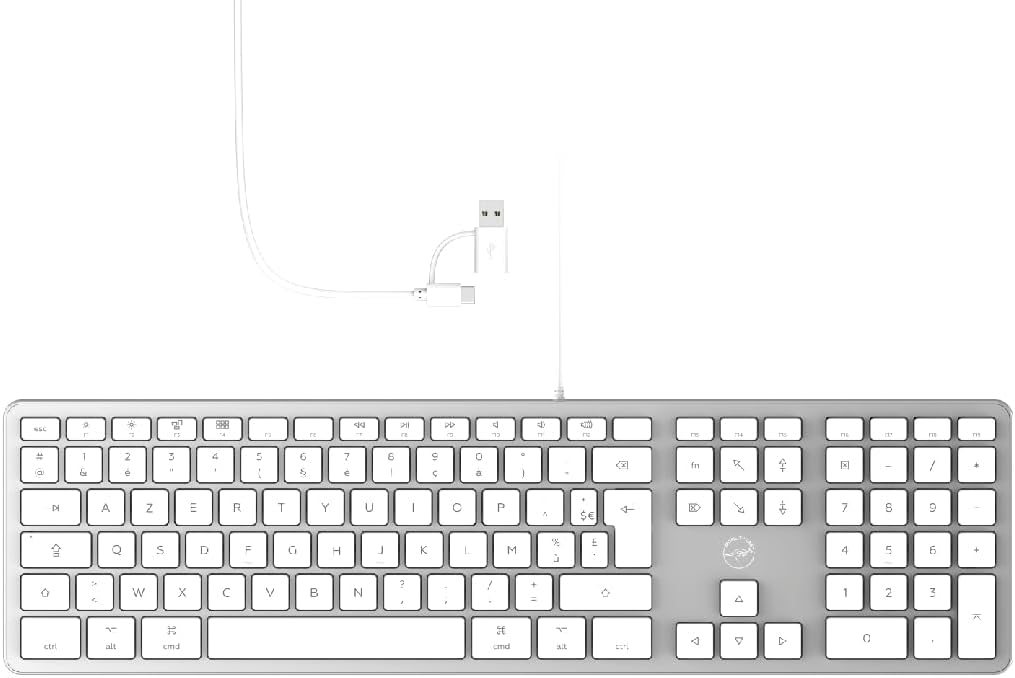
Figure 2.1: Front view of the Mobility Lab USB AZERTY Wired Keyboard, showcasing its full layout and sleek design.
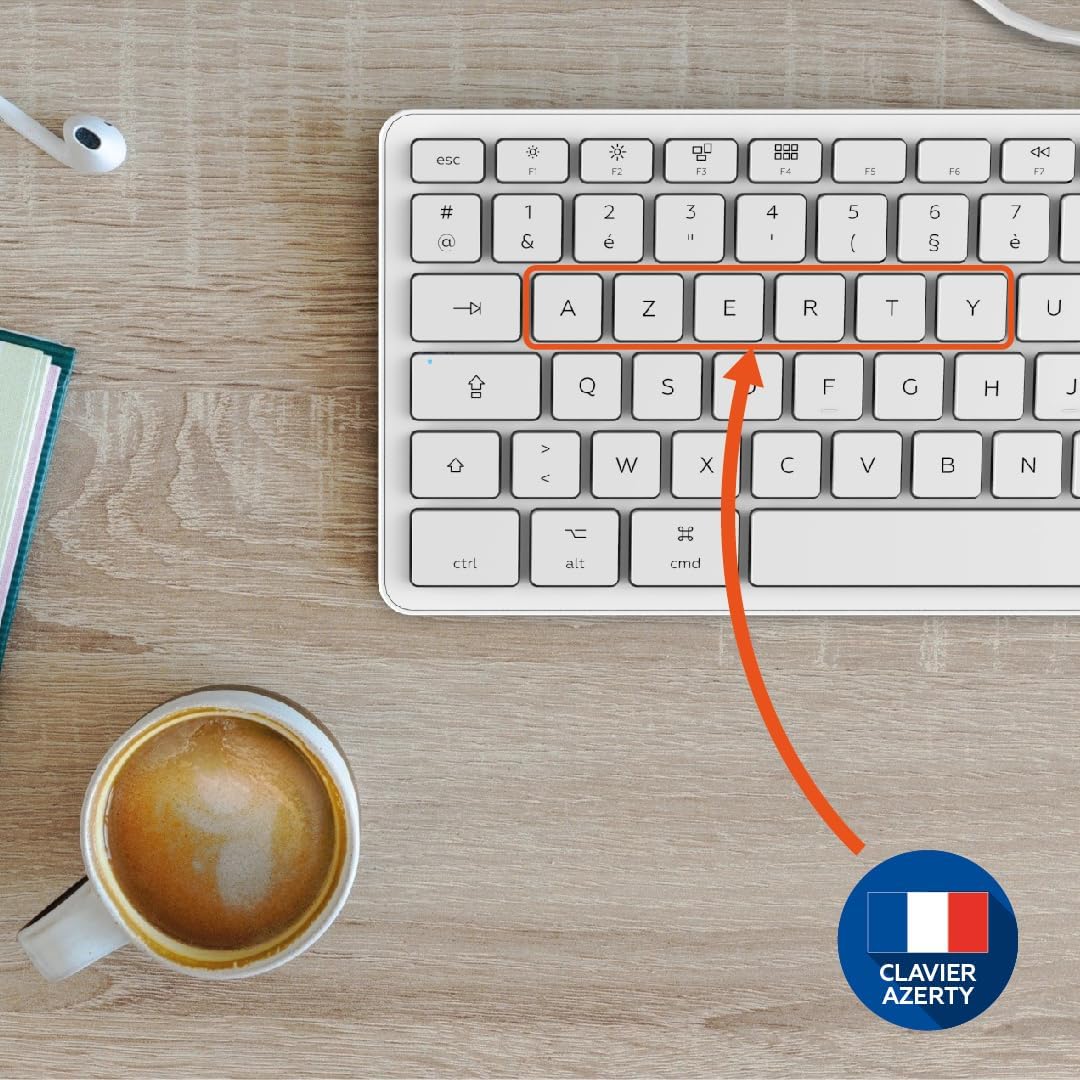
Figure 2.2: Close-up of the keyboard highlighting the AZERTY layout, indicating its French standard key arrangement.

Figure 2.3: Angled perspective of the keyboard, showing its slim profile and key spacing.

Figure 2.4: Detail showing the 1.5-meter USB cable, emphasizing the wired connection for reliable performance.

Figure 2.5: Diagram illustrating the keyboard's dimensions: 441mm length, 124mm width, and 20mm thickness.
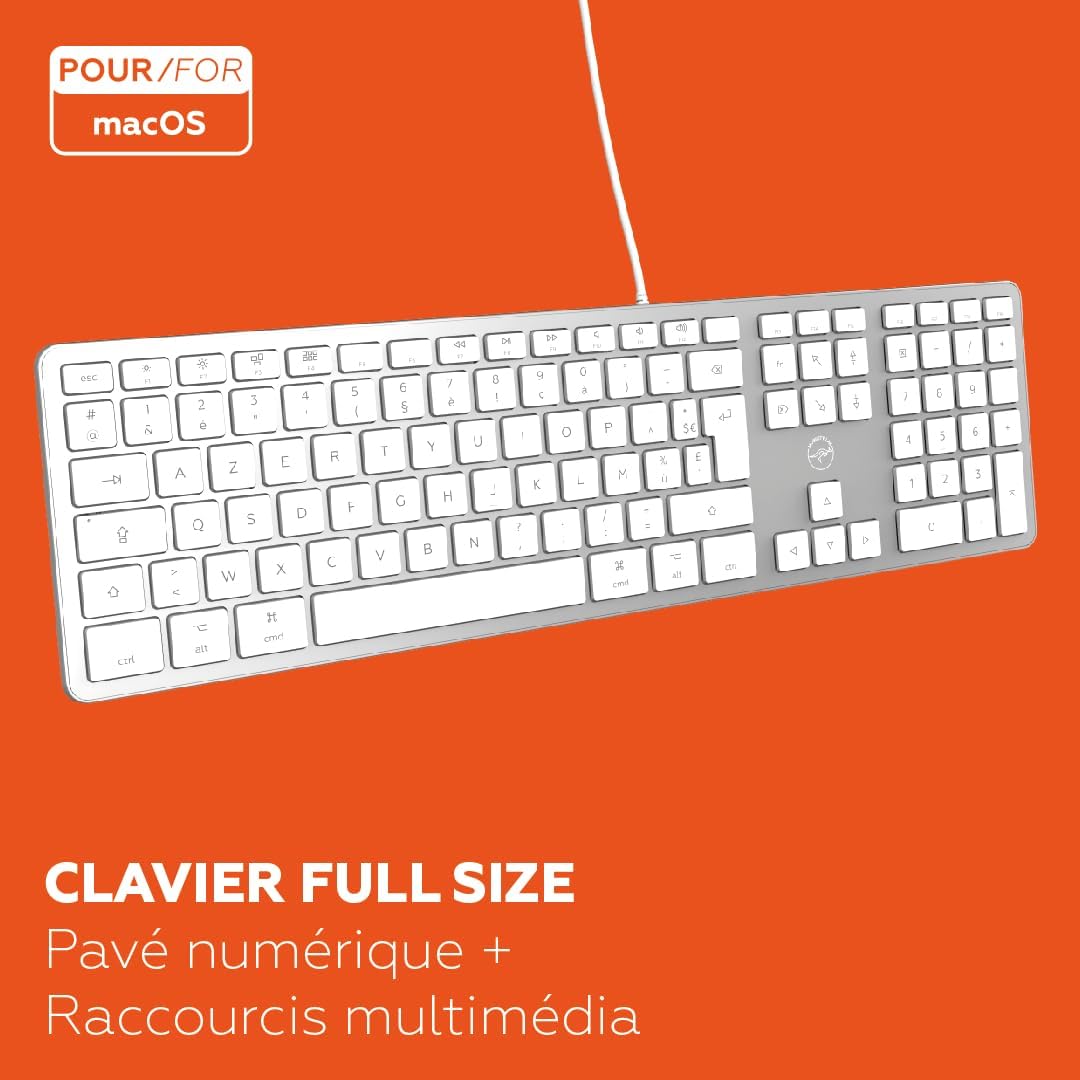
Figure 2.6: Image confirming macOS compatibility and highlighting the full-size layout, including a numeric keypad and multimedia shortcuts.

Figure 2.7: Close-up demonstrating the scissor-switch key mechanism, designed for light and precise typing.

Figure 2.8: Another view emphasizing the thin and elegant design, with key dimensions of 437mm length and 120mm width.

Figure 2.9: Illustration of the two adjustable inclination modes provided by the foldable feet, allowing for ergonomic customization.

Figure 2.10: The keyboard in a typical desk setup, highlighting Mobility Lab as a French brand.
3. Setup Instructions
- Unpack the Keyboard: Carefully remove the keyboard and its USB cable from the packaging.
- Connect to Your Computer: Locate an available USB port on your Mac or Windows computer. Insert the USB connector of the keyboard cable firmly into the USB port.
- Plug and Play: The Mobility Lab keyboard is designed for "Plug and Play" functionality. Your operating system should automatically detect and install the necessary drivers. No additional software installation is required.
- Verify Connection: Once connected, test the keyboard by typing in a text editor or browser to ensure all keys are responsive.
Note: If the keyboard is not immediately recognized, try connecting it to a different USB port or restarting your computer. Some users have reported that a simple system restart can resolve initial recognition issues.
4. Operating the Keyboard
4.1. Key Layout and Functions
The keyboard features a standard AZERTY French layout with 104 keys, including a full numeric keypad and dedicated function keys.
- Numeric Keypad: Located on the right side, for efficient data entry.
- Multimedia Shortcuts: Utilize the function keys (F1-F12) in combination with the 'fn' key (if present) to control media playback, volume, and other system functions. Refer to your operating system's documentation for specific key assignments.
- Navigation Controls: Dedicated arrow keys and navigation cluster (Home, End, Page Up, Page Down, Insert, Delete) for easy document and web browsing.
4.2. Ergonomics and Comfort
- Adjustable Feet: The keyboard is equipped with foldable feet on the underside, allowing you to adjust the typing angle for improved comfort. Extend the feet for a more inclined position or fold them for a flatter profile.
- Silent Keys: The keys are designed to be quiet, providing a comfortable and less disruptive typing experience.
5. Maintenance and Care
To ensure the longevity and optimal performance of your Mobility Lab keyboard, follow these maintenance guidelines:
- Cleaning:
- Disconnect the keyboard from your computer before cleaning.
- Use a soft, lint-free cloth slightly dampened with water or a mild cleaning solution to wipe the surface of the keys and chassis.
- Avoid using harsh chemicals, abrasive cleaners, or solvents, as these can damage the keyboard's finish.
- For dust and debris between keys, use compressed air or a small brush.
- Spill Protection: The keyboard is designed to be resistant to minor spills. In case of a liquid spill, immediately disconnect the keyboard from your computer, wipe off the liquid, and allow it to air dry completely before reconnecting.
- Storage: When not in use for extended periods, store the keyboard in a clean, dry environment away from extreme temperatures and direct sunlight.
6. Troubleshooting
6.1. Keyboard Not Responding
- Check USB Connection: Ensure the USB cable is securely plugged into a functioning USB port on your computer. Try a different USB port.
- Restart Computer: A simple restart of your computer can often resolve connectivity issues.
- Test on Another Computer: If possible, test the keyboard on another computer to determine if the issue is with the keyboard or your computer's USB ports/drivers.
6.2. Keys Not Functioning Correctly
- Clean Keys: Dust or debris under the keys can sometimes cause them to stick or become unresponsive. Refer to the "Maintenance and Care" section for cleaning instructions.
- Software Issues: Ensure your operating system is up to date. Sometimes, specific software or drivers can interfere with keyboard functionality.
6.3. Multimedia Keys Not Working
- Function Key (fn) Usage: On some Mac systems, you may need to press the 'fn' key in conjunction with the F-keys (F1-F12) to activate their special functions. Check your system preferences for keyboard settings related to function keys.
- Operating System Settings: Verify that multimedia key functions are enabled and correctly configured in your computer's system settings (e.g., Keyboard settings on macOS).
7. Specifications
| Feature | Detail |
|---|---|
| Brand | Mobility Lab |
| Model Number | ML300368 |
| Connectivity Technology | USB (Wired) |
| Keyboard Description | AZERTY French wired keyboard with 104 keys, slim and elegant design, adjustable feet, responsive silent keys, keyboard shortcuts, Mac compatible. |
| Cable Length | 1.5 meters |
| Dimensions (L x W x H) | 437 x 120 x 22 mm (17.2 x 4.7 x 0.87 inches) |
| Color | White and Silver |
| Compatibility | Mac and Windows |
| Special Features | Keyboard shortcuts and multimedia keys |
8. Warranty and Support
8.1. Manufacturer's Warranty
The Mobility Lab USB AZERTY Wired Keyboard comes with a 2-year manufacturer's warranty. This warranty covers defects in materials and workmanship under normal use. Please retain your proof of purchase for warranty claims.
For detailed warranty terms and conditions, please refer to the official Mobility Lab website or contact their customer support.
8.2. Customer Support
If you encounter any issues or have questions regarding your Mobility Lab product, please visit the official Mobility Lab store on Amazon or their corporate website for support resources, FAQs, and contact information.
Mobility Lab Amazon Store: Visit Store

