
Introduction
This manual provides detailed instructions for the setup, operation, maintenance, and troubleshooting of your Dell P2210 22-inch Wide LCD Monitor. Please read this manual thoroughly before using your monitor to ensure proper functionality and to prevent damage.
Setup
1. Unpacking the Monitor
Carefully remove all components from the packaging. Ensure all parts listed in the packing slip are present. Retain the packaging materials for future transport or service needs.
2. Attaching the Stand
- Place the monitor panel face down on a soft, clean cloth to prevent scratches.
- Align the stand base with the monitor arm.
- Secure the stand base to the monitor arm using the provided screw.
- Attach the assembled stand to the back of the monitor panel, ensuring it clicks securely into place.
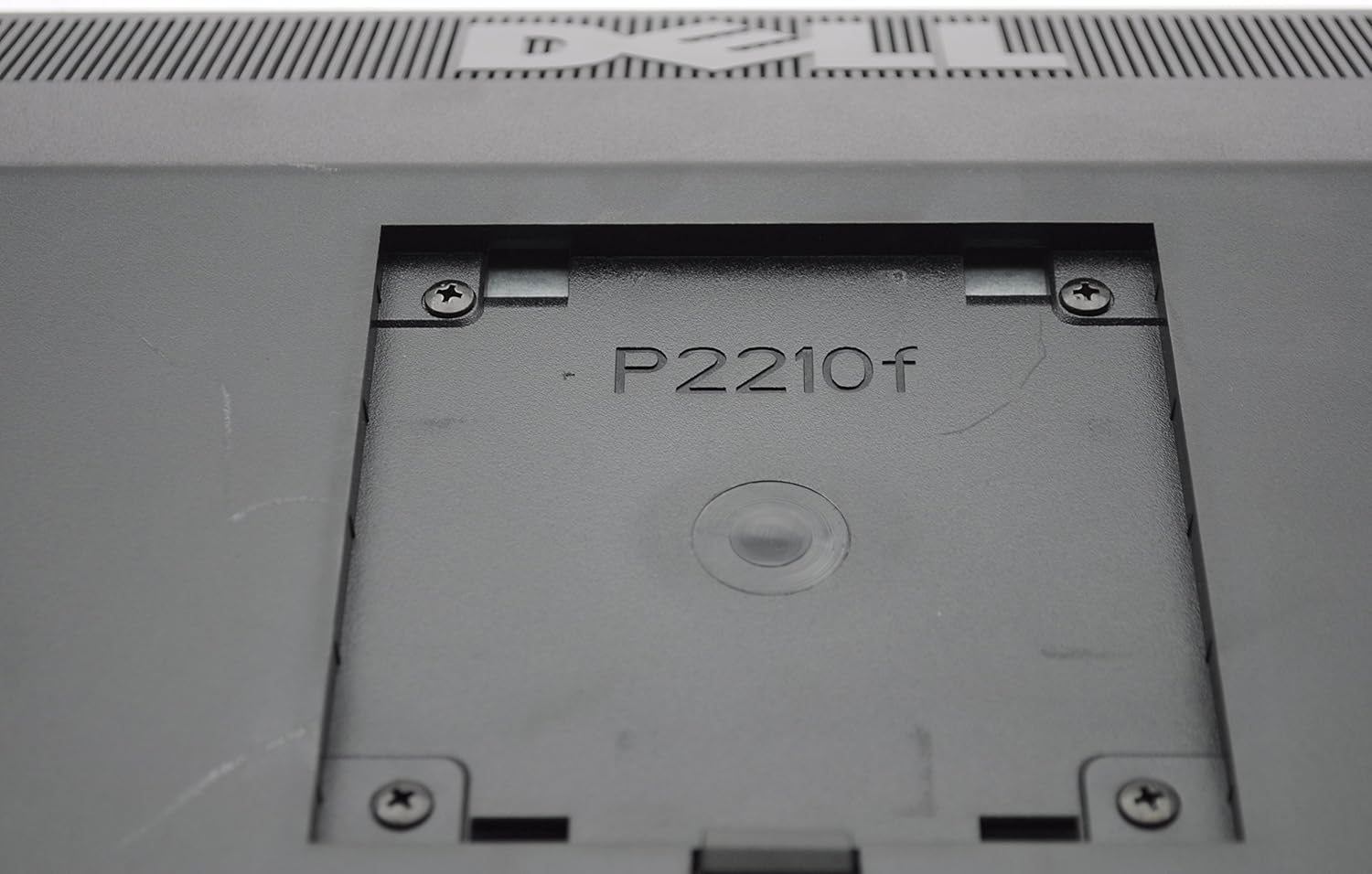
Image: The monitor stand, ready for attachment to the display panel.
3. Connecting Cables
Connect the necessary cables to the corresponding ports on the back of the monitor and your computer.
- Power Cable: Connect one end to the monitor's power input and the other to a grounded electrical outlet.
- Video Cable: Connect either a DVI-D, VGA, or DisplayPort cable from your computer's video output to the corresponding input on the monitor.
- USB Upstream Cable: Connect the square-shaped USB upstream cable from your computer to the monitor's upstream USB port to enable the monitor's USB 2.0 ports.
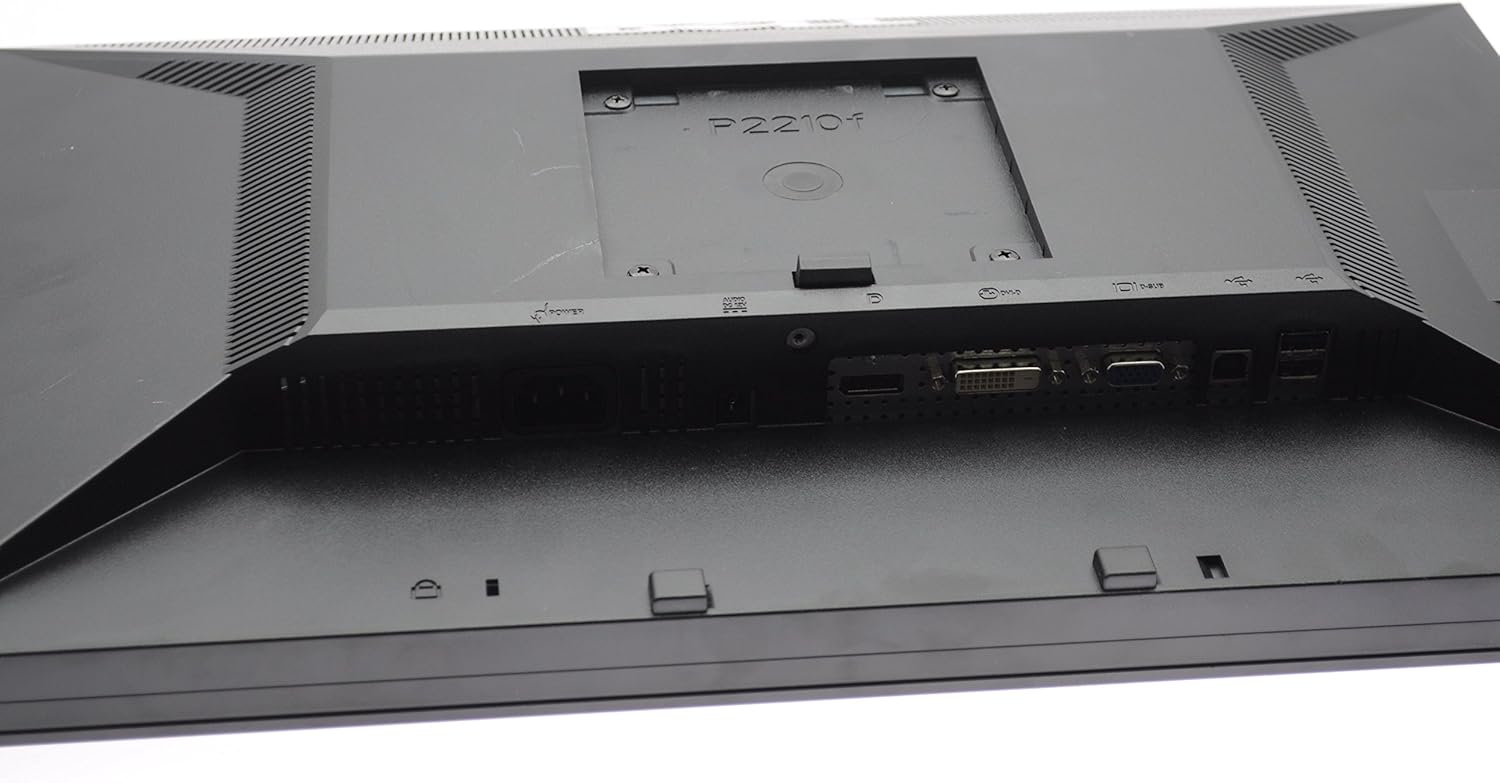
Image: Rear view of the Dell P2210 monitor showing the power input, DVI-D, VGA, DisplayPort, and USB ports.
4. Initial Power-On
After connecting all cables, press the power button on the front of the monitor to turn it on. Power on your computer. The monitor should automatically detect the input signal.

Image: Front view of the Dell P2210 monitor, displaying the screen and power button location.
Operating the Monitor
1. Power On/Off
Press the power button located on the front bezel of the monitor to turn it on or off. The power LED indicates the monitor's status.
2. On-Screen Display (OSD) Controls
The OSD menu allows you to adjust various display settings. Use the buttons on the front bezel to navigate and select options within the OSD.
- Menu Button: Activates the OSD menu.
- Up/Down Arrows: Navigate through menu options.
- Select Button: Confirms a selection or enters a sub-menu.
- Exit Button: Exits the OSD menu or returns to the previous level.

Image: Side view of the Dell P2210 monitor, highlighting the location of the control buttons for the On-Screen Display.
3. Adjusting Display Settings
Within the OSD, you can adjust settings such as:
- Brightness/Contrast: Adjust the overall luminance and difference between light and dark areas.
- Input Source: Manually select between DVI-D, VGA, or DisplayPort inputs.
- Color Settings: Modify color temperature, gamma, and individual RGB levels.
- Image Settings: Adjust sharpness, aspect ratio, and horizontal/vertical position for analog (VGA) input.
4. Using USB Ports
The monitor features four USB 2.0 downstream ports. Once the USB upstream cable is connected to your computer, these ports can be used to connect USB devices such as keyboards, mice, or flash drives.
Maintenance
1. Cleaning the Monitor
To clean the monitor screen, gently wipe it with a soft, lint-free cloth. For stubborn marks, dampen the cloth with a small amount of water or a non-ammonia, non-alcohol based glass cleaner. Do not spray cleaner directly onto the screen. For the casing, use a soft, dry cloth.
2. Safety Precautions
- Do not block ventilation openings.
- Do not expose the monitor to rain or moisture.
- Avoid placing the monitor in direct sunlight or near heat sources.
- Only use the power adapter supplied with the monitor.
Troubleshooting
If you encounter issues with your Dell P2210 monitor, refer to the following common problems and solutions:
- No Power: Ensure the power cable is securely connected to both the monitor and a working electrical outlet. Check the power LED indicator.
- No Signal: Verify that the video cable is correctly connected to both the monitor and the computer. Ensure the correct input source is selected in the OSD menu. Try restarting your computer.
- Blurry or Distorted Image: For analog (VGA) connections, use the OSD's 'Auto Adjust' function. Ensure your computer's display resolution is set to the monitor's native resolution (1680 x 1050).
- USB Ports Not Working: Confirm that the USB upstream cable is connected from the monitor to your computer. Check your computer's device manager for any USB driver issues.
For further assistance, consult the Dell support website or contact customer service.
Specifications
| Feature | Specification |
|---|---|
| Screen Size | 22 Inches |
| Resolution | 1680 x 1050 (WXGA+) |
| Aspect Ratio | 1.60:1 |
| Image Brightness | 250 candela per square meter |
| Total USB Ports | 4 (USB 2.0) |
| Video Inputs | DVI-D, VGA, DisplayPort |
| Product Dimensions | 20.15 x 7.25 x 16.19 inches |
| Item Weight | 9.96 pounds |
| Voltage | 120 Volts |
| Screen Surface Description | Glossy |
Warranty and Support
Your Dell P2210 monitor is covered by a limited warranty. For detailed warranty information, please refer to the warranty card included with your product or visit the official Dell support website. For technical support, driver downloads, or service requests, please visit www.dell.com/support.